


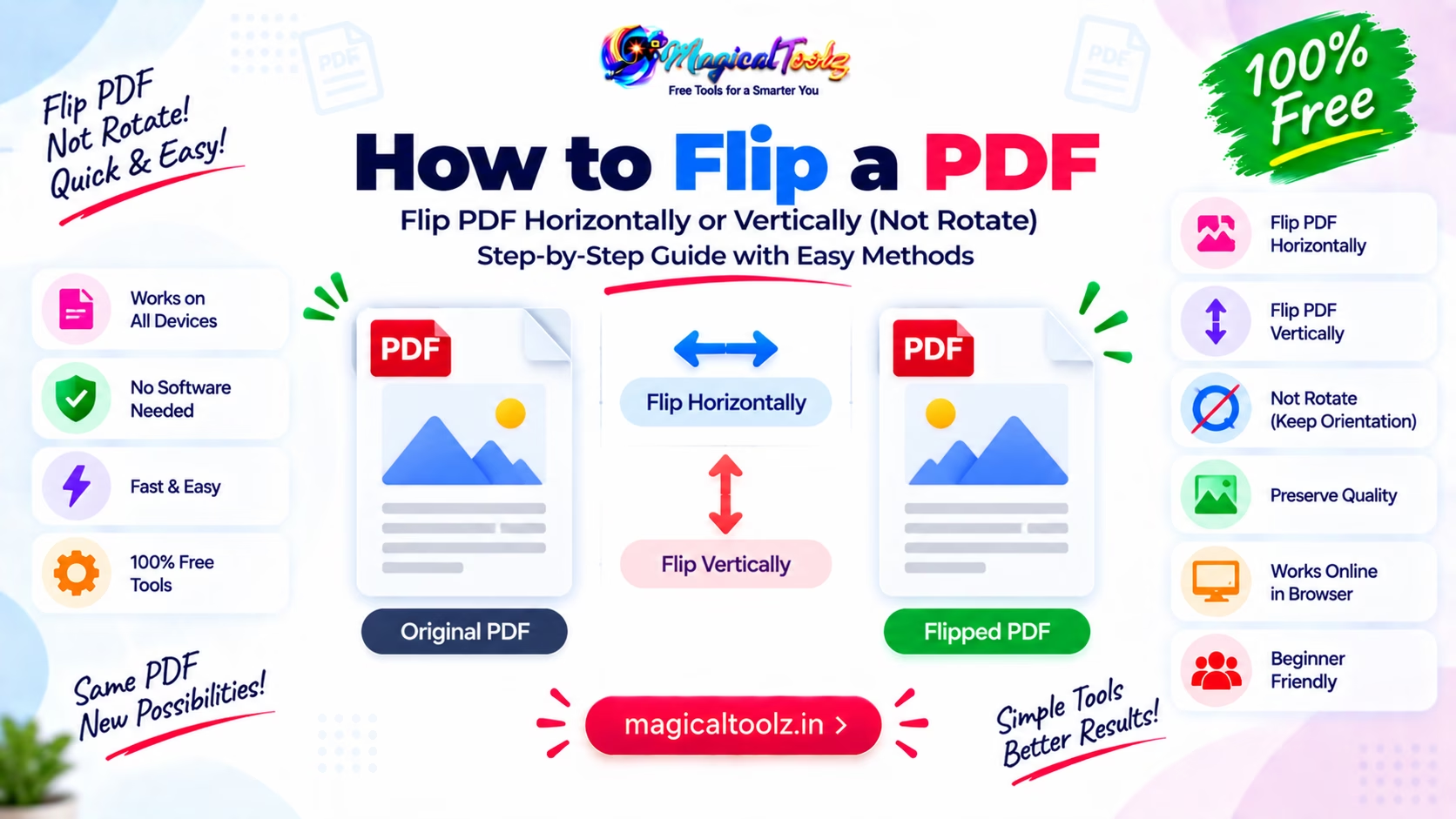
A PDF page can be upside down, sideways, or mirrored. These problems look similar at first, but they need different corrections. Rotation turns the entire page around a centre point. Flipping reflects the page across a horizontal or vertical axis.
Magical Toolz does not currently have an active PDF flip tool. If the page only needs turning, use the Rotate PDF tool. For mirror reflection, follow this standalone guide with PDF-aware software that explicitly supports horizontal or vertical flipping.
Quick answer: Rotate a sideways or upside-down page. Flip a page only when left and right, or top and bottom, are reversed like a mirror. Work on a copy and inspect text, signatures, page boxes, links, and print output afterward.
Flip, rotate, and crop are different operations
| Item | What you need to know |
| Rotate 90 degrees | Changes portrait to landscape or landscape to portrait without creating mirror text. |
| Rotate 180 degrees | Corrects an upside-down page but keeps left and right in their normal order. |
| Horizontal flip | Reflects the page from left to right. Text becomes mirror text unless the source was already mirrored. |
| Vertical flip | Reflects the page from top to bottom. It is not the same as turning the page upside down. |
| Crop | Changes the visible page boundary. It does not reflect or rotate the content. |
| Page view rotation | May affect only how a viewer displays a page; a permanent content transformation is a different operation. |
A safe PDF flipping workflow
- Open the original and identify whether the problem is mirroring or orientation.
- Duplicate the PDF so you can return to the unchanged source.
- Choose PDF-aware software that explicitly offers horizontal or vertical flip, not only rotation.
- Select the required pages instead of assuming every page has the same problem.
- Apply a horizontal flip for left-right reflection or a vertical flip for top-bottom reflection.
- Save to a new filename rather than overwriting the only copy.
- Reopen the output and inspect text, images, annotations, forms, links, and page order.
- Print one test page at actual size before running a large print job.
How to tell whether a page is mirrored
Look at letters, logos, faces, clock positions, and asymmetric objects. A mirrored page usually shows backward text and swaps left-side details with right-side details. If the text reads normally but the top edge is on the side, rotation is the likely fix.
A scan can contain both problems. For example, it may be mirrored and sideways. Correct the reflection first or second according to your software, then verify the final orientation. Do not judge only from a thumbnail because small mirrored text can be hard to notice.
Horizontal flip versus vertical flip
A horizontal flip reflects content across a vertical line. Imagine placing a mirror beside the page: the left edge moves to the right. This is the usual correction for mirror-written scans and transfer-print artwork.
A vertical flip reflects content across a horizontal line. The top moves to the bottom while left and right stay on their sides. It is less common for ordinary documents. Rotating 180 degrees moves both axes, so it produces a different arrangement from a vertical flip.
Vector pages and scanned pages
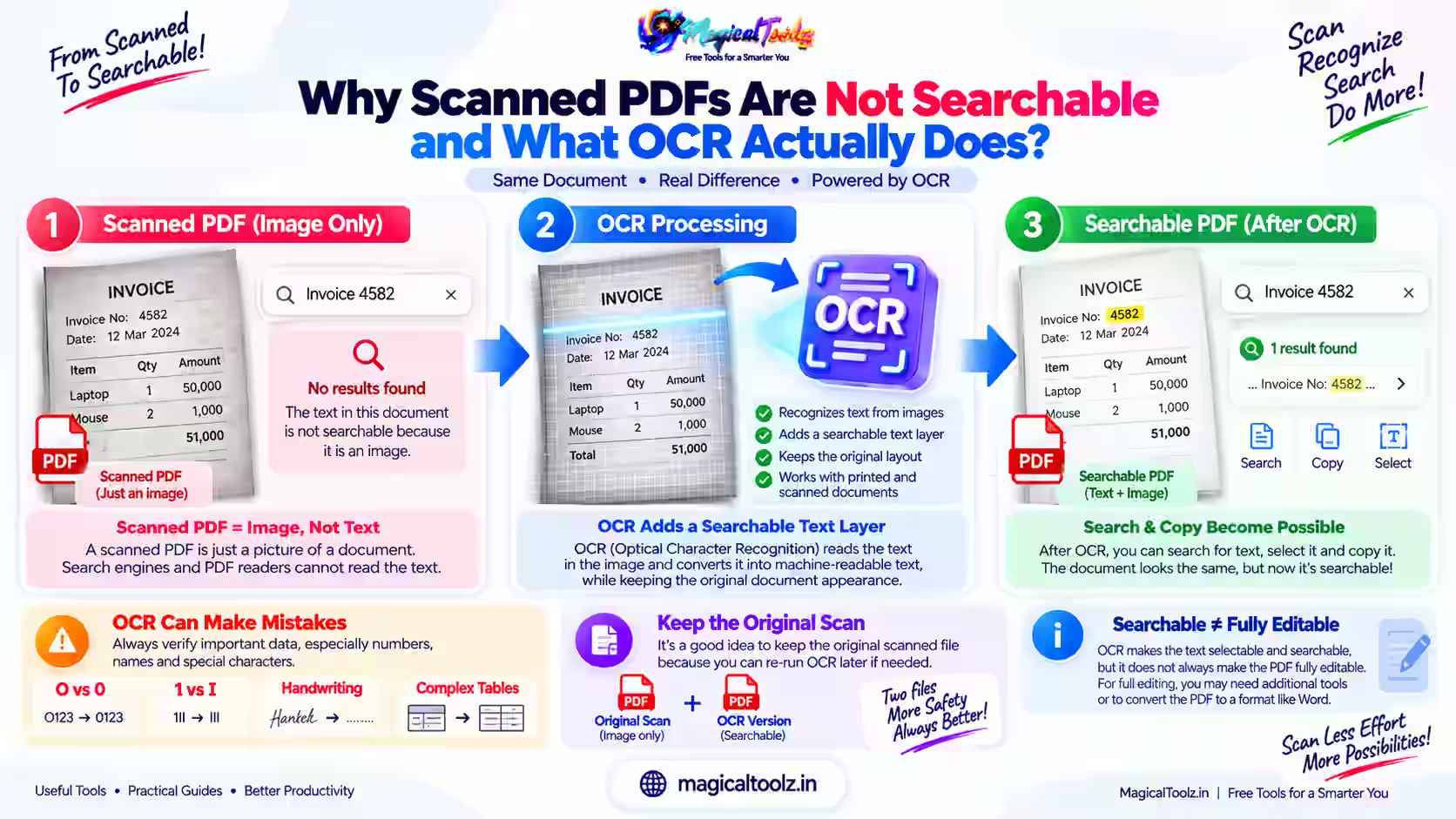
A scanned PDF page is often one large raster image. A tool may flip that image and rebuild the page. Text may remain visually clear, but it is still image content unless optical character recognition has added a text layer.
A born-digital PDF can contain text, vectors, images, clipping paths, and transparency. Reliable software must transform all relevant page content consistently. A tool that extracts only a preview image may rasterize sharp text and increase file size.
Forms, links, annotations, and signatures
Interactive elements can use coordinates independent of visible artwork. After a permanent page transformation, click links and form fields to confirm that their active areas still align with what you see. Review comments, stamps, highlights, and bookmarks as well.
A digital signature can become invalid when a signed PDF is modified. Preserve the signed original and confirm the legal or business workflow before changing it. A visual picture of a signature is not the same as a cryptographic PDF signature.
Printing transfer artwork and labels
Some transfer processes intentionally require mirrored artwork. In that case, readable on-screen text may need to become mirrored before printing so it transfers correctly onto the final surface. Follow the material and printer instructions.
Check print scaling, paper size, orientation, margins, and duplex settings. Flip on long edge and flip on short edge in a printer dialog describe duplex sheet handling; they are not image-mirroring commands.
Privacy and file handling
PDFs may contain personal records, contracts, IDs, invoices, or hidden metadata. Use an approved application and device. If an online service uploads the file, read its retention and deletion terms before sending confidential material.
Keep temporary outputs out of shared or automatically synced folders when required. Delete unneeded copies only after the corrected PDF has been reopened and backed up.
Plan the job before changing the source
Write down what is wrong, which files or pages are affected, and what the finished result must do. For How to Flip a PDF Without Confusing Flip and Rotate, that short plan prevents you from choosing an option only because its name sounds familiar. It also gives you a simple way to decide whether the output is acceptable.
Keep an unchanged source and use a new output filename. If you are processing a batch, test one representative item first, including the most unusual layout or largest file. A successful first preview does not prove that every later item has the same dimensions, metadata, structure, or content.
Record important settings such as page selection, direction, output format, dimensions, quality, crop boundary, or printer layout. You can then repeat the workflow without guessing. This is especially useful when another team member must reproduce the result or when a marketplace template changes.
Compare source and output, not only the success message
A completed status means the application produced a file; it does not certify that the file is correct for your purpose. Open the download independently, compare visible content with the source, and test the action that matters, such as scanning, clicking, printing, reading, or importing.
Check accessibility as part of that review. Do not remove readable text, useful contrast, page context, or alternative information merely to make an output smaller or visually cleaner. When the result will be printed, inspect one physical sample under normal lighting and at the intended viewing distance.
Keep the source until the output has passed those checks and reached its destination. If the task involves personal, commercial, or confidential data, follow the relevant retention policy instead of leaving extra downloads in a shared folder.
Know when a browser tool is not the right choice
A browser tool is convenient for a bounded, visible job, but it cannot replace every professional workflow. Use specialist desktop or server software when you need controlled colour management, signed-document preservation, very large batches, automation, audit logs, exact prepress output, regulated handling, or a format the browser cannot decode.
Low-memory phones can fail before a published file limit because decoding and previewing may need much more memory than the compressed input size. If the tab slows down, stop the job rather than repeatedly clicking the action. Try a smaller batch on a trusted desktop device and keep other memory-heavy tabs closed.
Do not rename a file extension to force acceptance. A renamed file still contains the original format and may fail or be interpreted incorrectly. Choose a workflow that explicitly supports the real source format, then validate the resulting file type instead of trusting its extension alone.
For repeat business work, document the approved settings and keep a small non-sensitive test file. Run that sample after browser, library, marketplace, printer, or operating-system changes. A quick regression check can catch a changed layout before it affects a full production batch.
Common mistakes and how to fix them
The page is still backward after a 180-degree rotation
Rotation cannot undo a mirror reflection. Return to the source and apply the correct horizontal or vertical flip.
Only the preview changed
Some viewers rotate a display without writing a permanent page transformation. Save, close, and reopen the file in another viewer to verify the output.
Text became blurry
The workflow may have rasterized a vector page. Use software that transforms PDF page content without converting the entire page to a low-resolution image.
Links no longer line up
The visual content moved but interactive coordinates did not. Use PDF-aware software and test every important interactive element.
The printed back side is wrong
Check duplex long-edge and short-edge settings separately from content mirroring. Test a two-page sample before printing the full document.
Final verification checklist
- The chosen pages were the only pages changed.
- Text reads in the intended direction.
- Portrait and landscape orientation is correct.
- No page was clipped.
- Images remain sharp at normal zoom.
- Links and form controls align.
- Bookmarks and page order still work.
- Digital-signature requirements were respected.
- The output opens in another PDF viewer.
- A physical test print looks correct.
Frequently asked questions
Is flipping a PDF the same as rotating it?
No. Rotation turns a page; flipping creates a reflection across one axis.
Which flip fixes mirror text?
A horizontal flip usually fixes left-right mirror text, but inspect the source before choosing.
Does a vertical flip equal a 180-degree rotation?
No. A vertical flip swaps top and bottom while retaining left-right positions. A 180-degree rotation changes both.
Can I flip only one PDF page?
Yes, when your PDF editor supports page selection. Verify that unselected pages remain unchanged.
Will flipping reduce quality?
A coordinate-based PDF transformation can preserve vector quality. Rasterizing a page at low resolution can reduce sharpness.
Can a signed PDF be flipped safely?
Editing can invalidate cryptographic signatures. Preserve the signed source and follow the required workflow.
Why does the printer mention flip on long edge?
That setting controls duplex sheet orientation, not a mirror transformation of page content.
Is there an active Magical Toolz PDF flip tool?
Not currently. Use this guide with software that explicitly supports the required reflection operation.
Identify the geometry before changing the file
If text is sideways or upside down, rotate it. If it reads backward, flip it. That simple diagnosis prevents repeated edits and unexpected print results.
Keep the original, use a PDF-aware operation, and verify the saved output in another viewer and on one test print before sharing it.
 Magical Toolz AI Support
Comments (0)
Use comments for article-specific feedback. Use the contact page for bugs and support requests.
Leave a Comment
No comments yet. Be the first to share something useful.