


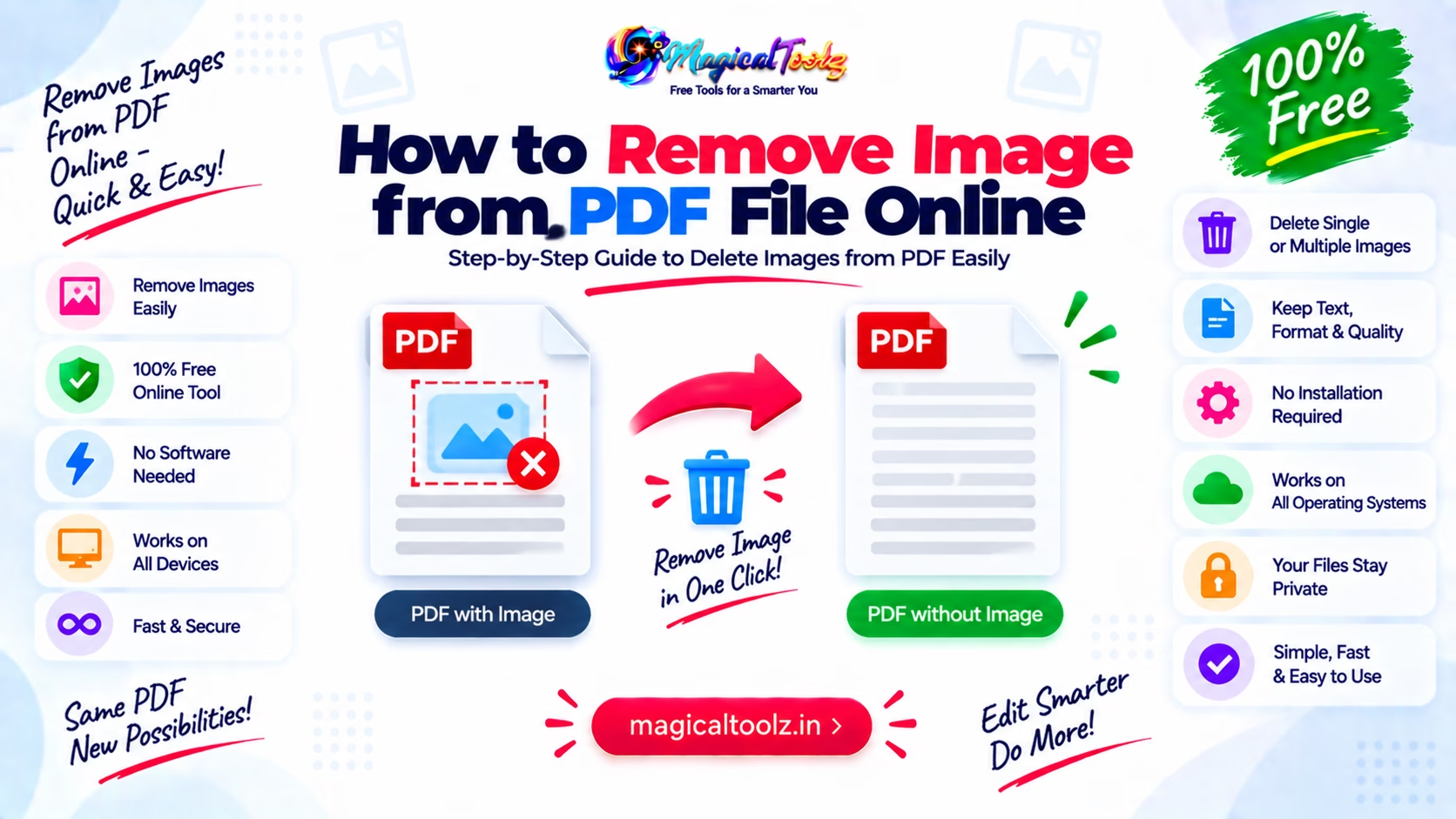
Use redaction, not a white rectangle, when the image contains private information. A shape placed over an image may hide it on screen while leaving the original object inside the PDF.
For an ordinary design edit, select the image with a PDF editor and delete it. For a scanned page, the whole page may be one image, so deleting it can remove the text and everything else on that page.
First identify what the PDF contains
Open the file in a real PDF editor and click the area you want to remove. One of these cases usually applies:
- Separate image object: the picture can be selected without selecting nearby text.
- Scanned page: the full page behaves like one image.
- Background or watermark: the picture may be stored as a page background, repeated object or watermark.
- Flattened artwork: text, lines and images have been combined into one object.
- Protected or signed PDF: editing may be restricted or may invalidate a signature.
This check prevents the common mistake of deleting a full scanned page when you only meant to remove a photo from it.
Delete a normal image object
- Save a copy of the original PDF.
- Open the copy in a PDF editor that can edit page objects.
- Choose its Edit PDF or Edit objects mode.
- Select the exact image. Check the selection border before deleting it.
- Delete the image and inspect nearby text, links and page layout.
- Save with a new filename.
- Close the editor, reopen the saved file and check the same page again.
Adobe's current Acrobat instructions for deleting PDF images use Edit, select the image, then Delete Image. Other editors use different labels, but the selection check matters in all of them.
Removing an image from a scanned page
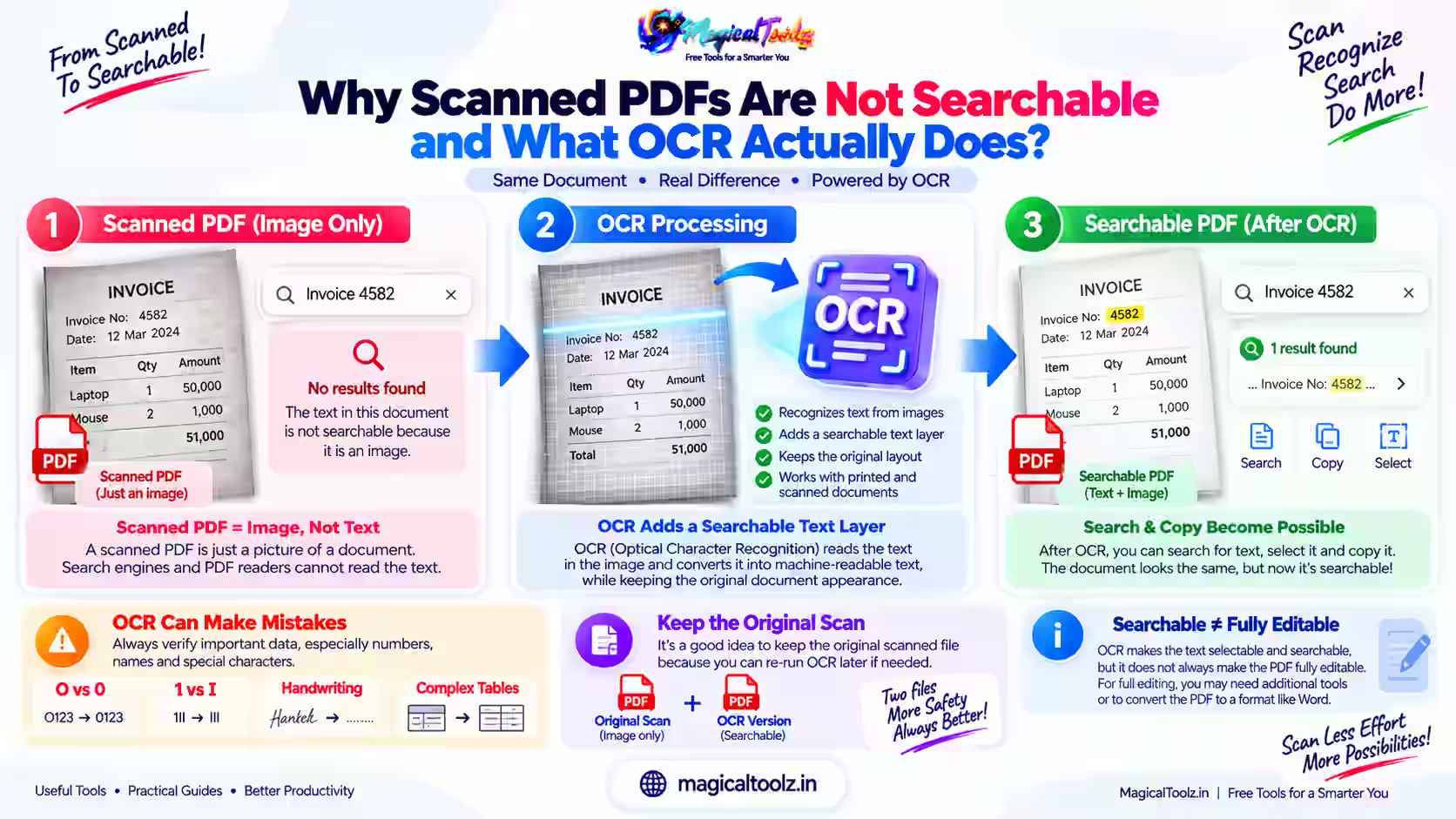
A scan often stores each page as one large bitmap. There is no separate photo object to delete. You have three practical choices:
- Redact the image area if it contains private material.
- Open the page in an image editor, remove or replace the area, then rebuild the PDF.
- Run OCR and rebuild the page as editable content, then check every line and layout change.
OCR can misread names, numbers, tables and small text. Compare the rebuilt page with the scan. If the PDF is a legal, medical or financial record, follow the organization's approved process instead of casually rebuilding it.
Redaction and deletion solve different problems
Deletion is a layout edit. Redaction is a privacy action intended to remove selected content. If the image shows a signature, account detail, address, face or identification document, use a redaction tool that applies the mark and removes the underlying data.
Adobe's PDF redaction guide explains marking text and images, applying the redaction, and optionally sanitizing hidden information. Save the result as a new file so the source remains controlled and unchanged.
A black box, white box, crop or blur is not proof that the source image was removed. Verify the PDF objects and hidden information in the final file.
Online editors need a privacy check
An online PDF editor may upload the file to its server. Read its privacy policy, retention terms, account controls and deletion process before sending private documents. Do not upload confidential files when your workplace or client requires an approved local system.
Adobe states that its web image editor starts by uploading the PDF and automatically saves changes to Adobe cloud storage. That may be acceptable for one job and prohibited for another. The relevant details are in Adobe's web image editing instructions.
Why the layout may move
A PDF uses positioned objects, not the flowing paragraph layout of a word processor. Deleting a photo may leave an empty space. Nearby text will not always move up automatically.
If you need the whole page to reflow, edit the original Word, PowerPoint, InDesign or other source file and export a new PDF. That usually gives a cleaner result than forcing a finished PDF to behave like an editable document.
Signed and protected PDFs
A password or permission setting can block editing. Do not bypass it without authority. Ask the owner for an editable copy or the source document.
Changing a digitally signed PDF can invalidate the signature because the signed bytes no longer match. Preserve the signed version and use the sender's correction process. A visually correct edited copy is not the same as the signed record.
How to verify the saved PDF
- Close and reopen the new file.
- Search for text that was inside or near the removed image.
- Try selecting the area where the image used to be.
- Check comments, attachments, layers and hidden information when the editor supports them.
- Inspect page thumbnails for layout changes.
- Test links, forms, bookmarks and reading order that the edit may have affected.
- Open the file in a second PDF viewer.
- For private content, use the editor's sanitation or hidden-data check.
Common problems
| Problem | What it usually means |
| The image cannot be selected | It may be part of a scan, flattened page, background or protected document. |
| The whole page disappears | The page was one scanned image. |
| A blank space remains | PDF objects do not automatically reflow like a word-processing file. |
| The signature becomes invalid | The signed document was changed after signing. |
| The file became much larger | The editor may have re-encoded images or rebuilt page content. |
| Private data can still be found | The content was covered, cropped or blurred instead of properly redacted. |
Questions about removing PDF images
Can I remove an image with a free PDF viewer?
Many viewers only display and annotate PDFs. You need editing or redaction support for the specific job.
Does cropping remove the image data?
Not necessarily. Cropping can change what is visible without deleting underlying objects.
Can I cover the image with a white box?
That is a visual cover, not safe removal. Use redaction for sensitive content.
Why did text disappear with the picture?
The page may be a single scan or flattened image containing both.
Should I overwrite the original?
No. Save a new copy until the edit, layout and privacy checks are complete.
Will deleting an image reduce file size?
It may, but editors can retain unused objects or re-encode the document. Compare the saved file and optimize it separately if needed.
 Magical Toolz AI Support
Comments (0)
Use comments for article-specific feedback. Use the contact page for bugs and support requests.
Leave a Comment
No comments yet. Be the first to share something useful.