


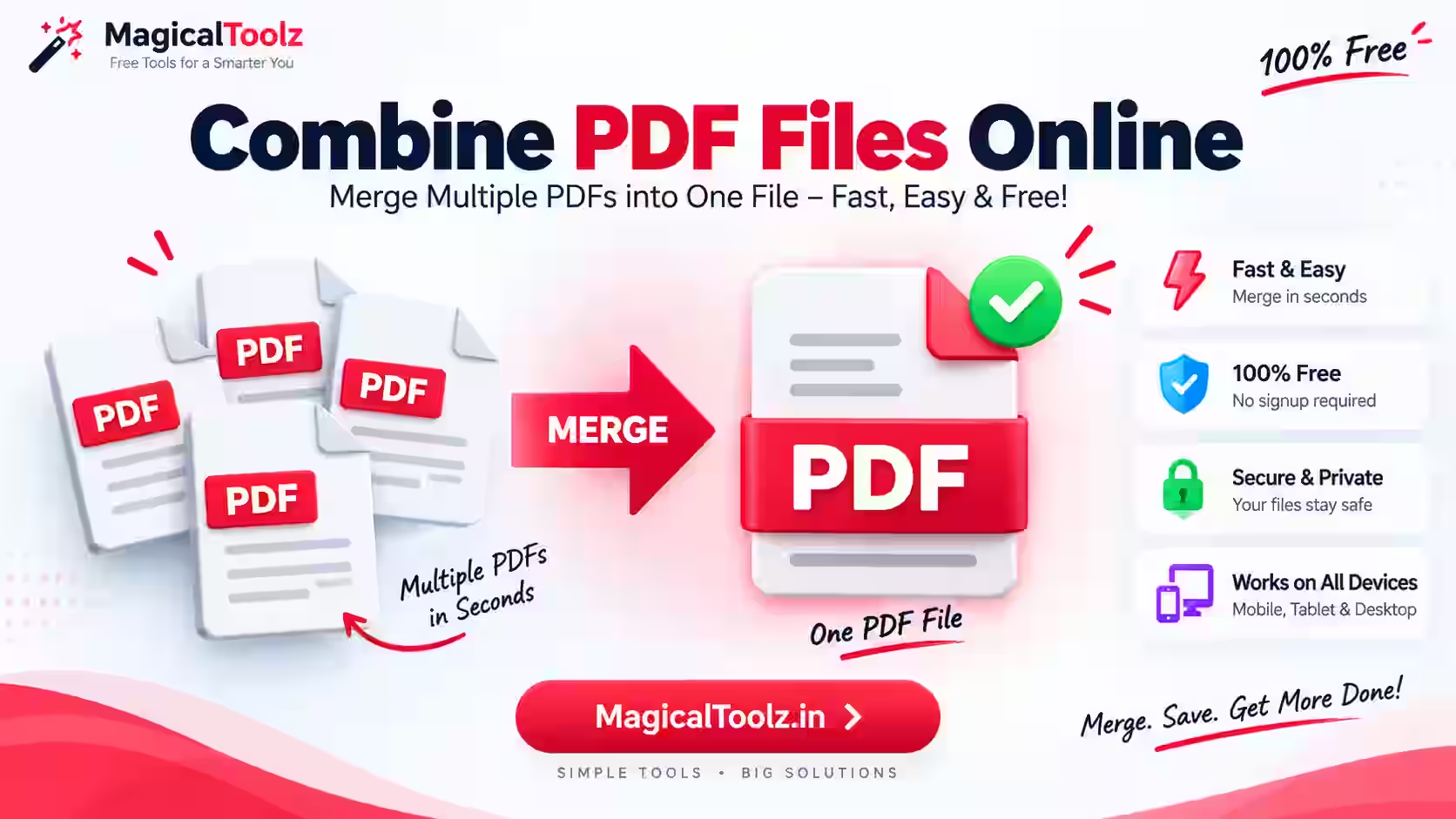
To combine PDF files correctly, decide the document order first, check every source file, and review the final PDF before you send or print it. A merge joins the pages from separate files, but it does not fix missing pages, remove duplicate documents, or make every page look the same.
When combining PDF files is useful
One PDF is often easier to read, store, and share than a group of separate attachments. A single file can keep related records together and give the reader a clear path through the information.
- Send an invoice with its shipping document and payment receipt.
- Combine an application form with identity proof and supporting pages.
- Join separate chapters, reports, or meeting notes.
- Store several monthly statements in one record.
- Collect scanned pages that were saved as separate PDF files.
The main benefit is organization. The merged file is easier to name, attach, and archive. Its usefulness still depends on the quality and order of the files you put into it.
Plan the page order before you merge
Write down the order before opening a PDF merger. Think about what the reader needs to see first, what should support that information, and what belongs at the end.
A useful order for a sales record might be:
- Invoice
- Shipping document
- Payment receipt
For an application, the signed form may come first, followed by identification and supporting evidence. There is no universal order for every document. Use the order that makes the file easy for its intended reader to follow.
Make a short file checklist
List the exact files you plan to combine. Include the filename, what it contains, and its intended position. This simple check helps when several files have similar names, such as scan.pdf, scan-1.pdf, and final-scan.pdf.
Rename copies with clear numbers when needed. Names such as 01-invoice.pdf, 02-shipping.pdf, and 03-receipt.pdf make the planned sequence easier to check. Numbering does not replace a review of the actual pages.
Check for duplicate, missing, or outdated files
A PDF merger normally includes every page from every selected source file. If the same invoice is selected twice, both copies can appear in the result. If an old version is selected by mistake, the merged PDF may contain information you no longer want to send.
- Compare filenames, dates, reference numbers, and page counts.
- Open files with similar names before adding them to the final set.
- Check that each expected document is present once.
- Remove drafts, blank scans, and files marked as old or superseded.
- Do not add an earlier merged PDF together with all of its original files, or pages may repeat.
If a source PDF contains an unwanted page, fix that source file first with a suitable page-removal or splitting tool. A normal merge will not know which page you meant to leave out.
Why page size and orientation can look different
PDF files can contain pages with different dimensions and directions. One source may use portrait A4 pages, while another uses US Letter or landscape pages. A merged document can keep that mixture, so the pages may not line up visually when you scroll or print them.
This difference does not automatically mean the merge failed. It may simply reflect the source files. A landscape shipping label next to a portrait invoice can be valid in the same PDF, even though the change in direction is noticeable.
Before printing, open the print preview and look at page scaling, margins, and orientation. If the whole document must use one paper size, standardize the source files before merging. Converting every page to one size can change spacing or make some content smaller, so check the result afterward.
Combining PDFs does not improve document quality
Merging changes how files are packaged. It does not turn a blurry scan into a sharp one, repair a damaged image, or restore text that was never present in the source file.
The final result depends on the source PDFs and the software used to create the merged file. A careful merger will usually copy the source pages, but different PDF features can behave differently across software. Do not assume that every font, form field, annotation, bookmark, metadata field, or other document feature will behave exactly as it did in the original.
Scanned PDFs
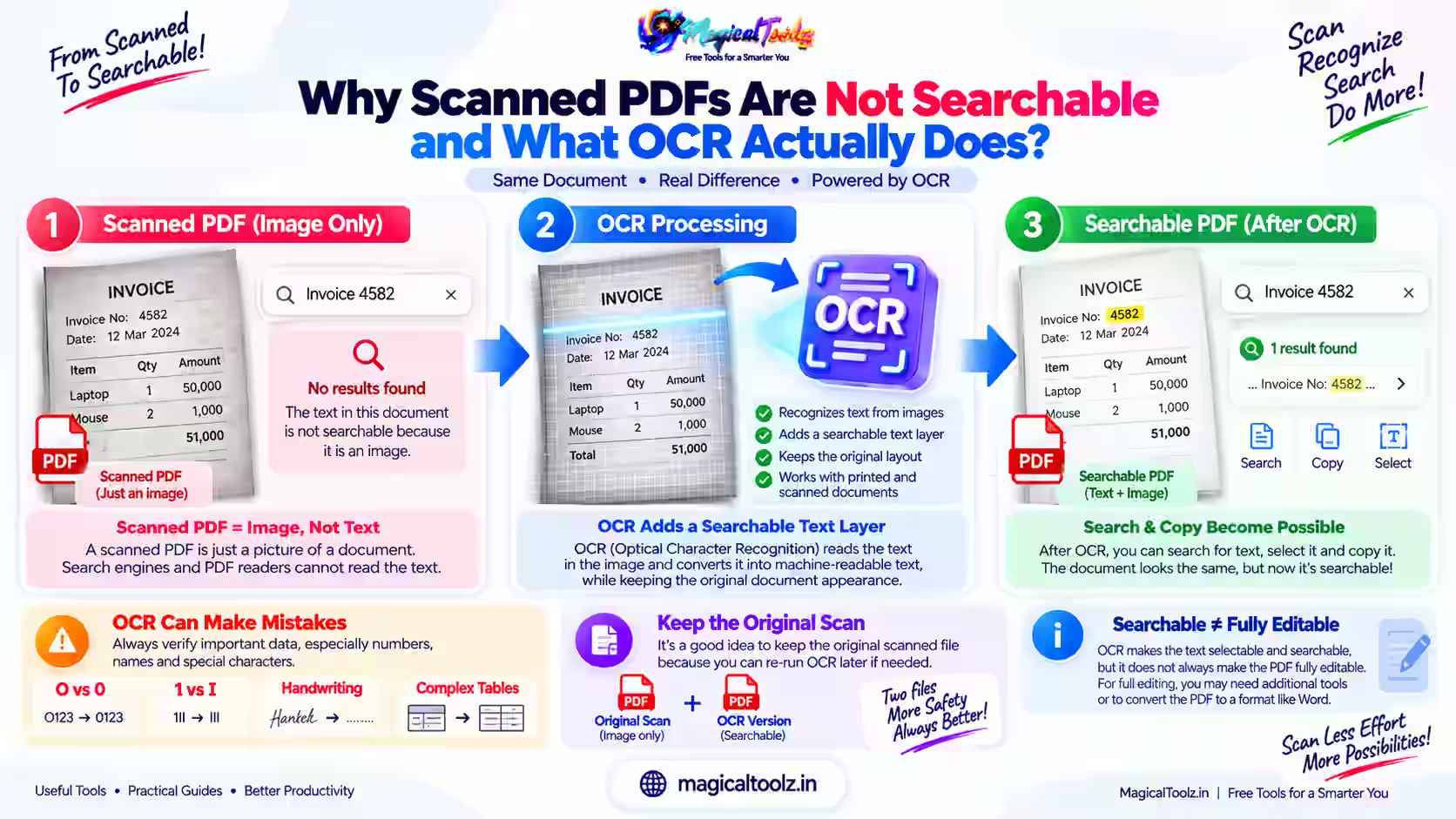
A scanned PDF is usually made of page images. The merged file will still contain those images. Text may not be searchable or selectable unless the source scan already has an OCR text layer. Merging alone does not add searchable text.
Text-based PDFs
A text-based PDF contains selectable characters. Its text usually remains selectable when pages are combined, but you should still test important pages in the final file. Copy a sentence, search for a word, and check that the text appears as expected.
Image-heavy PDFs
Catalogues, presentations, and high-resolution photo reports can contain large images. Combining them may create a large output file even when the pages look normal. If image quality matters, inspect a few pages at normal size and zoom in on small text or fine details.
How file size changes after combining
The final file contains the content from all selected PDFs, so its size is often close to the total size of the inputs. The exact result depends on how the software writes the combined document. A merge is not the same as compression.
Large scans and image-heavy reports can make the final PDF difficult to email or upload. Check the file size before sending it. If it is too large, create a backup of the original merged file, then use a separate compression process and compare the compressed copy with the backup.
Compression can reduce image detail or make small text harder to read. Open several pages after compression, especially pages containing receipts, signatures, tables, or fine print.
Keep the source files safe
Do not delete the original PDFs as soon as the merge finishes. Keep them until you have checked the final document and confirmed that the recipient can open it. The source files are also useful if you later need to replace one page, correct an outdated document, or create a different version.
Store the originals in a clearly named folder. A simple structure such as Order-1048/source-files and Order-1048/final separates the inputs from the file you plan to send. Avoid editing the only copy of an invoice, signed form, or receipt.
Privacy checks for personal and business PDFs
Invoices, receipts, forms, identity documents, and business records may contain names, addresses, phone numbers, account details, signatures, or tax information. Before using any online service, read its privacy information and understand where processing takes place.
Use a trusted device and a secure connection. Remove downloaded copies from shared computers when you no longer need them. Check the final PDF for pages that belong to another customer or order. A correct page order is not enough if the file contains someone elses private information.
If a document is confidential, a desktop PDF editor that processes files locally may fit your workflow better. Follow your organisations rules for storing and sharing sensitive documents.
When a desktop PDF editor is a better choice
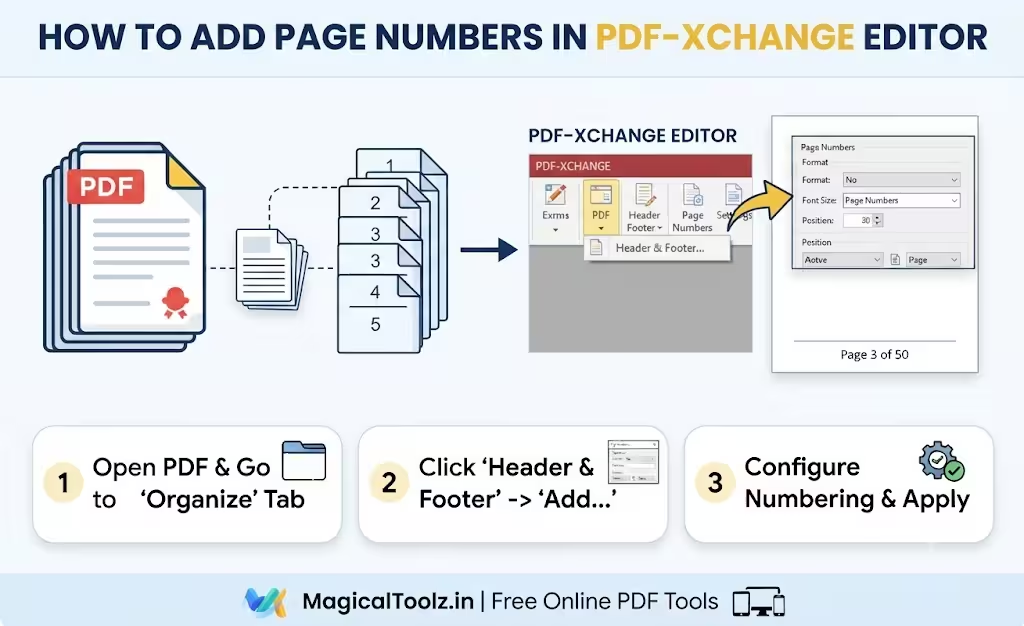
A basic merger is suitable when you only need to place complete PDF files in sequence. A desktop editor is a better choice when the document needs editing before or after the merge.
- You need to remove or rotate individual pages.
- You need to add page numbers, headers, or a cover page.
- You need to edit form fields, annotations, bookmarks, or metadata.
- You need to standardize page size and print settings.
- You need repeated work on confidential files without sending them to a web service.
For occasional document joining, an online option may be convenient. For detailed editing, repeatable office work, or strict privacy rules, installed software gives you more control.
Review the final PDF before sending or printing
Do not stop at the download. Open the final PDF and check it as a reader would.
- Confirm the first page is the document you intended to place first.
- Check the page where each source file changes to the next one.
- Compare the final page count with the page counts of the source files.
- Search for important words or copy a short sentence if the files should contain selectable text.
- Look for blank pages, repeated pages, missing signatures, or outdated dates.
- Check portrait and landscape pages in print preview.
- Review the filename, file size, and visible personal information.
For the invoice, shipping document, and receipt example, check that the invoice starts the file, the shipping pages follow it, and the receipt appears last. Open at least one page from each source, then check the first and last page before sending the document.
Common mistakes to avoid
- Choosing files by selection order without checking their names.
- Adding a draft and the newer final version together.
- Including an old merged PDF along with its original source files.
- Assuming a merge will remove blank pages or fix a poor scan.
- Printing a mixed-size document without checking print preview.
- Compressing the only copy and losing detail in receipts or signatures.
- Sending the file before checking for another persons private pages.
Frequently asked questions
Will combining PDFs keep the exact quality of every page?
Combining normally keeps the source page content, but it does not improve quality. The result also depends on the source files and the software used, so review important pages before sharing.
Can one merged PDF contain portrait and landscape pages?
Yes. PDF files can contain pages with different sizes and orientations. Check the print preview if the document will be printed.
Will scanned PDFs become searchable after merging?
No. A merge does not add OCR. A scanned file remains image-based unless it already contains a text layer or you process it with separate OCR software.
Why is the combined PDF larger than one source file?
The output contains pages from all selected files. Image-heavy pages and high-resolution scans can make the total file much larger. Merging does not automatically compress it.
Should I keep the original PDFs after merging?
Yes. Keep them until you have checked the final PDF and confirmed that you no longer need to replace or correct a source document.
When should I use a desktop PDF editor?
Use one when you need page-level editing, form or annotation changes, page-size control, repeated office work, or local processing for confidential documents.
 Magical Toolz AI Support
Comments (0)
Use comments for article-specific feedback. Use the contact page for bugs and support requests.
Leave a Comment
No comments yet. Be the first to share something useful.