


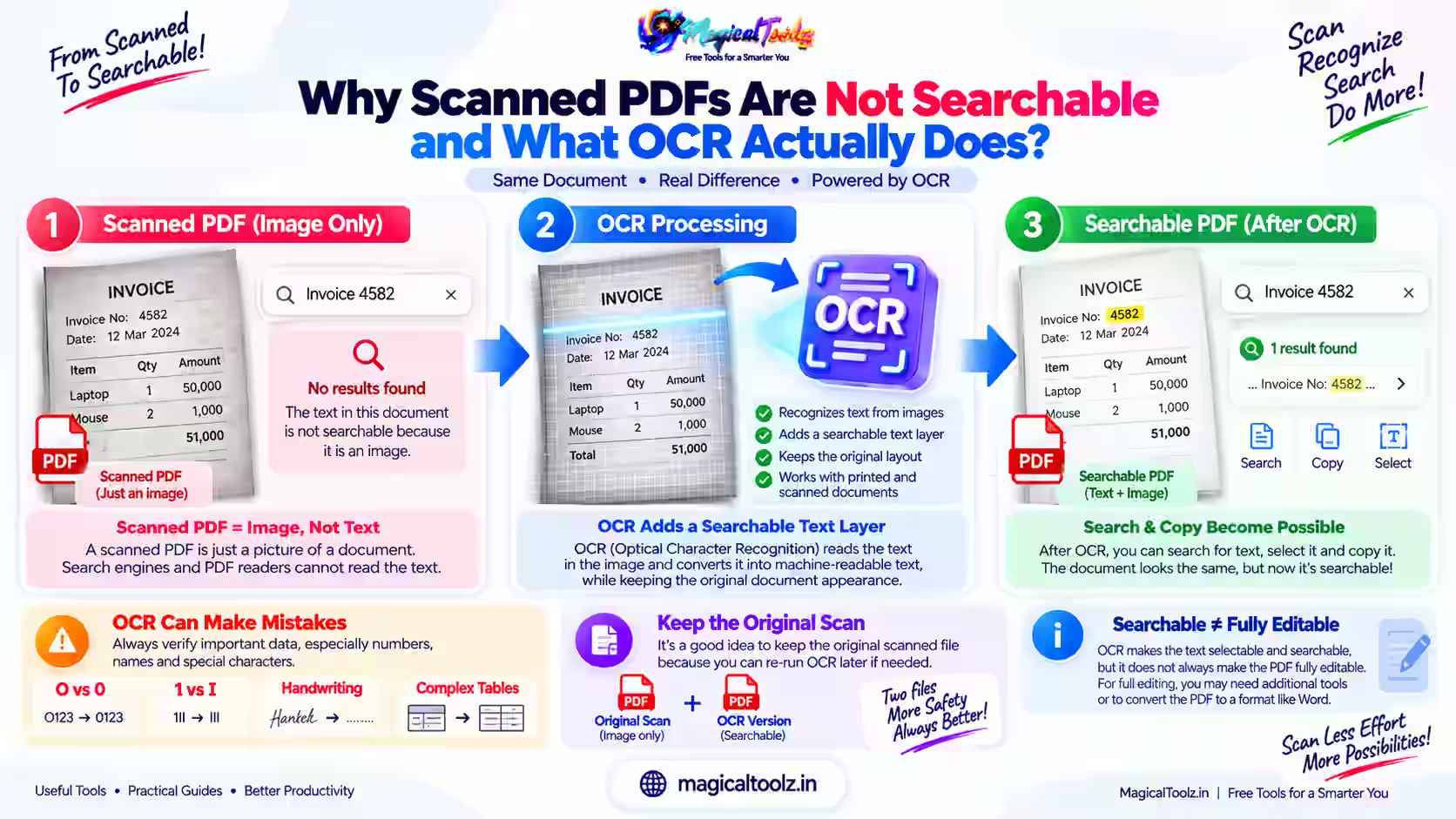
A scanned PDF is often not searchable because each page is saved as an image instead of real text. You can see the words, but the PDF reader sees a picture made of pixels. OCR, short for optical character recognition, examines that picture and creates a text layer that software can search, select, and sometimes edit.
This difference explains why you may be able to read a scanned invoice but get no result when you search for an invoice number. The letters are visible to your eyes, yet they are not stored as text characters.
What makes a scanned PDF different?
When a paper page goes through a scanner, the scanner captures its appearance. The result may contain a photograph of the page, including text, lines, stamps, signatures, and shadows. A PDF wrapper stores that image as a page.
A text-based PDF is created from digital text, such as a document exported from a word processor. The characters remain separate from the page background. You can usually select a sentence, copy it, search for a word, and zoom in without turning the letters into larger pixels.
Both types can look almost identical on screen. The difference is in the information stored behind the visible page.
Why you cannot search some scanned PDFs
Search tools look for character data. They do not normally understand letters by looking at every page image. If a scanned PDF has no text layer, a search for a name, date, or reference number has nothing to match.
The same problem affects copying. Dragging across a scanned paragraph may select the whole page image, or nothing at all. Screen readers may also have little text to read. A scan can preserve the appearance of an original document while leaving its contents difficult for software to understand.
Common signs of an image-only PDF
- Searching for a word returns no results even though the word is visible.
- You cannot highlight individual letters with the text selection tool.
- Copying a paragraph produces no text or produces a picture.
- The file becomes blurry when you zoom in closely.
- Each page behaves like one large image.
A PDF can also contain a mix of page types. A report may have digital text on some pages and scanned attachments on others. Search may work in the first section but fail on the scanned pages.
What OCR actually does
OCR analyses the shapes in a page image and tries to match them to letters, numbers, punctuation marks, and words. It then places the recognised characters in a text layer connected to the page.
After OCR, the original page image may remain visible. The new text layer can sit behind or over the image, depending on how the file is created. The page may look unchanged, but the words can become searchable and selectable.
OCR does not recreate the original word-processing file. It makes a best interpretation of what appears in the image. The result can contain mistakes, especially when the scan is faint, tilted, damaged, handwritten, or printed in an unusual font.
How OCR helps in everyday work
OCR is useful when you need to find, copy, organise, or review information inside scanned pages.
- Search an old invoice for a customer name or order number.
- Copy an address from a scanned identity document into a form.
- Find a clause inside a scanned contract.
- Extract dates from archived receipts.
- Help a screen reader access text that was captured from paper.
- Locate a word across a long collection of scanned records.
OCR can save time when a folder contains many pages. Instead of opening every page and reading it manually, you can search for a likely name or phrase first, then check the matching page.
OCR does not make a scan perfect
OCR adds a text interpretation. It does not repair every problem in the original image. If the page is blurry, the recognised text may be wrong even when the visible scan still looks acceptable.
Typical errors include confusing the number 0 with the letter O, reading 1 as I, missing punctuation, joining separate words, or breaking one word into several pieces. A signature, stamp, table line, or handwritten note may be ignored or interpreted incorrectly.
Always compare OCR text with the page image when accuracy matters. This is especially important for bank details, medicine names, legal wording, tax numbers, addresses, and identification numbers.
Why scan quality matters
OCR works from the pixels it receives. Straight, well-lit pages with clear printed letters are easier to recognise than dark, skewed, compressed, or incomplete scans. A page photographed at an angle can have shadows and uneven focus that make characters difficult to separate from the background.
Resolution matters too. Very small letters may contain too little detail for reliable recognition. Heavy image compression can create blocks around characters and reduce the difference between a letter and the page background.
Printed text, handwriting, and unusual layouts
OCR generally handles clean printed text better than handwriting. Handwritten notes vary from person to person, and letters can join together or change shape within the same word. Recognition results for handwriting need careful human checking.
Complex layouts can cause the reading order to change. A newspaper page with several columns, a form with boxes, or a table with merged cells may be recognised as a strange sequence of lines. The words may be present, but copying them may not follow the visual order of the page.
Text in logos, decorative headings, curved shapes, or very small labels can also be missed. OCR is not a guarantee that every visible mark becomes usable text.
Languages, numbers, and symbols
OCR systems use language and character models to interpret a scan. Selecting the correct language can help with spelling and letter shapes. A page containing several languages may need settings that support all of them.
Numbers and symbols need extra attention. Serial numbers, email addresses, currency signs, mathematical marks, and product codes can be misread when a scan is noisy. A single character error can change the meaning of an account number or reference code.
Do not rely on a quick visual impression of the OCR output. Copy important values into the correct system only after comparing them with the original page.
Searchable text is not the same as editable text
OCR can make a PDF searchable without making it easy to edit like a normal document. Some OCR files keep the scan as the visible page and place recognised text behind it. You may be able to search and copy the text, but changing a sentence may still require a PDF editor or a new document.
When a conversion produces an editable text document, the layout can change. Tables may become paragraphs, line breaks may move, and columns may appear in the wrong order. Choose searchable PDF when keeping the original appearance matters. Choose an editable format only when you are prepared to review the layout.
Scanned identity documents and privacy
A scanned identity document can contain a name, address, birth date, document number, photograph, and signature. Adding OCR may make that information easier to search and copy, which is useful for authorised work but increases the need for careful handling.
Share only the pages and details the recipient needs. Check whether hidden text layers contain information that is not obvious at a glance. Keep files in a protected location, avoid leaving them on shared computers, and delete temporary copies when they are no longer required.
Redaction needs special care. Covering text with a coloured shape may leave the original text underneath. Use a method that removes the underlying information, then reopen the result and test whether the redacted content can still be selected or searched.
A practical example: searching an old invoice
Imagine a small business has a folder of scanned invoices from several years ago. The owner remembers a customer name but cannot search for it because every invoice is an image-only PDF.
- The invoices are checked to make sure the pages are complete and readable.
- OCR is applied to create text layers.
- The owner searches for the customer name or invoice number.
- The matching page is opened and compared with the original scan.
- Important values are copied only after the comparison.
The OCR layer makes the folder easier to search. It does not replace the original invoice, and it does not prove that every recognised character is correct.
How OCR affects file size
Adding a text layer can increase the size of a scanned PDF because the file now stores both the page image and recognised characters. The change depends on the number of pages, the images, and the way the PDF is saved.
Some OCR processes also recompress page images, which can reduce size but may affect visible quality. Compare the OCR result with the original before deleting the source file. A smaller file is not automatically a better file if fine print becomes unreadable.
When OCR is worth using
- You need to search a scanned document collection.
- You need to copy short sections from paper records.
- You want better access for screen readers.
- You need to find names, dates, or reference numbers quickly.
- You are archiving printed documents for later review.
OCR may not be worth applying to a single image that only needs to be viewed, or to a poor scan that cannot be read reliably even by a person. In those cases, obtaining a clearer scan may help more than creating a text layer.
Common mistakes when using OCR
- Assuming every visible word will be recognised correctly.
- Copying a bank number or legal sentence without checking the page image.
- Using the wrong language setting for the document.
- Expecting handwriting and tables to follow the original layout.
- Deleting the original scan before checking the OCR result.
- Treating searchable text as proof that the file is fully editable.
- Sharing a searchable personal document without checking its text layer.
Frequently asked questions
Why can I see text in a PDF but not search for it?
The page may be an image-only scan. The letters are visible, but the file has no character data for the search function to read.
Does OCR change the original scanned image?
It can leave the original image visible and add a text layer, but the exact result depends on the OCR process. Keep the original file until you have checked the new version.
Can OCR read handwriting?
Some systems can recognise certain handwriting, but results vary widely. Handwritten names, numbers, and notes should be checked against the page image.
Will OCR make a blurry scan clear?
No. OCR interprets the available pixels. It cannot restore detail that was never captured or was lost through blur and compression.
Is an OCR PDF fully editable?
Not necessarily. Many OCR PDFs are searchable and selectable while the scanned image remains the visible page. Editing the original wording may still require a separate PDF or document editor.
Should I keep the original scan after OCR?
Yes. Keep it until you have checked the text layer, layout, page count, and important values. The original is your reference if the OCR result contains an error.

 Magical Toolz AI Support
Comments (0)
Use comments for article-specific feedback. Use the contact page for bugs and support requests.
Leave a Comment
No comments yet. Be the first to share something useful.