


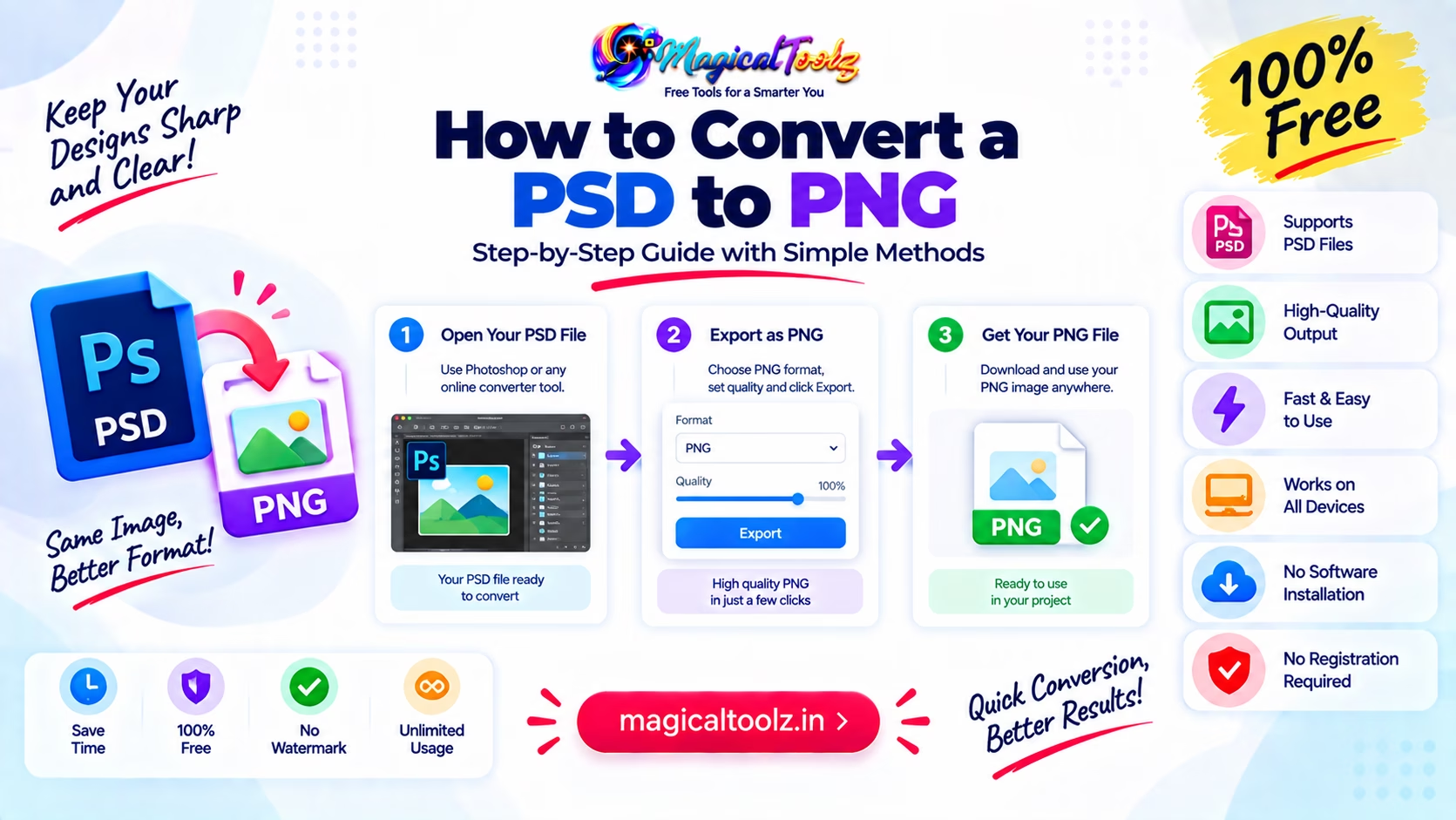
Keep the PSD. A PNG export flattens the visible result into pixels and does not preserve Photoshop layers, editable text, masks, smart objects or most adjustment controls.
Use PNG for a delivery copy that needs sharp graphics or transparency. Use the PSD when someone must continue editing the design.
Check the document before export
Open the PSD in Photoshop or another editor that fully supports the features used in the file. Confirm which layers are visible. Hidden notes, alternate logos and background options should stay hidden unless the final PNG needs them.
Look for missing fonts, linked smart objects and unavailable plugins. A warning at open time can change the rendered result. Compare with an approved preview when another designer supplied the file.
Adobe's Photoshop format guide states that PSD preserves layers, effects and editing features. PNG is a lossless raster output, not a replacement for the working document.
Decide what area should be exported
Check the canvas size and empty space. A small logo on a large transparent canvas creates a PNG that looks tiny when another app fits the whole file into a box.
Trim transparent edges only when the destination does not need that spacing. Keep intentional padding around icons, product images and interface assets. For an artboard document, export the correct artboard instead of the whole PSD canvas.
Transparency or solid background
PNG can keep alpha transparency. Hide the background layer and look for the transparency grid. Check soft shadows, semi-transparent pixels and edge halos.
If the destination requires a solid background, add that color inside the PSD before exporting. This gives you control over how semi-transparent edges blend. Do not depend on the receiving app to choose a background.
Export through Photoshop
- Save the PSD before changing export visibility.
- Select the artboard, layer group or document you need.
- Confirm the visible layers and final canvas.
- Choose Export As or the export command used by your Photoshop version.
- Select PNG.
- Choose transparency only when the output needs it.
- Set the required width, height and scale while keeping the aspect ratio locked.
- Preview the file size and image.
- Export to a new filename.
- Open the PNG outside Photoshop and compare it with the PSD.
Adobe's current Export As documentation lists PNG transparency and smaller-file options along with width, height and scale controls.
PNG-8 and PNG-24 or 32 need a visual check
A smaller indexed PNG can suit simple graphics with few colors. It may produce banding in gradients and rough edges around transparency. A full-color PNG keeps more color information and smooth alpha but can be larger.
Do not choose the smallest option without opening the result. Inspect gradients, shadows, text edges and brand colors at normal size and at 100 percent zoom.
Color mode and bit depth can affect export
Web and screen assets usually need RGB output. A CMYK print document may look different when converted to an RGB PNG. Keep the print PSD and create a separate screen export with the correct profile and approval.
Photoshop supports PNG in several workflows, but available save and export options depend on document mode and bit depth. Adobe's file format overview notes which formats support 16-bit data. The destination may still expect an 8-bit web image.
Online PSD converters have limits
A basic converter may read only the composite preview stored inside the PSD. It may not reproduce fonts, smart filters, layer effects, color profiles or linked files exactly. Large PSD and PSB files can also exceed upload or memory limits.
Check whether the service uploads files, how long it keeps them and whether your work agreement allows that upload. Client designs, unreleased products and personal photos may require an approved local workflow.
Photoshop on the web supports PSD import and PNG export according to Adobe's supported web formats page, but it saves work as cloud documents by default. Include that storage step in your privacy decision.
Exporting separate layers or artboards
A PSD may contain several products, icons or screen states. Do not hide and show layers manually for dozens of exports unless the file is very small. Photoshop can export selected layers, layer groups or artboards through commands available in the Layers panel and Export menus.
Name the layers before exporting. Names such as Layer 18 copy 4 produce confusing files and make later updates risky. Use names tied to the asset, state and size, such as checkout-empty-2x or logo-dark.
Check whether each exported asset should use its own bounds or the shared artboard size. Tight layer bounds suit standalone icons. A shared canvas keeps related animation frames and interface states aligned. This choice can be more important than a small difference in PNG file size.
Resize at export, not by stretching afterward
If the final asset needs half the PSD dimensions, export it at that size while the editor can resample the full source. Do not export a tiny PNG and enlarge it later. Keep width and height linked unless a deliberate crop changes the aspect ratio.
Inspect small type, one-pixel borders and icon strokes after resizing. They may need a separate design adjustment instead of automatic scaling.
Verify the PNG
- The pixel dimensions match the destination.
- The correct artboard or canvas was exported.
- No hidden draft layer became visible.
- Text uses the expected font and spacing.
- Transparency works on light and dark backgrounds.
- Colors match the approved screen version.
- The PNG opens in a browser and the target app.
- The layered PSD remains unchanged and backed up.
PSD to PNG questions
Does PNG keep Photoshop layers?
No. It stores the flattened visible pixels. Keep the PSD for editing.
Why is the PNG blank?
The wrong artboard may be selected, all useful layers may be hidden, or the artwork may be outside the export area.
Why is the PNG much larger than the JPG preview?
PNG uses lossless compression and may include transparency. Large photo-like images can be much bigger.
Can I convert PSD without Photoshop?
Some editors and converters can, but complex PSD features may render differently. Compare the result with an approved preview.
Will export remove metadata?
Export settings vary. Do not assume all metadata is kept or removed. Check the final file when metadata matters.
 Magical Toolz AI Support
Comments (0)
Use comments for article-specific feedback. Use the contact page for bugs and support requests.
Leave a Comment
No comments yet. Be the first to share something useful.