


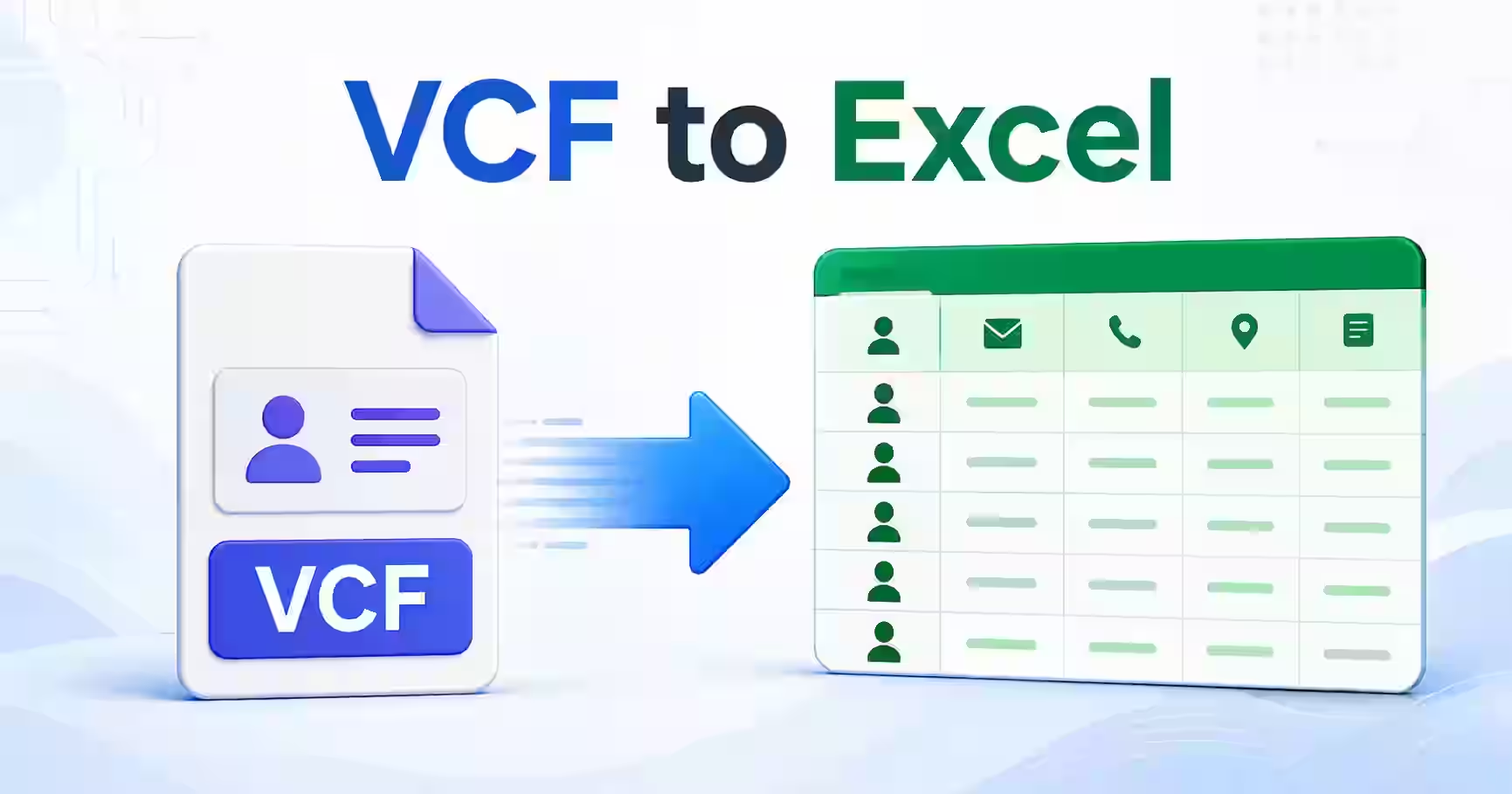
How to Convert VCF to Excel Without Making a Mess
You have a VCF file full of contacts, but you want a clean Excel sheet. It sounds like a simple file conversion. Then you open the file and see lines such as BEGIN:VCARD, FN, TEL, and EMAIL. Not exactly the neat spreadsheet you expected, right?
Here is the short answer. To convert VCF to Excel, first turn the contact records into a CSV table. Then import that CSV into Excel and save it as an XLSX workbook. You can do this through Google Contacts, a trusted VCF to CSV converter, or Excel's data tools.
Do not simply rename contacts.vcf to contacts.xlsx. That changes only the filename. It does not change the data inside the file.
Quick answer: Import the VCF file into Google Contacts, export the contacts as Google CSV, open the CSV through Excel's From Text/CSV option, check the phone-number columns, and save the file as an Excel Workbook.
What Is a VCF File?
VCF is commonly expanded as Virtual Contact File. The actual contact format is called vCard, while .vcf is its usual file extension. Phones, email apps, contact managers, and cloud services use it to exchange contact information.
A VCF file may contain one contact or thousands of contacts. Each record can include a name, phone number, email address, company, job title, postal address, website, birthday, notes, and even a photo.
A basic contact can look like this:
BEGIN:VCARD
VERSION:3.0
FN:Ravi Sharma
TEL;TYPE=CELL:+919876543210
EMAIL:ravi@example.com
END:VCARD
The format follows defined vCard rules. You can read the technical details in the vCard 4.0 specification. Thankfully, you do not need to understand the full specification just to get your contacts into Excel.
Make sure it is really a contact VCF
There is another format called Variant Call Format, which also uses the VCF name. Researchers use it for genetic data. Open your file in a plain text editor before converting it.
- If you see
BEGIN:VCARD, you have a contact file. - If you see
##fileformat=VCFv4.2or similar genomic headings, this guide does not apply.
VCF, CSV, and Excel Are Not the Same Thing
| Format | What it stores | Best use |
| VCF or vCard | Structured contact records | Moving contacts between phones and contact apps |
| CSV | Plain rows and columns separated by commas | Moving tabular data between different programs |
| XLSX | Excel workbook with formatting, formulas, filters, and sheets | Reviewing, cleaning, sorting, and managing contacts |
This difference explains why a VCF file does not always open neatly in Excel. Excel needs one contact per row and one field per column. A converter must read each vCard block and map its properties into those columns.
Three Practical VCF to Excel Methods
| Method | Best for | Main concern |
| Google Contacts | Beginners and normal contact backups | Contacts are uploaded to a Google account |
| VCF to CSV converter | Quick conversion and larger files | You must verify privacy and field support |
| Excel or Power Query | Technical users and controlled local work | Complex vCards need careful parsing |
Method 1: Convert VCF to Excel with Google Contacts
This is usually the easiest method. Google Contacts can import a vCard file and export the contacts as CSV. Excel can then open that CSV as a table.
Step 1: Back up your original file
Make a copy of the VCF file before you begin. Work with the copy and keep the original untouched. If a field is missed or changed, you can return to the source file.
Step 2: Import the VCF file
- Open Google Contacts on your computer.
- Sign in to the account where you want to import the contacts.
- Select Import from the left menu.
- Choose Select file.
- Select your
.vcffile. - Click Import.
Google's official contact import instructions confirm that Google Contacts accepts CSV and vCard files. Google also notes that some imported details may appear in the contact's notes field when they do not match a standard contact field.
If this is a large or important contact list, consider using a separate Google account. Importing the file adds those people to that account. It may also affect contact suggestions or sync if you use the same account on your phone.
Step 3: Check the imported contacts
Do not export immediately. Open a few records first. Check contacts that contain:
- More than one phone number
- More than one email address
- A company or job title
- A long postal address
- Hindi or another non-English script
- Notes, birthdays, or custom labels
This small check can reveal field-mapping problems before they spread across the entire sheet.
Step 4: Export the contacts as CSV
- Select the contacts you just imported.
- Choose Export.
- Select Google CSV.
- Download the exported file.
Google's contact export guide explains how to download contacts as CSV or vCard. Choose CSV because Excel handles that format more naturally.
Step 5: Import the CSV into Excel
Avoid double-clicking the CSV, especially when phone numbers matter. Open a blank workbook and use Data, then From Text/CSV. Select the exported CSV file and inspect the preview.
Set phone-number, postcode, ID, and similar columns to Text. This helps preserve:
- The plus sign before a country code
- Leading zeros in local numbers
- Long numbers that Excel may display in scientific notation
- Spaces or extensions saved as part of a number
When everything looks correct, load the data. Then select File, Save As, and choose Excel Workbook with the .xlsx extension.
Method 2: Use a VCF to CSV Converter
A VCF to Excel converter usually performs two jobs. It reads the vCard records and creates a CSV or XLSX file. This can save time, but contact files contain private information. Do not upload one to a random website just because it appears first in search results.
Check these points before uploading
- Does the tool process the file locally in your browser?
- Does it clearly say whether files are uploaded?
- Is there a privacy policy and deletion period?
- Does it support multiple contacts in one VCF file?
- Can it keep multiple phone numbers and email addresses?
- Does it support UTF-8 names and addresses?
- Does it export CSV, XLSX, or both?
An offline VCF to CSV converter is a better choice for sensitive business, employee, patient, or customer contacts. Still, download software only from its official publisher. A file viewer or converter should not ask for access to unrelated folders, messages, or browser data.
Review the output before trusting it
A completed download does not prove that the conversion worked properly. Compare the first, middle, and last contacts with the original VCF file. Also check records that have several phone numbers.
Some basic converters keep only the first TEL or EMAIL value. Others place extra details in a notes column. Neither behaviour is automatically wrong, but you need to know what happened before deleting the original file.
Method 3: Open a VCF File with Excel
Excel does not include a simple vCard import button. You can still inspect a VCF file through Data and From Text/CSV, but the first result may show one vCard property per row instead of one contact per row.
For a tiny file, you can split values at the first colon and arrange the data yourself. For example, FN becomes the name column, TEL becomes the phone column, and EMAIL becomes the email column.
This manual method becomes unreliable when the file contains:
- Hundreds of contacts
- Several phone numbers for one person
- Photos stored as encoded data
- Long values continued across multiple lines
- Escaped commas, semicolons, or line breaks
- Different vCard versions
- Custom fields created by a phone manufacturer
Power Query can clean and reshape the records, but it is not a one-click VCF file viewer. You must group the lines between BEGIN:VCARD and END:VCARD, identify each property, and decide how repeated fields should appear.
Use this route when you understand the structure or need a local, repeatable workflow. For an ordinary phone backup, Google Contacts or a reviewed converter is simpler.
How to Arrange Contacts in the Excel Sheet
Once your VCF file to Excel conversion is complete, keep the first row for clear column headings. A useful contact sheet may contain:
| Column | Example purpose |
| Full Name | The contact's display name |
| First Name | Given name |
| Last Name | Family name |
| Mobile Phone | Main mobile number |
| Work Phone | Business number |
| Main email address | |
| Company | Organisation name |
| Job Title | Role or position |
| Address | Postal address |
| Notes | Extra information that did not fit elsewhere |
Turn on filters so you can sort by name, company, city, or another useful field. Freeze the top row when the list is long. Most importantly, keep all phone-number columns formatted as Text.
Common VCF to Excel Problems and Their Fixes
Phone numbers lose the plus sign
Excel treated the number as a calculation or numeric value. Import the CSV again and set the entire phone column to Text before loading it.
A leading zero disappears
This happens when Excel sees a phone number as a normal number. A phone number is an identifier, not something you calculate. Store it as Text.
Numbers appear like 9.19877E+11
That is scientific notation. Changing the column width may only change its appearance. Import the source again with the column type set to Text so the original digits remain intact.
Hindi names or special characters look broken
The CSV may have been opened with the wrong character encoding. Import it through Data and From Text/CSV, then select UTF-8 in the preview. Microsoft also recommends UTF-8 for contact CSV files because it supports different languages and alphabets in its Outlook contact guidance.
Some phone numbers or emails are missing
The contact may contain repeated fields that the converter did not map. Search the original VCF for the person's name and inspect every TEL and EMAIL line.
One person appears several times
The source file may already contain duplicates. Do not remove duplicates using names alone because two people can share a name. Compare a cleaned combination of name, phone number, and email address.
Excel shows everything in one column
The CSV delimiter was not detected correctly. Import the file through the Data menu and select comma as the delimiter. In some regions, spreadsheet programs expect a semicolon instead.
Protect Yourself from Unsafe CSV Content
A converted contact field can begin with =, +, -, or @. Some spreadsheet programs may treat such content as a formula instead of plain text. This matters when the VCF came from an unknown person or public download.
Import the file instead of opening it blindly. Keep contact fields as Text, review suspicious values, and never enable macros just to view a contact list. A normal VCF to CSV conversion does not need an Excel macro.
Can You Convert VCF to PDF?
Yes, but PDF is useful for viewing or printing contacts, not moving them back into a phone. First convert VCF to Excel, clean the table, choose a suitable print area, and then export the sheet as PDF.
Hide private columns before sharing the PDF. Also check every page in the preview because long addresses and notes can be cut off.
What About Excel to VCF or CSV to VCF?
The reverse process is also possible. If your contacts are already in Excel, arrange one contact per row and use separate columns for names, phone numbers, emails, and addresses. Then save a working copy as CSV UTF-8.
You can import that CSV into Google Contacts and export the result as vCard. Alternatively, use a reviewed CSV to VCF converter or Excel to VCF converter. Check the required column headings first because different tools map fields differently.
An Excel to VCF converter online free of charge may be convenient, but privacy rules still apply. Do not upload customer or employee data until you understand how the service handles it.
Final VCF to Excel Checklist
- Keep an untouched copy of the original VCF file.
- Confirm that the file contains vCard contacts, not genetic data.
- Choose Google Contacts, a trusted converter, or a local Excel workflow.
- Import CSV through Excel's Data menu.
- Set phone numbers, postcodes, and IDs to Text.
- Use UTF-8 when names contain non-English characters.
- Compare several converted contacts with the original file.
- Check extra phone numbers, email addresses, and notes.
- Remove duplicates only after reviewing the matching rule.
- Save the final checked workbook as XLSX.
The conversion itself is not the difficult part. The real job is keeping each contact accurate. Take a few minutes to verify the sheet before you import it elsewhere, share it, or delete the original backup.
 Magical Toolz AI Support
Comments (0)
Use comments for article-specific feedback. Use the contact page for bugs and support requests.
Leave a Comment
No comments yet. Be the first to share something useful.