


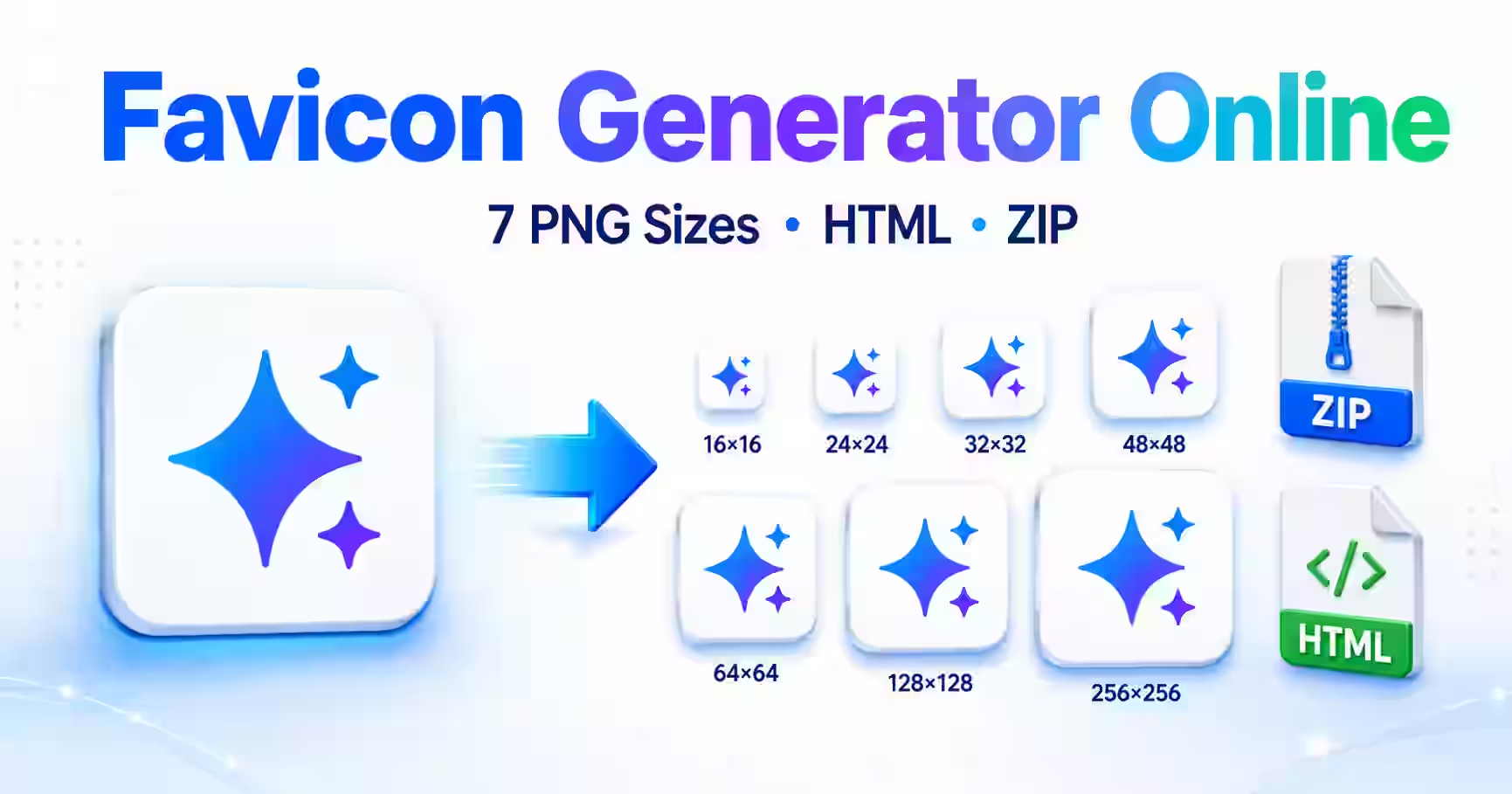
A favicon generator online sounds like a tool for one tiny browser icon. In practice, a proper favicon setup needs more than one file. Your icon may appear in a browser tab, a bookmark, a phone shortcut, or another part of a website interface. Each place can use a different size.
That is where the Magical Toolz Favicon Generator helps. Upload one image, choose a background color or keep it transparent, and generate seven PNG sizes. The download also includes an HTML snippet, so you do not have to write every icon tag from memory.
It is a small job, but it is one of those jobs that can become surprisingly fiddly when done by hand. Let us make it simple.
What Is a Favicon?
A favicon is the small image associated with a website. You will often see it beside a page title in a browser tab. It can also appear in bookmarks, browser history, shortcuts, and other saved-site views.
The word comes from “favorite icon.” The name feels slightly old-fashioned now, yet the icon remains useful. It gives visitors a quick visual clue when several tabs are open. It also makes a site feel finished rather than anonymous.
Think about your own browser. When ten tabs are squeezed together, you may no longer see their complete titles. The little icons remain visible, though. A clear favicon helps you spot the page you want without reading every tab.
A favicon is not a substitute for a logo. Instead, it is a compact version of your visual identity. A full logo may include a symbol, brand name, slogan, and fine details. A favicon has room for only the part that stays recognizable at a very small size.
Why One Favicon File Is Often Not Enough
Years ago, many website owners added a single favicon.ico file and called the job finished. That fallback still has value, but modern sites can appear across more devices and surfaces.
A normal browser tab needs a tiny icon. A phone shortcut needs a much larger one. High-density screens also benefit from larger source files because they can display more detail. Therefore, one size cannot serve every situation equally well.
You could resize your source image seven times, name every file, create a folder, and write the HTML yourself. However, that is repetitive work. It also creates several chances to choose the wrong dimensions or mistype a filename.
A favicon generator online handles that packaging step for you. You still make the creative decisions. The tool takes care of the repeated exports.
What the Magical Toolz Favicon Generator Creates
The Magical Toolz tool begins with an image. It does not include a text mode, font picker, emoji library, or logo designer. That focus is worth knowing before you begin.
You provide the finished symbol, logo mark, letter design, or image. The tool then center-fits it into square canvases and creates these seven PNG files:
- 16 × 16 pixels
- 32 × 32 pixels
- 48 × 48 pixels
- 64 × 64 pixels
- 180 × 180 pixels
- 192 × 192 pixels
- 512 × 512 pixels
The finished download comes as one ZIP package. Along with the PNG images, it contains a plain-text HTML snippet with the related icon tags. As a result, you get both the assets and a useful starting point for installing them.
The processing runs in your browser with the Canvas API. Your image stays on your device while the new sizes are generated. This local favicon generator online workflow is especially handy when you want to test several logo versions quickly.
What Each Favicon Size Is For
The seven files from the favicon generator online are not random copies. Small icons and large icons solve different display needs.
16 × 16 PNG
This is the classic tiny favicon size. Browsers commonly use a very small icon in tabs and compact interface areas. At 16 pixels, every shape matters. Thin lines, miniature words, and subtle textures can disappear.
32 × 32 PNG
The 32-pixel version gives browsers a sharper option for higher-density displays. It is still small, so the same design rule applies: keep the mark simple and bold.
48 × 48 and 64 × 64 PNG
These middle sizes provide more flexibility for desktop shortcuts and other interface contexts. They also give you useful options when a platform asks for an icon larger than a tab favicon but smaller than a mobile app-style image.
180 × 180 PNG
The 180-pixel file suits the Apple touch icon role. If someone saves a website to an iPhone or iPad home screen, this larger square image gives the device more detail to work with.
192 × 192 and 512 × 512 PNG
These larger sizes are useful for modern web app and shortcut contexts. They also make the package more practical for projects that extend beyond a basic browser tab.
Remember, generating a 512-pixel file does not automatically turn a site into a Progressive Web App. A PWA needs its own setup, including a web app manifest and other requirements. The larger PNG files are assets you can use as part of that setup.
How to Use the Favicon Generator Online
You do not need design software to use the favicon generator online. Still, a little preparation will improve the result.
Step 1: Choose the source image
Start with a clean logo mark, icon, monogram, or simple illustration. A square image works best because every output is square. If your logo is wide, create a compact symbol-only version first.
Whenever possible, begin with a large, sharp source. Scaling a clean image down usually looks better than enlarging a tiny file.
Step 2: Open the tool
Open the Magical Toolz Favicon Generator. The page contains the image-based workflow, so you can begin without installing desktop software.
Step 3: Upload your image
Select the image you want to use. Remember that this favicon generator online accepts an uploaded image; it does not create artwork from typed text.
If you want a favicon made from one letter, design that letter as an image first. A simple square PNG with a bold initial can work very well.
Step 4: Choose the background
Pick a background color if your mark needs a solid base. Otherwise, leave the background transparent when the source supports transparency.
This choice affects visibility. For example, a white logo on transparency may vanish against a light browser theme. A dark or colored background can solve that problem. Conversely, an existing badge may already have its own background and need no extra color.
Step 5: Generate the favicon pack
Run the generator. The tool center-fits the source image into each square canvas and prepares all seven PNG files.
Step 6: Download the ZIP
Download the package and extract it on your computer. Keep the files together until you are ready to upload them to your website.
Step 7: Inspect the small versions
Do not judge the result only by the 512 × 512 image. Open the 16 × 16 and 32 × 32 versions too. Those tiny files reveal whether the design has enough contrast and whether its main shape remains clear.
Step 8: Add the files to your site
Upload the relevant PNG files to your website, then use the included HTML snippet as your installation guide. Make sure the paths in the code match the actual folder and filenames on your server.
How to Choose a Source Image That Still Looks Good at 16 Pixels
This is the most important part of the favicon generator online process. A generator can resize an image accurately, but it cannot make a crowded design readable in a tiny browser tab.
Use the simplest version of your logo
A full business logo may look excellent on a banner. Once reduced to 16 pixels, however, its name and tagline can turn into a blur. Use the symbol, first letter, mascot head, or another compact brand element instead.
Prefer a square composition
The Magical Toolz tool center-fits your image into square outputs. Therefore, a square source gives you the most predictable framing. A wide source may lose content near its sides, while a tall one can feel cramped.
If the source is not square, add space around the mark before uploading it. Center the important shape and leave a comfortable margin.
Keep strong contrast
A pale gray mark on a white background may disappear. So might a black mark when a browser uses a dark tab bar. Test the icon against both light and dark surroundings.
A solid background can make a thin or light-colored logo easier to see. On the other hand, transparency may look cleaner when the mark already has a bold silhouette.
Remove tiny text
Long brand names and slogans rarely survive favicon dimensions. Even if the letters technically remain in the file, visitors may see only a fuzzy line.
Use one initial or a recognizable symbol instead. If your brand relies on a wordmark, create a dedicated favicon variation rather than forcing the entire name into the square.
Avoid very thin strokes
Fine outlines can vanish during downscaling. Slightly thicker shapes normally hold up better. You may need a favicon-specific version of your mark with fewer gaps and stronger edges.
Leave breathing room
An icon that touches every edge can look crowded. Add a little padding around the main symbol, but do not shrink it so much that it becomes hard to recognize.
The sweet spot depends on the design. Generate a version, view it at real tab size, and adjust the source if needed.
Which Background Should You Pick in a Favicon Generator Online?
Neither option is always better. The right answer depends on the source image and the places where people will see it.
Transparency suits marks that already have a strong shape and enough contrast. It can make the favicon feel lighter and more flexible. However, its appearance changes with the surrounding interface.
A colored background gives you more control. It can protect a white or thin logo from disappearing, and it can make a simple initial feel like a complete badge. Brand colors also help visitors recognize the tab quickly.
Before making a decision, try this quick test:
- Place the logo on white.
- Place the same logo on dark gray.
- View both versions at 16 × 16 and 32 × 32.
- Choose the version that remains clear in both cases.
If one background cannot work everywhere, consider giving the icon a solid circle, square, or rounded badge. That inner shape travels with the logo and creates consistent contrast.
How to Add the Generated Favicons to an HTML Website
The favicon generator online ZIP includes a text file containing HTML. That saves time, although you should still check the paths before publishing.
Your final tags will follow a pattern similar to this:
re>
Add the appropriate lines inside the section of your page. If your icons live in an /images/icons/ folder, update each href value to point there.
You may not need to include every generated size as a separate tag. Your website framework, content management system, or theme may handle some sizes automatically. Use the package as a set of assets, then follow the requirements of your particular platform.
After updating the code, load the page in a private browser window. This helps reduce confusion caused by an older cached favicon.
How to Add a Favicon in WordPress
Most modern WordPress themes let you add a site icon from the dashboard. Therefore, the output from the favicon generator online can fit neatly into a normal WordPress workflow. The exact menu can vary with the theme and WordPress version.
A common route is:
- Open the WordPress dashboard.
- Go to Appearance and look for Customize or Editor settings.
- Find Site Identity or the Site Icon option.
- Upload a square, high-resolution PNG.
- Preview the result and publish the change.
WordPress can create several sizes from the uploaded site icon. Therefore, the 512 × 512 PNG from your generated package is a practical starting file for this method.
If your theme asks for code or individual files, use the included snippet and the specific sizes it requires. Before editing theme files directly, make a backup. A child theme or a header-management method can also prevent a future theme update from removing your change.
Favicon Generator Online vs. Making Every File by Hand
Manual favicon creation gives you complete control. You can tune individual pixels, adjust each size separately, and make a special design for the smallest tab icon. For an experienced designer, that precision may be useful.
Still, most site owners do not need seven separate design sessions. They need reliable sizes, sensible filenames, and the code required to connect those files to a page.
That is the advantage of a favicon generator online. One source image becomes a repeatable package. You can spend your time improving the source design instead of performing the same export task again and again.
The generator also makes experimentation easier. Try a transparent version, a brand-color version, and a simplified version. Then compare the tiny outputs and keep the one that feels clearest.
Why a Favicon Matters for a Real Website
A favicon will not rescue weak content or replace technical SEO. It is also not a magic ranking switch. Its value is mainly visual and practical.
It helps visitors recognize your tab
People often work with many pages open. A distinctive icon helps your site stand out in that crowded row.
It makes bookmarks easier to scan
Bookmarks can become a long list of similar page titles. A recognizable symbol adds a faster visual cue.
It supports consistent branding
Your colors and logo may already appear in the header, social profiles, and marketing graphics. The favicon carries a small piece of that identity into the browser interface.
It makes the site feel complete
A generic blank icon can make an otherwise polished website feel unfinished. Adding a favicon is a simple way to tidy that loose end.
None of these benefits requires a complicated design. In fact, the best favicon is often the simplest usable part of the brand.
Common Favicon Generator Online Mistakes and How to Fix Them
Even a correct set of files can look wrong if the source or installation has a problem. Here are the favicon generator online issues people meet most often.
The favicon looks blurry
Your source may be too small, or the design may contain more detail than the final size can display. Return to the original high-resolution artwork, simplify it, and generate a fresh package.
Also check whether your HTML points to the intended PNG size. A browser can scale an image, but a suitable source generally gives it a better starting point.
The logo is cropped
The tool creates square outputs and center-fits the source. A very wide or tall image may lose important areas. Put the logo on a square canvas with enough padding, then upload that new image.
The icon disappears on some browser themes
Your transparent logo may have weak contrast. Add a solid brand-color background or place the mark inside a bold shape.
The favicon does not update
Browsers can cache favicons stubbornly. First, confirm that the new file exists at the URL used in your HTML. Next, open the page in a private window or another browser. You can also clear the site cache, plugin cache, CDN cache, and browser cache.
If the old icon still appears, rename the new file and update the HTML path. A new URL can encourage the browser to fetch the fresh asset.
The icon works on desktop but not on a phone shortcut
Check that you uploaded the larger file and added the correct Apple touch icon or manifest reference for your setup. A 16-pixel tab image cannot cover every mobile use by itself.
The downloaded ZIP contains files, but the website shows nothing
Generating the package does not install it automatically. You must upload the files and connect them to the site. Compare the HTML href paths with the actual file locations, including capitalization.
The favicon contains unreadable words
Use fewer letters. A full wordmark usually becomes muddy at tab size. One letter, a short monogram, or the brand symbol will be much easier to recognize.
A Practical Pre-Publish Favicon Checklist
Before you finish, run through these checks:
- The source image is square or has safe padding.
- The main symbol is centered.
- Tiny text and thin details have been removed.
- The icon remains recognizable at 16 × 16.
- It has enough contrast on light and dark backgrounds.
- The selected background is intentional.
- All required PNG files are uploaded.
- Every HTML path matches the real filename.
- Your page source contains the relevant icon tags.
- A private browser window displays the favicon.
- Mobile icon references are present when your site needs them.
- Old cache layers have been cleared after an update.
This list takes only a few minutes. It can save you from launching with an invisible, stretched, or outdated icon.
When You May Need a Different Tool
The Magical Toolz favicon generator online is designed for image-based favicon packaging. That makes it a good fit when you already have the artwork.
Choose another workflow first if you only have text and want to design a monogram. The tool has no font picker or text-to-icon mode. Create the letter image in a design app, then upload the finished file here.
You may also need another tool when a platform specifically demands ICO or SVG output. This generator creates seven PNG sizes. The current active favicon workflow does not create ICO files. If a platform specifically requires ICO, use a trusted workflow that explicitly supports ICO and verify the result.
Finally, use professional design software if every pixel needs individual editing. Automated resizing is quick, but a designer can create a custom 16-pixel variation when a complicated brand mark refuses to scale cleanly.
Tips for a Favicon That People Can Actually Recognize
Here is the friendly version of the design advice: do less.
Pick one shape. Use one or two strong colors. Remove the slogan. Thicken fragile lines. Let the symbol occupy enough space to be visible. Then test it at the real size instead of admiring only the large preview.
Icons such as a bold letter, a simple tool silhouette, a face, or a geometric mark often survive downscaling. Detailed product photos, landscapes, and long text usually do not.
Your favicon also does not need to explain the whole business. Its job is recognition, not storytelling. Visitors should think, “That is the tab I was using,” not pause to decode a tiny poster.
Is It Safe to Use Any Image as a Favicon?
Technically suitable does not mean legally safe. Use an image you created, licensed, purchased with suitable rights, or received permission to use. Do not copy another brand’s logo simply because it looks good at a small size.
The same care applies to stock images, icons, fonts, and character artwork. Check the license before using an asset as part of your website identity.
From a privacy standpoint, the Magical Toolz favicon generator online processes the image in the browser. Even so, keep an original copy of your source and review every generated file before publishing it.
Frequently Asked Questions
What is the best image size to upload?
Use a large, sharp, square image when possible. A 512 × 512 source or larger gives the tool enough detail for the biggest output. More importantly, the central logo should remain clear when reduced to 16 × 16.
Which formats does this favicon generator produce?
It produces seven PNG files. The sizes are 16, 32, 48, 64, 180, 192, and 512 pixels square. The ZIP also includes a text file with an HTML snippet.
Does the tool create an ICO file?
No. This particular workflow creates PNG outputs. If your project specifically requires ICO, use a trusted converter that explicitly supports ICO after preparing the image.
Can I create a favicon from text?
Not directly in this tool. Create the text or initial as an image first, then upload that image to the generator.
Can I keep a transparent background?
Yes. Leave the background transparent, and use a source format that supports transparency. Always check the result against both light and dark surroundings.
Does my image get uploaded to a server?
No. The favicon generation runs locally in your browser with the Canvas API, so the source image stays on your device during processing.
Why does my favicon look different from my full logo?
Favicons are square and often extremely small. A wide logo may be center-cropped or lose detail. Use a compact logo mark made specifically for small spaces.
Why is my new favicon not showing?
Check the file path, filename, and HTML tags first. Then clear browser, website, plugin, and CDN caches. Testing in a private window can help you see whether the update is already live.
Do favicons improve Google rankings?
A favicon is not a direct shortcut to higher rankings. It improves visual identity and helps people recognize your site in supported interfaces. Strong content, useful pages, crawlability, speed, and overall user experience still require separate work.
Can I use the 512 × 512 PNG in WordPress?
Yes, it is a practical choice for the WordPress Site Icon setting. WordPress may create the smaller versions it needs from that square source.
Should I use a photo as a favicon?
You can, but most photos contain too much detail for a 16-pixel display. A simplified crop, silhouette, or logo mark usually works better.
Can I generate several versions and compare them?
Yes. Because the tool works in the browser, you can try several source images or background choices. Keep each ZIP clearly named so you do not mix the versions during installation.
Final Thoughts
A favicon may be tiny, but preparing it properly involves several sizes, thoughtful image choices, and correct website tags. A favicon generator online makes the process much easier because one clean source can produce a complete, organized package.
Start with a simple square mark. Decide whether transparency or a solid background gives it better contrast. Generate the files, inspect the two smallest outputs, and confirm the HTML paths before publishing.
Most importantly, test the icon where visitors will actually see it: inside a real browser tab. A beautiful 512-pixel image is useful, but a clear 16-pixel version is what makes the favicon do its everyday job.
Ready to prepare yours? Open the Magical Toolz Favicon Generator, upload your image, choose the background, and download all seven PNG sizes with the HTML snippet in one ZIP.
 Magical Toolz AI Support
Comments (0)
Use comments for article-specific feedback. Use the contact page for bugs and support requests.
Leave a Comment
No comments yet. Be the first to share something useful.