


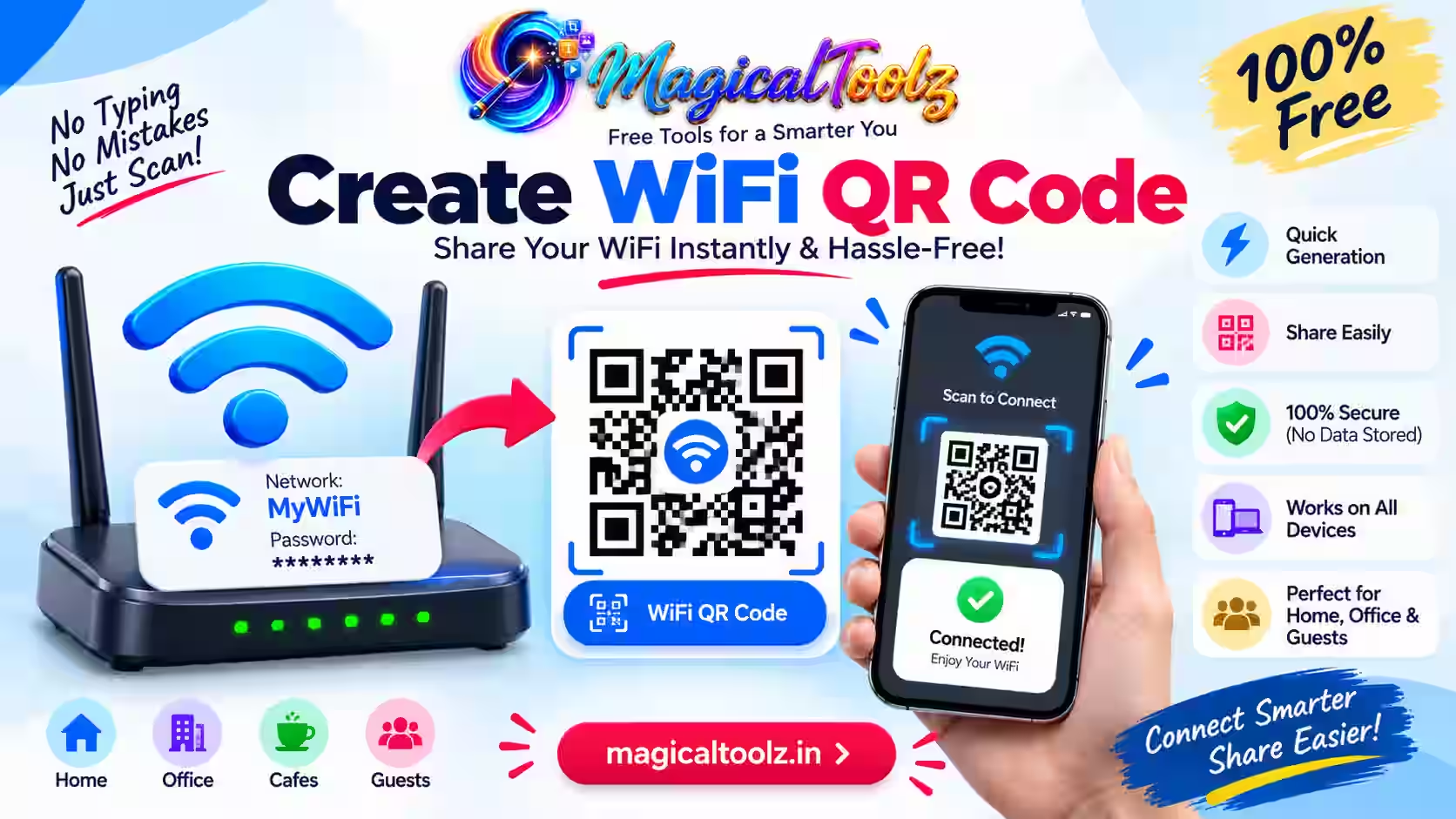
A WiFi QR code lets a guest join your network without typing a long password. You can keep the code on your phone or print it for regular visitors.
“What’s the WiFi password?”
You hear this question at home, in an office, at a café, or whenever a guest arrives. Then comes the awkward part. You read out a long password, someone types one letter incorrectly, and you start again.
A WiFi QR code removes that small but annoying problem. Your guest scans the code, checks the network name, and connects without manually typing the password. You can keep the code on your phone or print it for regular visitors.
In this guide, you’ll learn how to create a WiFi QR code, how it works, where to place it, and how to fix it if it won’t connect. We’ll also cover the privacy detail people often miss: a WiFi QR code contains the credentials you put inside it.
What Is a WiFi QR Code?
A WiFi QR code is a normal QR code that carries network details in a format supported by many phones. It can include:
Your WiFi network name, also called the SSID
The security type, such as WPA or WEP
The WiFi password
A setting that says whether the network is hidden
When a compatible phone scans the code, it reads those details and may show a prompt to join the network. The person does not need to type each character by hand.
The code does not provide free internet or bypass your router’s security. It simply shares the same information you would otherwise give to the guest.
Why Share a WiFi Password With a QR Code?
Convenience is the obvious benefit, but it is not the only one.
Long passwords are easy to mistype. A zero can look like the letter O. Uppercase and lowercase letters can get mixed up. Symbols are even harder to explain across a room. A scan avoids most of that confusion.
A WiFi QR code also helps when the same question keeps coming up. A café owner can place one on a counter. A clinic can keep one in the waiting area. A host can add it to a guest-room card. An office can display it in a meeting room.
It can also reduce the temptation to choose a weak password just because it is easier to say. You can keep a longer password and let the code handle the typing.
How to Create a WiFi QR Code Online
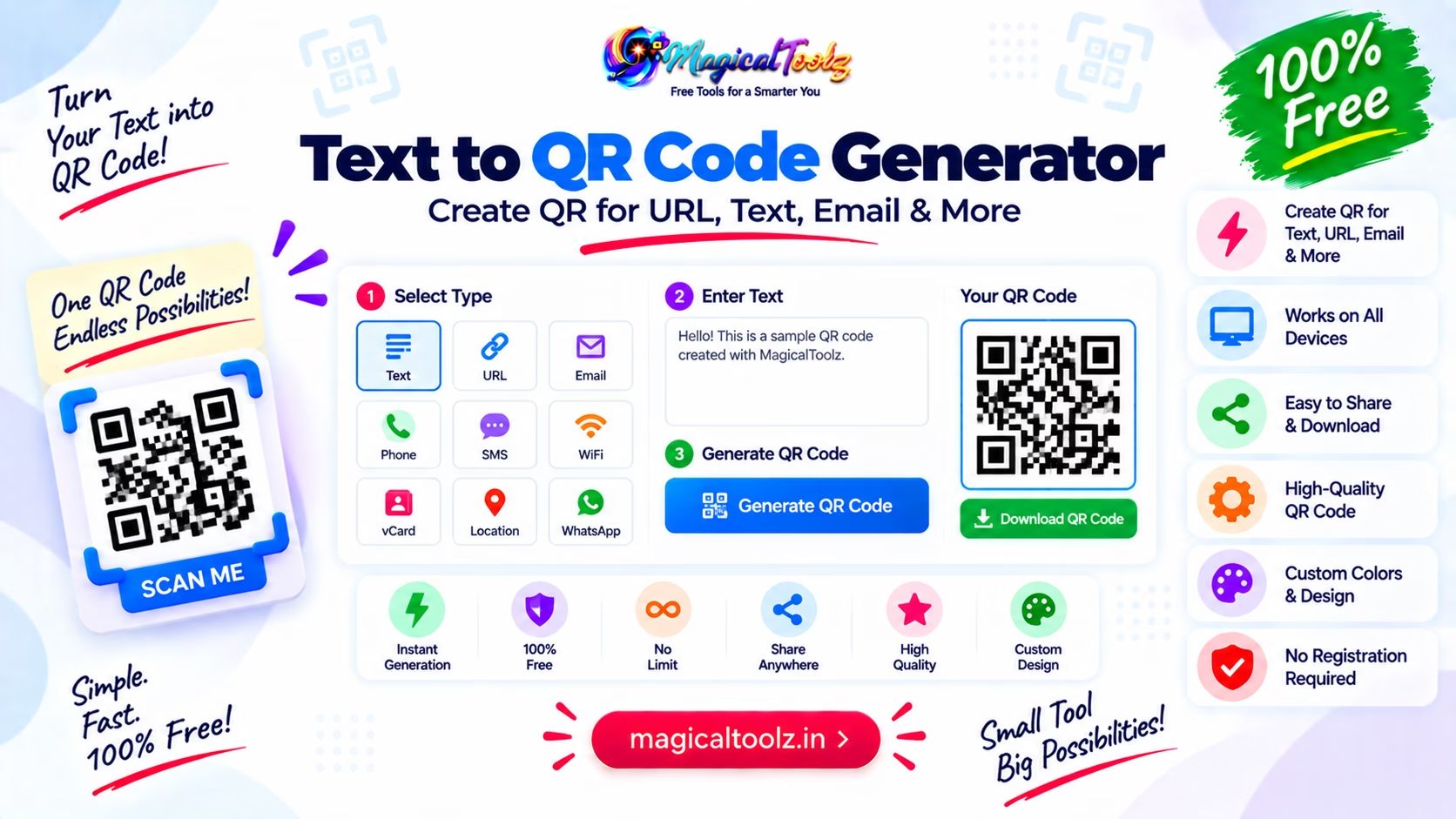
You can create a WiFi QR code with the Magical Toolz QR Code Generator. It creates one code at a time in your browser and includes a dedicated WiFi form.
Step 1: Open the QR code generator
Open the tool and choose WiFi as the content type. The form will change to show the fields needed for a wireless network.
Do not choose the plain Text option for this job. A text code may display your details after scanning, but the WiFi template builds the structured payload that a compatible phone can recognise as a network.
Step 2: Enter the network name
Enter your network name exactly as it appears in your phone or router settings. This name is the SSID.
Capital letters matter. So do spaces. If the real name is Mahir Guest WiFi, entering mahir guest wifi may point the phone to a different or nonexistent network.
If you are unsure, open the WiFi settings on a device that is already connected and copy the visible network name.
Step 3: Choose the correct security type
Select the security setting used by your network. Most password-protected home and business networks use a WPA option. WEP is an old and weak security method. “No password” is only for a genuinely open network.
Do not guess if you can check your router settings. A QR code can scan perfectly and still fail to connect when the selected security type is wrong.
Step 4: Enter the WiFi password
Type the current network password carefully. The generator formats the WiFi payload and escapes supported special characters for you.
This saves you from manually writing a technical string with semicolons and backslashes. Still, the tool cannot know whether your password is correct. One wrong character will create a valid-looking code for the wrong credentials.
Step 5: Mark a hidden network when needed
Turn on the hidden-network option only if your router does not broadcast its network name. Most home networks are visible, so most people should leave this setting off.
A hidden network is not the same as a password-protected network. A visible network can still be secure and require a password.
Step 6: Adjust the design without hurting contrast
The generator lets you choose foreground and background colours. It also supports an optional logo.
Keep the pattern dark and the background light. Fancy colours are not useful if a phone cannot separate the squares from the background. The tool blocks very weak colour combinations, but you should still test the finished design on a real screen or print.
If you add a logo, the tool switches to high error correction and limits the logo size. Those controls reduce the risk of covering too much of the code. They do not guarantee that every camera will scan every design.
Step 7: Generate and scan-test the code
Check the preview, then scan it with a phone that is not already connected to the network. Confirm two things:
The phone recognises it as a WiFi network.
The phone joins the correct network successfully.
Testing only with a phone that is already connected can hide a bad password. For an office, shop, or rental property, test with both an Android phone and an iPhone when possible.
Step 8: Download PNG or SVG
Download PNG for ordinary digital use, documents, and simple printing. Choose SVG when you need to place the code in a larger sign or design without making the edges blurry.
Magical Toolz lets you choose output size and quiet-zone margin. Keep the clear margin around the code. Do not crop it away after downloading.
How Does a WiFi QR Code Work?
The code stores a short text payload. A simplified example looks like this:
WIFI:T:WPA;S:GuestNetwork;P:ExamplePassword;H:false;;
You do not need to write this yourself. The generator builds it from the form.
In the example:
T tells the phone the security type.
S contains the network name.
P contains the password.
H tells the phone whether the network is hidden.
The QR image is only a visual form of that text. It does not contact your router, test the password, or create a new network. Your phone reads the stored details and tries to connect in the usual way.
Is It Safe to Put a WiFi Password in a QR Code?
It is convenient, but it is not secret.
Anyone who can scan the QR code may be able to read or use the network details inside it. Hiding the printed password does not change that fact. A QR code is an encoding method, not encryption.
For a public-facing place, create a separate guest network. This keeps visitors away from your main network and the devices connected to it. Your router may also let you isolate guest devices from one another.
Follow these simple rules:
Do not post your main home or office network code in a public area.
Use a guest network for customers, visitors, or short-term guests.
Place the code where intended visitors can see it, not in a street-facing window.
Change the password if the code is copied or shared outside the intended group.
Destroy old printed copies after changing the network credentials.
The Magical Toolz generator processes the entered WiFi details in your browser. It does not send the network name or password to Magical Toolz. However, the PNG or SVG you download still contains those details, so store the file carefully.
For more basic password advice, read what makes a password strong.
Does a WiFi QR Code Expire?
A static WiFi QR code does not have a timer. It can keep working as long as the network details stay the same.
It stops working when you change the network name, password, or security configuration. The old image cannot update itself. You must create and print a new code with the new details.
The code can also become useless if the router is replaced, the network is disabled, or the guest network is only active at certain times.
Can Android and iPhone Scan the Same WiFi QR Code?
In many cases, yes. Modern Android phones can scan QR codes with the Camera app, Google Lens, or a QR scanner inside WiFi settings. Google’s Android Help also explains that Android can create a shareable QR code for a saved network.
Apple explains that iPhone and iPad users can scan QR codes with the Camera app or Code Scanner. The exact prompt after scanning can vary by device, operating-system version, and payload support.
That last detail matters. Do not promise every visitor that every phone will connect in one tap. Older devices, modified Android versions, restricted work phones, and some third-party camera apps may behave differently.
Keep the written network name available as a backup. Share the password manually only with people who should have access.
Where Should You Use a WiFi QR Code?
At home
Save the code on your phone or print it inside a cupboard. Guests can connect without asking you to search for the password. Avoid placing it where delivery workers or people outside the home can scan it.
In a café or restaurant
Add the code to a table card, menu, or counter sign. Use a guest network and place a short instruction above it, such as “Scan to join guest WiFi.” A code without a label can look like a payment or menu link.
In an office or meeting room
Print the guest-network code near the display or conference table. Do not use an employee network that can reach internal systems.
In a hotel or rental property
Add the code to the welcome guide and keep the network name in plain text below it. Replace both after changing the password.
At an event
Use a temporary guest network when the venue allows it. Test the QR code at the event location before attendees arrive. A working code cannot fix weak WiFi coverage or an overloaded connection.
Why Is My WiFi QR Code Not Working?
Most failures come from the details or the printed design, not the basic QR technology.
The code scans, but the phone will not connect
Check the network name, password, and security type. Watch for capital letters, spaces, and similar-looking characters. If you recently changed the router password, create a new code.
Also check whether the network is in range. A QR code can carry correct details, but it cannot improve the signal.
The camera does not recognise the code
Make the code larger and increase the contrast. Use a dark foreground on a light background. Remove shadows, textures, and decorative elements near the edges.
QR codes need a clear border called a quiet zone. DENSO WAVE, the company behind QR Code, specifies a four-module-wide margin around all sides. Magical Toolz offers a quiet-zone setting from 4 to 12 modules. The default safe choice is at least four.
The printed code looks blurry
Download a larger PNG or use SVG for a scalable print design. Do not stretch a small raster image or resize the width and height separately.
Print one sample before producing a large batch. Test it under the same lighting and from the same distance your visitors will use.
The wrong action appears after scanning
Make sure you selected the WiFi content type instead of Text or URL. The visible squares may look similar, but the stored payload tells the scanner what kind of action to offer.
A hidden network still does not connect
Confirm that you enabled the hidden-network setting and typed the SSID exactly. Some devices handle hidden networks differently, so keep manual connection instructions available.
Simple Design Tips for a Better Printed Code
You do not need a flashy design. You need a code that works quickly.
Add a clear heading: “Scan to Join WiFi.”
Show the guest-network name below the code.
Keep plenty of blank space around the square.
Use strong colour contrast.
Avoid a glossy surface that creates glare.
Do not fold the paper through the code.
Keep the code flat when placing it on a curved sign.
Test the final printed version, not only the preview.
If you use a logo, keep it small and central. Do not cover the three large position markers in the corners.
Should You Use Your Phone’s Built-In WiFi Sharing Instead?
Use it when it is available and you only need to share the network once. On many Android phones, you can open the connected network in Settings and tap Share to show a QR code. This is faster than creating and downloading a new image.
An online generator is more useful when you want to:
Create a printable sign
Add controlled colours or a logo
Download SVG for a larger design
Choose a larger output size
Prepare a code on a computer
Create a code for network details not saved on the current phone
Choose the shortest path for the real job. You do not need a custom design just to connect one friend sitting beside you.
Final Check Before You Share the Code
Before saving or printing, use this quick checklist:
The network name matches exactly.
The security type is correct.
The password is current.
The hidden setting matches the router.
The pattern is darker than the background.
The white margin is not cropped.
The downloaded image is sharp.
A phone that was not connected can join successfully.
The code points to a guest network when visitors will use it.
Creating the QR code takes less time than explaining a difficult password twice. The important part is not the design. It is entering the right details, protecting access, and testing the result before you display it.
Use the free WiFi QR code option inside the Magical Toolz QR Code Generator when you need a downloadable PNG or SVG. No account is required, and one code is created at a time in your browser.
Frequently Asked Questions
How do I create a QR code for my WiFi password?
Open the Magical Toolz QR Code Generator, choose WiFi, and enter the exact network name, security type, password, and hidden-network setting. Generate the code, test it with a phone, and download PNG or SVG.
Can someone see my password from a WiFi QR code?
Yes. A QR code stores the network details; it does not encrypt them. Someone with access to the image may be able to decode the password. Use a guest network and control where you display the code.
Will a WiFi QR code work without internet?
A phone can read the stored network details without contacting a QR service. The target WiFi network must still be available, and internet access depends on that network.
Does a WiFi QR code work on both Android and iPhone?
It works on many modern Android phones and iPhones, but behaviour can vary with the device, operating-system version, and camera app. Test the final code on more than one phone before public use.
Do I need a new QR code after changing the WiFi password?
Yes. A static code contains the old credentials and cannot update itself. Generate a new code and replace any saved or printed copies.
What security type should I choose?
Choose the security type configured on your router. Most modern password-protected networks use WPA. Use WEP only for an old WEP network and “No password” only for a truly open network.
Why does my QR code scan but fail to connect?
The most likely cause is an incorrect network name, password, security type, or hidden-network setting. The network may also be out of range. Recheck each field and test again.
Is the WiFi password uploaded to Magical Toolz?
No. The QR code generator creates the payload and image in your browser. Magical Toolz does not receive the WiFi details you enter. The downloaded file still contains the credentials, so protect it.
Create a WiFi QR code with the Magical Toolz QR Code Generator. The tool creates one static code at a time in your browser and supports PNG and SVG downloads.

 Magical Toolz AI Support
Comments (0)
Use comments for article-specific feedback. Use the contact page for bugs and support requests.
Leave a Comment
No comments yet. Be the first to share something useful.