


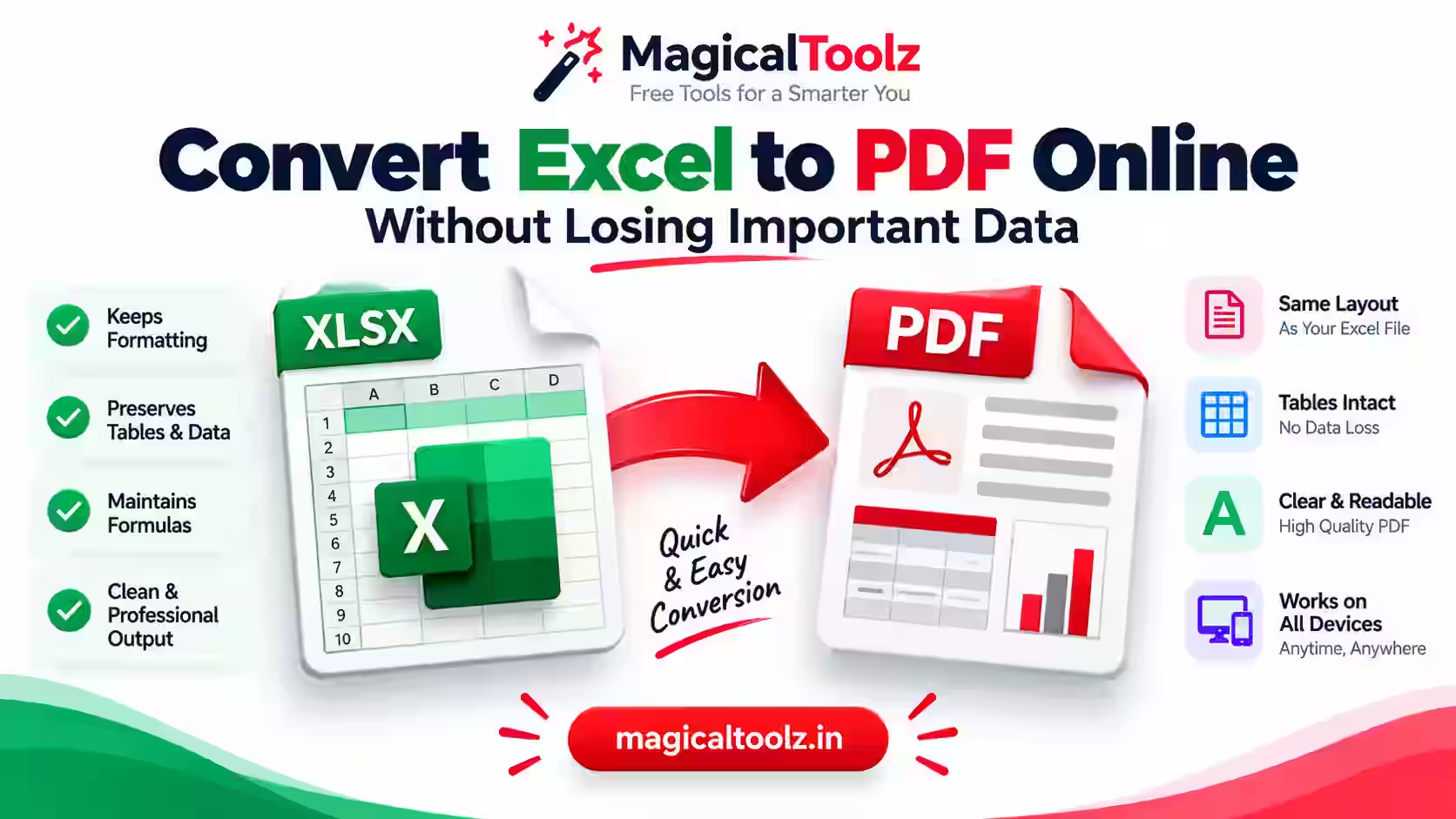
You press Convert, and the PDF opens. But one column is cut in half, the text is tiny, and a total looks different from the one in Excel. This happens a lot when people convert Excel to PDF.
The reason is simple. An Excel sheet can be as wide as you like. A PDF is made of fixed pages. So the sheet needs a little care before you convert it.
In this post, you will learn how to get a sheet ready, how to choose page size and direction, how to check your numbers, and when to use a free online tool and when to use Excel itself.
Quick answer: make a copy of your sheet, keep only the columns the reader needs, check the totals, pick Landscape if the table is wide, then convert and look at every page before you share. If you have charts, many sheets or exact print settings, use the Save as PDF option inside Excel instead.
Why Excel files break when you convert Excel to PDF
On a screen, a sheet can scroll. You can zoom in, hide a column or freeze the top row. A PDF cannot do any of this. It has pages, and each page has a size.
Here is a small calculation. An A4 page is 210 mm wide and 297 mm tall. Turn it sideways (Landscape) and you have about 297 mm of width. Now say your sheet has 15 columns. After the margins, each column gets less than 2 cm. That is only enough for a few letters at normal size. So the program shrinks everything, and the text becomes tiny.
So the real fix is not a better converter. The real fix is fewer columns, or a better page setup.
Convert Excel to PDF the right way: get the sheet ready first
Do not edit your original file. Make a copy first. Keep only what the reader of the PDF needs.
- Remove columns that are only for you, like internal codes, helper calculations, supplier notes or buying prices.
- Delete empty rows and stray values far away from your table. They can make the sheet look bigger than it is.
- Make sure dates, money and decimals are easy to read.
- Give the sheet a clear name, like "Report" or "August Summary". Then you will not pick the wrong sheet by mistake.
Many people make one extra sheet just for printing. It has the final headings, the columns you want, the totals and any notes. Your main data sheet stays untouched, which makes later updates easy.
Landscape or Portrait? A simple way to choose
Here is a rule that works most of the time. If your table has up to about six short columns, Portrait is fine. If it has more, or the columns hold long words like names and addresses, choose Landscape.
Do not force a long table onto one page just to say it fits. If a reader cannot read the numbers, one page is a bad result. Two or three readable pages are much better.
For page size, use what the person who gets the file needs. In India, A4 is the normal size. Letter is common in the United States and Canada.
Lost data and lost looks are two different problems
When people say "my Excel changed in the PDF", they can mean two things.
- A data problem means rows, numbers or part of the sheet did not come out in the PDF.
- A look problem means the numbers are there, but the colours, borders, merged cells, charts, images or spacing look different.
Most simple converters turn your sheet into a plain printed table. It is good for lists and reports. It will not copy every detail of how your sheet looked in Excel. If charts, shapes or special formatting matter, use Excel's own PDF export.
Also remember that a PDF is not an editable sheet. You cannot change a formula inside it. So keep your Excel file safe, and treat the PDF as the copy that you share or print.
Check your numbers before you trust the PDF
A formula shows the right answer only if the file was calculated and saved after your last change. If your file has links to other files, manual calculation or missing sheets, the numbers can be different from what you expect.
Before you send the PDF, compare the totals with your Excel file. Look at things like quantity, tax, discount and the final total. Also check the first row and the last row. Mistakes in a range often hide at the edges of a table.
One sheet, many sheets, or the whole file?
What you need to do matters more than how big the file is. Use this table to pick.
| What you need | Better choice |
| One clean table | An online converter is quick. Check the preview first. |
| Several sheets in one PDF | Excel or LibreOffice, with the sheets you pick. |
| Charts or a dashboard | The Save as PDF option inside Excel. |
| Exact margins and a fixed print area | Page Layout and Print settings in Excel or LibreOffice. |
| A quick copy to share a list | A simple online converter is enough. |
Making one PDF from one sheet is a different job from making one PDF from the whole file. Both start with an Excel file, but the steps are not the same.
How to use the Excel to PDF tool on this site
Our Excel to PDF tool is free. It works well for one clear table. Here are the steps.
- Step 1: Add your .xlsx or .xls file. You can drag it into the box or click to pick it.
- Step 2: Choose the Sheet you want. It converts one sheet at a time.
- Step 3: Choose the Page size (A4 or Letter) and the Orientation (Landscape or Portrait).
- Step 4: Look at the Preview. This is where you spot a cut column or a wrong sheet.
- Step 5: Press Convert to PDF, then Download PDF.
One honest note. The tool makes a printed table of the sheet you pick. It does not copy charts, shapes or fancy formatting exactly, and it does not join several sheets into one PDF. For those jobs, use Excel.
When Excel itself or LibreOffice is the better choice
Use the Save as PDF option in Excel when the report goes to a client, an auditor, a printer or your manager in a fixed format. There you can set the page direction, margins, print area, scaling, page breaks, repeating top rows, headers and footers. You get far more control.
Excel is also the better choice if your sheet has charts, a logo, pictures or merged title cells. After you export, open the PDF and check the page edges and the text size. The final PDF is what the other person sees, not the Excel preview.
If you do not have Excel, LibreOffice Calc is a free option. It has print ranges, page styles, scaling and PDF export too. Different programs can treat fonts and formulas in slightly different ways, so compare the PDF with your original file when the report is important.
Imagine this: a shop's monthly sales sheet
Say a shop owner has a sheet with 12 columns: date, bill number, customer name, phone, item, quantity, price, discount, tax, total, payment type and a private note. She wants to send it to her accountant.
First she makes a copy of the sheet. She removes the phone number and the private note, because the accountant does not need them. That leaves 10 columns. She chooses Landscape and A4. In the preview, the text looks readable and the last column is not cut. She converts it, and the PDF comes out as three pages.
Then she does the last check. The total in the PDF matches the total in Excel, and the first and last rows are there. Only after that does she send it. This takes five minutes, and it saves a lot of confusion later.
Before you send the PDF: a quick privacy check
A spreadsheet can have hidden sheets, hidden columns, comments and old rows. Remove what the other person does not need before you make the PDF. Hiding a column is not always enough, so it is safer to delete it in your copy.
Do not work on customer names, phone numbers, addresses, salaries or bank details on a public computer. After you finish, also check your Downloads folder, your browser history and any synced folder, because the file may stay there.
A PDF is not secret by default. If a report is sensitive, send it in a way you trust, and add a password only when you really apply one.
Final checklist before you share
- You used the right sheet or the print copy.
- You looked at the first page, a middle page and the last page.
- The column headings are clear.
- The totals match your Excel file.
- Long names and addresses are not cut.
- The page direction and text size are easy to read.
- If you have charts, images or merged cells, you checked them.
- You removed private or internal data.
- Your original Excel file is saved in a safe place.
- If it will be printed, you tried one test print.
What to do next
Open your own sheet, make a copy, remove what the reader does not need, and try the Excel to PDF tool with the preview. If the PDF is too big to send, use Compress PDF. If you want page numbers on a long report, try Add Page Numbers to PDF. And if you have a Word file to convert too, there is a Word to PDF tool as well.
Frequently Asked Questions
Does converting Excel to PDF keep every format?
No. How much stays the same depends on the method. A simple converter makes a printed table, so fonts, colours, borders, merged cells, charts and spacing can change. Excel's own Save as PDF keeps much more.
Why does my Excel PDF have very small text?
Your sheet is probably too wide for the page. Remove columns you do not need, choose Landscape, or split the report into smaller parts.
Can I put several Excel sheets in one PDF?
Use Excel or LibreOffice for that. A tool that converts one sheet at a time will not join all your sheets into one PDF.
Why are my totals different in the PDF?
Make sure your formulas were recalculated and that you saved the file after the newest edit. Then compare the range in Excel with the table in the PDF.
Should I delete my original Excel file?
No. Keep it. The Excel file is the one you can edit. The PDF is only the copy for sharing or printing.
Which page size should I use?
Use the size the person or printer asks for. For most offices and printers in India, that means A4.
 Magical Toolz AI Support
Comments (0)
Use comments for article-specific feedback. Use the contact page for bugs and support requests.
Leave a Comment
No comments yet. Be the first to share something useful.