


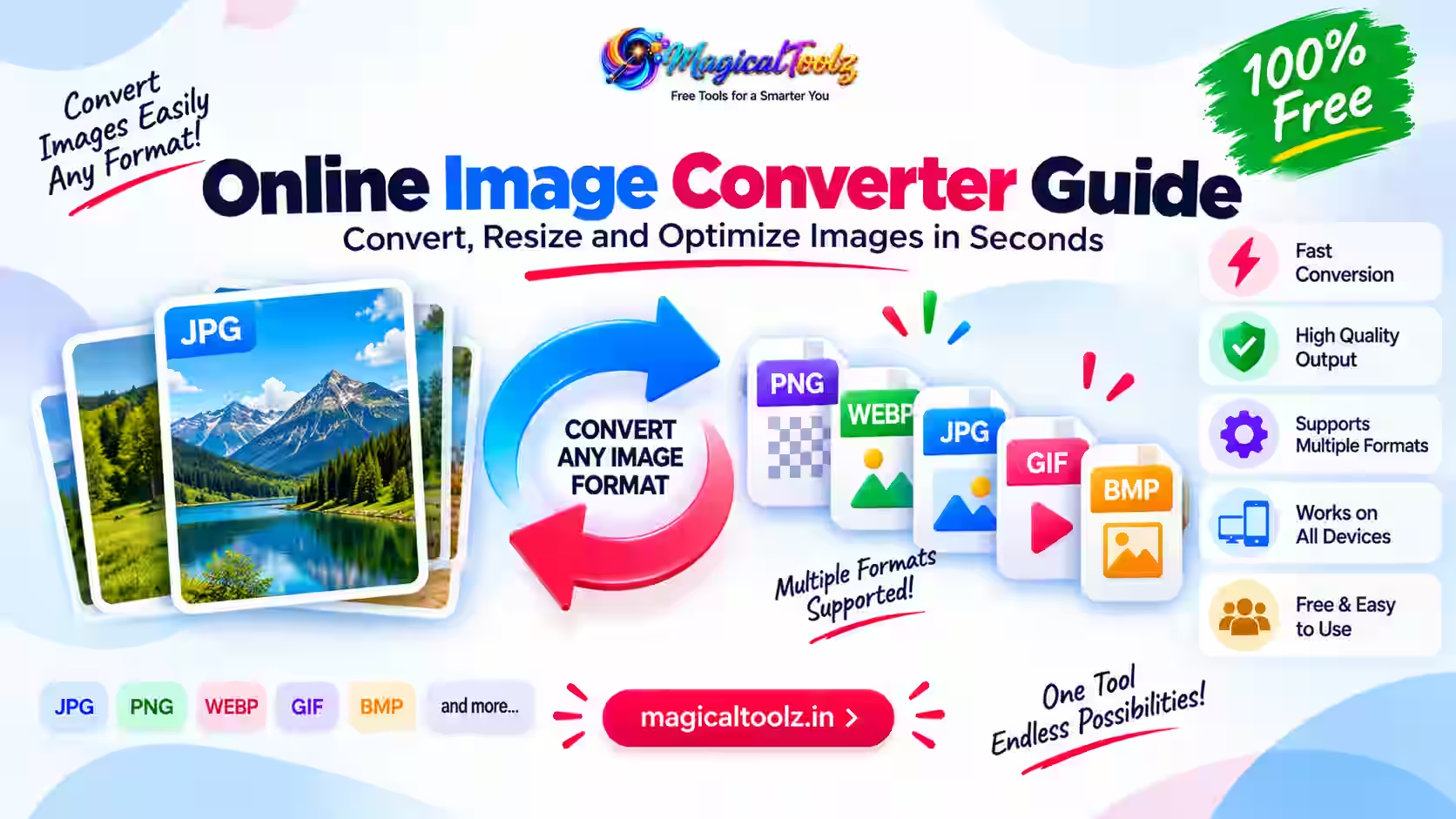
An image converter helps when a website accepts the picture but rejects its file format. The Magical Toolz Universal Image Converter handles one browser-readable image at a time and creates a new PNG, JPEG, or WebP copy. AVIF output appears only when the browser can encode it.
The active tool accepts PNG, JPEG, WebP, GIF, AVIF, and BMP input. It does not claim HEIC, TIFF, camera RAW, PSD, SVG, PDF, vector conversion, batch processing, or animated output.
Quick answer: Choose one supported image, select the output, set quality or maximum width when needed, convert locally, inspect the preview, and download the result. Keep the original until the new file has been checked.
Supported inputs and outputs
| Role | Current formats | Important detail |
| Input | PNG, JPEG, WebP, GIF, AVIF, BMP | The browser must be able to decode the selected file. |
| Output | PNG, JPEG, WebP | Created through the browser Canvas API. |
| Conditional output | AVIF | Shown only after the browser passes an AVIF encoding check. |
| Not claimed | HEIC, TIFF, RAW, PSD, SVG, PDF | Use a workflow that explicitly supports the source format. |
A filename extension is not enough to prove the real format. If a renamed or damaged file cannot be decoded, the converter will reject it instead of pretending that conversion succeeded.
How to convert an image
- Open the Universal Image Converter.
- Drop one supported image into the upload area or browse for it.
- Wait for the source preview, dimensions, filename, and size to appear.
- Choose PNG, JPEG, WebP, or an available AVIF option.
- Set the quality slider for a lossy output.
- Optionally enter a maximum width to create a smaller copy.
- For JPEG, choose the color that should replace transparent pixels.
- Select Convert image and inspect the result.
- Compare the output size and dimensions, then download it.
The converter does not enlarge an image when the maximum-width value exceeds the source width. It scales down proportionally, so the height follows the width without stretching the picture.
Choose the right output format
JPEG for photographs and compatibility
JPEG is widely accepted and often keeps photographs manageable in size. It uses lossy compression, so a lower quality setting removes more image information. JPEG cannot preserve transparent pixels.
Use it for ordinary photographs, application portals, email attachments, and platforms that specifically request JPG or JPEG. Keep the source when you may need a higher-quality export later.
PNG for transparency and sharp graphics
PNG suits screenshots, interface graphics, diagrams, and images with transparency. It can preserve hard edges and text better than a heavily compressed JPEG, but a detailed photograph may become much larger.
Choose PNG because the image needs its properties, not because PNG is automatically “higher quality” for every job.
WebP for modern web delivery
WebP supports lossy and lossless compression as well as transparency. It is useful for modern websites when the publishing system accepts it. Google documents these WebP capabilities in its official WebP guide.
Test the output in your CMS and final page. File size depends on the source, dimensions, and selected quality; no fixed saving applies to every image.
AVIF when the browser can encode it
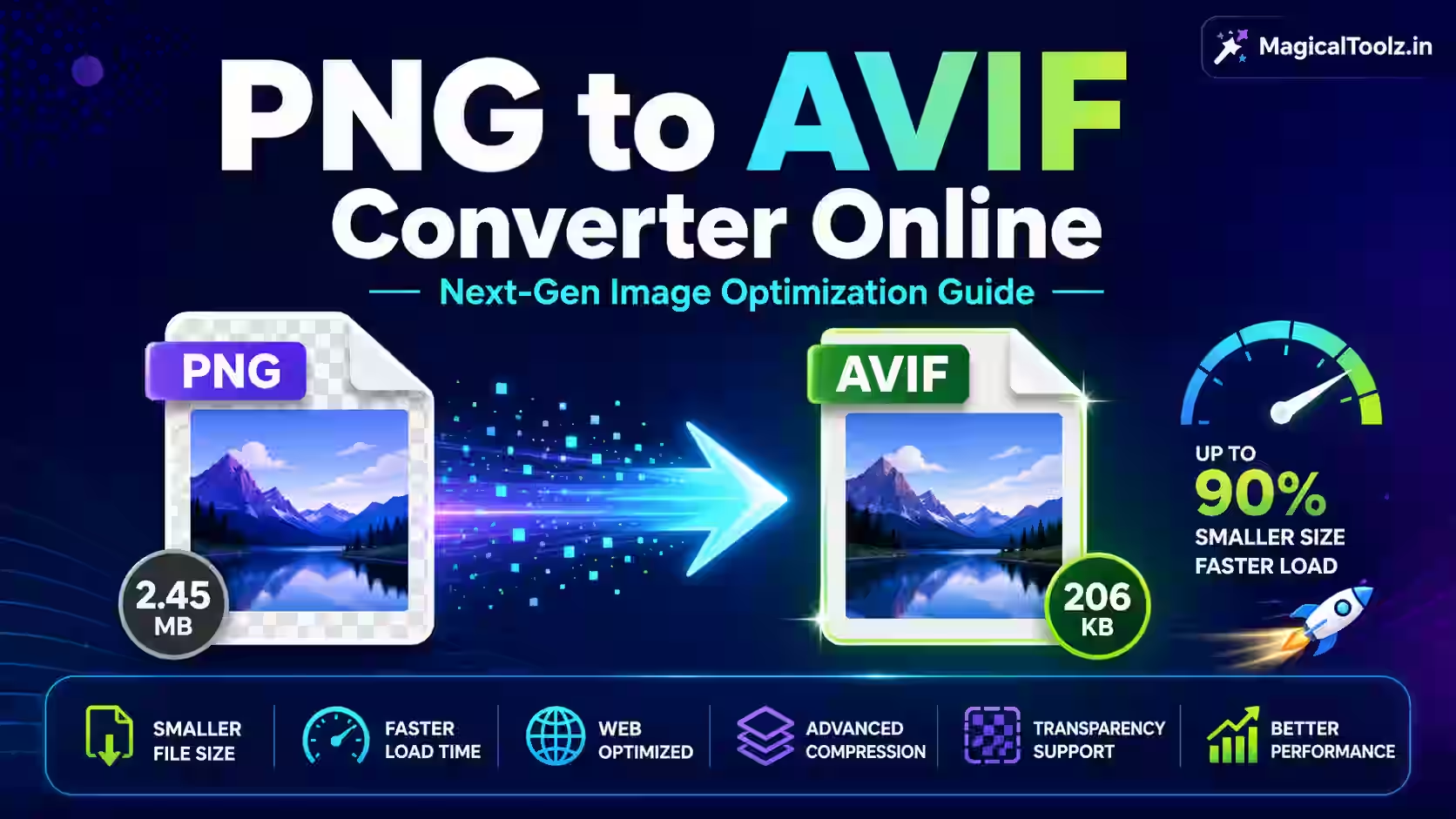
AVIF can provide efficient web output, but browser encoding support is not universal. The active tool tests support when the page loads and removes AVIF from the output list if encoding is unavailable.
If AVIF is missing, use PNG, JPEG, or WebP rather than assuming that conversion is broken.
Quality and maximum width solve different problems
The quality slider controls lossy encoding. Maximum width controls pixel dimensions. An image can keep the same dimensions while becoming smaller through stronger compression, or it can retain a moderate quality while becoming smaller because fewer pixels are exported.
For example, a 5000-pixel-wide photo displayed at 1200 pixels may not need its full source dimensions. A 1200-pixel copy at a sensible quality may look cleaner than the full-size image exported with extreme compression.
The maximum-width field accepts values up to 12,000 pixels, but the complete output must also remain within the 40-megapixel safety limit.
Transparency when exporting JPEG
JPEG has no alpha channel. When a transparent PNG, WebP, or browser-decoded source becomes JPEG, transparent areas need a solid fill. The converter includes a transparency-fill color specifically for JPEG output.
White is a common choice, but it may create visible boxes around a light logo on a colored page. Match the fill to the destination background, or choose PNG or WebP when transparency must remain.
Current file and image limits
- The selected file must be 50 MB or smaller.
- The decoded source must be 40 megapixels or smaller.
- The requested output must remain within 40 megapixels.
- Maximum width cannot exceed 12,000 pixels.
- The workflow handles one image at a time.
These limits protect the browser from some memory-heavy operations. They do not guarantee that every device can process a file near the maximum. A low-memory phone may struggle sooner than a desktop computer.
What happens to metadata and color profiles?
The converter decodes the image, draws it to a canvas, and encodes a new file. The active tool explicitly warns that Canvas does not copy metadata and that embedded color profiles may be normalized by the browser.
Do not use this workflow when camera metadata, copyright information, GPS data, or a controlled professional color profile must be preserved. Use an application that exposes those requirements and verify the exported file.
Local processing and privacy
The selected image is decoded and converted in the browser. It is not uploaded to an image-conversion server by this workflow. Source and result previews use temporary browser object URLs, which are released during reset or when the page closes.
Local processing still uses your device, browser, extensions, clipboard, and download folder. For confidential work, use a trusted device and follow your organisation’s handling policy. Keep downloaded files out of shared or automatically synced folders when that matters.
Unsupported formats need another workflow
HEIC and HEIF
The active tool does not accept HEIC. Apple explains compatible capture and export options in its HEIF and HEVC support guide. Keep the original photo and use software that explicitly decodes HEIC.
TIFF and camera RAW
TIFF and RAW files may contain high-bit-depth data, multiple pages, layers, or camera-specific information. Do not assume a general browser converter preserves those properties.
SVG
SVG is vector artwork, not an ordinary raster photograph. Export it through a vector-aware application and choose the required pixel dimensions. Keep the SVG master for future scaling.
PDF is a document container and can contain multiple pages, fonts, vectors, and images. Use a PDF-to-image workflow where you can choose pages and resolution.
Common conversion problems
The image is rejected
Confirm the actual format, file size, and pixel count. A file renamed from an unsupported extension does not become a supported image.
AVIF does not appear
The browser failed the AVIF encoding test. Choose another output or use a browser/application with supported encoding.
The output is larger
PNG may be larger than JPEG or WebP for photographs. A high quality setting or unchanged large dimensions can also increase output size.
Transparency became a solid color
You selected JPEG. Use the fill control deliberately or choose an output that supports transparency.
The browser slows down
Close unused tabs, try a smaller source, reduce output dimensions, or move the job to a device with more available memory.
An animated GIF becomes still
The tool accepts browser-decodable GIF input but does not claim animated output. Use an animation-aware workflow when frames must remain.
Check the result before using it
- Open the downloaded file instead of relying only on the page preview.
- Confirm the format and filename extension.
- Check text, faces, edges, gradients, and transparency.
- Compare dimensions with the destination requirement.
- Confirm that file size actually improved when that was the goal.
- Keep the original until the new copy works in its final destination.
Frequently asked questions
Which files can I upload?
The current input list is PNG, JPEG, WebP, GIF, AVIF, and BMP, subject to browser decoding support.
Can I convert HEIC, TIFF, RAW, SVG, or PDF?
No. Those formats are not claimed by the active tool.
Can I process a batch?
No. This converter handles one image at a time.
What is the maximum file size?
The selected file is limited to 50 MB, and the decoded image is limited to 40 megapixels.
Why is AVIF unavailable?
The browser may not support AVIF encoding. The option appears only after a successful capability check.
Does JPEG keep transparency?
No. Choose a fill color or export PNG or WebP when transparency is required.
Does the converter preserve metadata?
No metadata preservation is claimed. Canvas export does not copy the source metadata.
Does the image leave my device?
The active conversion workflow processes the image locally in the browser without a conversion-server upload.
Convert for the destination, not the extension
Choose JPEG for compatible photo output, PNG for transparency and sharp graphics, or WebP for a modern web copy. Use AVIF only when the browser offers it and your destination accepts it.
Open the Universal Image Converter, use a supported source, and inspect the downloaded result before replacing the original.
 Magical Toolz AI Support
Comments (0)
Use comments for article-specific feedback. Use the contact page for bugs and support requests.
Leave a Comment
No comments yet. Be the first to share something useful.