


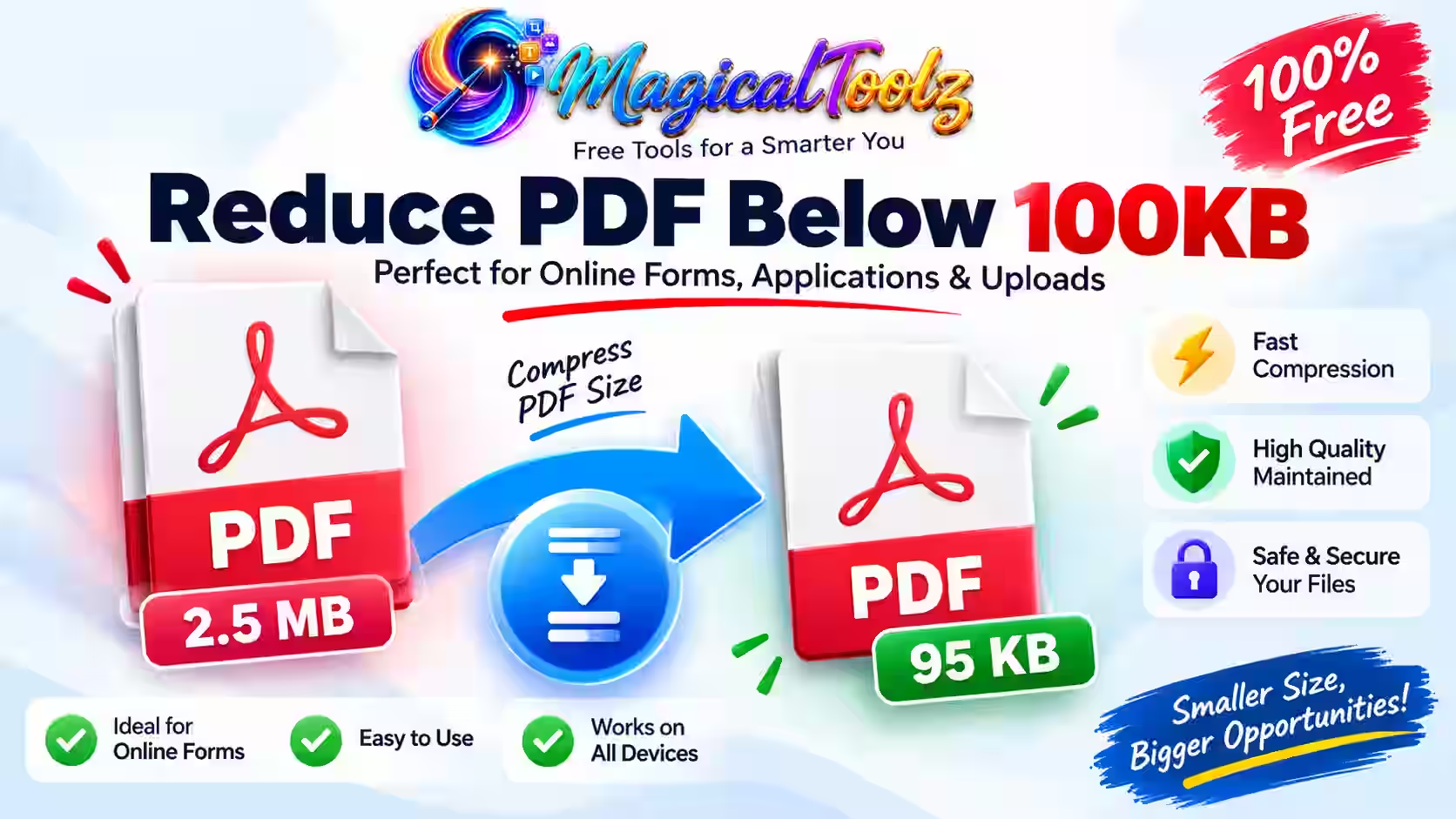
You can reduce PDF below 100KB without turning it into an unreadable blur, but only when the document gives you enough room to compress it. A one-page form has a better chance than a ten-page colour scan. Remove what the portal does not need, lower the image data carefully, and check the downloaded file before uploading it.
The Magical Toolz 100KB PDF compressor is made for this target. It processes the file in your browser, tries to reach 100KB, and shows the size it actually achieved. The target is not guaranteed because every PDF has a different number of pages, images, colours and small details.
Start with settings that protect the text. Push the compression harder only when the first result is still too large.
Best settings for the current 100KB tool
Start with the tool's Balanced effort and Keep color options. If the file remains above the target, try Convert to grayscale when color does not carry important information. Use Favor quality when clarity matters most, or Aggressive when meeting the limit matters more and the output remains readable.
The tool chooses its own scale and compression effort attempts. You do not enter a render scale value or a manual JPEG percentage. Check the final PDF after every run.
How to Reduce PDF Below 100KB Step by Step
Keep the original file
Make a copy of the original PDF before changing it. Use that copy for every attempt.
The 100KB workflow can turn each page into a JPEG-backed image and rebuild the PDF. Compressing that output again can add more blur. Starting from the original gives you a cleaner result.
Keeping the original also means you can return to a searchable or signed version later. The small upload copy should not replace your master document.
Check the portal instructions
Read the upload field carefully. Confirm whether the limit means:
Less than 100KB
100KB or less
A maximum of 100KB per file
A combined 100KB limit for several documents
These rules are different. A portal may also specify the required page, document type, colour mode or file format.
Do not remove a required page just to meet the size limit. The portal may accept the file but reject the application because the document is incomplete.
Open the 100KB PDF compressor and choose one PDF from your device. The page shows a target of about 100 KB and accepts one PDF at a time. The tool reads the file in your browser. It does not upload the PDF to the Magical Toolz server.
The current interface does not display a fixed file or page limit. Very large PDFs can still be limited by available browser memory and device performance. Password-protected or corrupted PDFs may fail when the browser PDF reader cannot open them.
Use the complete PDF selected
The current 100KB tool processes every page in the selected PDF. It does not provide a page-range field or page thumbnails. If the portal needs only certain pages, create a separate PDF with those pages first, then upload that smaller source. Check the page order and required information before compression.
What raster compression changes
Raster compression usually gives the strongest size reduction for scanned documents. It renders each page as an image, compresses that image, and places it into a new PDF.
This method suits certificates, application forms, scanned letters and other documents that mainly need to be viewed. It also changes how the PDF works.
After raster compression:
Text is no longer selectable or searchable.
Links no longer work as links.
Fillable fields become part of the page image.
Annotations and layers are flattened.
Existing digital signatures may no longer validate.
Keep the original when any of these features matter. Use the compressed copy only for the upload that needs a smaller file.
Use grayscale only when colour is unnecessary
Colour adds data. Turning a plain document into grayscale can help reduce its size without making the words harder to read.
Grayscale often suits typed forms, black-ink signatures, letters and simple certificates. Keep colour when it carries useful information, such as:
A coloured government seal
A photograph used for identity checking
Highlighted answers
A chart with colour-coded values
A stamp whose colour helps confirm the original
Look at the converted page instead of guessing. If two sections become difficult to tell apart, return to colour.
Choose the effort and color options
The current tool does not expose render scale or manual compression effort controls. Instead, choose one of these effort settings:
Balanced is the starting choice for ordinary documents.
Favor quality tries larger renders and higher quality before making stronger reductions.
Aggressive makes stronger reductions when the file must become much smaller.
Under Color, choose Keep color when stamps, photos, highlights or seals matter. Choose Convert to grayscale when the page is mostly text and color adds no useful information.
The compressor tries a series of internal scale and quality combinations until it reaches the 100 KB target or produces its smallest attempt. Start with Balanced, inspect the result, and then switch to grayscale or Aggressive only when necessary.
Run the compression
The tool tries a series of settings as it works toward 100KB. When it finishes, check the achieved size. It will tell you whether the target was reached.
A result of 96KB meets a 100KB maximum. A result of 108KB does not. Some portals may calculate file size differently, so leaving a little room below the stated limit is safer than stopping at exactly 100.0KB.
Do not keep compressing after the file meets the requirement. A clear 96KB document is more useful than a damaged 55KB copy.
How to Check Whether the PDF Is Still Readable
Open the downloaded file in a different PDF viewer. Do not judge it only from the preview inside the compressor.
View each page at 100% zoom and check:
Full name and address
Application or registration number
Dates and amounts
Small table entries
Handwritten text
Signature
Stamp or seal
Photograph
QR code or barcode
Text near the page edges
Try to scan any QR code or barcode that the receiving office may need. A code can look fine to your eyes and still fail when its small squares or lines become soft.
Check every page, not only the first one. Later pages may contain smaller text or a fainter scan.
If you need 200% or 300% zoom to read normal text, raise the render scale or compression effort. The reviewer should not have to struggle with your file.
What “Without Losing Readability” Means
It does not mean zero quality loss. Strong compression removes image data. A page may look a little softer after you reduce PDF below 100KB.
Readability means the file still does its job. Names must be clear. Numbers must not merge. Signatures and photographs must remain useful. No page should be blank, cut off or rotated the wrong way.
This difference matters because “100KB” describes file size, not document quality. A portal can accept the upload while a human reviewer rejects the content.
Why Some PDFs Reach 100KB Easily
A short document with lots of blank space has less information to store. Grayscale can reduce it further when colour is not needed.
Files that often compress well include:
One-page forms
Black-and-white letters
Simple certificates
Pages without photographs
Clean scans with cropped edges
These files may reach the target without using the lowest settings.
Why Some PDFs Stay Above 100KB
A PDF with many pages or detailed images has more information to preserve. The compressor can remove detail, but there is a point where the document stops being useful.
Harder files include:
Multi-page colour scans
Full-page photographs
Dark scanner backgrounds
Tiny printed text
Detailed charts
Several stamps and handwritten notes
Identity documents with photographs and fine security patterns
The tool may return its smallest attempt above 100KB. That does not always mean something went wrong. The source may simply contain too much detail for the target.
How to Reduce PDF Below 100KB When the First Try Fails
Change one setting at a time. You will see what saved space and what damaged the page.
Remove unnecessary pages
This usually gives you the cleanest saving. Do it only when the portal does not require those pages.
Turn on grayscale
Try grayscale when the document contains plain text and colour adds no meaning.
Use grayscale when colour is unnecessary
Choose Convert to grayscale when the page is mainly text and color does not carry useful information. Then check stamps, photographs, highlights, and signatures before submitting the file.
Use separate upload fields when allowed
Some forms provide different fields for an ID, certificate and signature. Upload each document to its correct field instead of combining everything into one PDF.
Adobe's PDF compression tutorial lets you overwrite the original or save the smaller file under a new name. Save it separately. You may need the clean original when the compressed copy is unclear or no longer supports the same features.
When the 100KB Method Is the Wrong Choice
Do not rasterise the PDF when the recipient needs selectable text, working links, fillable fields, accessibility tags or editable vectors.
Use a structure-preserving PDF compressor when the recipient needs selectable text, links, forms, annotations, or other interactive PDF features.
Be careful with signed documents. Rewriting a PDF changes its data and may invalidate an existing digital signature. Keep the signed original and follow the receiving organisation’s instructions.
Common Mistakes
Recompressing the downloaded copy
Repeated JPEG compression can damage the page quickly. Return to the original for every new attempt.
Choosing Aggressive without checking the result
Aggressive mode can produce a much smaller file, but fine text may become unclear. Start with Balanced and inspect the result before switching modes.
Keeping blank and duplicate pages
They still take space. Remove them when they are not part of the required document.
Looking only at the file size
Size tells you whether the portal may accept the upload. It does not tell you whether the reviewer can read it.
Deleting the original
The compressed PDF is an upload copy. Keep the clean, searchable or signed original safe.
A Simple Example
Suppose a two-page application scan is 620KB. The portal allows a PDF of no more than 100KB.
You upload the two-page application, choose Balanced effort, and turn on grayscale because the scan does not need color. The first result is 126KB. It looks clear, but it misses the limit.
You return to the original and try Aggressive effort. The new file is 93KB. You open it at 100% zoom and check the application number, signature, handwritten date and declaration. Everything is readable.
Stop there. The 93KB copy meets the limit. Lowering it to 60KB would only throw away more detail.
Final Upload Check
Before submitting, confirm each point:
The file is below the stated limit.
Every required page is included.
Names, numbers and dates are clear.
Signatures, stamps and photographs remain useful.
QR codes and barcodes scan when required.
No page is blank, cropped or rotated incorrectly.
The PDF opens in another viewer.
The filename follows the portal instructions.
The original file is stored safely.
Use the browser-based 100KB compression tool when you need to reduce PDF below 100KB for a job form, admission portal or another strict upload field. Start with Balanced effort and make only the changes your file needs.
Frequently Asked Questions
Can every document be reduced below 100KB?
No. Page count, photographs, colours and fine details limit how small a readable PDF can become. The tool reports the size it reached instead of promising a result that may not be possible.
How do I reduce PDF below 100KB without making the text blurry?
Upload only the separate PDF that contains the pages the portal requires, try grayscale when colour is unnecessary, and start with Balanced effort. Reduce one setting at a time and inspect the output after every attempt.
Which effort setting should I use for an online form?
Start with Balanced. Use Favor quality when the first result is clear but still needs careful quality control. Use Aggressive only when the file remains too large and the result is still readable.
Does the text remain selectable?
No. Raster compression rebuilds pages as images. Text selection, search, links and fillable fields do not remain interactive.
Is the 100KB result guaranteed?
No. The target is best-effort. A complex or long document may stay above 100KB even after strong compression.
Is my PDF uploaded to Magical Toolz?
No. The current 100KB tool processes the PDF inside your browser and does not upload it to the site server.
Can I use a password-protected PDF?
No. Encrypted and password-protected PDFs are not supported. Remove protection only when you have permission.
Can compression invalidate a digital signature?
Yes. Rewriting the PDF can cause a viewer to report an existing signature as changed or invalid. Keep the signed original.
 Magical Toolz AI Support
Comments (0)
Use comments for article-specific feedback. Use the contact page for bugs and support requests.
Leave a Comment
No comments yet. Be the first to share something useful.