


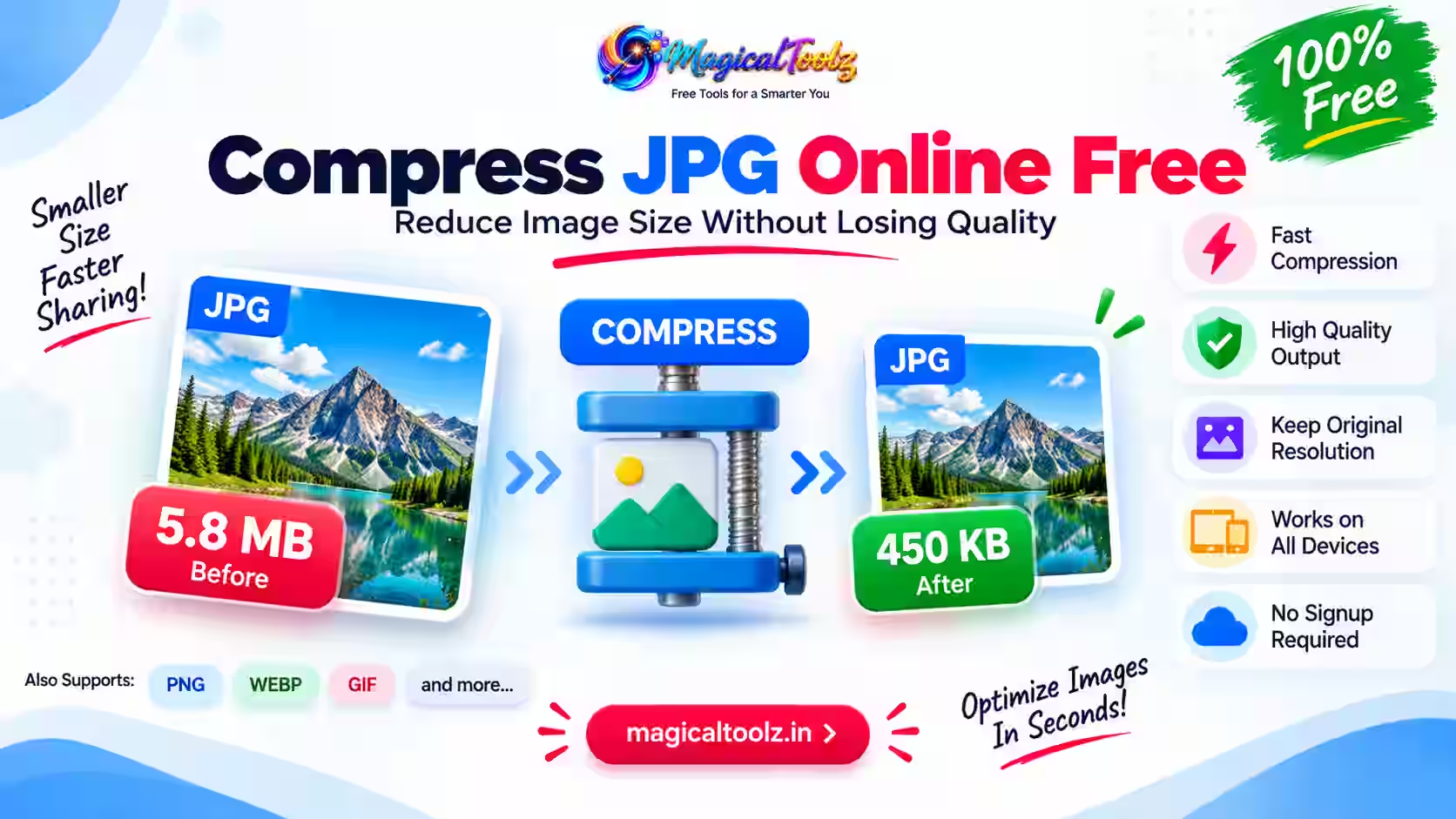
Need to compress JPG online because a photo is too large for a form, email or website? The problem sounds simple, but the wrong settings can leave you with a tiny file that looks rough, blurry or full of strange blocks. A good result is not merely "smaller." It is small enough for the job while still looking clean where people will see it.
Compress JPG Online is useful because phone cameras, design exports and stock sites can create files that are much larger than you need. JPG already stores photos quite well. Even so, a picture meant for a small web card does not need the same size as a print-ready photo. An email does not need each bit of data from a new phone camera.
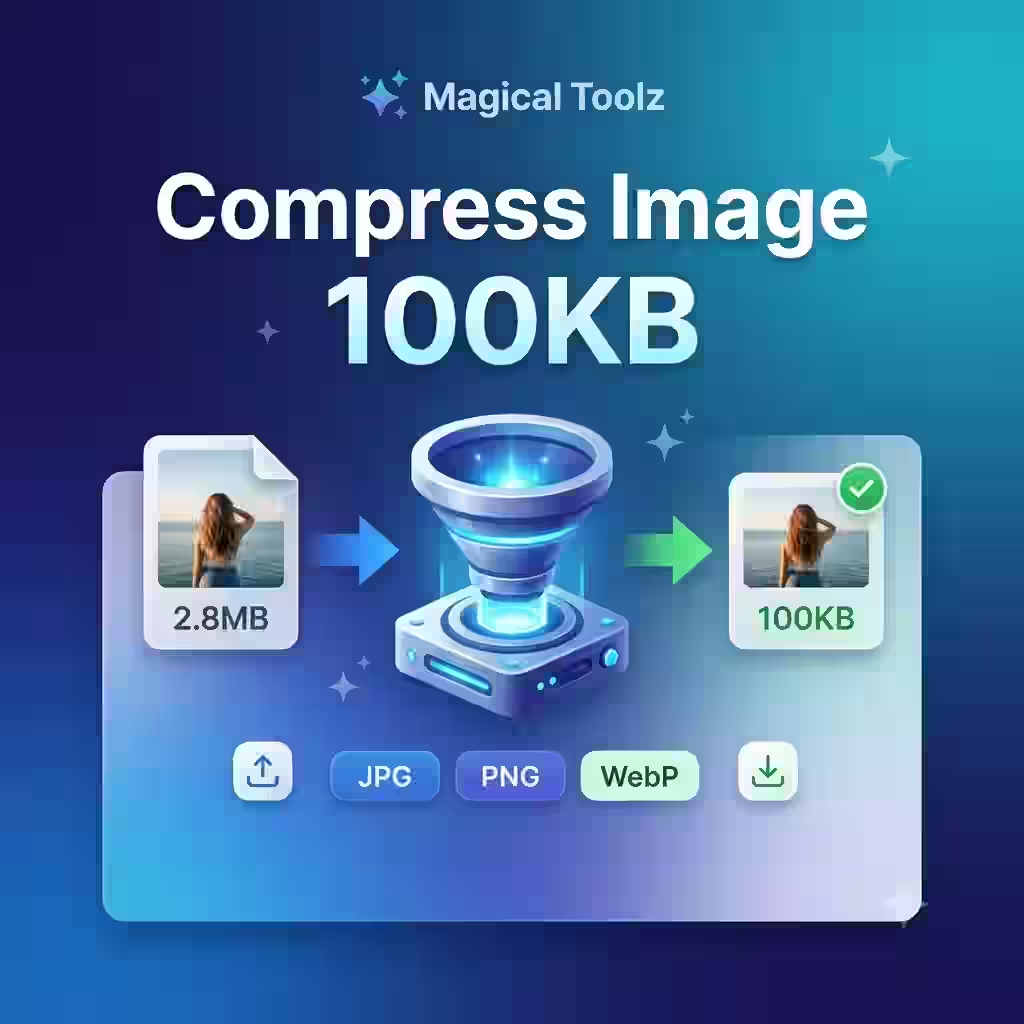
The Compress JPG tool from Magical Toolz gives you a browser-based place to prepare a lighter copy. You can use this guide to understand what compression changes, how to judge quality and when resizing may help more than simply lowering the JPEG setting.
We will also cover websites, ecommerce photos, email, online forms, mobile devices and common mistakes. Most importantly, you will learn why the best compression level depends on how the image will be used.
Quick Answer: How Do I Compress a JPG File?
Open the Magical Toolz Compress JPG page and add your JPEG image. Choose the available compression or quality setting, if the live interface provides one, and process the file. Compare the new size with the original. Then open the downloaded image and inspect faces, text, edges and smooth colour areas before using it.
Keep the original file. The compressed image should be a delivery copy for a website, upload or message—not your only master photo.
What Does JPG Compression Actually Do?
JPG, also called JPEG, uses lossy compression. That means it can reduce file size by removing some visual information. The format tries to discard details that are less noticeable to the human eye while keeping the overall picture recognisable.
At a sensible setting, Compress JPG Online can make a smaller copy that looks almost the same in normal use. Push it too far, however, and the lost detail becomes clear.
Common signs of excessive compression include:
- Blocky squares in smooth areas
- Fuzzy text
- Rough lines around products or people
- Smudged hair, grass or fabric
- Colour bands in skies and gradients
- Halos around high-contrast edges
Compression does not change the subject or crop the picture. Instead, it changes how much data the JPEG uses to describe that picture.
How to Compress JPG Online Step by Step
The exact buttons can change as the tool develops, but the safe workflow remains consistent.
Step 1: Start with the best source
Find the cleanest original you have. Avoid using a screenshot of a photo when the actual JPG is available. A source that has already been heavily compressed gives the new tool less detail to work with.
Make a backup before editing an important image. Compression should create a separate copy.
Step 2: Open the JPG compressor
Visit the Magical Toolz compression page and add up to 30 JPG or JPEG files. The current interface provides a browser quality slider and processes the batch locally without a server upload.
If the image uses another format, do not merely rename the extension. Use a proper conversion workflow. The Universal Image Converter can help you create a JPG copy first when the source format is supported.
Step 3: Choose a balanced setting
If the tool offers a quality or compression control, begin near the balanced or recommended range. Do not jump straight to the most aggressive option unless the destination has an extremely strict limit.
A higher JPEG quality usually creates a larger file. A lower setting usually makes the file smaller but removes more visual detail.
Step 4: Run the compression
Process the image and wait for the result. Large, high-resolution photos may take longer than small website graphics, especially on a phone or modest computer.
Step 5: Compare size and appearance
Look at both numbers and pixels. A major reduction is useful only when the image still suits the job.
Check:
- Face details
- Product edges
- Small writing
- Logos
- Sky and wall gradients
- Hair and textured fabric
- Dark shadows
View the image at its normal display size first. Then zoom in once for a closer check.
Step 6: Download and rename the copy
Use a clear name such as product-chair-web.jpg or profile-photo-compressed.jpg. A descriptive filename helps you avoid mixing up the master and delivery versions.
Step 7: Test the final destination
Upload the result to the actual form, website or app. This is the only way to confirm that it meets the required file-size and format rules.
Compression Level vs Image Quality
People often ask for the "best" JPEG quality number before they compress JPG online. There is no one right answer because tools do not always use the same scale.
A setting marked 80 in one compressor may not look exactly like 80 in another. The image itself also matters. A simple portrait with a plain background may compress easily, while foliage, crowds and detailed fabric can show damage sooner.
Use this practical method:
- Start with a reasonably high-quality result.
- Check whether it meets the size requirement.
- If not, lower the setting a little.
- Compare again.
- Stop when the file fits and the image still looks acceptable.
This approach takes slightly longer than choosing the lowest setting, but it protects your image from needless damage.
Can You Compress JPG Without Losing Quality?
The phrase "without losing quality" is used loosely online.
When you compress JPG online, some image data can be lost. The real question is whether that loss is clear or matters for the task. A good web thumbnail may look the same to most people even though the file changed.
Think in terms of no noticeable loss for the purpose, not a promise of mathematically identical pixels.
If you need a perfect master for future editing, keep the original. If you need a lighter copy for a product page or email, a small amount of invisible loss may be a sensible trade.
File Size, Dimensions and Quality Are Different
Three ideas are often mixed together:
- File size: how much storage the image uses, such as KB or MB.
- Dimensions: the width and height in pixels.
- Quality setting: how strongly the JPG is compressed.
You can lower file size without changing dimensions by applying more compression. You can also reduce file size by making the image physically smaller in pixel dimensions. Often, the best result uses a sensible combination of both.
Imagine a 6000 × 4000 photo that will appear at 800 pixels wide on a blog. Keeping all 6000 pixels may waste space. Resizing closer to the display need can reduce far more data before you apply moderate JPG compression.
However, do not resize blindly. A marketplace zoom gallery, print job or high-density screen may need a larger image than a small blog card.
When Resizing Helps More Than Strong Compression
Suppose a photo remains too large even after a reasonable quality setting. You have two choices: remove more detail through stronger compression or reduce dimensions.
If the destination never displays the full resolution, resizing is often the cleaner choice. A smaller image saved at a good quality may look better than a huge image crushed with extreme compression.
Resize when:
- A website displays the image at a known maximum width
- A form specifies pixel dimensions
- The photo will be used only as a thumbnail
- The original came from a high-megapixel camera
- Mobile sharing is the main goal
Keep full dimensions when:
- A customer needs to zoom into product details
- The file will be printed
- A designer will crop it later
- You are preserving an archival master
- The destination explicitly asks for the original resolution
Practical Reasons to Compress JPG Online
Compress JPG Online can solve many day-to-day problems beyond website speed.
Website and blog images
Large photos make visitors wait, especially on mobile data. Lighter images can reduce transfer size and help pages feel faster.
Do not treat compression as the only performance fix. Correct dimensions, modern formats, responsive images, caching and delivery settings also matter. Still, optimising a huge JPG is a useful first step.
Ecommerce product photos
Product pages may contain several images. A few oversized files can add up quickly, slowing the gallery and using more bandwidth.
Compress each delivery copy while protecting important texture, colour and label details. Customers need enough clarity to judge the product.
Keep the original product shots in a separate archive. If the marketplace changes its requirements, you can create new versions without recompressing an already damaged file.
Email attachments
Camera photos can make an email slow to send or push the message over an attachment limit. A smaller JPG is easier to share and quicker for the recipient to download.
When image quality matters, send a compressed preview and provide the original through an approved file-sharing method.
Online application forms
Recruitment, education and service portals often reject images above a stated KB or MB limit. Compression can help, but a general quality slider may not hit an exact target on the first try.
If the form requires an exact maximum, check the downloaded size and repeat with a slightly stronger setting. A dedicated target-size tool may be more suitable when you must reach 20 KB, 50 KB, 100 KB or another fixed value.
Social media and messaging
Platforms often compress uploaded photos themselves. Preparing a reasonable file beforehand can make uploads faster, but excessive pre-compression followed by platform compression may hurt quality.
Use a clean, moderate setting rather than creating the smallest possible file.
Saving device storage
Compression can reduce the space used by a collection of shareable copies. However, deleting full-quality originals is a permanent decision. Back them up before replacing anything valuable.
Presentations and documents
Several large JPG files can make a slide deck or Word document heavy. Compressing the pictures before inserting them can produce a smaller document that opens and sends more easily.
Check the final presentation on a large screen because projection can reveal damage that looked fine on a laptop.
How to Compress JPG Online for a Website
To compress JPG online for a website, use a clear workflow.
Match the image to its role
A hero banner, product zoom photo and small avatar have different needs. Do not export every image with the same dimensions and quality.
Resize before final compression
Prepare a version close to the largest size the layout will show. When possible, provide responsive sizes so a phone does not download a desktop-width photo.
Use moderate JPG quality
Start with a result that looks clean, then reduce it gradually. Watch text, faces and smooth backgrounds.
Test in the real page
An image viewed alone may look fine but appear soft beside sharp text. Publish it in a draft page and inspect desktop and mobile layouts.
Keep the master elsewhere
Your website image is a delivery asset. The original belongs in a safe media archive.
JPG vs WebP or AVIF for Websites
JPG remains widely compatible, but WebP and AVIF can be useful for modern web delivery. Whether you should convert depends on your publishing system and audience.
Choose JPG when:
- Broad compatibility is the priority
- A platform specifically requires JPEG
- Your workflow already optimises JPG well
- You need an easy file for clients to download and open
Consider WebP or AVIF when:
- Website performance is a major concern
- Your CMS supports the format correctly
- You can test quality and browser delivery
- You have a fallback plan where needed
Changing format is different from compressing a JPG. If you decide to convert, use a proper converter and compare the final result rather than assuming the newer extension always wins.
How Much Can a JPG Be Compressed?
When you compress JPG online, there is no honest fixed saving for every image.
The result depends on:
- Original quality
- Pixel dimensions
- Detail and texture
- Existing compression
- Metadata
- Encoder and chosen setting
- Whether resizing is involved
A freshly exported camera photo may shrink substantially. A JPG that was already optimised could show little improvement or become visibly worse before the size drops much.
Be cautious with websites that promise the same dramatic reduction for every file. Measure your actual image.
Why a Compressed JPG Can Become Larger
It sounds impossible, but it can happen.
The source may already be highly compressed. Re-exporting it at a higher quality can create a larger file. Metadata or encoder differences can also affect the result.
If the new file is larger:
- Confirm that you selected the right source.
- Check the current quality setting.
- Compare dimensions.
- Look at the output format.
- Keep the original when the new copy offers no benefit.
Compression should solve a real problem, not create a new file simply because a button exists.
Does JPG Compression Remove Metadata?
Photos may contain metadata such as camera model, date and location. Whether compression keeps or removes it depends on the tool and export process.
Do not assume that a smaller file has no metadata. If location privacy matters, use a trusted metadata viewer or removal workflow and verify the final copy.
Similarly, do not remove metadata blindly from professional photography when copyright or production information is needed. Decide based on the use case.
Is It Safe to Compress JPG Online?
Safety depends on how the specific service processes files. Some tools work locally in the browser. Others upload images to a server and delete them later.
Before compressing a sensitive photo, read the live tool page and privacy policy. Look for clear answers:
- Does the file leave the device?
- If uploaded, how long is it kept?
- Is an account required?
- Is the file used for any other purpose?
- Are there current size or batch limits?
The current Compress JPG workflow runs locally in the browser, supports up to 30 files per run, and does not upload those images to a compression server. Browser downloads and device access still depend on your own device and browser settings.
For identity documents, medical images, private client work or other high-risk material, use an approved offline process when the handling method is unclear.
How to Compress JPG Online on a Phone
Compress JPG Online is useful on a phone because that is where many large photos begin.
Open the page in a modern browser, choose a JPG from the gallery and process it. Save the result with a new name so you can tell it apart from the original.
Phone screens make subtle damage harder to spot. Zoom in on the downloaded file, and check it on a larger display if the image is important.
Large photos use device memory. If the browser slows down, close unused tabs or process fewer than the 30-file maximum at once. A phone may handle a smaller practical batch than a desktop computer.
Common JPG Compression Problems and Fixes
The image looks blocky
The compression setting is too aggressive. Return to the original and create a higher-quality copy.
Small text looks fuzzy
JPG is not ideal for every text-heavy graphic. Use a higher quality or consider PNG when sharp text matters more than file size.
The file is still too large
Reduce quality gradually, check whether the dimensions are excessive or use a dedicated exact-size workflow when the destination has a strict limit.
The result is larger than the source
The original may already be compressed. Try a lower setting or keep the source when the new copy gives no useful saving.
The upload form still rejects it
Check all requirements. The problem may be dimensions, filename, format or file size. Compression fixes only one of those.
The colours look different
Browser, colour-profile and export behaviour can affect appearance. For colour-critical professional work, use software that preserves the required profile and lets you control export settings.
The tool struggles with a large photo
Try a smaller batch, close other tabs or resize a working copy first. Device memory can limit browser tools.
Mistakes to Avoid When Compressing JPG Files
Choosing the lowest setting immediately
The smallest file is rarely the best file. Start with balance and reduce only as needed.
Compressing the same copy repeatedly
Repeated JPG saves can stack visible damage. Go back to the original for each new attempt.
Ignoring image dimensions
An enormous photo may remain heavy even at a poor quality. Resize it when the destination does not need all those pixels.
Deleting the master
A delivery copy cannot restore detail that compression removed. Keep the original safe.
Judging only by file size
Open the image. A 90% reduction means little if the product label becomes unreadable.
Assuming every tool uses the same quality scale
Compare outputs rather than numbers from different compressors.
Forgetting the final platform
A file that downloads correctly may still fail a form because of dimensions or format rules.
How to Choose a Good JPG Compressor
A useful Compress JPG Online tool should make the trade-off clear.
Visible size information
Ideally, you should see the original size, output size and amount saved.
Quality control or sensible defaults
The workflow should help you choose between a cleaner image and a smaller file.
Preview or easy result checking
A file-size number is not enough. You need to inspect the output.
Clear privacy explanation
Look for exact file-handling details instead of a vague "secure" badge.
Mobile-friendly controls
Upload, settings and download buttons should work on a phone.
Honest limits
Batch size, file size and format rules should be easy to find.
No misleading download buttons
The real download action should not be confused with an advertisement or unrelated installer.
Why Use Magical Toolz to Compress JPG Online?
Magical Toolz places Compress JPG Online beside related image tools. That is helpful because file size is often only one part of the job.
You may need to:
- Convert an unsupported source into JPG
- Rotate a sideways product photo
- Hide a face or number plate before sharing
- Prepare a smaller upload copy
- Browse another image utility without installing software
The active Compress JPG tool supports a browser quality slider, local batch processing for up to 30 JPG files, individual downloads, and a ZIP download for completed results. It does not promise an exact target file size or a fixed reduction percentage.
This article deliberately avoids promising a fixed reduction percentage. The honest result depends on the photo and the settings available when you use the tool.
A One-Minute Test for the Right JPG Size
You do not need to stare at each pixel for ten minutes. Try this quick test instead.
First, open the new file at the size you plan to use. If it is meant for a web card, view it near that size. If it is meant for email, open it as the other person will see it.
Next, look at the key part of the shot. Inspect the face in a profile photo. Read the label in a product photo. Zoom in on the small print in a form scan. If that part looks clear, the file may be fit for the job.
Now zoom in once. Look for blocks, rough lines or odd bands in the sky. Do not judge at a huge zoom that no real viewer will use. The goal is a clean file in real use, not a test that no JPG can pass.
Last, check the file size. If it fits the limit and still looks good, stop. More compression adds risk but may add no real gain.
A Final Quality Check Before Downloading
Before you use the compressed copy, ask:
- Is the file now below the required limit?
- Does it still look clean at normal size?
- Are faces and product details sharp enough?
- Can you read any important text?
- Are skies and gradients smooth?
- Did you keep the original?
- Does the destination accept JPG?
- Are the pixel dimensions suitable?
- Did you check privacy and metadata when relevant?
If the image fails one check, return to the source and try a better setting. Do not keep compressing the damaged copy.
Frequently Asked Questions
How can I compress JPG online for free?
Open the Magical Toolz Compress JPG page, add up to 30 JPEG files, set the browser quality slider, and run the local compression. Download one result or the completed batch as a ZIP, then compare size and image quality.
Is JPG the same as JPEG?
Yes. JPG and JPEG refer to the same image format. The shorter extension became common on older systems that preferred three-letter file extensions.
Will compression make my photo blurry?
Strong compression can make details blurry or blocky. Start with a balanced setting, inspect the result and lower quality gradually only when you need a smaller file.
Can I compress JPG without visible quality loss?
Often, you can create a smaller copy with no obvious difference at normal viewing size. However, lossy JPEG compression still removes some data. Keep the original master.
How do I reduce a JPG to a specific KB size?
Check the output size and adjust the setting in small steps. If the tool does not offer exact target-size compression, use a dedicated workflow made for 20 KB, 50 KB, 100 KB or the required limit.
Should I resize the image too?
Resize when the pixel dimensions are much larger than the destination needs. A smaller image at good quality may look better than a huge image with extreme compression.
Why did my compressed JPG become larger?
The source may already be optimised, or the new export may use a higher quality. Compare settings, dimensions and format before keeping the result.
Is online JPG compression safe?
It depends on the service's file-handling method. Read the live processing and privacy notes before using sensitive images. Prefer an approved offline method when the workflow is unclear.
Can I compress JPG on an iPhone or Android phone?
Yes, a compatible mobile browser can handle the workflow. Check the downloaded result carefully because a small screen can hide compression damage.
Does compression change image dimensions?
Not always. Quality compression can reduce file size while keeping the same width and height. Resizing dimensions is a separate action unless the tool combines both.
Is JPG or WebP better for websites?
JPG offers broad compatibility. WebP can be useful for modern web delivery. Test both in your CMS and compare quality, size and browser support.
Should I compress an image more than once?
Avoid repeatedly saving the same JPG. Return to the original and create each new version from that source to reduce accumulated damage.
Final Thoughts
JPG compression is a trade, not a contest to create the smallest possible file. You give up some image data in return for faster uploads, lighter pages, easier emails and files that fit portal limits.
The best result meets the practical requirement while still looking right. Start with a clean source, use a balanced setting and check the actual downloaded copy. If the file remains too large, consider whether its pixel dimensions exceed what the destination needs.
Most importantly, keep the original. A compressed website or upload copy is useful, but it should not replace your best-quality master.
Ready to make a lighter copy? Open the JPG compression tool, process your photo and compare the result before using it.
 Magical Toolz AI Support
Comments (0)
Use comments for article-specific feedback. Use the contact page for bugs and support requests.
Leave a Comment
No comments yet. Be the first to share something useful.