


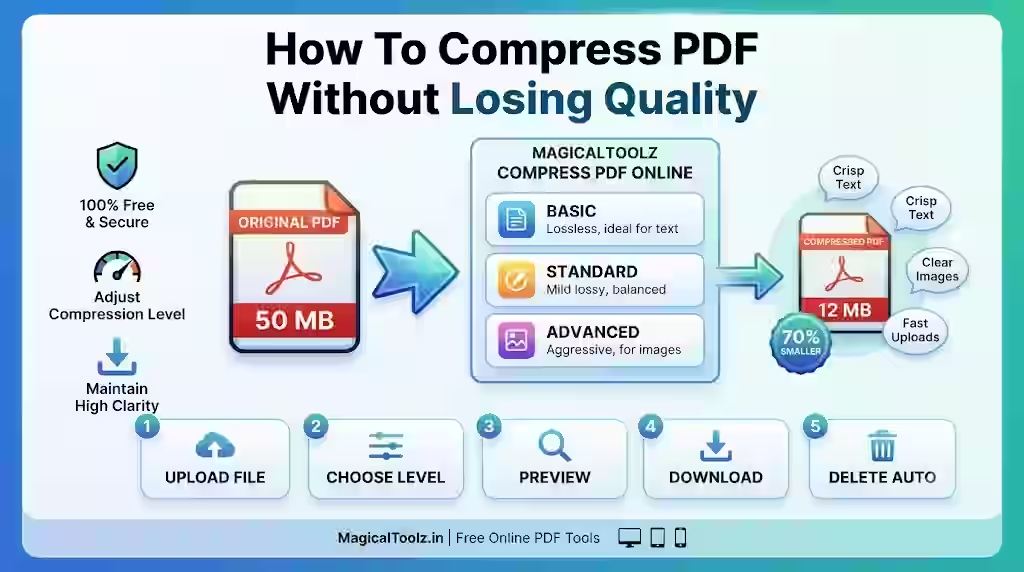
You cannot promise strong PDF compression with no possible change. A PDF may contain text, vector graphics, photographs, forms, links, annotations, layers, fonts, and signatures. The safest method depends on which parts must survive.
The Magical Toolz PDF Compressor offers two honest choices. Structure-safe cleanup copies selected pages into a new PDF and preserves supported document structure. Raster compression renders pages as JPEG-backed images, which can reduce image-heavy files more aggressively but flattens interactive and editable content.
Choose structure first, size secondUse structure-safe cleanup when selectable text, links, forms, annotations, and vector quality matter. Use raster compression for a share or upload copy only when you accept flattened pages. Keep the original in both cases, and remember that rewriting a signed PDF may invalidate its digital signature.
Current compressor controls
| Area | Practical guidance |
| Input | One genuine PDF up to 250 MB and 500 pages. Password-protected files are not supported. |
| Structure-safe mode | Copies selected pages and re-saves the PDF without intentionally rasterizing them. File size may not shrink. |
| Raster mode | Renders pages to JPEG images and rebuilds a PDF. Text, links, forms, annotations, layers, and signatures are flattened. |
| Resolution | 72, 96, 120, 150, or 200 DPI; 120 DPI is the initial setting. |
| JPEG quality | 25% to 94%; 78% is the initial setting. |
| Selection | All pages or ranges such as 1-3, 6, 9-12. |
| Target | Optional best-effort target from 20 KB to 100,000 KB with explicit target-miss reporting. |
| Validation | Checks the output PDF signature and selected page count before download. |
Compress and verify a PDF
- Make a copy of the original PDF.
- Open the PDF Compressor and choose one genuine PDF.
- Wait for signature, size, page-count, and preview validation.
- Select structure-safe cleanup or raster compression.
- Choose all pages or enter the page ranges you need.
- For raster mode, start with 120 DPI and 78% quality, then adjust for the task.
- Enable grayscale only when color is not required.
- Use a target only as a best-effort goal, not a guaranteed result.
- Run compression and review original size, achieved size, page count, and settings.
- Download, reopen in another viewer, inspect every selected page, and test important text, links, forms, and printing.
Why some PDFs barely shrink
A PDF that already uses efficient image compression, subset fonts, and compact structure may have little waste to remove. Structure-safe rewriting can even create a slightly larger result because PDF producers organize objects differently.
Do not keep a new file merely because it says compressed. Compare actual bytes and usability. If the output is not smaller, the tool reports that honestly so you can retain the source.
What raster compression changes
Raster mode converts each selected page into pixels at the chosen DPI, compresses that image as JPEG, and places it on a page with the original physical dimensions. The visual page can look similar, but the underlying document is fundamentally different.
Selectable text, search, copy and paste, links, forms, annotations, layers, and vector editability do not remain interactive. Accessibility also suffers because a page image does not preserve the original semantic reading structure.
Balance DPI, JPEG quality, and grayscale
DPI controls the number of rendered pixels. Quality controls JPEG loss within those pixels. Lowering DPI reduces detail and can make small text unreadable; lowering JPEG quality can create blocks, ringing, and blurred edges.
Grayscale can reduce data when color adds little value, but it can erase meaning in charts, status colors, highlights, and brand marks. Check the final page at normal zoom and print a representative sample when paper is the destination.
Use target size as an attempt, not a promise
Exact target compression is constrained by page count, detail, and the minimum quality and resolution you are willing to accept. The tool tries progressively smaller safe profiles and reports whether it reached the target.
A portal limit is a ceiling, not a reason to destroy readability. Remove unnecessary pages, scan at sensible settings, or ask whether a larger upload route exists when the only way to hit a tiny target is an unusable document.
Privacy and device limits
The current workflow runs in the browser and does not upload the selected PDF. Processing still uses device memory and CPU. A 250 MB allowance does not mean every phone can rasterize hundreds of complex pages.
The preview shows up to 80 thumbnails, while the range field can select any valid page. Close other heavy tabs, reduce the page range or DPI, and work on a desktop when a phone runs out of memory. Downloaded files and cloud-synced folders remain separate data paths.
Validate more than page count
The tool confirms a PDF signature and output page count, which catches major generation failures. It cannot decide whether a signature remains legally valid, a chart color changed meaning, OCR quality is acceptable, or every interactive field still works.
Open the file in another viewer. Search for known text in structure-safe output, click required links, inspect forms, zoom into small print, and compare the first, middle, and last selected pages.
Common problems and fixes
| Problem | What to check |
| The new PDF is larger | The source was already efficient or the rewrite added overhead. Keep the original or use raster mode only if flattening is acceptable. |
| Small text is blurry | Increase DPI or JPEG quality and rerun from the original. |
| Links and forms stopped working | Raster mode flattens them. Use structure-safe cleanup or another workflow that explicitly preserves those features. |
| The target was not reached | Reduce pages, accept lower settings carefully, or use a destination that allows a larger file. |
| A signed PDF shows a warning | Rewriting a PDF can invalidate signatures. Preserve the signed original and follow the signer or recipient workflow. |
Final checklist
- The original is stored safely.
- The PDF is not password protected.
- Selected page ranges are correct.
- The chosen method matches required structure.
- DPI keeps small text readable.
- JPEG quality avoids obvious artifacts.
- Grayscale does not remove meaning.
- The target result is treated honestly.
- Output page count matches selection.
- The downloaded PDF opens and passes functional checks.
Frequently asked questions
Can a PDF be compressed with zero quality loss?
Structure-safe cleanup may preserve rendering without raster loss, but it may not reduce size. Stronger compression usually involves a trade-off.
What is the best DPI?
There is no universal setting. Start at 120 DPI for a screen copy and increase it when small text, diagrams, or printing need more detail.
Does raster compression preserve selectable text?
No. Pages become images.
Can I compress only certain pages?
Yes. Use all pages or ranges such as 1-3, 6, 9-12.
Is an exact KB target guaranteed?
No. The tool reports whether its best-effort attempts reach the target.
Are password-protected PDFs supported?
No. Remove protection only when you have authority and use an approved workflow.
Does the PDF leave my device?
The current compressor processes it in the browser without a server upload.
Will digital signatures remain valid?
Do not assume so. Rewriting the document can invalidate signatures, so preserve the signed original.
Keep the smallest file that still does the job
Good PDF compression protects the document requirement before chasing a number. Structure-safe cleanup is the first choice when the document must remain searchable and interactive. Raster output is a deliberate fallback for smaller visual copies.
Compare size, appearance, structure, accessibility, and final destination rules. If the only smaller copy is unreadable or nonfunctional, it is not a successful result.
 Magical Toolz AI Support
Comments (0)
Use comments for article-specific feedback. Use the contact page for bugs and support requests.
Leave a Comment
No comments yet. Be the first to share something useful.