


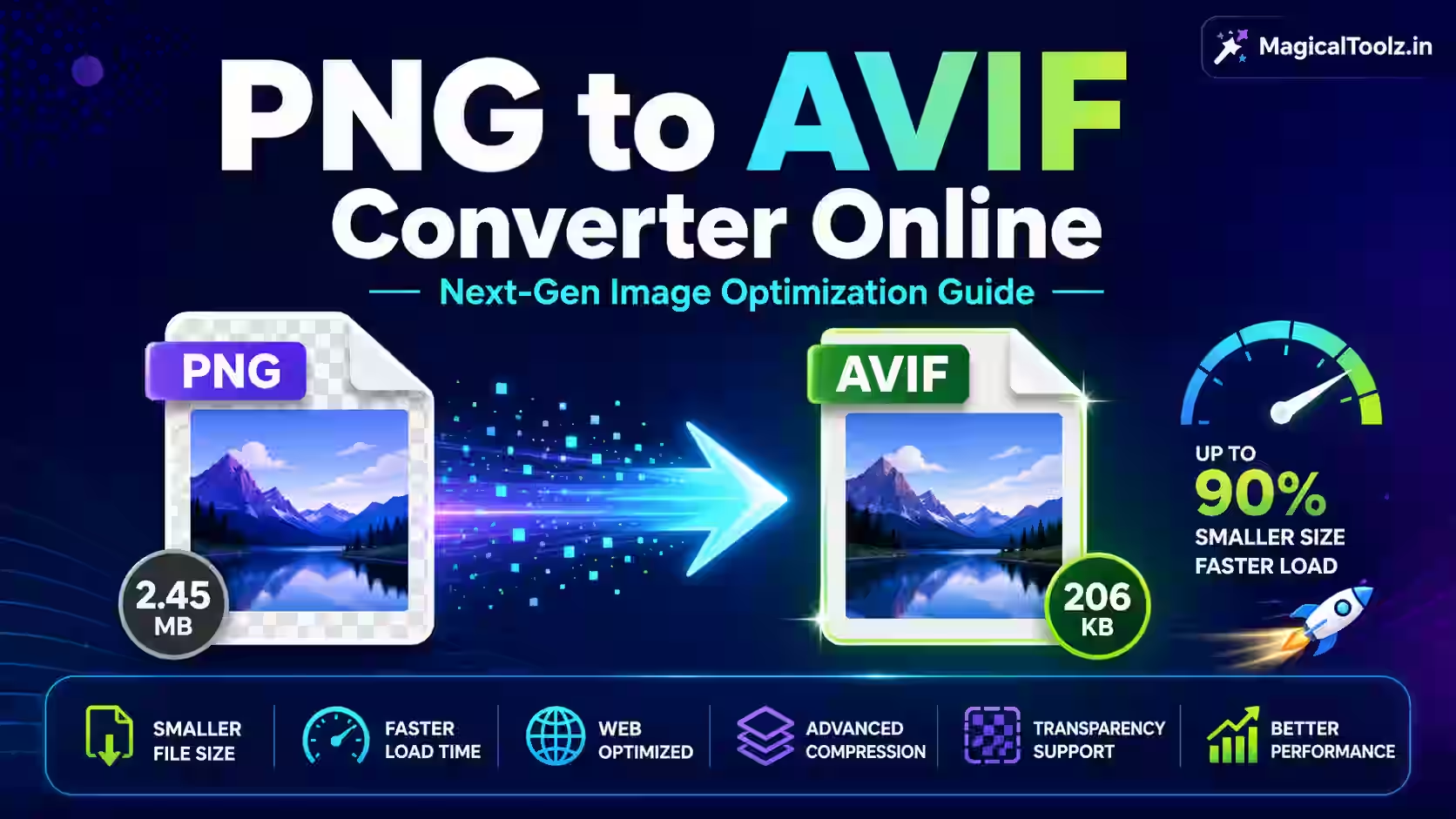
The old dedicated PNG-to-AVIF route is inactive. The active Universal Image Converter can offer AVIF output, but only when the current browser passes an AVIF encoding test. If AVIF is missing from the output menu, that browser cannot complete this route.
Do not rename a PNG or trust a download without checking its real format.
Why AVIF output is conditional
Browser decoding and encoding are separate capabilities. A browser may display AVIF yet fail to create it through Canvas. The converter tests encoding and removes the AVIF option when the returned file is not genuine AVIF.
MDN's format guide covers AVIF compression, alpha, animation and current support. Actual Canvas encoding can still vary by browser version.
Use the active tool within its limits
The Universal Image Converter accepts one PNG, up to 50 MB and 40 megapixels after decoding. AVIF appears only when supported. Quality ranges from 10 to 100 and starts at 88.
Maximum width can scale down to a chosen limit and never enlarges the source. The converter does not batch files or copy ordinary metadata.
- Open the converter in a current browser.
- Check whether AVIF appears in output formats.
- Select one PNG.
- Confirm dimensions and transparency.
- Choose AVIF and set a practical quality.
- Resize only when needed.
- Convert, download and reopen the file.
Compare quality instead of using one magic number
Quality controls differ between encoders. Start near 88, then compare a lower and higher result. Inspect text, gradients, hair, fabric and sharp edges at normal size and 100 percent zoom.
Flat graphics and screenshots may need higher quality or lossless treatment. A photographic PNG may tolerate more compression. Keep the source for future exports.
Transparency needs a destination test
AVIF supports alpha, and Canvas can encode transparent pixels when the browser implementation supports them. Check shadows, logos and translucent edges after download.
The receiving editor or publishing system may flatten or reject alpha even when the file is valid. Test the exact destination.
Do not assume AVIF is always smaller
AVIF often compresses well, but a tiny palette graphic or already optimized PNG can behave differently. Record actual bytes and visible quality. A smaller file that looks damaged is not an improvement.
Resize oversized assets before comparing. Pixel dimensions can affect delivery more than a small encoder adjustment.
Plan a compatibility fallback
Modern browsers support AVIF, but older browsers, email clients and content systems may not. For websites, provide WebP, JPG or PNG fallback where the audience requires it.
Test server content type, caching and the actual image URL. A local AVIF file does not help if the published page still requests PNG.
Metadata and color may change
Canvas re-encoding normally omits ordinary PNG metadata. It may also normalize embedded color information. Compare brand colors and gradients in the final browser.
Use color-managed software when exact profiles or HDR behavior matter. Inspect metadata separately when privacy or ownership fields are required.
Use the dedicated WebP batch tool when AVIF is unavailable
The active PNG to WebP Converter supports up to 50 PNG files, 50 MB each, 250 MB per queue and 200 megapixels in total. It offers lossy browser encoding and a true-lossless server mode.
WebP is not identical to AVIF, but it is a real option when broader compatibility or batch processing matters. Choose based on the destination, not a “next generation” label.
Verify that the download is real AVIF
Open the file in another current browser or image application. Check its detected type, dimensions and byte size. A filename ending in .avif is not enough if an encoder returned another format.
Compare the downloaded image with the PNG source. Look for missing alpha, shifted colors, incorrect orientation and unexpected crops before publishing.
Test the published response
After upload, open the direct AVIF URL and inspect the browser network response. The server should send an appropriate AVIF content type. Confirm that the page actually requests the new file and that a cache is not returning an older PNG.
Keep width and height in the page markup to reserve layout space. A smaller image file does not prevent layout movement when dimensions are missing.
Record a useful comparison
For each test, note source dimensions, PNG bytes, AVIF bytes, quality setting and visible defects. Compare a photo, screenshot and transparent graphic. These results are more useful than copying one setting across every image.
Keep the PNG masters and regenerate delivery files when browser support, site design or encoder settings change.
PNG to AVIF questions
Why is AVIF missing?
The browser failed the converter's AVIF encoding capability test.
Is the old PNG-to-AVIF tool active?
No. Use the conditional Universal Converter route.
Does AVIF keep transparency?
It can, but verify both the output and destination.
Is quality 100 lossless?
Not necessarily. The browser encoder controls the result.
Can I batch-convert to AVIF?
Not with the current Universal Converter.
 Magical Toolz AI Support
Comments (0)
Use comments for article-specific feedback. Use the contact page for bugs and support requests.
Leave a Comment
No comments yet. Be the first to share something useful.