


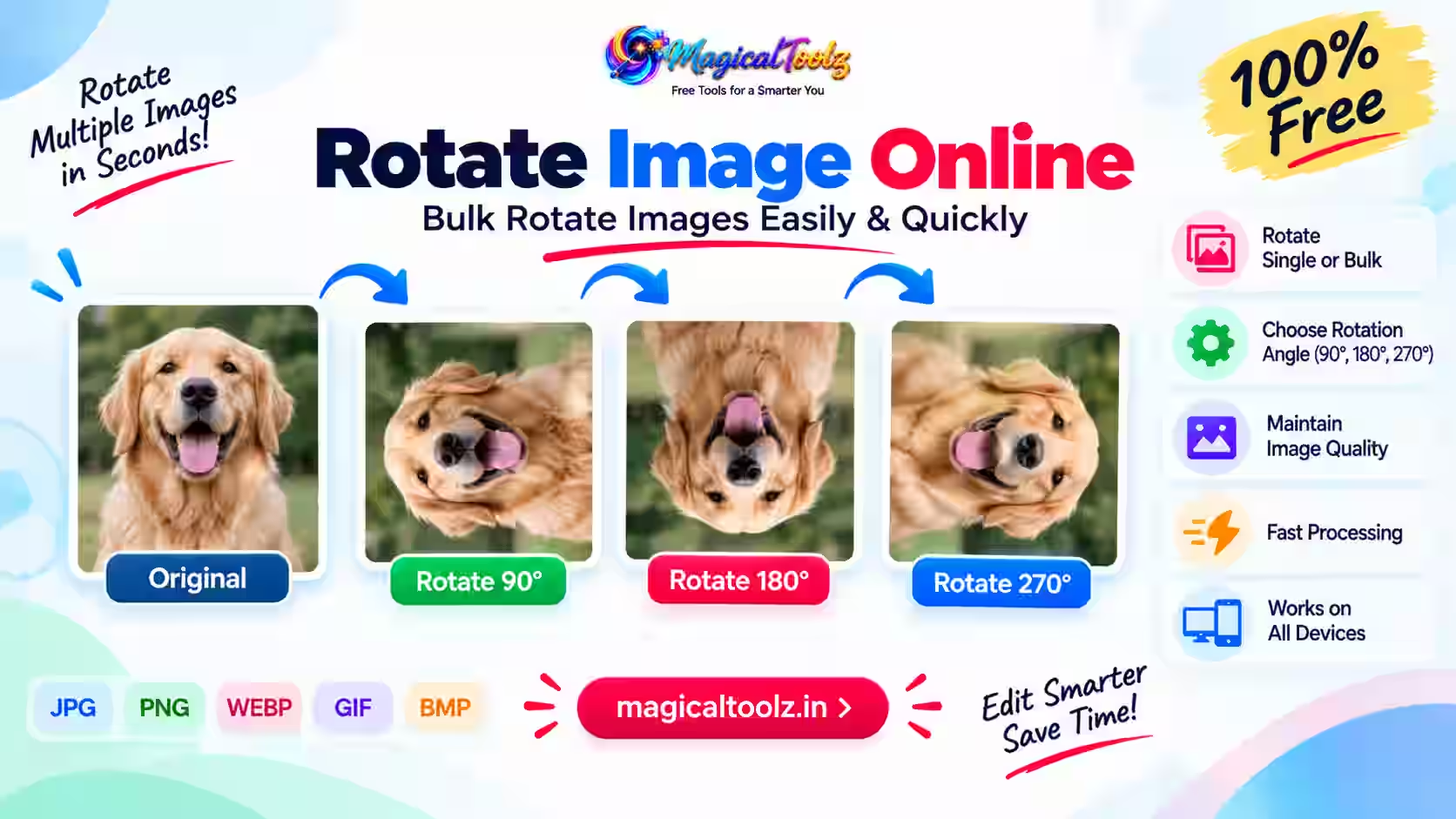
The Rotate Image Online tool can help when a photo appears sideways, upside down or mirrored. Phone cameras, scanners, ecommerce folders and downloaded images can all end up facing the wrong way. One image takes only a moment to fix. A folder containing 30, 50 or 100 photos is a different story.
That is where the Rotate Image Online workflow helps. Instead of opening every file, clicking rotate and saving it again, you can apply the same correction to several images in one go.
The bulk rotation tool from Magical Toolz lets you rotate multiple JPG, PNG, WebP or GIF files by 90°, 180° or 270°. You can also flip them horizontally or vertically. Better still, the tool can target only landscape or portrait images when the whole batch does not need the same change.
This guide explains how to rotate images online, which direction to choose and when a flip is different from a rotation. We will also cover privacy, image quality, mobile photos, product pictures, scans and common mistakes. By the end, you will know how to fix a single photo or a full batch without installing editing software.

Quick Answer: How Do I Rotate Multiple Images Online?
Open the Magical Toolz Rotate Image Online tool and add your images. Choose 90° clockwise, 180°, 270° clockwise, horizontal flip or vertical flip. Next, decide whether the change should apply to all images, landscape images only or portrait images only. Run the process, check the previews and download each result separately or save the batch as a ZIP file.
The Rotate Image Online workflow happens locally in your browser through the Canvas API. As a result, the tool page states that your photos are not uploaded to a remote server. There is no account requirement and no watermark on the result.
Why Do Photos Sometimes Appear Sideways?
A photo can look correct on your phone but turn sideways after you upload it to a website. That feels strange, but the picture itself may not be broken.
Many phones store orientation information as metadata. The gallery app reads that instruction and knows how to display the photo. However, another app, website or older program may handle the instruction differently. The result is a picture that suddenly appears on its side.
Scanners create a simpler version of the same problem. If you place a document in the wrong direction, every scanned page may come out sideways or upside down. Product-photo folders can also contain mixed orientations when several people took pictures with different devices.
In each case, the Rotate Image Online tool gives you a practical fix. It changes the actual output so that the downloaded image faces the direction you selected.
Rotate Image Online vs Flip Image Online
People often use "rotate" and "flip" as if they mean the same thing. They do not.
Rotation turns the whole picture around its centre. A 90° turn moves the top edge to one side. A 180° turn makes the photo face the opposite direction. A 270° clockwise turn gives the same final direction as a 90° counter-clockwise turn.
Flipping creates a mirror effect:
- Horizontal flip: swaps the left and right sides.
- Vertical flip: swaps the top and bottom.
Imagine a selfie containing text on a T-shirt. If the letters read backwards, you probably need a horizontal flip. If the whole selfie lies on its side, you need a 90° rotation instead.
Choosing the right action matters. A mirrored photo will still look mirrored after a normal rotation. Likewise, flipping a sideways document will not make it upright.
Which Rotation Angle Should You Choose?
You do not need to understand geometry before using Rotate Image Online. Look at the subject and use this simple guide.
| What you see | Best starting action |
| Photo lies on its left side | Rotate 90° clockwise |
| Photo lies on its right side | Rotate 270° clockwise |
| Photo is fully upside down | Rotate 180° |
| Text reads backwards | Flip horizontally |
| Image is reflected from top to bottom | Flip vertically |
If you choose the wrong direction, do not worry. Keep the original file, try another option and check the preview before downloading the final batch.
How to Rotate Image Online with Magical Toolz
The Rotate Image Online workflow is straightforward, even if you have never edited a photo before.
Step 1: Add your images
Open the Magical Toolz rotation page. Drag your files into the upload area or use the browse button. The live tool page lists JPG, PNG, WebP and GIF as supported inputs, and it allows multiple files in one session.
Start with a small test batch if your images are very large. Browser-based processing uses your device's memory, so a modest phone may handle fewer high-resolution pictures at once than a powerful desktop computer.
Step 2: Choose rotation or flip
Select the action that matches the problem:
- Turn 90° clockwise
- Make a 180° turn
- Choose 270° clockwise
- Flip horizontally
- Flip vertically
For a standard sideways phone photo, 90° or 270° is usually the right choice. For an upside-down scan, try 180°.
Step 3: Choose which images to change
This is one of the most useful parts of the Magical Toolz workflow. You can apply the action to:
- All images
- Landscape images only
- Portrait images only
Suppose a product folder contains 40 landscape photos and 12 portrait photos. If only the portrait files need a 90° turn, select the portrait filter. The tool can leave the landscape images alone instead of forcing one change on the entire set.
Step 4: Process the batch
Run the selected action. The tool handles the files in your browser and then shows the processed results. Large batches can take longer because speed depends on image size, file type, device memory and browser performance.
Step 5: Check the previews
Do not skip this step. Look at text, faces, product labels and page headings. Make sure each image faces the intended direction and has not been mirrored by mistake.
Step 6: Download the results
Download a single image from its preview card when you only need one file. For a full batch, use the ZIP option to keep the results together. Once the download finishes, open a few files from the beginning, middle and end of the batch for a final check.
Why Bulk Rotation Is Better Than Fixing Files One by One
Rotating one photo is easy in almost any gallery app. The real benefit of Rotate Image Online appears when the same task repeats.
Let us say you have 60 scanned pages. Opening each page, rotating it, saving it and moving to the next one quickly becomes dull. Even if every file takes only 20 seconds, the full job can consume a large part of your day.
Bulk processing removes most of that repetition. You select the files once, choose one action and download the results together. In addition to saving time, this method helps you apply a consistent direction across the batch.
It also reduces small human errors. When you edit files individually, it is easy to miss one picture or rotate a page twice. A single batch action makes the workflow easier to review.
Practical Reasons to Rotate Images Online
Rotate Image Online may sound like a tiny utility, but it solves several everyday problems.
Fix sideways phone photos
You take a picture in portrait mode, send it to your computer and discover that another app displays it sideways. Instead of installing a photo editor, rotate the photo online and save a corrected copy.
If the same problem affects an entire camera folder, upload the group and rotate the matching images together.
Correct scanned documents
Scanners often create sideways receipts, forms, certificates or book pages. A 90° or 180° batch action can make the pages easier to read before you share or archive them.
Remember that an image rotator changes image files. If your scan is already inside a multi-page PDF, use a suitable PDF rotation workflow instead of converting every page without a clear reason.
Standardise ecommerce product photos
Online stores look more professional when product images follow a consistent direction. A mixed folder can make catalogue work messy, especially when some products are vertical and others are horizontal.
The orientation filter is valuable here. For example, you can rotate portrait images while leaving correctly aligned landscape photos unchanged. Afterward, download the results as a ZIP and review them before uploading to your store.
Rotation alone does not create a perfect catalogue. You may still need consistent dimensions, backgrounds and file sizes. However, correct orientation is an important first step.
Prepare photos for presentations
A sideways photo can ruin an otherwise clean slide. Rotate it before adding it to PowerPoint, Google Slides or another presentation tool. This keeps you from relying on app-specific rotation settings that may behave differently when the file is exported.
Fix social media images
Images sometimes look fine in a gallery but face the wrong direction in a post preview. Creating a corrected file before publishing gives you a more predictable result.
For mirrored selfies, use horizontal flip only when that is the effect you want. Pay close attention to signs, logos and written text because a mirror effect reverses them.
Prepare images for printing
Print shops, teachers and office teams may receive folders containing pages in several directions. Batch rotation can help align those pages before they enter a print layout.
Always check a print preview afterward. Correct orientation does not automatically guarantee the right paper size, margins or resolution.
How the Landscape and Portrait Filter Saves Time
Most bulk tools apply one action to every uploaded file. That works when the entire folder has the same problem. It is less helpful when the batch contains a mixture.
The Magical Toolz Rotate Image Online page lets you filter by orientation. A landscape image is wider than it is tall. A portrait image is taller than it is wide. The tool can use those dimensions to decide which uploaded files receive the change.
Here is a simple example:
- You upload 50 product photos.
- Thirty-five are landscape and already look correct.
- Fifteen are portrait but need a 90° turn.
- You select the portrait-only filter.
- The landscape set remains unchanged while the selected action applies to the portrait files.
This feature can reduce unnecessary processing. More importantly, it prevents correctly oriented files from being turned by accident.
Still, inspect the previews. A file's width and height tell the tool whether it is landscape or portrait, but they cannot reveal whether the subject itself is facing the correct way.
Is It Safe to Rotate Image Online?
That depends on how the specific tool handles your files. Some online editors upload images to a server. Others process them on your device.
The Magical Toolz page states that rotation and flipping run locally in the browser through the Canvas API. Your image files do not need to be sent to the site's server for this workflow. That approach is useful for personal photos, internal product pictures and other files you would rather not upload.
Even when you use Rotate Image Online with local processing, common-sense privacy habits still matter:
- Avoid editing confidential files on a shared or untrusted computer.
- Keep the original images in a safe folder.
- Check the download location before leaving the device.
- Clear temporary downloads when working on a public computer.
- Review the live privacy notes if the tool changes in the future.
Local processing reduces one important privacy concern, but it does not protect a file from someone who already has access to your device.
Does Rotating an Image Reduce Quality?
When you use Rotate Image Online, the honest answer depends on the file and how the browser exports the result.
A fixed 90°, 180° or 270° turn does not need the same kind of visual stretching as an unusual angle. However, a browser tool may still decode and create a new output file. JPG is a compressed format, so repeated editing and saving can sometimes affect it.
For normal website, marketplace and phone-photo use, a single rotation should usually look clean. Still, do not replace your only original until you inspect the result.
Follow these habits for safer results:
- Start with the best source file available.
- Avoid rotating and resaving the same JPG many times.
- Compare fine text, hair, product edges and small details.
- Keep the original file as a backup.
- Test one image before processing an important batch.
If a source file is part of a professional print or photography workflow, use an editor that gives you full control over colour profiles, metadata and export quality.
What Happens to JPG, PNG, WebP and GIF Files?
The Magical Toolz rotation page lists JPG, PNG, WebP and GIF inputs. It also states that output images retain their original format.
Each format deserves a quick note.
JPG
JPG is common for photographs and product pictures. It provides manageable file sizes and broad support. Since JPG uses lossy compression, keep your source copy and avoid unnecessary repeat saves.
PNG
PNG is useful for screenshots, logos and images with transparent backgrounds. After rotation, inspect the background and edges to make sure transparency still behaves as expected in the destination app.
WebP
WebP is widely used for modern websites. If another system refuses the rotated WebP, you can create a more compatible version with the Magical Toolz universal conversion workflow.
GIF
The live tool page lists GIF as a supported input and retained output format. However, animated files can behave differently from still images in browser-canvas workflows. If animation matters, test one file and play the downloaded result before processing the whole batch.
Rotate Image Online on a Phone or Tablet
You do not always need a desktop computer. Rotate Image Online can also help when the wrongly oriented picture is already on your phone.
Open the page in a modern browser, select the photos and choose the direction. Then review the result and save it to your device. The exact download location depends on your browser and operating system.
Mobile devices have less memory than many computers. Therefore, very large batches or high-resolution files may slow the page down. If that happens, use smaller groups. Closing unused browser tabs can also free some memory.
For one simple photo, your phone's built-in editor may be quicker. Use the online tool when you need consistent controls, multiple files, orientation filters or ZIP download.
Common Rotation Problems and Easy Fixes
The photo turned in the wrong direction
Undo the choice by returning to the original. If 90° clockwise was wrong, try 270° clockwise. Do not keep rotating and downloading the same compressed copy when the untouched source is still available.
Some images did not change
Check the "apply to" filter. You may have selected landscape-only or portrait-only. Switch to all images when every file needs the action.
Correct images were rotated too
This happens when a mixed batch receives one action. Separate the files into smaller groups or use the orientation filter when dimensions match the group you want to change.
ZIP download does not finish
The browser may be short on memory, especially with large or high-resolution batches. Try fewer files, close unused tabs or download individual results.
The downloaded photo still appears sideways elsewhere
Open the output in more than one viewer. If only one app shows the problem, that app may be handling orientation data differently. You can also test the file in its final destination before processing the rest of the folder.
The image looks mirrored
You probably used horizontal or vertical flip instead of rotation. Return to the original and choose the correct 90°, 180° or 270° option.
A GIF no longer animates as expected
Animated GIF handling can vary. Test the download before using batch mode. If the motion does not survive, use a specialist animated-GIF editor.
Common Mistakes to Avoid
Mistake 1: Confusing rotation with flipping
Rotation changes direction. Flipping creates a mirror. Look at text in the image if you are unsure.
Mistake 2: Processing every file without checking the filter
A mixed folder rarely needs one blind action. Review whether all, landscape-only or portrait-only makes sense.
Mistake 3: Deleting the source files
Keep originals until the project is finished. If you make a wrong choice or dislike the output, you can start again.
Mistake 4: Skipping the preview
Batch tools save time, but they also repeat mistakes quickly. Check the preview before downloading dozens of incorrect files.
Mistake 5: Assuming rotation changes image dimensions intelligently
A 90° turn swaps width and height, but it does not crop a product, choose a social-media aspect ratio or create a print layout. Those are separate editing jobs.
Mistake 6: Using a shared device for private photos
Browser-side processing does not make a public computer private. Someone may still access the downloads or browser history afterward.
How to Choose a Good Bulk Image Rotator
A crowded search page can make every Rotate Image Online option look identical. Focus on the details that affect your job.
Multiple-file support
The tool should let you select a group instead of forcing one upload at a time.
Useful directions
For everyday corrections, 90°, 180° and 270° cover most needs. Horizontal and vertical flip add flexibility for mirrored content.
Clear privacy information
Look for a specific explanation of local or server processing. "Secure" means little without details.
Preview before download
A visible result helps you catch the wrong direction before saving the batch.
Batch download
Individual downloads are fine for two or three files. A ZIP option is much easier for a large group.
Honest performance expectations
Browser tools depend on device memory. A trustworthy page should not imply that every old phone can process an available number of huge photos instantly.
No confusing installation prompts
A basic image rotation should not require an unknown extension or unrelated desktop program.
Why Use Magical Toolz to Rotate Images Online?
Many tools can rotate a single picture. The Magical Toolz Rotate Image Online workflow is more useful when you need control over a batch.
Its main practical strengths are:
- Multiple images in one workflow
- 90°, 180° and 270° rotation
- Horizontal and vertical flip
- Filters for all, landscape-only or portrait-only images
- Local browser processing through the Canvas API
- Individual downloads and ZIP download
- No account requirement
- No watermark
The orientation filter is the standout feature. It can help when only one shape of image in a mixed folder needs a change.
Magical Toolz also provides related workflows. If a rotated file needs a different format, use the universal converter. If a photo contains a face, number plate or private detail that must be hidden before sharing, try the browser-based blur tool.
As always, read the live tool page before a large job. Features and browser support can change over time.
A Quick Check Before You Download
Take one last look before you save the batch. This short check can stop a small error from reaching every file:
- Do faces and text point the right way?
- Can you read signs and labels from left to right?
- Did you choose rotate when you meant flip?
- Did the filter act on the right group?
- Do the first and last previews look correct?
- Is the file type still right for your next app?
- Have you kept a safe copy of each source file?
If each answer looks good, download the results. Open a few saved files as well. A preview is helpful, but the saved copy is what you will send, post or print. This final check takes less time than fixing a bad batch later.
Frequently Asked Questions
How can I rotate an image online for free?
Open the Magical Toolz image rotation page, add the file, choose 90, 180 or 270 degrees, process it and download the result. The tool is available without an account or watermark.
Can I rotate multiple images at once?
Yes. Add several supported files, choose one rotation or flip action and process the batch. You can download files individually or together as a ZIP.
Can I rotate only portrait images?
Yes. Select the portrait-only filter before running the action. You can also target landscape files or apply the change to every uploaded image.
What is the difference between 270° clockwise and 90° counter-clockwise?
They lead to the same final direction. Magical Toolz presents a 270° clockwise option, which is useful when a photo lies on its right side.
Can I flip an image horizontally?
Yes. Horizontal flip mirrors the left and right sides. Use it for reversed selfies or mirror effects, but remember that any text will also reverse.
Are my photos uploaded to a server?
The Magical Toolz page states that rotation and flipping happen locally through the browser's Canvas API. The files are not uploaded to a remote server for this workflow.
Does the tool add a watermark?
No. The live tool page states that it does not add a watermark to the rotated result.
Which file formats can I rotate?
The tool page lists JPG, PNG, WebP and GIF as supported image inputs. Test an animated GIF before using a large batch because animation handling can vary.
Will rotation lower image quality?
A single fixed-angle rotation should usually look clean for normal use. However, browser export and lossy JPG compression can affect a saved file. Keep the original and inspect the output before replacing it.
Why did some images get skipped?
You may have selected the landscape or portrait filter. Choose "all images" when every uploaded file should receive the same action.
Can I rotate images on an iPhone or Android phone?
Yes, you can use the tool in a compatible mobile browser. Large batches may need to be split into smaller groups because phone memory is limited.
Can I rotate a PDF with this tool?
This workflow is designed for image files. Use a dedicated PDF rotation tool when you need to rotate pages inside a PDF document.
Final Thoughts
You do not need a full photo-editing suite every time a picture turns sideways. A browser tool can fix the direction in a few clicks. More importantly, bulk processing can handle a whole group without making you repeat the same task file by file.
Use 90° or 270° for sideways photos, 180° for upside-down images and flip controls for mirrored content. When the folder contains mixed shapes, use the landscape or portrait filter to avoid changing files that already look right.
Keep your originals, check the previews and test important outputs in their final destination. Those simple habits prevent most mistakes.
Ready to fix your photos? Open the bulk image rotator, choose the direction and download your corrected files from the browser.


 Magical Toolz AI Support
Comments (0)
Use comments for article-specific feedback. Use the contact page for bugs and support requests.
Leave a Comment
No comments yet. Be the first to share something useful.