


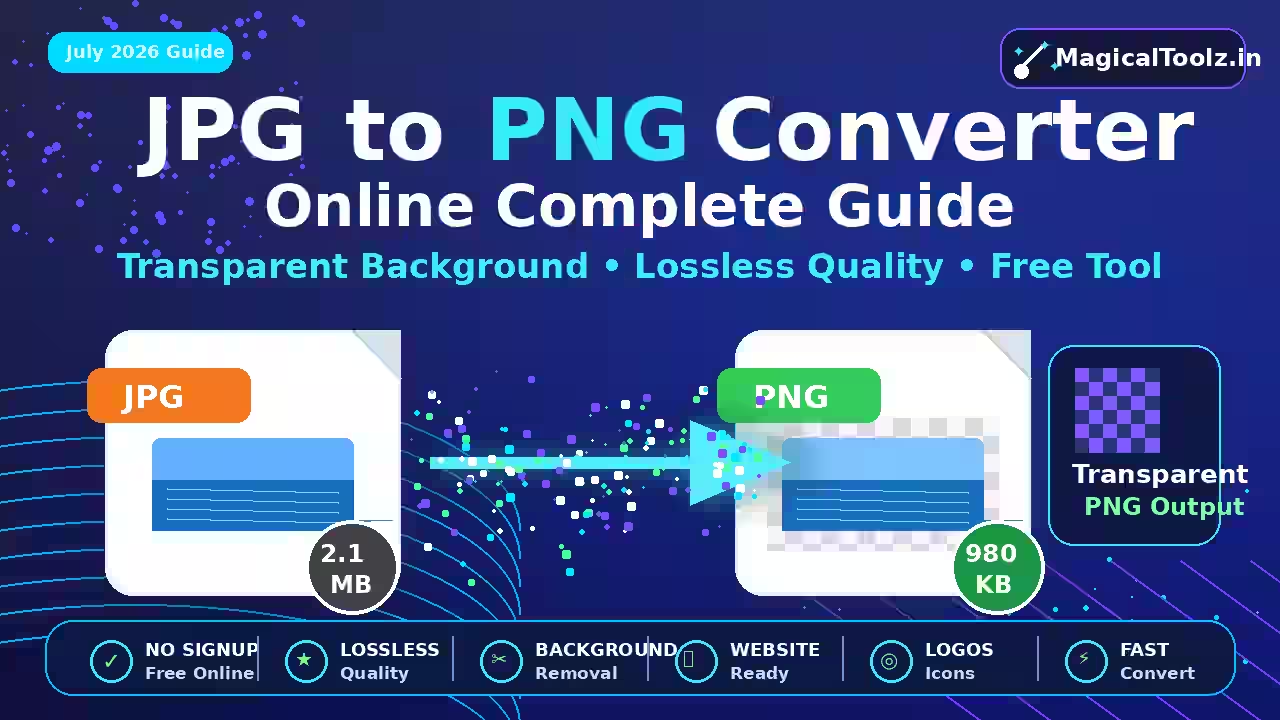
Converting JPG to PNG does not improve the picture. The PNG can preserve the pixels decoded from the JPG without adding another round of JPEG compression, but it cannot recover detail already discarded from the source.
Convert when an app specifically requires PNG, when you plan to add transparency after editing, or when you need a lossless working copy for repeated edits. Keep the original JPG as well.
What changes during conversion
JPG uses lossy compression and normally stores opaque photographic images. PNG uses lossless compression and can store alpha transparency. A converter decodes the JPG into pixels, then encodes those pixels in a PNG file.
The visible image may look almost identical, but the storage method changes. The PNG will often be larger, especially for a full-color camera photo. MDN's image format guide explains the practical differences between JPEG, PNG, WebP, GIF and other web formats.
Transparency does not come back automatically
PNG supports transparent pixels. JPG does not. If the JPG shows a white background behind a product or logo, that white area is now part of the image. Conversion alone will not identify and remove it.
You need an editor or background-removal process to create transparency. Inspect hair, shadows, holes inside letters and soft edges before saving the edited PNG. Automatic background removal can erase similar colors inside the subject.
Do not expect sharper text or cleaner edges
Compression blocks and halos in a JPG become part of the PNG pixels. A lossless PNG stores those defects faithfully. It does not know what the original letters or lines looked like before JPEG compression.
Find the original PNG, SVG, screenshot or design file when quality matters. If the JPG is the only copy, avoid enlarging it. Upscaling adds pixels but cannot recreate missing detail.
Use the active converter for one supported image
The Universal Image Converter accepts one browser-decodable JPEG and can export PNG. It processes the selected image in the browser, shows source and output details, and supports an optional maximum width that only scales down.
The current safety limits are 50 MB and 40 megapixels. Browser decoding still determines whether a damaged or unusual JPEG opens. The converter does not claim to repair corrupt files or recreate metadata.
- Open the converter and choose the JPG.
- Confirm the filename, dimensions and preview.
- Select PNG as the output.
- Leave maximum width empty to keep the original dimensions.
- Enter a smaller width only when the destination needs fewer pixels.
- Convert and compare dimensions and file size.
- Download the PNG and open it in the destination app.
Metadata can change
A camera JPG may contain capture date, location, orientation, camera details and color information. Browser canvas export normally creates a new image and does not copy ordinary source metadata.
That can be useful for a delivery copy, but it is not an archival workflow or a promise that every private field is gone. Check the output with a metadata viewer when metadata must be preserved or removed.
Watch color and orientation
Browsers and editors can handle embedded color profiles differently. Compare skin tones, brand colors and gradients in the downloaded PNG. Use a color-managed application for print or client work where exact color matters.
Orientation may be stored as metadata in the JPG. A good conversion applies that orientation to the pixels. Open portrait and rotated photos after download to confirm they are upright.
When PNG is the wrong output
A large camera photo may become much bigger as PNG with no visible benefit. If the destination accepts JPG and the source already looks good, leave it as JPG. If the goal is a smaller web photo, compare WebP or a carefully sized JPG instead.
PNG is a strong choice for screenshots, text-heavy graphics, diagrams and images that need transparency. It is not automatically the highest-quality answer for every picture.
Three cases where conversion makes sense
A document portal asks for PNG: keep the original dimensions, convert once and confirm that names and numbers remain readable. The PNG may be larger, so check the portal's byte limit separately.
You need to edit without repeated JPEG saves: create a PNG working copy, make the edits, and keep the JPG source. This avoids another lossy save during the working stage, although the starting JPEG defects remain.
You plan to remove a background: edit the subject after conversion and save real alpha transparency in PNG. Check the cutout against light and dark backgrounds. Conversion by itself does not perform the cutout.
For a normal photo that already meets the destination rules, none of these may apply. Leaving it as JPG is then the cleaner choice.
Check the new file
- The width and height match the intended output.
- The image is not stretched or rotated.
- Text and edges look no worse than the JPG.
- The file size fits the upload limit.
- Colors look correct in the destination app.
- Metadata was handled as intended.
- The PNG opens outside the converter.
- The source JPG remains saved.
JPG to PNG questions
Does JPG to PNG improve quality?
No. It prevents new lossy compression in the PNG save, but it cannot restore lost detail.
Will the background become transparent?
No. You must remove the existing background with an editor.
Why is the PNG larger?
PNG uses lossless compression, which is often less efficient for detailed photographs.
Can I rename .jpg to .png?
No. Renaming does not change the encoded image data.
Can conversion remove location data?
Some exports omit ordinary metadata, but verify the final file instead of assuming.
 Magical Toolz AI Support
Comments (0)
Use comments for article-specific feedback. Use the contact page for bugs and support requests.
Leave a Comment
No comments yet. Be the first to share something useful.