


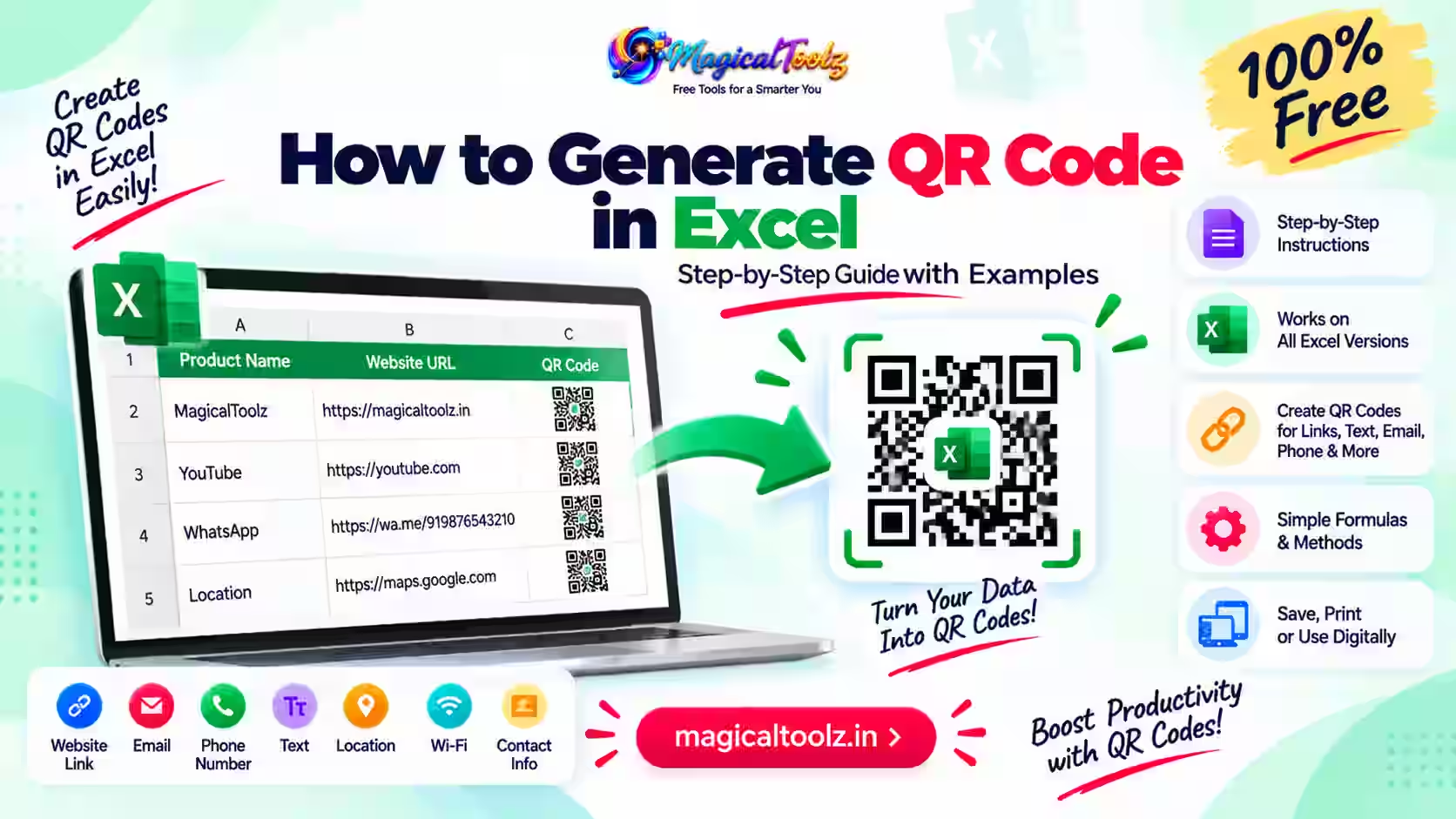
The most dependable way to place a QR code in Excel is to generate it, download a PNG or SVG, and insert that file into the workbook. This works for a small number of static codes and lets you inspect the exact image before sharing or printing.
Excel can also display an image from a reachable HTTPS URL through the IMAGE function, and an Office add-in may generate codes inside a workbook. Those methods have different privacy, network, maintenance, and bulk-processing risks.
Quick answer: For one or a few codes, create each code in the Magical Toolz QR Code Generator, download PNG or SVG, then use Insert, Pictures, Place in Cell or Place over Cells. Magical Toolz has no QR image API, batch mode, CSV mode, or automatic Excel integration, so an Excel formula cannot call it directly.
Compare three Excel QR methods
| Choice | What it means |
| Downloaded PNG or SVG | Best for a few static codes, offline reliability, visible review, and controlled printing. |
| IMAGE function | Useful only when a trusted service provides a direct reachable HTTPS image URL. It depends on network access and the remote host. |
| Office add-in | May support in-workbook or row workflows, but features, permissions, pricing, privacy, and maintenance depend on the publisher. |
| Magical Toolz QR generator | Creates one code at a time locally and exports PNG or SVG; it does not provide an API or spreadsheet automation. |
Create and insert one QR code in Excel
- Decide what the QR should contain and remove unnecessary data.
- Open the Magical Toolz QR Code Generator.
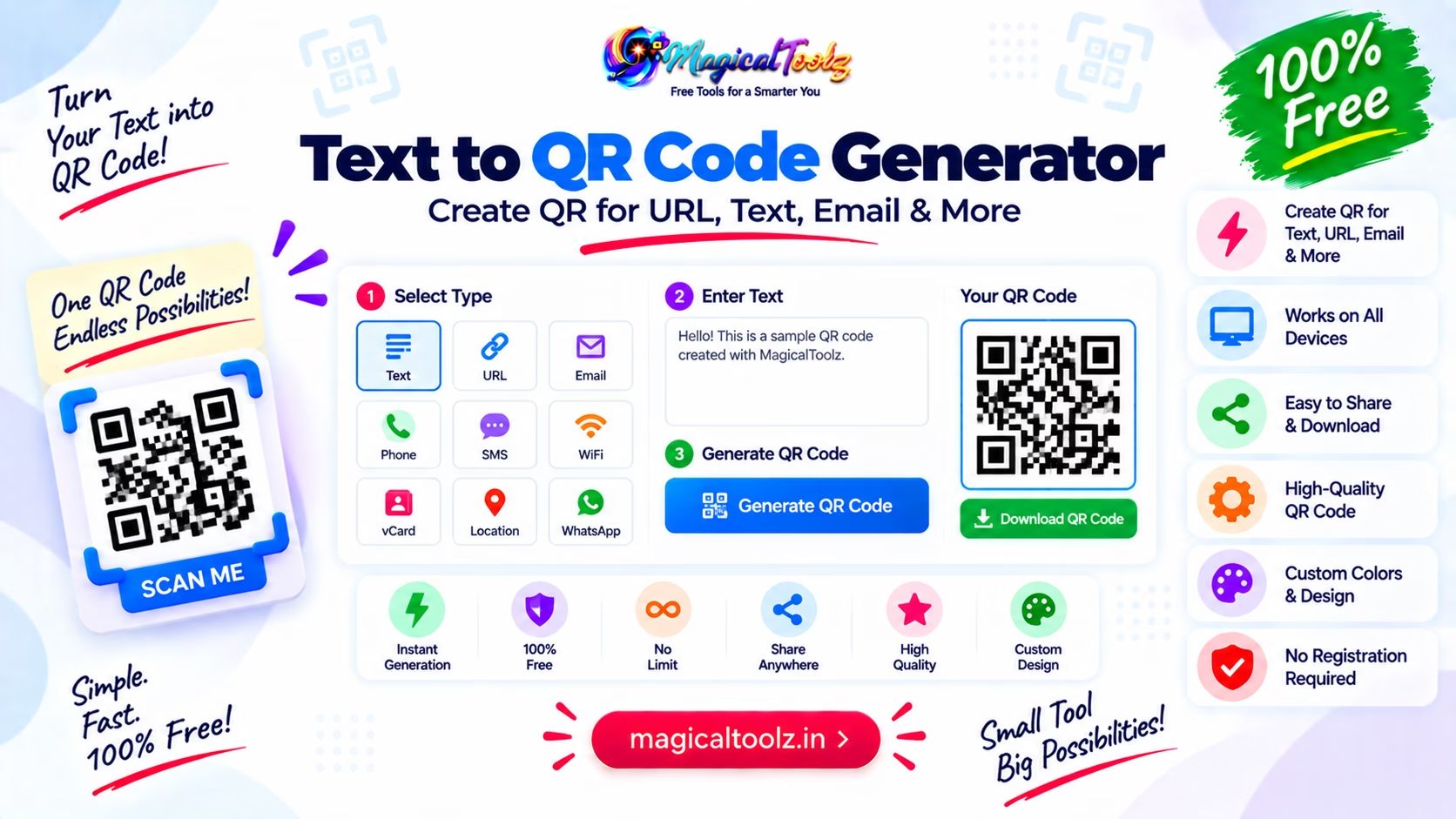
- Choose text, URL, email, phone, SMS, WiFi, or vCard.
- Enter and verify the payload.
- Choose error correction, output size, quiet-zone margin, and colours.
- Add a small logo only when necessary, then scan-test it carefully.
- Download PNG for broad compatibility or SVG for scalable artwork.
- In Excel, select the destination and use Insert, Pictures, then Place in Cell or Place over Cells.
- Resize without stretching and add useful alternative text.
- Print one sample and scan it with more than one phone.
What the Magical Toolz generator actually supports
The current generator creates one QR code at a time in the browser. It supports text, HTTP or HTTPS URL, email, phone, SMS, WiFi, and vCard payload templates. Text input is limited to 2,000 characters, and the final payload must still fit QR capacity.
Controls include L, M, Q, or H error correction; maximum output from 256 to 2,048 pixels; quiet-zone margins from 4 to 12 modules; foreground and background colours; and an optional PNG, JPEG, or WebP logo up to 2 MiB at 10% to 18% width.
Insert the downloaded file into a cell area
Current Excel versions can place supported pictures in cells or over cells. Microsoft documents Insert, Pictures, Place in Cell, then This Device. Pictures over cells can also be converted to pictures in cells.
See Microsoft Support: Insert Picture in-cell in Excel. For Excel on the web, Microsoft also documents Place in cells and Place over cells.
Size the code without distortion
Keep the QR square. If width and height change independently, modules become rectangles and scanners may struggle. Increase both the row height and column width when using Picture in Cell, or lock the aspect ratio for a floating picture.
Leave the quiet zone completely clear. Borders, cell fills, text, cutting guides, and nearby images must not enter the margin. The generator allows 4 to 12 modules; four is the conventional minimum, while a larger margin can help difficult print layouts.
Use IMAGE only with a real image URL
The IMAGE function uses =IMAGE(source,[alt_text],[sizing],[height],[width]). The source must be an HTTPS image URL that Excel can retrieve. Authentication, redirects, blocked content, or a page URL instead of an image URL can cause an error.
Review Microsoft Support: IMAGE function for sizing modes and limitations. Magical Toolz does not return a hosted QR image URL, so inventing a formula endpoint for it would not work.
Worked workbook example
Suppose column A contains product names and column B contains public product URLs. Generate a static QR for the first approved URL, download product-001-qr.png, select C2, and place the picture in that cell. Set a square row and column area large enough for printing.
In D2, keep the readable URL or a short label such as Product page. Add alternative text that states the action and destination. Print the row at actual size, scan it from the paper, and confirm the final URL before repeating the process for a small set.
Long URLs and static versus dynamic codes
Long payloads require denser QR symbols. Dense codes need more printed area and clean reproduction. Shorten the information itself where possible, but do not use an untrusted shortener merely to make the pattern simpler.
The generated code is static: the payload is embedded in the symbol and cannot be edited later. A so-called dynamic QR normally points to a managed redirect. That adds a provider, account, uptime, privacy, and future-payment dependency.
Contrast, logo, and print testing
The generator rejects foreground and background combinations below a 3:1 contrast ratio. Dark modules on a light background remain the safest choice. A logo forces H error correction and receives a background-coloured safety pad, but it still covers part of the code.
Export at sufficient size, avoid screenshots, and test after Excel scaling and physical printing. Try Android and iPhone cameras, normal room light, and the expected scanning distance. A successful large on-screen scan does not prove a small printed code will work.
WiFi and vCard data need extra care
A WiFi QR can reveal the network name and password to anyone who receives the workbook or printout. Confirm security type, special characters, and hidden-network status. Use a guest network when possible instead of exposing a sensitive internal password.
A vCard may contain names, phone numbers, email, organisation, and address. Include only information intended for distribution. Spreadsheet sharing, version history, backups, and printed copies can extend access far beyond the original recipient.
Formula and bulk-row limitations
A worksheet formula cannot turn every row into a Magical Toolz QR because the site has no public image API. The local generator also has no CSV import or batch mode. Creating many codes manually can lead to mismatched filenames, rows, or destinations.
For a genuine bulk workflow, assess a maintained Office add-in or an approved QR service with documented automation. Test permissions, cost, rate limits, data retention, failure handling, and code ownership. Keep the readable destination beside each code for audit and accessibility.
Safe handling of spreadsheet data
Do not send an entire customer sheet to a QR service when only a public URL is required. Minimise each payload and remove passwords, private tokens, internal notes, personal identifiers, and unnecessary tracking parameters.
The Magical Toolz generation and logo workflow runs locally in the browser. Excel files, cloud sync, add-ins, clipboard history, downloads, printers, and managed redirect services remain separate data paths that you must assess.
Check the result instead of trusting the first screen
A completed command or clean preview confirms only that the software performed an action. It does not prove that the result is correct for your document, audience, printer, device, or security requirement. Reopen the saved work, repeat the important action, and compare it with the source.
Test a small, representative example before applying the same method to many files or slides. Include unusual characters, a long value, a different layout, or the most complex item in your test. This exposes assumptions that an ideal sample can hide.
Keep the original until the final result has been reviewed and used successfully. Give edited files clear names rather than overwriting the only copy. If the work contains personal, business, or customer information, store temporary copies only where authorised people can access them.
Accessibility and dependable sharing
Visual output should not be the only way to communicate important information. Add meaningful alternative text where the application supports it, retain a readable text equivalent, and avoid relying on colour alone. Strong contrast and sensible sizing help people using projectors, printed sheets, zoom, and assistive technology.
Recipients may use another operating system, application version, browser, screen size, or printer. Share in a format that matches the job, then test that exact format. An editable source, exported image, printed page, and PDF can behave differently even when they started from the same content.
Do not install unknown extensions, add-ins, or viewers merely because a tutorial names them. Check the publisher, permissions, update history, privacy terms, and removal path. Work devices may require administrator approval, and managed settings can override personal preferences.
Record settings so the result can be repeated
Write down the application version, operating system, input type, selected options, and final output format. Screenshots can help with unusual menus, but a short text record is easier to search and update. If a colleague cannot reproduce the result from those notes, an important assumption is probably missing.
Separate facts from preferences. A required syntax rule, supported file type, documented limit, or security warning is a fact. Colour, layout, shortcut, and naming choices may be preferences. Keeping that distinction clear prevents a convenient personal setup from being presented as the only correct method.
Software interfaces and online services change. Prefer the official support page for current menus and capabilities, and note when a step depends on a third-party package or provider. If a command is missing, verify the installed version before following an older workaround.
For recurring work, keep a small non-sensitive sample with the expected result. Run it after a software update or settings change. This simple regression check can reveal changed defaults, missing packages, altered timing, blocked network content, or output differences before they affect important work.
Common problems and practical fixes
The inserted QR looks stretched
Restore a 1:1 aspect ratio and use a square cell area.
IMAGE returns an error
Use a direct HTTPS image URL without blocked authentication or redirects; a normal webpage URL is not enough.
The printed code will not scan
Increase its physical size, restore the quiet zone, improve contrast, reduce payload length, and remove or shrink the logo.
The wrong row opens
Use clear filenames and retain the readable destination beside every QR, then scan-test each final row.
The destination must change
A static QR cannot be edited. Replace the code or use a properly assessed managed redirect.
Final checklist
- The payload is correct and minimal.
- The URL uses HTTPS.
- No unnecessary private data is encoded.
- The QR remains square.
- Quiet zone is unobstructed.
- Contrast is strong.
- Logo use is necessary and restrained.
- Alternative text and a readable destination are present.
- The final print scans on multiple phones.
- No unsupported batch or API claim is being relied on.
Frequently asked questions
Can Excel generate a QR code by itself?
Excel can display images and run add-ins, but it has no universal built-in QR formula that turns arbitrary text into a code without an image source or extension.
Can I call Magical Toolz from an Excel formula?
No. The current generator has no image API or Excel endpoint.
Should I use PNG or SVG?
PNG is broadly compatible. SVG scales cleanly where the Excel version and destination support it.
Can IMAGE load a local file?
IMAGE is designed for a supported reachable image source; use Insert Picture for a downloaded local QR.
Can I create codes for every spreadsheet row?
Not through the Magical Toolz tool. Assess a documented bulk service or vetted add-in and its privacy and cost.
Does a logo make the code premium or safer?
No. It is visual branding and can reduce scan reliability.
Can I update a static QR later?
No. Its embedded payload does not change.
Is QR data private because generation is local?
Local generation avoids a generation-server upload, but the workbook, encoded content, destination, downloads, sync, and printing still need safe handling.
Use the simplest method that you can verify
For a few codes, downloaded images provide a clear and dependable Excel workflow. The IMAGE function and add-ins make sense only when their remote dependencies and data handling fit your use case.
Keep every code square and readable, retain the human-readable destination, and scan the final printed workbook before distribution.
 Magical Toolz AI Support
Comments (0)
Use comments for article-specific feedback. Use the contact page for bugs and support requests.
Leave a Comment
No comments yet. Be the first to share something useful.