


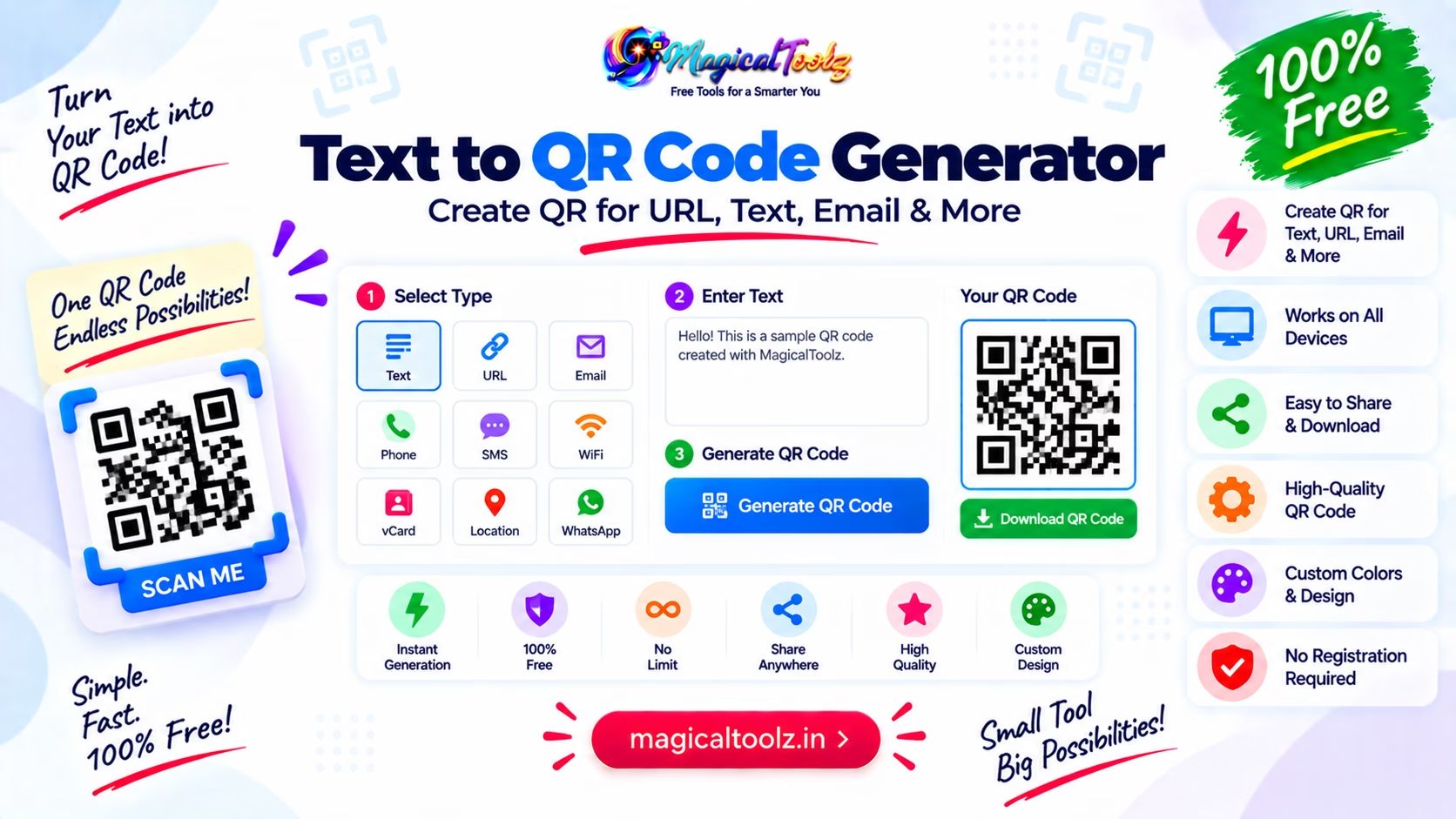
A QR code can carry plain text or a structured action such as opening a URL, drafting an email, calling a phone number, preparing an SMS, joining WiFi, or creating a contact. The payload determines what a scanner offers after reading the code.
The Magical Toolz QR Code Generator creates one QR code at a time locally. It provides payload templates, error correction, size, quiet-zone, colour, optional logo, PNG and SVG export, and a copy of the exact encoded payload.
Quick answer: Choose the correct payload type, enter only the data you intend to share, keep strong dark-light contrast and at least a four-module quiet zone, generate the code, then scan-test PNG or SVG output on several real phones.
Current QR Generator controls
| Item | What you need to know |
| Payloads | Text, HTTP/HTTPS URL, email, phone, SMS, WiFi, and vCard. |
| Text limit | Plain text input is limited to 2,000 characters, and every payload must fit QR capacity. |
| Error correction | L, M, Q, or H. A logo forces H. |
| Output size | Maximum setting from 256 to 2,048 pixels. |
| Quiet zone | Four to twelve modules. |
| Logo | PNG, JPEG, or WebP up to 2 MiB, with width from 10% to 18%. |
| Contrast | Foreground and background must reach at least 3:1. |
| Exports | PNG, SVG, and copied payload. |
How to create a reliable QR code
- Open the QR Code Generator.
- Choose Text, URL, Email, Phone, SMS, WiFi, or vCard.
- Enter and verify the payload fields.
- Choose error correction based on damage risk and data density.
- Set the maximum output size and quiet-zone margin.
- Choose dark foreground and light background colours with adequate contrast.
- Add a small logo only when branding is necessary.
- Inspect the encoded payload and generated metrics.
- Download PNG or SVG.
- Scan-test the final file at its intended print or screen size.
Choose the right payload template
A URL should include https:// so scanners recognise it as a link. Email, phone, and SMS templates create standard action strings. Plain text simply displays the content after scanning.
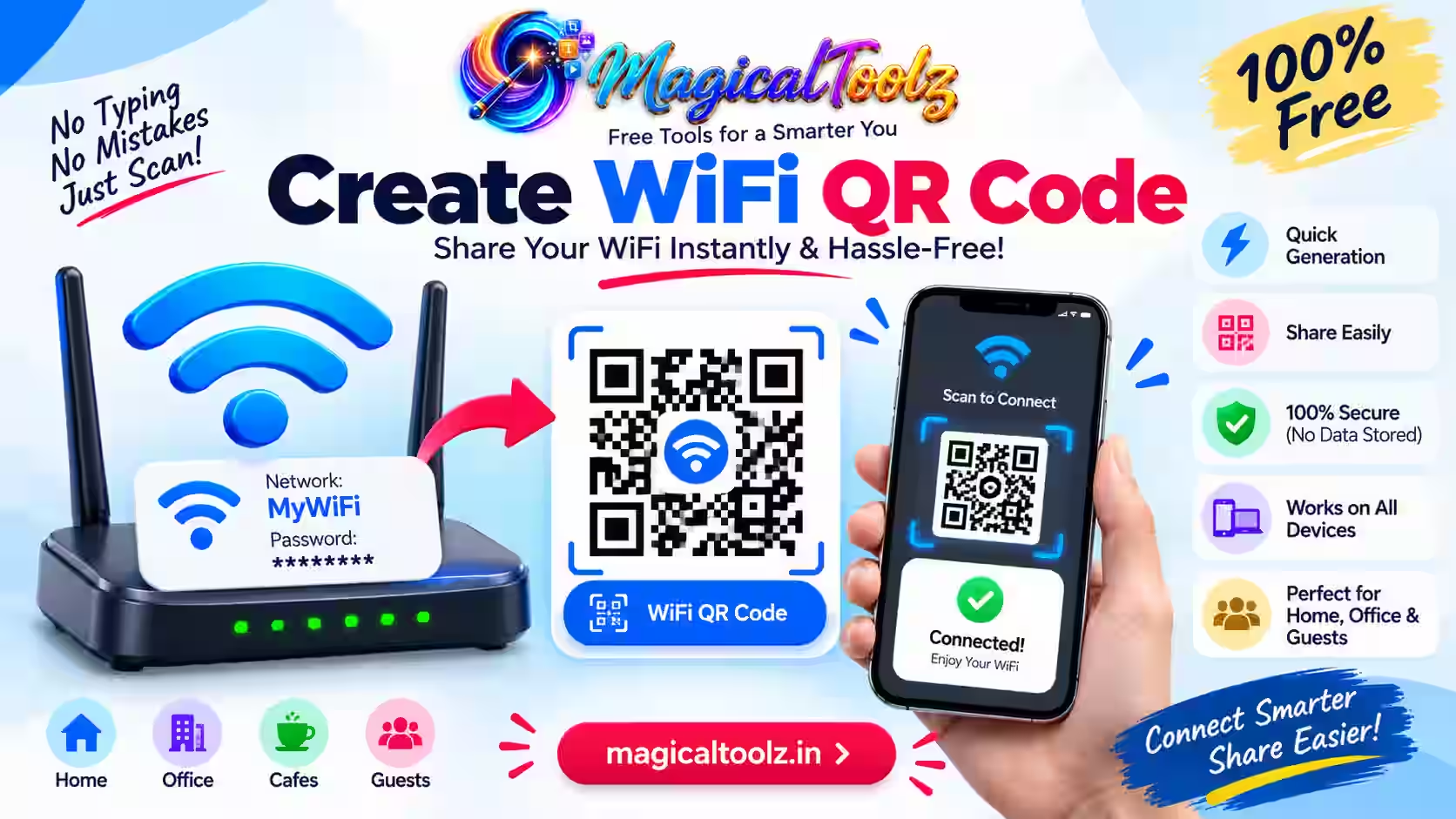
WiFi and vCard payloads contain several fields and punctuation rules. Use the template instead of manually guessing the syntax, and verify names, numbers, security type, network name, and contact values before export.
Static codes do not update themselves
The generated code stores the payload directly. If you encode a fixed website address and later change the destination, the printed code still contains the old address. You must generate and distribute a new code.
A service marketed as a dynamic QR code usually points to a managed redirect that can change later. That introduces a service dependency, tracking and availability considerations. This local generator creates static payloads.
Error correction and data density
Higher error correction can help a code survive limited damage, but it also requires more modules for the same payload. Long text creates a denser code that may need a larger printed size.
A logo forces H error correction and receives a background-coloured safety pad. Error correction is not permission to cover finder patterns or use an oversized logo. Keep branding modest and test the exact exported file.
Quiet zone, contrast, and colour
The clear border around a QR code is the quiet zone. Cropping it away or placing graphics inside it can prevent a scanner from finding the symbol. Keep at least the four-module minimum and more space when the surrounding design is busy.
Dark foreground on a light background is the safest pattern. The tool rejects combinations below 3:1 contrast, but passing that threshold does not guarantee every printer, display, camera, or lighting condition will work.
PNG versus SVG export
PNG is convenient for documents, social graphics, and software that expects a raster image. Export it large enough for the final use and resize without blurring or clipping the quiet zone.
SVG is vector output and suits print layouts or designs that need scaling. Some publishing systems sanitise SVG, so confirm that the destination accepts it. Scan the final placed version, not only the original download.
Privacy and sensitive payloads
Generation occurs in your browser, and the logo and payload do not need a QR-generation server upload. The QR code itself is designed to be readable by anyone who can scan it.
Do not encode passwords, private keys, confidential personal records, or permanent WiFi credentials for public display. A QR code hides nothing; it only changes how the data is represented.
Plan the job before changing the source
Write down what is wrong, which files or pages are affected, and what the finished result must do. For Create a QR Code for Text, URL, Email, WiFi or Contact Data, that short plan prevents you from choosing an option only because its name sounds familiar. It also gives you a simple way to decide whether the output is acceptable.
Keep an unchanged source and use a new output filename. If you are processing a batch, test one representative item first, including the most unusual layout or largest file. A successful first preview does not prove that every later item has the same dimensions, metadata, structure, or content.
Record important settings such as page selection, direction, output format, dimensions, quality, crop boundary, or printer layout. You can then repeat the workflow without guessing. This is especially useful when another team member must reproduce the result or when a marketplace template changes.
Compare source and output, not only the success message
A completed status means the application produced a file; it does not certify that the file is correct for your purpose. Open the download independently, compare visible content with the source, and test the action that matters, such as scanning, clicking, printing, reading, or importing.
Check accessibility as part of that review. Do not remove readable text, useful contrast, page context, or alternative information merely to make an output smaller or visually cleaner. When the result will be printed, inspect one physical sample under normal lighting and at the intended viewing distance.
Keep the source until the output has passed those checks and reached its destination. If the task involves personal, commercial, or confidential data, follow the relevant retention policy instead of leaving extra downloads in a shared folder.
Know when a browser tool is not the right choice
A browser tool is convenient for a bounded, visible job, but it cannot replace every professional workflow. Use specialist desktop or server software when you need controlled colour management, signed-document preservation, very large batches, automation, audit logs, exact prepress output, regulated handling, or a format the browser cannot decode.
Low-memory phones can fail before a published file limit because decoding and previewing may need much more memory than the compressed input size. If the tab slows down, stop the job rather than repeatedly clicking the action. Try a smaller batch on a trusted desktop device and keep other memory-heavy tabs closed.
Do not rename a file extension to force acceptance. A renamed file still contains the original format and may fail or be interpreted incorrectly. Choose a workflow that explicitly supports the real source format, then validate the resulting file type instead of trusting its extension alone.
For repeat business work, document the approved settings and keep a small non-sensitive test file. Run that sample after browser, library, marketplace, printer, or operating-system changes. A quick regression check can catch a changed layout before it affects a full production batch.
Common mistakes and how to fix them
A URL opens as plain text
Include the complete HTTP or HTTPS scheme and check for spaces.
The code scans on screen but not in print
Increase physical size, preserve the quiet zone, improve contrast, and test the actual printer output.
The logo makes scanning unreliable
Reduce logo width, keep H correction, and avoid covering key patterns.
WiFi joining fails
Check network name, password, security mode, hidden-network setting, and special characters.
The destination changed
Static QR content cannot update. Generate and replace the code or use a properly assessed managed redirect.
Final verification checklist
- Payload type matches the intended action.
- URLs include HTTPS.
- Spelling, numbers, and WiFi credentials are correct.
- No unnecessary private data is encoded.
- Contrast is strong.
- Quiet zone remains clear.
- Logo is small and optional.
- PNG or SVG suits the destination.
- The final placed code scans on Android and iPhone.
- A printed sample works at normal distance.
Frequently asked questions
Can I create a URL QR code?
Yes, for an HTTP or HTTPS address.
Can I encode WiFi details?
Yes. Enter the network, security type, password, and hidden status carefully.
Can I add a logo?
Yes, using PNG, JPEG, or WebP up to 2 MiB and 10% to 18% width.
What happens when I add a logo?
The tool forces H error correction and adds a safety pad.
Can I change the destination later?
Not inside a static printed code. You need a new code unless the payload points to a managed redirect.
What formats can I download?
PNG and SVG. You can also copy the payload.
Is there batch or CSV generation?
No. The current tool creates one QR code at a time.
Does data leave the browser?
The generation workflow and logo processing run locally.
Publish only after a real scan test
A visually attractive QR code is useful only when cameras can read it and the payload is correct. Keep content short, contrast strong, margins clear, and logos restrained.
Create the code with the QR Code Generator, then test the final printed or displayed version before distributing it.
 Magical Toolz AI Support
Comments (0)
Use comments for article-specific feedback. Use the contact page for bugs and support requests.
Leave a Comment
No comments yet. Be the first to share something useful.