


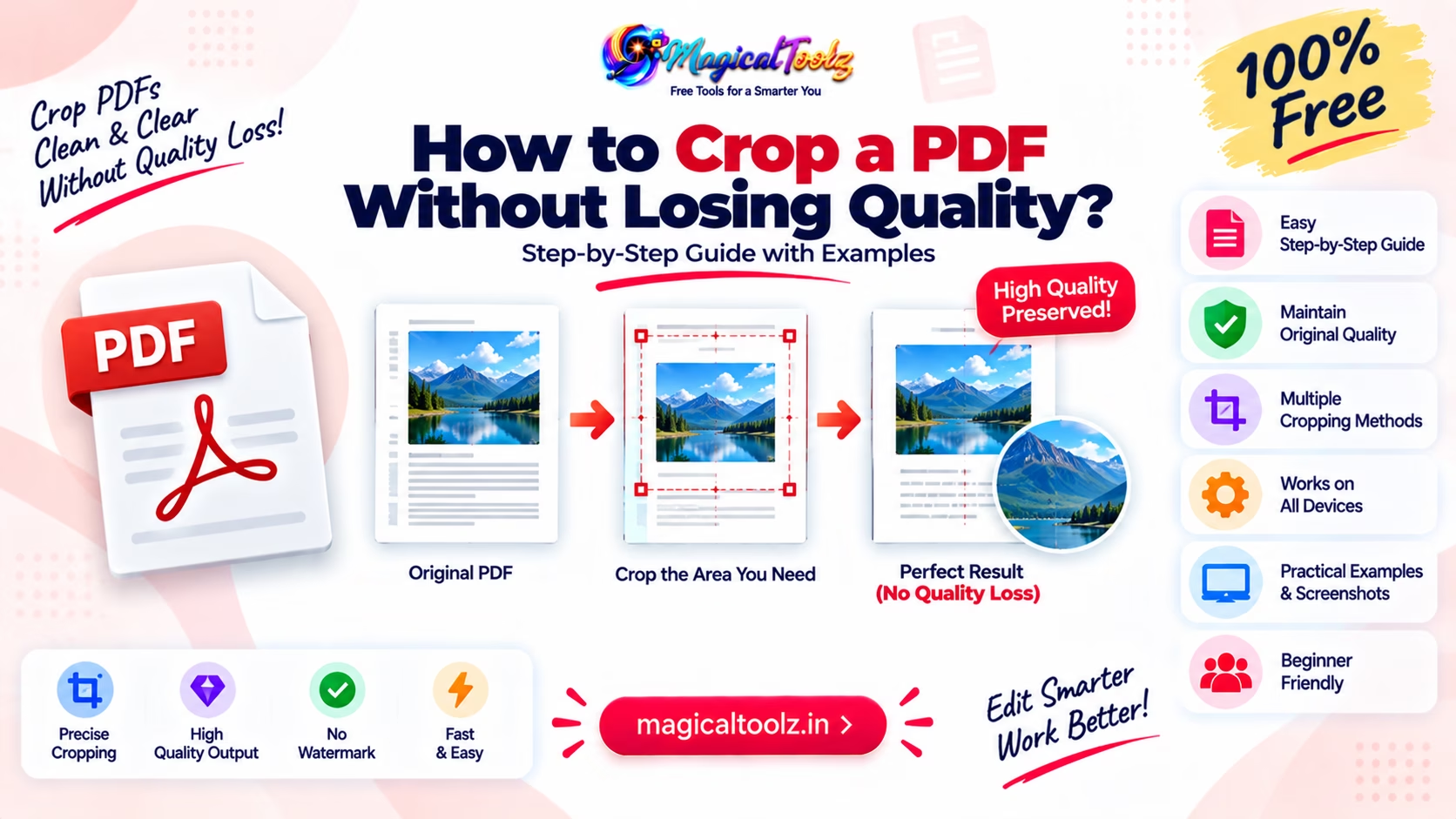
Cropping a PDF changes the page area a viewer displays. A good PDF-aware crop can preserve vector text, lines, and embedded image data because it adjusts page boundaries instead of taking a screenshot and rebuilding the page.
The Magical Toolz PDF Cropper draws a keep area and maps it to PDF coordinates without rasterizing the original page. It supports all pages, the current page, or custom ranges and handles mixed page sizes and rotations independently.
Quick answer: Upload a genuine unencrypted PDF, draw the area that should remain visible, choose the target pages, crop, reopen the downloaded PDF, and verify every page. Cropping hides outside content through the CropBox; it does not securely erase that material.
Current PDF Cropper boundaries
| Item | What you need to know |
| Input limit | 100 MB. |
| Page limit | 2,000 pages. |
| Preview limit | 24 million rendered pixels per page. |
| Memory budget | 384 MB estimated browser memory. |
| Output limit | 200 MB. |
| Page selection | All pages, previewed page only, or custom pages and ranges. |
| Method | Sets PDF CropBox coordinates without rasterizing original page content. |
How to crop PDF pages safely
- Open the PDF Cropper and choose a genuine PDF.
- Wait for page count and preview validation.
- Navigate to a representative page.
- Drag on the preview to select what should remain visible.
- Fine-tune Left, Top, Width, and Height percentages if needed.
- Choose All pages, Previewed page only, or Custom pages/ranges.
- Check rotated and differently sized pages before applying one area broadly.
- Select Crop selected pages and wait for output validation.
- Download to a new filename.
- Reopen the output in another viewer and inspect every affected page.
Why quality can remain unchanged
PDF text and vector shapes are described mathematically. Setting a CropBox changes the visible boundary but does not redraw those objects as pixels. Embedded images also remain at their stored resolution when the page is not rasterized.
File size may not fall much because hidden outside content can remain inside the PDF. Cropping is a layout operation, not an image compressor or secure redaction process.
CropBox does not securely erase content
Material outside the CropBox may still be present and recoverable by changing page boxes or using extraction software. Never crop a bank number, address, signature, or confidential paragraph and assume it has been removed.
Use a proper redaction workflow that removes underlying objects and sanitises hidden data. Then verify the redacted output with appropriate software before sharing it.
All pages, one page, or custom ranges
Use All pages only when the layout is consistent. Previewed page only suits one exceptional page. Custom ranges accept entries such as 1-3, 6, 9-12 and prevent unrelated pages from being changed.
The cropper validates page numbers against the document. Review the range carefully because reversing or mistyping a range can affect more pages than expected.
Mixed page sizes and rotation
A document may combine A4, Letter, landscape, portrait, and rotated scans. The tool maps percentages to each selected page using rotation-aware PDF coordinates. The same percentage box can still contain different visual content on different layouts.
Navigate through representative pages before applying a broad crop. Split highly inconsistent documents into logical groups or crop exceptional pages separately.
Forms, annotations, links, and signatures
Cropping can change what is visible while annotations, links, or form widgets retain other coordinates. Test clickable and editable elements after cropping, especially near the new edges.
Modifying a digitally signed PDF may invalidate its signature. Preserve the signed original and follow the document owner or legal workflow before changing page boundaries.
Browser processing and large files
The tool uses local PDF libraries and does not need a crop-processing server upload. Large inputs still consume browser memory for source bytes, previews, and generated output. Limits protect the tab but cannot make every device equally capable.
Close unnecessary tabs for a large job and try a smaller subset if a low-memory device struggles. Keep the browser open until the download completes.
Plan the job before changing the source
Write down what is wrong, which files or pages are affected, and what the finished result must do. For How to Crop a PDF Without Rasterizing Text or Images, that short plan prevents you from choosing an option only because its name sounds familiar. It also gives you a simple way to decide whether the output is acceptable.
Keep an unchanged source and use a new output filename. If you are processing a batch, test one representative item first, including the most unusual layout or largest file. A successful first preview does not prove that every later item has the same dimensions, metadata, structure, or content.
Record important settings such as page selection, direction, output format, dimensions, quality, crop boundary, or printer layout. You can then repeat the workflow without guessing. This is especially useful when another team member must reproduce the result or when a marketplace template changes.
Compare source and output, not only the success message
A completed status means the application produced a file; it does not certify that the file is correct for your purpose. Open the download independently, compare visible content with the source, and test the action that matters, such as scanning, clicking, printing, reading, or importing.
Check accessibility as part of that review. Do not remove readable text, useful contrast, page context, or alternative information merely to make an output smaller or visually cleaner. When the result will be printed, inspect one physical sample under normal lighting and at the intended viewing distance.
Keep the source until the output has passed those checks and reached its destination. If the task involves personal, commercial, or confidential data, follow the relevant retention policy instead of leaving extra downloads in a shared folder.
Know when a browser tool is not the right choice
A browser tool is convenient for a bounded, visible job, but it cannot replace every professional workflow. Use specialist desktop or server software when you need controlled colour management, signed-document preservation, very large batches, automation, audit logs, exact prepress output, regulated handling, or a format the browser cannot decode.
Low-memory phones can fail before a published file limit because decoding and previewing may need much more memory than the compressed input size. If the tab slows down, stop the job rather than repeatedly clicking the action. Try a smaller batch on a trusted desktop device and keep other memory-heavy tabs closed.
Do not rename a file extension to force acceptance. A renamed file still contains the original format and may fail or be interpreted incorrectly. Choose a workflow that explicitly supports the real source format, then validate the resulting file type instead of trusting its extension alone.
For repeat business work, document the approved settings and keep a small non-sensitive test file. Run that sample after browser, library, marketplace, printer, or operating-system changes. A quick regression check can catch a changed layout before it affects a full production batch.
Common mistakes and how to fix them
The wrong content remains visible
Redraw the keep area or enter exact percentages. Remember that the selected rectangle is what stays visible.
Some pages are clipped
The pages have different layouts. Use custom ranges or crop groups separately.
File size did not shrink
CropBox changes visibility and may retain hidden content. Use a separate optimisation workflow when size reduction is the goal.
Sensitive text can still be extracted
Cropping is not redaction. Remove the underlying content with proper redaction software.
A signature became invalid
Any PDF modification can affect cryptographic signatures. Restore the original and follow the required signed-document process.
Final verification checklist
- The source is backed up.
- The PDF is not encrypted or damaged.
- The keep area contains all required text and marks.
- Rotated pages were checked.
- Mixed page sizes were checked.
- The page range is correct.
- Forms and links still align.
- No crop is being used as fake redaction.
- The output opens in another viewer.
- Printed margins and scaling are correct.
Frequently asked questions
Does cropping reduce text quality?
Not when the crop only changes PDF page boxes and does not rasterize the page.
Does cropping remove hidden content?
No. Content outside the CropBox may remain recoverable.
Can I crop only selected pages?
Yes. Choose the current page or enter custom pages and ranges.
Can I crop a rotated PDF?
The tool maps rotation-aware coordinates, but you should inspect each layout.
What is the input limit?
100 MB and up to 2,000 pages, subject to preview and memory limits.
Will the file become smaller?
Not necessarily, because the underlying objects can remain.
Can I crop an encrypted PDF?
The current tool rejects encrypted, corrupt, damaged, or unsupported PDFs.
Is the PDF uploaded for cropping?
The active crop workflow runs locally in the browser with bundled PDF components.
Crop for layout, redact for privacy
Use CropBox editing to remove distracting margins or focus the visible page while preserving source rendering quality. Do not confuse visibility with deletion.
Open the PDF Cropper, work on a copy, inspect mixed pages, and verify the downloaded document before sharing or printing.
 Magical Toolz AI Support
Comments (0)
Use comments for article-specific feedback. Use the contact page for bugs and support requests.
Leave a Comment
No comments yet. Be the first to share something useful.