


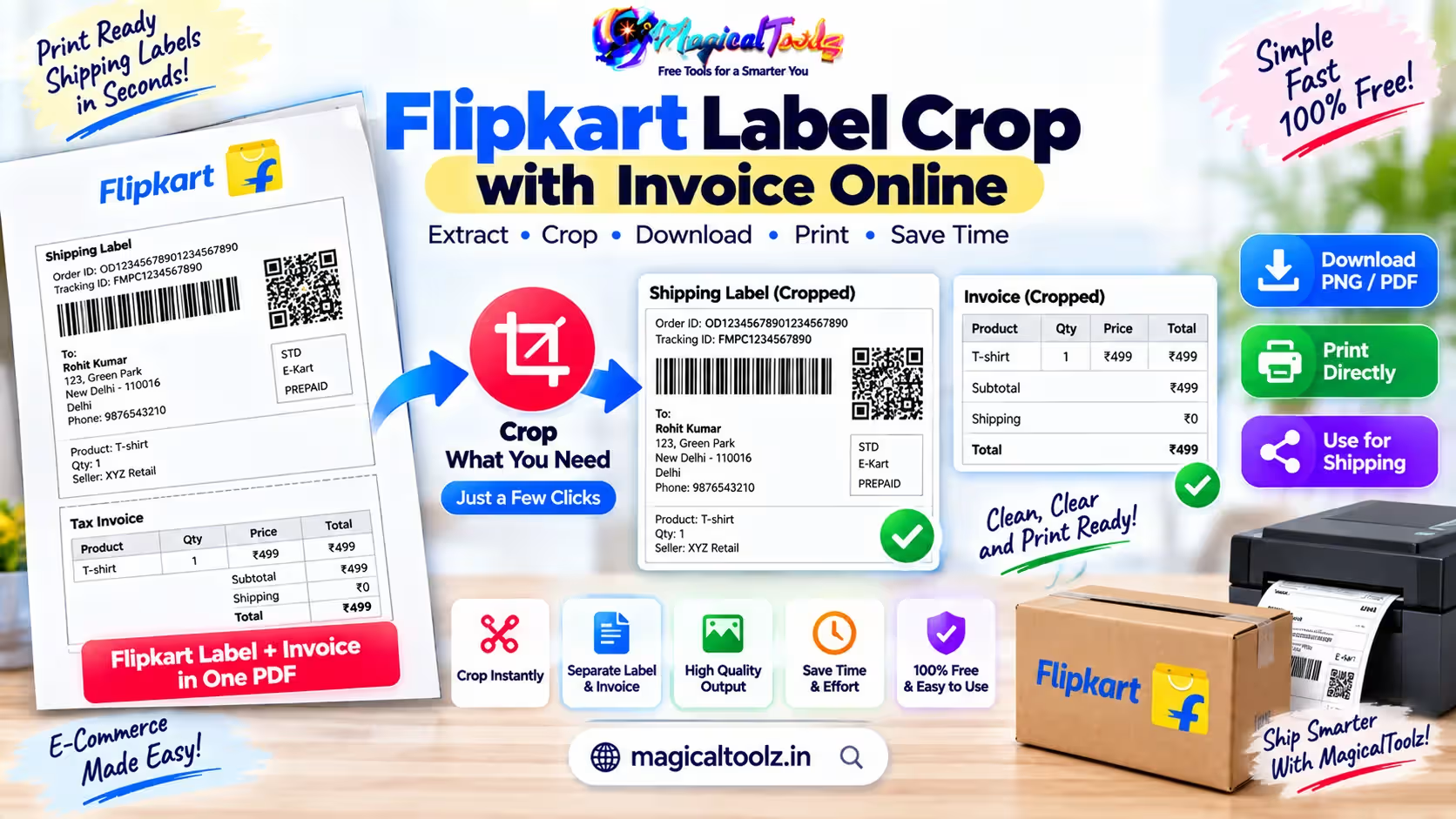
Marketplace shipping PDFs can combine a shipping label and invoice on one page. Printing the complete page on a thermal printer wastes paper and can make the barcode too small. A label cropper separates the areas needed for packing and records.
The Magical Toolz Flipkart Label Cropper accepts one or multiple Flipkart shipping PDFs, auto-detects label and invoice boundaries, and lets you move or resize the boxes when detection is wrong.
Quick answer: Upload the Flipkart PDFs, inspect the first pages, correct the movable label and invoice boxes, choose thermal or A4 label output, select only needed options, process the batch, and test one downloaded label before printing all orders.
Important current workflow options
| Item | What you need to know |
| Input | Flipkart shipping PDF files, including multiple-file selection. |
| Boundary control | Auto-detected per page, with draggable and resizable label and invoice boxes. |
| Layouts | One label, two side by side, two stacked, four in a grid, or four-label A4 output. |
| Sorting | Uploaded order, pickup, SKU, colour with size, or size with colour for supported single-label pages. |
| Extras | Optional order number, custom label text, date and time, whitespace trimming, invoice inclusion, and SKU summary. |
| Downloads | Separate Labels and Invoices downloads when generated. |
How to prepare a Flipkart batch
- Open the Flipkart Label Cropper.
- Choose one or more genuine Flipkart shipping PDFs.
- Inspect the first uploaded page in the preview.
- Drag inside a label or invoice box to move it and use the corner handle to resize it.
- Keep per-page auto-detection enabled when page boundaries vary.
- Choose thermal output or four-label A4 output.
- Confirm labels per page and any sorting or custom-text options.
- Decide whether invoices and SKU summary are needed.
- Start processing and wait for validation to finish.
- Download labels and invoices, then print one sample.
Auto-detection needs human review
Detection looks for invoice-style text markers and uses fallback boundaries when a marker is unavailable. Marketplace templates can change, scans can be unusual, and different pages in one batch may not share identical geometry.
Spot-check the first several pages and any page that looks different. If auto-detection is wrong on most pages, disable per-page detection and use the manually drawn boxes consistently.
Move and resize the selection boxes
Choose Draw Label Area or Draw Invoice Area. Drag on the page to create a box, drag inside it to move it, and use the corner control to resize it. The readout confirms whether each area is set.
Keep barcodes, routing codes, addresses, and required identifiers fully inside the label box. Do not trim so tightly that printer scaling or cutting removes an edge.
One, two, or four labels per source page
The default one-label mode is intended for common pages containing a label and invoice. Multi-label modes split a page into equal tiles: two horizontally, two vertically, or four in a two-by-two grid.
In tiled modes, invoice and SKU summary output are not generated because equal tiles do not provide a reliable label/invoice separation. The boundary boxes are ignored in those modes, so choose the mode that matches the source layout.
Thermal labels versus A4 sticker sheets
Thermal output prepares individual label-sized pages. Your print dialog must use the matching paper size with inappropriate scaling disabled. A4 output places four labels on a sheet with cutting guides.
A4 layout applies to shipping labels. Invoices remain full-width cropped pages. Do not assume the invoice will be placed inside the four-label sticker grid.
Sorting and SKU summary
Sorting depends on text that can be extracted from the PDF. Pickup, SKU, colour, and size fields may not be available or consistent in every marketplace template. Review the resulting order instead of treating extraction as guaranteed.
A SKU summary can support packing, but it is not a substitute for the seller dashboard or order records. Compare counts with the source batch before dispatch.
Privacy and operational safety
Shipping labels and invoices contain names, addresses, phone details, order information, and tax data. Process them on an authorised device and control access to downloads and print queues.
The browser workflow avoids sending the PDFs to a crop-processing server, but local downloads, backups, printer memory, browser extensions, and shared folders remain possible exposure points.
Plan the job before changing the source
Write down what is wrong, which files or pages are affected, and what the finished result must do. For Flipkart Label Cropper: Prepare Labels and Invoices for Printing, that short plan prevents you from choosing an option only because its name sounds familiar. It also gives you a simple way to decide whether the output is acceptable.
Keep an unchanged source and use a new output filename. If you are processing a batch, test one representative item first, including the most unusual layout or largest file. A successful first preview does not prove that every later item has the same dimensions, metadata, structure, or content.
Record important settings such as page selection, direction, output format, dimensions, quality, crop boundary, or printer layout. You can then repeat the workflow without guessing. This is especially useful when another team member must reproduce the result or when a marketplace template changes.
Compare source and output, not only the success message
A completed status means the application produced a file; it does not certify that the file is correct for your purpose. Open the download independently, compare visible content with the source, and test the action that matters, such as scanning, clicking, printing, reading, or importing.
Check accessibility as part of that review. Do not remove readable text, useful contrast, page context, or alternative information merely to make an output smaller or visually cleaner. When the result will be printed, inspect one physical sample under normal lighting and at the intended viewing distance.
Keep the source until the output has passed those checks and reached its destination. If the task involves personal, commercial, or confidential data, follow the relevant retention policy instead of leaving extra downloads in a shared folder.
Know when a browser tool is not the right choice
A browser tool is convenient for a bounded, visible job, but it cannot replace every professional workflow. Use specialist desktop or server software when you need controlled colour management, signed-document preservation, very large batches, automation, audit logs, exact prepress output, regulated handling, or a format the browser cannot decode.
Low-memory phones can fail before a published file limit because decoding and previewing may need much more memory than the compressed input size. If the tab slows down, stop the job rather than repeatedly clicking the action. Try a smaller batch on a trusted desktop device and keep other memory-heavy tabs closed.
Do not rename a file extension to force acceptance. A renamed file still contains the original format and may fail or be interpreted incorrectly. Choose a workflow that explicitly supports the real source format, then validate the resulting file type instead of trusting its extension alone.
For repeat business work, document the approved settings and keep a small non-sensitive test file. Run that sample after browser, library, marketplace, printer, or operating-system changes. A quick regression check can catch a changed layout before it affects a full production batch.
Common mistakes and how to fix them
The crop box will not affect tiled mode
Two-label and four-label modes use equal page tiles and ignore manual label/invoice boxes. Return to one-label mode for custom boundaries.
A barcode is clipped
Expand the label area and leave a small safety margin, then regenerate and scan-test the output.
Different pages crop incorrectly
Enable per-page auto-detection or split unusual templates into separate batches.
Sorting looks wrong
The expected SKU, colour, size, or pickup text may not be extractable. Use uploaded order and verify manually.
The thermal label prints tiny
Select the exact printer paper size and check scaling or fit settings in the print dialog.
Final verification checklist
- Correct PDFs were uploaded.
- Label box includes every barcode and identifier.
- Invoice box includes required invoice content.
- Unusual pages were inspected.
- Labels-per-page mode matches the source.
- Thermal or A4 mode matches the printer.
- Sorting order was verified.
- Label and invoice page counts make sense.
- A downloaded PDF opens correctly.
- One physical label was scan-tested.
Frequently asked questions
Can I upload multiple PDFs?
Yes. The current interface supports multiple Flipkart shipping PDFs.
Can I move the crop area?
Yes. Drag inside either box to move it and use the corner handle to resize it.
Does every page use its own detected boundary?
Yes when per-page auto-detection is enabled; otherwise the manual box is reused.
Can I put four labels on A4?
Yes, with the four-label A4 option and cutting guides.
Can I create two labels per page?
Yes, side by side or stacked, when the source page uses that layout.
Are invoices generated in tiled modes?
No. Tiled modes split equal label areas and do not generate invoice or SKU summary output.
Can labels be sorted?
The tool offers pickup, SKU, colour-size, and size-colour options where source text supports them.
Does cropping guarantee a scannable barcode?
No. Inspect boundaries and scan-test a physical sample before a batch print.
Review before you print the complete batch
Automatic detection saves setup time, but seller PDFs and printer settings vary. The safest workflow combines detection with visible box correction and a physical test.
Use the Flipkart Label Cropper, verify counts and boundaries, and keep source PDFs until packing and record requirements are complete.
 Magical Toolz AI Support
Comments (0)
Use comments for article-specific feedback. Use the contact page for bugs and support requests.
Leave a Comment
No comments yet. Be the first to share something useful.