


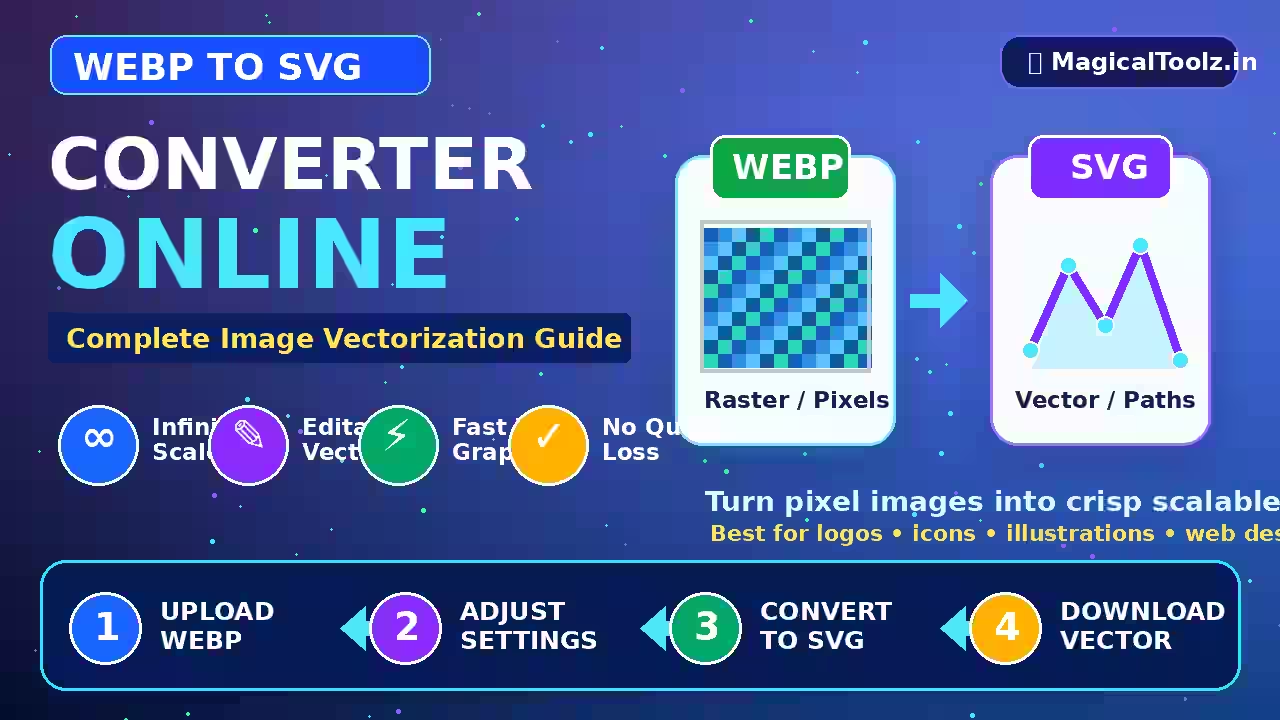
If you have ever tried to enlarge a small logo or icon saved as a WEBP file, you already know the frustration: it turns into a blurry, pixelated mess. That is the fundamental limitation of raster images like WEBP. This guide will show you exactly how to convert a WEBP to SVG using our free online vectorization tool, turning your pixel-based images into crisp, infinitely scalable vector graphics. Whether you are a designer, a small business owner, or just someone who needs a clean logo, this complete guide covers everything from the basics of vectorization to pro tips for the best results.
What Is a WEBP File and Why Should You Convert It to SVG?
WEBP is a modern raster image format created by Google. It is excellent for web use because it compresses photos and graphics into very small file sizes without a noticeable loss in quality. However, WEBP is still a pixel-based format. When you zoom in or try to print it at a large size, those pixels become visible, and the image loses sharpness.
SVG, or Scalable Vector Graphics, is entirely different. Instead of storing color information for millions of tiny pixels, an SVG file stores mathematical instructions for drawing lines, curves, and shapes. This means an SVG file can be scaled to the size of a billboard or down to a tiny favicon without any loss of quality. Converting your WEBP files to SVG gives you a graphic that is resolution-independent, fully editable in vector software, and often smaller in file size for simple illustrations.
How to Convert a WEBP to SVG Online with MagicalToolz (Step-by-Step)
Our free WEBP to SVG converter uses advanced auto-tracing technology to analyze the pixel data of your WEBP image and recreate it as a clean vector path. Follow these simple steps to convert your file in seconds.
- Open the WEBP to SVG Converter Tool: Navigate to the WEBP to SVG converter page on MagicalToolz. No registration or email is required.
- Upload Your WEBP File: Click the upload button or drag and drop your WEBP image directly into the designated area. The tool supports files up to 10MB.
- Adjust the Vectorization Settings (Optional): Use the three sliders to fine-tune your output. Colors controls the number of distinct color regions in the vector output (lower for flat logos, higher for gradients). Smoothness reduces jagged edges (higher for organic shapes, lower for sharp text). Detail determines how much fine detail is preserved (higher for complex images, lower for simple icons).
- Click "Convert": The tool will process your image and generate a preview of the SVG result. This usually takes only a few seconds.
- Download Your SVG File: Review the preview. If you are happy with the result, click the download button. If not, adjust the sliders and try again. You can repeat this as many times as you like for free.
Benefits of Vectorizing Your WEBP Images
Switching from a raster WEBP to a vector SVG unlocks several powerful advantages. First, you gain true scalability. Your logo or icon will look razor-sharp on a 4K monitor, a printed banner, or a mobile app icon. Second, SVG files are fully editable. You can open them in free software like Inkscape or professional tools like Adobe Illustrator to change colors, resize elements, or combine them with other graphics. Third, for simpler images like logos and icons, the SVG file size is often much smaller than the original WEBP, which improves your website loading speed. Finally, SVG is the standard format for modern web design, making your graphics compatible with CSS animations, responsive layouts, and retina displays.
Best Use Cases for WEBP to SVG Conversion
Not every image is a good candidate for vectorization. This tool works best for logos, icons, illustrations, and graphics with solid colors or simple gradients. Complex photographs with millions of colors and subtle lighting will not vectorize cleanly and are better left as WEBP or JPEG. Specific use cases include converting your company's WEBP logo to SVG for use on business cards, converting app icons for a responsive website, or turning a simple clip art illustration into an editable vector for a presentation.
Tips for the Best Vectorization Results
To get the highest quality SVG output from your WEBP file, follow these expert tips. Start with the largest and highest resolution WEBP file you have. A small, low-res image will lack the pixel data needed for a clean trace. For images with text, use the Detail slider at a higher setting and the Smoothness slider at a lower setting to preserve sharp edges. If your image has a solid background color, consider removing it before uploading to get a transparent SVG. Always preview the result before downloading; you may need to run the conversion two or three times with different slider settings to find the perfect balance between detail and smoothness.
Frequently Asked Questions
How do I convert a WEBP to SVG without losing quality?
Use a vectorization tool like the one on MagicalToolz. The key is adjusting the Detail and Smoothness sliders. For text and sharp logos, keep Detail high and Smoothness low. For organic shapes and illustrations, increase Smoothness to reduce jagged edges.
Is it safe to convert WEBP to SVG online for free?
Yes, it is safe. MagicalToolz processes all files directly in your browser. Your images are not stored on our servers, and they are deleted immediately after your conversion session ends. No signup or personal information is required.
Can I convert a WEBP to SVG on my phone?
Absolutely. Our tool is fully responsive and works on any modern smartphone or tablet. Simply open the page in your mobile browser, upload a WEBP file from your camera roll, and download the SVG directly to your device.
What is the difference between WEBP and SVG?
WEBP is a raster format made of pixels, great for photos and complex images. SVG is a vector format made of mathematical paths, ideal for logos, icons, and illustrations. WEBP can become pixelated when enlarged; SVG stays sharp at any size.
Why is my WEBP to SVG conversion blurry or messy?
This usually happens when the original WEBP image is too complex (like a photograph) or too small. For best results, use a simple image with solid colors and a resolution of at least 500 x 500 pixels. Adjust the Colors slider to a lower number to simplify the output.
Can I edit the SVG file after converting from WEBP?
Yes, the SVG file you download is fully editable. You can open it in any vector editing software, including free options like Inkscape or online editors like Figma and Vectr. You can change colors, resize elements, and add text.
Does the WEBP to SVG converter work with animated WEBP files?
No, this tool converts static WEBP images only. Animated WEBP files contain multiple frames and cannot be vectorized into a single SVG. You will need to extract a single frame first or use a different tool.
How long does it take to convert a WEBP to SVG?
Most conversions take less than 10 seconds. The processing time depends on the file size and complexity of the image. Large or highly detailed images may take slightly longer, but the tool is optimized for speed.
What file size limit does the converter have?
The free converter accepts WEBP files up to 10MB in size. This is more than enough for most logos, icons, and illustrations. If your file is larger, consider compressing it first using a WEBP compression tool.
Can I convert multiple WEBP files to SVG at once?
Currently, the tool processes one file at a time. However, you can repeat the process as many times as you need for free. A batch conversion feature may be added in a future update.
Conclusion: Start Converting Your WEBP Images Today
Learning how to convert a WEBP to SVG is a valuable skill that saves you time and gives you professional-quality graphics. Whether you need a scalable logo for your business, an editable icon for a website, or a clean vector for print, our free online tool delivers results in seconds. There is no software to install, no account to create, and no hidden fees. Try our free WEBP to SVG converter now and experience the power of instant image vectorization.
 Magical Toolz AI Support
Comments (0)
Use comments for article-specific feedback. Use the contact page for bugs and support requests.
Leave a Comment
No comments yet. Be the first to share something useful.