



Flipping an image reflects its pixels across an axis. A horizontal mirror swaps left and right, while a vertical mirror swaps top and bottom. Flipping both axes produces the same visual orientation as a 180-degree turn, although the operation is expressed as two reflections.
The Magical Toolz Image Flipper processes one image or a batch in your browser. It supports horizontal, vertical, and both-axis modes, exports PNG, JPG, or WebP, and provides individual downloads or a ZIP for multiple results.
Quick answer: Choose up to 20 browser-decodable still images with a combined size of 80 MB, select the flip direction and output format, process them locally, inspect every preview, and download one file or a ZIP.
Current Image Flipper capabilities
| Item | What you need to know |
| Batch size | Up to 20 images with an 80 MB combined input limit. |
| Pixel limit | Each decoded image is limited to 40 megapixels. |
| Directions | Horizontal mirror, vertical mirror, or both axes. |
| Outputs | PNG, JPG, or WebP. |
| Transparency | PNG keeps transparency; JPG fills transparent areas with your selected colour. |
| Metadata | Canvas export creates a new still image and removes source metadata and colour-profile tags. |
How to flip an image or batch
- Open the Image Flipper and choose or drop your images.
- Confirm that the count and total size fit the limits.
- Choose Horizontal mirror, Vertical mirror, or Both axes.
- Select PNG, JPG, or WebP output.
- Set JPG or WebP quality when using a lossy output.
- Choose a background colour if transparent pixels will become JPG.
- Keep EXIF-orientation handling enabled unless you have a specific reason to disable it.
- Select Flip images and inspect every result card.
- Download one result or download the batch as a ZIP.
Choose the correct direction
Use horizontal mirror when a selfie, scan, or layout needs left and right exchanged. Any readable text will become backward, so logos, product labels, road signs, and documents need close inspection.
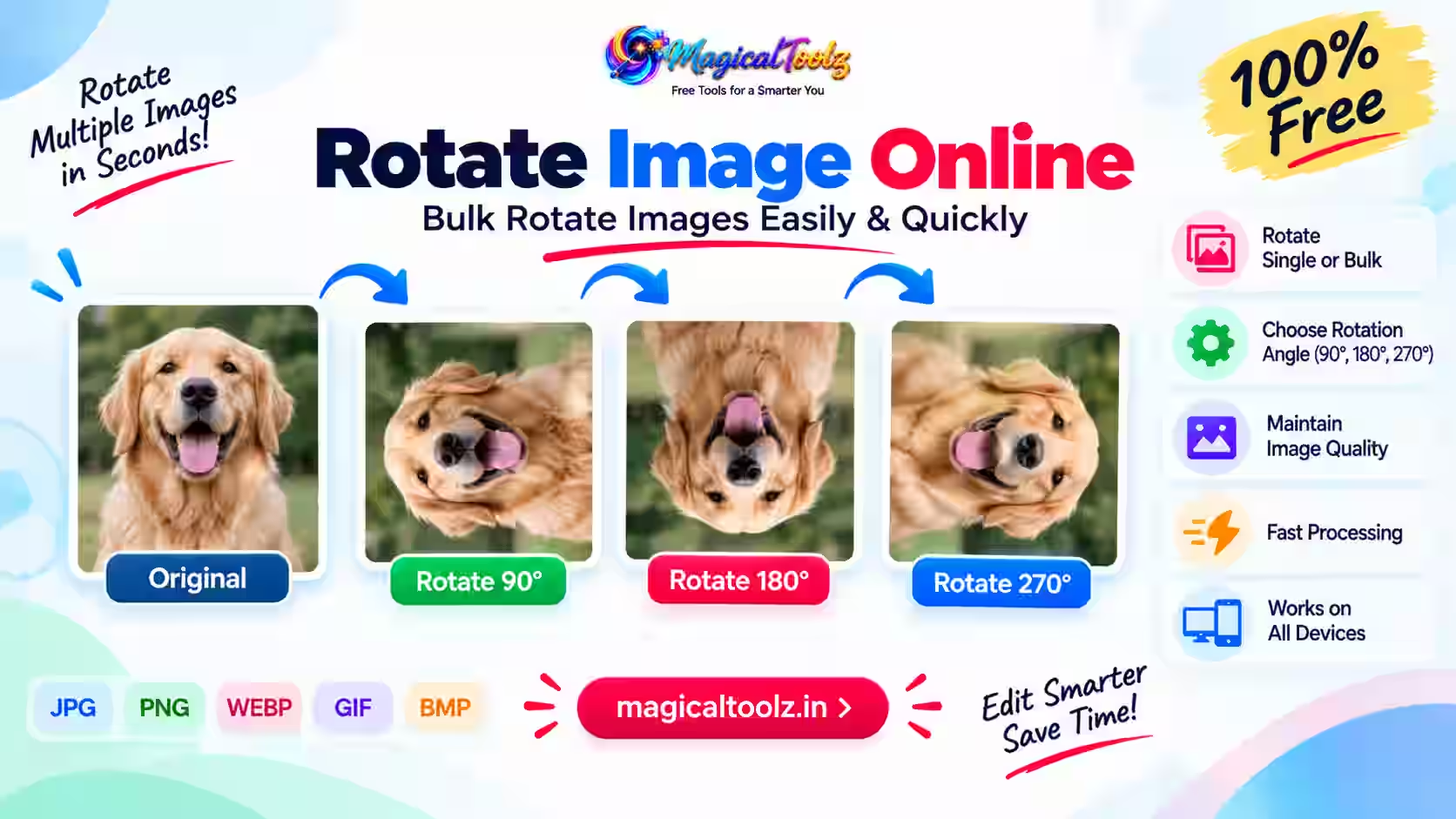
Use vertical mirror when top and bottom need to swap. Both axes create a 180-degree visual turn. If you only need a normal 90-degree correction, use a rotation tool instead.
Output format and quality
PNG suits transparency, screenshots, line art, and graphics with sharp edges. JPG suits ordinary photographs and broad compatibility but cannot preserve transparency. WebP can provide efficient web delivery when the destination supports it.
The quality value applies to JPG and WebP. A lower value may reduce file size but can introduce artifacts. Compare faces, text, gradients, and detailed textures rather than relying only on the number.
EXIF orientation and camera photos
Some camera files store an orientation tag instead of physically rotating their pixels. The tool can respect stored EXIF orientation while decoding so the visible source becomes the basis for the flip.
Export removes the source metadata, including orientation. This generally leaves the new pixels in their visible orientation, but it also means capture date, location, camera details, and other tags are not preserved.
Transparency and background fill
Transparent pixels can remain transparent in PNG and, depending on browser encoding, WebP. JPG has no alpha channel, so the selected background colour fills transparent areas.
Check soft shadows and anti-aliased edges against the final page colour. A white fill can produce a pale box or halo when the image is later placed on a dark background.
Batch processing and ZIP download
The tool processes the selected files sequentially and keeps completed results available if you cancel later work. A failed unsupported image can stop the current run, so inspect the status message and completed cards.
When several outputs are ready, ZIP creation depends on the bundled ZIP library. If it cannot load, use each result card download instead. Open the ZIP and a few files before deleting your sources.
Privacy and browser limits
Pixel work happens locally in the browser, and the selected images do not need a conversion-server upload. However, downloads, clipboard tools, extensions, and synced folders remain part of your device environment.
A file with an image MIME type can still fail if the browser cannot decode its actual format. Animated inputs become one still frame, so use animation-aware software when frames must remain.
Plan the job before changing the source
Write down what is wrong, which files or pages are affected, and what the finished result must do. For Flip an Image Online: Mirror Photos Horizontally or Vertically, that short plan prevents you from choosing an option only because its name sounds familiar. It also gives you a simple way to decide whether the output is acceptable.
Keep an unchanged source and use a new output filename. If you are processing a batch, test one representative item first, including the most unusual layout or largest file. A successful first preview does not prove that every later item has the same dimensions, metadata, structure, or content.
Record important settings such as page selection, direction, output format, dimensions, quality, crop boundary, or printer layout. You can then repeat the workflow without guessing. This is especially useful when another team member must reproduce the result or when a marketplace template changes.
Compare source and output, not only the success message
A completed status means the application produced a file; it does not certify that the file is correct for your purpose. Open the download independently, compare visible content with the source, and test the action that matters, such as scanning, clicking, printing, reading, or importing.
Check accessibility as part of that review. Do not remove readable text, useful contrast, page context, or alternative information merely to make an output smaller or visually cleaner. When the result will be printed, inspect one physical sample under normal lighting and at the intended viewing distance.
Keep the source until the output has passed those checks and reached its destination. If the task involves personal, commercial, or confidential data, follow the relevant retention policy instead of leaving extra downloads in a shared folder.
Know when a browser tool is not the right choice
A browser tool is convenient for a bounded, visible job, but it cannot replace every professional workflow. Use specialist desktop or server software when you need controlled colour management, signed-document preservation, very large batches, automation, audit logs, exact prepress output, regulated handling, or a format the browser cannot decode.
Low-memory phones can fail before a published file limit because decoding and previewing may need much more memory than the compressed input size. If the tab slows down, stop the job rather than repeatedly clicking the action. Try a smaller batch on a trusted desktop device and keep other memory-heavy tabs closed.
Do not rename a file extension to force acceptance. A renamed file still contains the original format and may fail or be interpreted incorrectly. Choose a workflow that explicitly supports the real source format, then validate the resulting file type instead of trusting its extension alone.
For repeat business work, document the approved settings and keep a small non-sensitive test file. Run that sample after browser, library, marketplace, printer, or operating-system changes. A quick regression check can catch a changed layout before it affects a full production batch.
Common mistakes and how to fix them
Text is backward
A horizontal mirror reverses text by design. Undo the operation or use a rotation if mirroring was not intended.
The background became white
You exported JPG. Choose PNG or WebP for transparency, or select the correct JPG fill colour.
The output lost GPS or camera details
Canvas export removes source metadata. Keep the original if those tags matter.
An animation became still
The tool exports a new still image. Use a dedicated animation workflow for multiple frames.
The ZIP button fails
Download each result separately and refresh if the ZIP library did not load.
Final verification checklist
- Every intended file appears in the result list.
- The selected direction is correct.
- Text and logos face the intended way.
- Dimensions match the source.
- Transparency is correct.
- JPG fill colour suits the destination.
- Compression artifacts are acceptable.
- Metadata removal is acceptable.
- The ZIP opens successfully.
- Original files remain backed up.
Frequently asked questions
How many images can I flip?
Up to 20 images with an 80 MB combined limit.
What is the pixel limit?
Each decoded image can be up to 40 megapixels.
Can I mirror left to right?
Yes. Choose Horizontal mirror.
Can I flip top to bottom?
Yes. Choose Vertical mirror.
What does Both axes do?
It reflects horizontally and vertically, producing a 180-degree visual turn.
Can I keep transparency?
Choose PNG or a supported WebP output. JPG fills transparency with a colour.
Does the tool preserve metadata?
No. Canvas export removes source metadata and colour-profile tags.
Are images uploaded?
The active workflow processes them locally in your browser.
Mirror deliberately and inspect the result
A flip is easy to apply but obvious when it is wrong. Choose the axis from the visual problem, not from the button name alone.
Use the Image Flipper on backed-up files, inspect text and transparency, and verify downloaded outputs before replacing anything.

 Magical Toolz AI Support
Comments (0)
Use comments for article-specific feedback. Use the contact page for bugs and support requests.
Leave a Comment
No comments yet. Be the first to share something useful.