


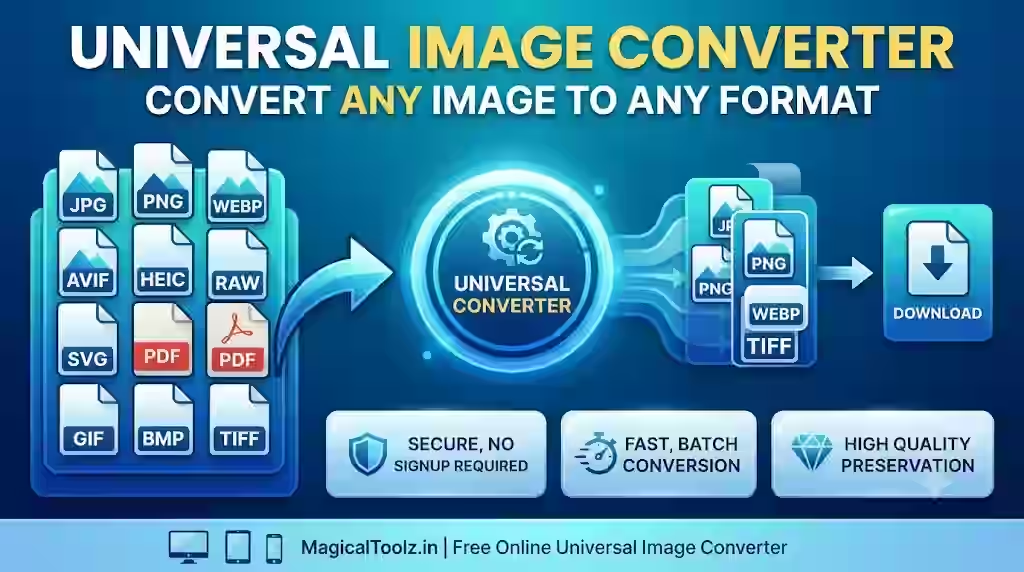
The Universal Image Converter is useful when an app accepts the wrong image format, a website needs a lighter delivery copy, or a transparent graphic must become a JPEG with a chosen background. It processes one browser-decodable image locally and lets you preview the converted result before downloading it.
Universal does not mean every file format ever created. The current tool accepts PNG, JPEG, WebP, GIF, AVIF, and BMP through the browser file picker. It outputs PNG, JPEG, WebP, and AVIF only when the browser can encode AVIF. It does not claim HEIC, TIFF, camera RAW, PSD, SVG vectorization, PDF, or animated output.
Choose the destination before the formatUse PNG for transparency or crisp graphics, JPEG for compatible photographic output, WebP for modern web delivery, and AVIF only when your browser exposes the encoder and the destination accepts it. A successful conversion does not prove that another website supports the result.
Current tool boundaries
| Area | Practical guidance |
| Input | One PNG, JPEG, WebP, GIF, AVIF, or BMP that the current browser can decode. |
| Output | PNG, JPEG, WebP, and browser-dependent AVIF. A GIF is decoded as a still image; animated output is not claimed. |
| Safety limits | Maximum 50 MB and 40 megapixels for source or requested output. |
| Quality | 10% to 100% for lossy-capable canvas encoders, with 88% as the initial setting. |
| Resize | Optional maximum width up to 12,000 pixels. The tool will not enlarge a smaller source. |
| Privacy | Processing occurs in the browser. The selected image is not uploaded by this workflow. |
| Metadata | Canvas export does not copy normal metadata, and embedded color profiles may be normalized by the browser. |
Convert an image safely
- Open the Universal Image Converter.
- Choose one supported source image or drop it into the upload area.
- Confirm the detected filename, dimensions, file size, and preview.
- Choose PNG, JPEG, WebP, or available AVIF output.
- Set quality based on the destination rather than choosing the lowest value immediately.
- Enter a maximum width only when the source is larger than needed.
- If choosing JPEG, select the color that should replace transparent pixels.
- Convert and inspect the new preview, output format, size, dimensions, and size change.
- Download with a new filename and open it in the destination application.
- Keep the original until the new file has passed the final check.
Pick PNG, JPEG, WebP, or AVIF deliberately
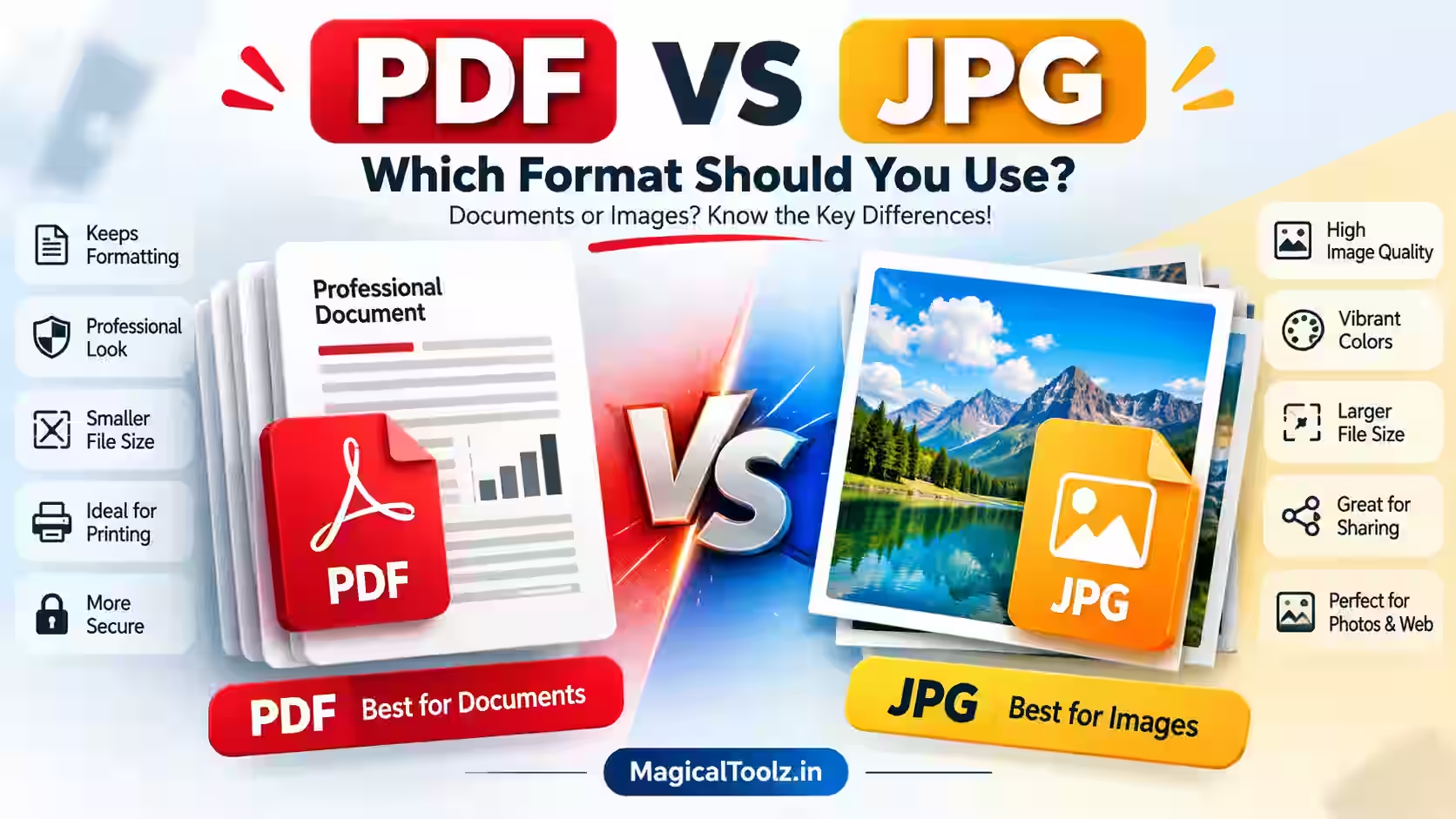
PNG uses lossless compression and supports alpha transparency, making it suitable for interface graphics, screenshots, and artwork with sharp edges. JPEG is widely accepted and often practical for photographs, but it is lossy and has no transparency.
WebP supports lossy and lossless use cases, while AVIF can offer efficient modern delivery but depends on encoder and destination support. The MDN image format guide explains format capabilities and fallback choices.
Understand browser-dependent support
The tool uses the browser to decode the source and Canvas to encode the result. A format may work in one current browser and fail in an older or restricted environment. AVIF is checked at runtime and removed from the output list when the browser cannot create it.
The file extension alone does not prove the data is valid. The tool attempts a real decode and rejects an image that the browser cannot open. If a valid specialist format is outside the current boundary, use maintained software that explicitly supports it.
Use quality and dimensions together
Quality controls compression, while maximum width controls pixel count. A camera photo that will display at 1,200 pixels wide does not need a 6,000-pixel delivery copy. Reducing unnecessary dimensions can save more space than extreme compression.
The converter preserves aspect ratio and only scales down. Check small text, faces, product labels, gradients, and edges in the downloaded file. Repeated lossy conversion can compound damage, so create each attempt from the original.
Handle transparency before JPEG export
JPEG cannot preserve transparent pixels. The tool fills the canvas with your selected color before drawing the source. White is the initial choice, but the correct fill depends on the page, document, or marketplace where the image will appear.
Preview the edges around logos and cutouts. Semi-transparent pixels blend with the chosen fill and cannot become transparent again inside the JPEG. Choose PNG or compatible WebP when transparency must remain.
Know what happens to metadata and color
Canvas export creates new image data and does not copy ordinary source metadata. That may remove camera, location, orientation, copyright, and workflow information. Do not treat this as a dedicated metadata-cleaning guarantee; verify sensitive output separately.
Browsers may normalize embedded color profiles. For print production, archival masters, medical work, or color-critical client delivery, use software that supports the required profile, bit depth, metadata, and proofing process.
Keep processing private without overstating safety
This workflow runs locally in the browser and uses temporary object URLs for previews and downloads. That avoids a file upload in this converter. The browser, downloaded file, device backups, extensions, and destination service remain separate privacy considerations.
Close the page and remove downloaded copies when working on a shared device. For confidential files, follow the policy of the organization that owns the information.
Common problems and fixes
| Problem | What to check |
| The image is rejected | Check that it is one supported type, below 50 MB and 40 megapixels, and genuinely decodable by the browser. |
| AVIF is missing from the output list | The current browser did not report a working AVIF Canvas encoder. Use another supported output or a compatible maintained encoder. |
| Transparent areas became white | JPEG has no alpha transparency. Choose another fill before conversion or use PNG/WebP. |
| The output is larger | The source may already be efficient, the selected quality may be high, or the new format may not suit that image. |
| Colors look different | Browser profile handling may normalize color. Use a color-managed workflow for critical work. |
Final checklist
- The destination accepts the chosen extension and MIME type.
- The source is within 50 MB and 40 megapixels.
- The output does not exceed 40 megapixels.
- Aspect ratio remains correct.
- Quality is suitable at normal viewing size.
- JPEG transparency fill is intentional.
- Important metadata is preserved elsewhere if needed.
- The downloaded file opens outside the converter.
- The original remains available.
- No unsupported format claim is assumed.
Frequently asked questions
Can it convert HEIC or camera RAW?
No. The current interface does not claim HEIC, TIFF, RAW, PSD, PDF, or SVG input.
Does it upload my image?
The present converter processes the selected image in the browser and does not upload it through this workflow.
Can it convert animated GIF files?
It may decode a GIF as an image, but animated output is not claimed.
Why is AVIF conditional?
Canvas AVIF encoding support varies. The tool tests the browser before showing the option.
Will PNG always be larger than JPEG?
No fixed rule applies to every image. Content, dimensions, encoder, and settings affect size.
Can it enlarge an image?
No. Maximum width only reduces a larger source; it does not upscale.
Does conversion remove EXIF data?
Canvas export normally creates a new file without copying ordinary metadata, but verify sensitive metadata with a dedicated checker.
Is it suitable for professional print work?
Use a color-managed professional workflow when profiles, bit depth, metadata, or print proofing are required.
Convert for the real destination
The best output is the file that the destination accepts while retaining the detail, transparency, dimensions, and privacy your task needs. Format names alone cannot make that decision.
Use the live preview and size facts, download a new copy, and test it where it will be used. If the source falls outside the browser boundary, choose a specialist converter instead of renaming the extension.
 Magical Toolz AI Support
Comments (0)
Use comments for article-specific feedback. Use the contact page for bugs and support requests.
Leave a Comment
No comments yet. Be the first to share something useful.