


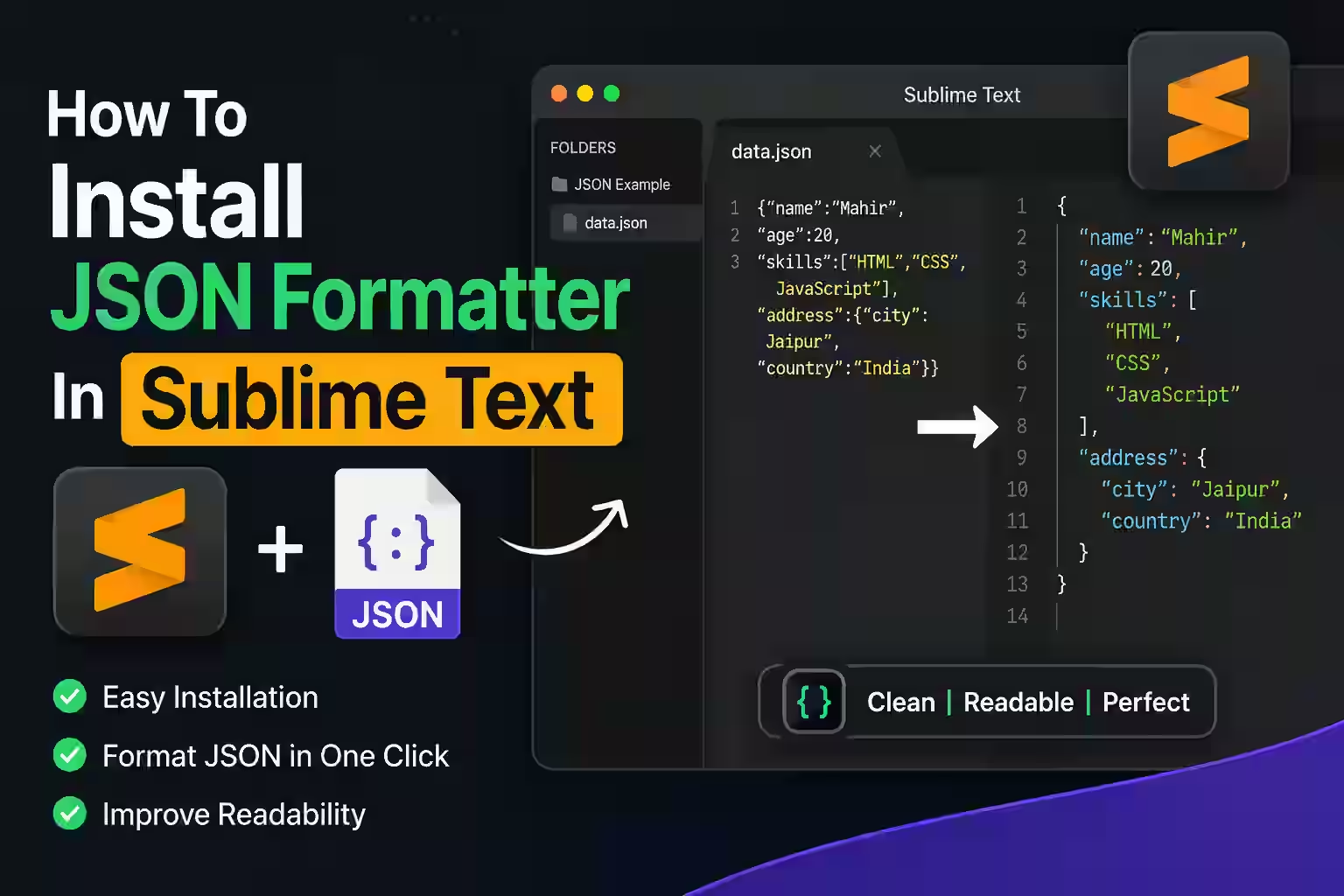
Sublime Text can edit JSON without an extension, but a formatter makes nested data easier to read and can expose syntax errors. Pretty JSON is a Package Control package for Sublime Text 3 and 4 that provides prettify, minify, validate, lint, query, and navigation commands.
The JSON tools currently listed on Magical Toolz are inactive, so this guide focuses on a direct Sublime Text workflow. Package menus can change with releases, but the Command Palette remains the clearest place to find installed commands.
Quick answer: Install Package Control from Sublime Text if it is missing, open the Command Palette, choose Package Control: Install Package, install Pretty JSON, then use the Pretty JSON commands from the palette. Validate the document before formatting and keep a copy when minifying important data.
What each JSON action does
| Choice | What it means |
| Prettify | Adds indentation and line breaks without intentionally changing data values. |
| Minify | Removes unnecessary whitespace for a smaller text representation. |
| Validate | Checks whether the document follows JSON syntax. |
| Lint | Reports syntax or style problems supported by the package. |
| Query | Searches structured data using package-supported query features. |
| Goto | Helps navigate to a JSON path or position. |
Install Pretty JSON with Package Control
- Open Sublime Text 3 or 4.
- Open the Command Palette with Ctrl+Shift+P on Windows or Linux, or Command+Shift+P on macOS.
- If Package Control is missing, type Install Package Control and run that command.
- Open the Command Palette again.
- Run Package Control: Install Package.
- Search for Pretty JSON and select the exact package name.
- Wait for installation to finish and read any package message.
- Open a valid JSON file and choose a Pretty JSON command from the Command Palette.
- Save only after reviewing the formatted result.
Official installation route
Package Control documents two built-in installation routes: the Command Palette command Install Package Control and Tools, then Install Package Control. It also provides a manual method for restricted networks, but built-in installation is simpler and easier to update.
Follow the current Package Control installation guide rather than pasting old console code from an unverified tutorial. Package Control verifies its download and manages installed packages and updates.
Format a whole file or a selection
Open the Command Palette and type Pretty JSON to see the available commands. Use the whole-document command when the file contains one JSON value. Use a selection-aware command only when the selected text is complete, valid JSON.
Pretty JSON removed default key bindings in favour of Command Palette access. If you add your own shortcut, check for conflicts and keep the command name exactly as documented by the installed package version.
Strict JSON rules that cause errors
Property names and string values require double quotes. Trailing commas, JavaScript comments, undefined values, single-quoted strings, and bare keys are not part of standard JSON. A formatter cannot safely guess the intended repair for every invalid document.
Duplicate keys can parse without an obvious error in some software, yet later values may overwrite earlier ones. Formatting does not resolve that ambiguity. Review the producer of the data and use a schema or application-specific validation when correctness matters.
Encoding, large files, and performance
UTF-8 is the safest common encoding for JSON exchange. If characters appear damaged, inspect the source encoding before saving because a formatter cannot reconstruct already corrupted text.
A very large one-line file can consume substantial memory and temporarily block the editor. Work on a copy, close unrelated large tabs, and use streaming or command-line tools for datasets too large for comfortable interactive editing.
Package trust and maintenance
Extensions execute code inside the editor context. Check the Package Control listing, repository, update activity, issue history, and permissions before installation. Remove abandoned packages from sensitive development environments.
The Pretty JSON package listing describes supported Sublime versions and commands. Package Control itself is driven through the Command Palette, as explained in its usage documentation.
Check the result instead of trusting the first screen
A completed command or clean preview confirms only that the software performed an action. It does not prove that the result is correct for your document, audience, printer, device, or security requirement. Reopen the saved work, repeat the important action, and compare it with the source.
Test a small, representative example before applying the same method to many files or slides. Include unusual characters, a long value, a different layout, or the most complex item in your test. This exposes assumptions that an ideal sample can hide.
Keep the original until the final result has been reviewed and used successfully. Give edited files clear names rather than overwriting the only copy. If the work contains personal, business, or customer information, store temporary copies only where authorised people can access them.
Accessibility and dependable sharing
Visual output should not be the only way to communicate important information. Add meaningful alternative text where the application supports it, retain a readable text equivalent, and avoid relying on colour alone. Strong contrast and sensible sizing help people using projectors, printed sheets, zoom, and assistive technology.
Recipients may use another operating system, application version, browser, screen size, or printer. Share in a format that matches the job, then test that exact format. An editable source, exported image, printed page, and PDF can behave differently even when they started from the same content.
Do not install unknown extensions, add-ins, or viewers merely because a tutorial names them. Check the publisher, permissions, update history, privacy terms, and removal path. Work devices may require administrator approval, and managed settings can override personal preferences.
Record settings so the result can be repeated
Write down the application version, operating system, input type, selected options, and final output format. Screenshots can help with unusual menus, but a short text record is easier to search and update. If a colleague cannot reproduce the result from those notes, an important assumption is probably missing.
Separate facts from preferences. A required syntax rule, supported file type, documented limit, or security warning is a fact. Colour, layout, shortcut, and naming choices may be preferences. Keeping that distinction clear prevents a convenient personal setup from being presented as the only correct method.
Software interfaces and online services change. Prefer the official support page for current menus and capabilities, and note when a step depends on a third-party package or provider. If a command is missing, verify the installed version before following an older workaround.
For recurring work, keep a small non-sensitive sample with the expected result. Run it after a software update or settings change. This simple regression check can reveal changed defaults, missing packages, altered timing, blocked network content, or output differences before they affect important work.
Common problems and practical fixes
Package Control does not appear
Restart Sublime Text, confirm installation completed, check the console for proxy or certificate errors, and use the official manual method only if required.
Pretty JSON is absent from Install Package
Allow the channel list to refresh, confirm network access, and search the exact package name.
Formatting reports invalid JSON
Fix the first syntax error, commonly a trailing comma, single quote, comment, missing comma, or unmatched bracket.
Only part of the document changed
Clear the selection and run the whole-document command, or select one complete JSON value.
A custom shortcut does nothing
Check the Sublime console and key binding context, and verify the installed command name.
Final checklist
- Sublime Text is a supported version.
- Package Control came from its official installation route.
- The exact Pretty JSON package was installed.
- The source is backed up before minifying.
- JSON uses double quotes and valid commas.
- Braces and brackets match.
- Encoding is understood.
- The formatted result still parses in its destination application.
Frequently asked questions
Does Sublime Text format JSON by default?
It provides syntax highlighting, but a package such as Pretty JSON adds dedicated formatting and validation commands.
What shortcut opens the Command Palette?
Use Ctrl+Shift+P on Windows or Linux and Command+Shift+P on macOS.
Why are there no default Pretty JSON shortcuts?
The package listing says default key bindings were removed in favour of Command Palette commands.
Can a formatter repair invalid JSON automatically?
It may identify an error, but you should correct ambiguous syntax yourself.
Does prettifying change values?
It should change whitespace and layout, but always review important data and re-parse the result.
Can I format only selected JSON?
Yes when the selection forms a complete valid JSON value and the package command supports selection.
Are Magical Toolz JSON tools active?
No. This guide does not claim an inactive browser tool is available.
Install from a trusted source and validate before saving
Package Control gives Sublime Text a manageable extension workflow, while Pretty JSON adds practical commands without turning the editor into a full data-validation system.
Use the official installation pages, fix strict JSON syntax first, and confirm the result in the application that will consume it.

 Magical Toolz AI Support
Comments (0)
Use comments for article-specific feedback. Use the contact page for bugs and support requests.
Leave a Comment
No comments yet. Be the first to share something useful.