


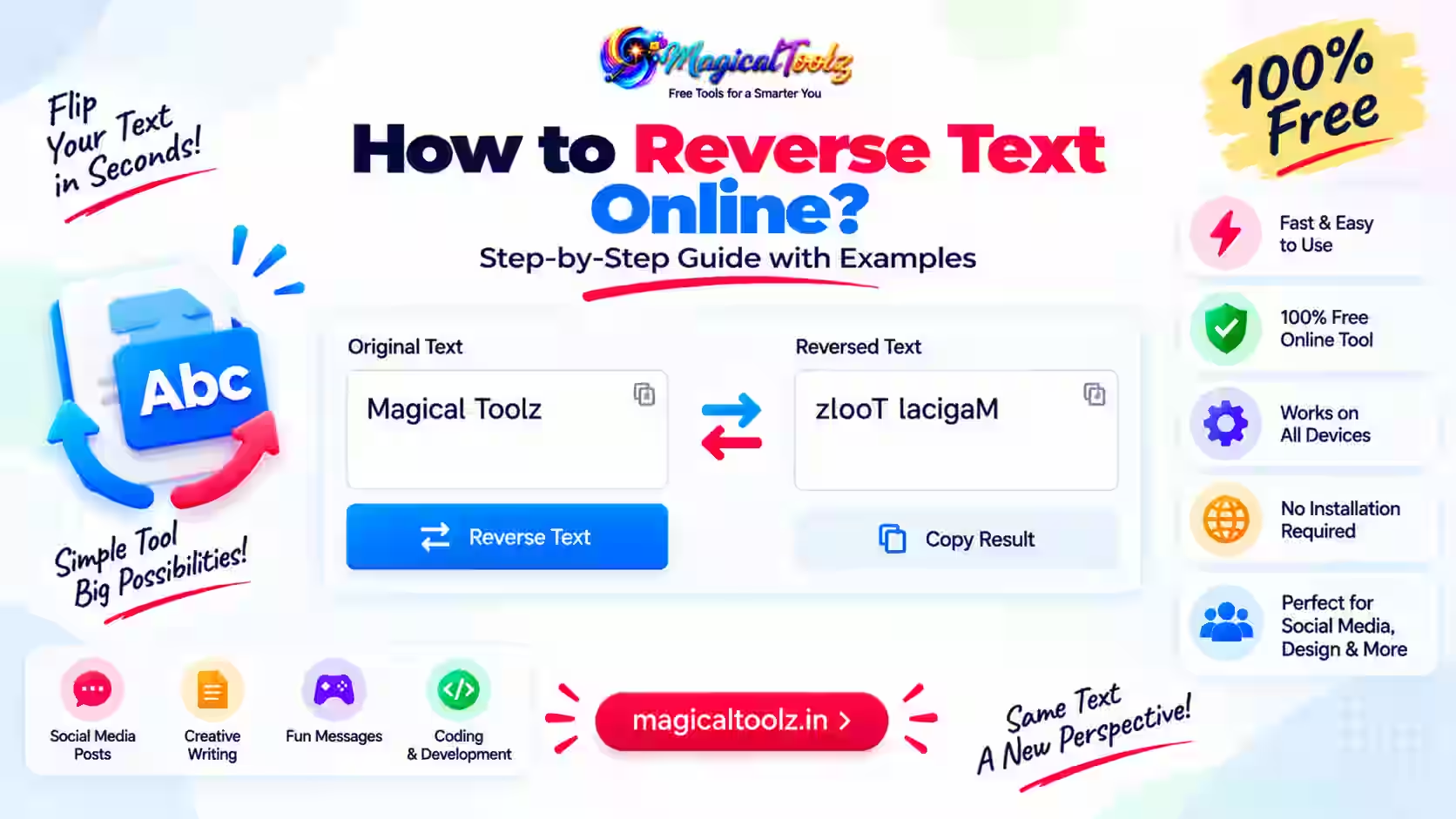
A reverse text tool changes the order of characters, words, or lines without rewriting their meaning. The Magical Toolz Reverse Text Generator offers three distinct modes, so you can choose exactly what should move instead of treating every reversal as the same operation.
The current tool supports character reversal, word-order reversal on each line, and complete line-order reversal. It processes up to 500,000 characters locally in your browser and lets you copy or download the result as a TXT file.
Quick answer: Paste your text, choose Characters, Words per line, or Line order, inspect the live result, then copy or download it. Reverse text is a visible transformation, not encryption.
What each reverse mode actually does
| Mode | What changes | Useful for |
| Characters | Reverses the displayed character units across the whole input | Mirror-style text, puzzles, testing, and demonstrations |
| Words per line | Reverses word order separately on every line | Reordering short phrases while retaining each word |
| Line order | Moves the last line to the top and the first line to the bottom | Logs, lists, notes, and chronological entries |
These modes are not interchangeable. If you need to reverse letters inside every word independently, the current tool has no separate mode for that operation. Choose based on the structure you want to change.
How to reverse text online
- Open the Reverse Text Generator.
- Type or paste text into the Input box.
- Select Characters, Words per line, or Line order.
- Read the live result before using it.
- Select Copy to place the output on your clipboard.
- Alternatively, select Download TXT to save a plain-text file.
- Use Reset when you want to remove both input and output.
The character and line counters help you confirm that the intended amount of text was entered. The Use output as input button also makes it easy to run another transformation without pasting the result again.
Character reversal and Unicode text
Simple code often reverses a string by individual storage units. That approach can break an accented letter, an emoji sequence, or another character made from several Unicode code points. A result may look corrupted even though the program technically reversed its array.
The active tool uses Intl.Segmenter with grapheme granularity when the browser supports it. A grapheme is close to what a reader sees as one displayed character. This helps keep many combining marks and modern emoji sequences together during reversal.
Older browsers use a code-point fallback. That fallback is safer than splitting UTF-16 code units, but it cannot recognise every multi-code-point visual sequence. Therefore, inspect emoji, joined symbols, accented scripts, and right-to-left text after conversion.
Words per line keeps each word intact
Words per line changes the sequence of words but does not reverse the spelling inside each word. For example, a short phrase with four words becomes the same four words in the opposite order.
Each line is handled separately. A paragraph containing line breaks does not become one merged sentence. This matters for poetry, addresses, subtitles, copied spreadsheet rows, or any text where line boundaries carry meaning.
Punctuation and spacing can produce surprising visual results because punctuation is part of the original text. Check commas, quotation marks, brackets, and terminal punctuation before publishing the output.
Line order is useful for lists and logs
Line order leaves the content of each line unchanged and reverses only the sequence of complete lines. It can quickly place the newest entry first when a plain-text list currently runs from oldest to newest.
This mode can help with notes, manually copied logs, simple inventories, and numbered items. However, it does not understand headers, grouped records, CSV columns, or multiline data fields. A structured file may need a spreadsheet or data-processing tool instead.
Blank lines also form part of the input. If the result starts or ends with unexpected space, check for an empty first or last line.
Reverse text is not encryption
Reversal is immediately recognisable and can be undone by applying the same operation again. It provides no meaningful protection for passwords, personal details, payment data, private messages, or confidential records.
Use established encryption for sensitive information and keep the key separate from the protected data. Reversed text may hide a phrase from a casual glance, but it should never be described as secure storage.
The tool also does not generate a hash, cipher, secret key, or password. Its purpose is text transformation only.
Common reasons to reverse text
Create puzzles and classroom examples
Character reversal can create simple decoding activities. Teachers and learners can also use it to discuss strings, character boundaries, word order, and Unicode behavior.
Inspect application handling
Developers and testers can use reversed samples to spot assumptions in layouts, input validation, search, copy-and-paste flows, and text rendering. It is a convenient test, but it is not a complete accessibility or internationalisation audit.
Reorder plain-text records
Line order can reverse a list without changing the entries themselves. Always verify that one logical record occupies one line before relying on the result.
Make decorative text
Backward text may suit a temporary visual effect or social post. It can be harder to read and less accessible, so avoid using it for important instructions, navigation, legal text, or critical information.
Screen readers may announce reversed content in an unexpected or unusable way. If the effect is decorative, provide the normal wording nearby so every reader can understand the message without decoding it.
Privacy and browser processing
The three reversal modes run in your browser. The text is transformed by page JavaScript rather than sent to an AI model or a text-processing API. This also means the result appears immediately without waiting for a server-generated rewrite.
Local processing does not remove every device-level risk. Browser extensions, clipboard managers, shared computers, synced download folders, and screen-recording software may still expose text. Follow your organisation's rules when handling confidential material.
If privacy matters, avoid copying sensitive output into an unnecessary application. Clear the page and clipboard when you have finished.
Input limit and performance
The input field accepts up to 500,000 characters. That is a character limit, not a promise that every device will handle the maximum with identical speed. Older phones and low-memory browsers may respond more slowly with very large text.
For a large document, test a smaller section first. Keep a copy of the original, especially when line breaks, emoji, or uncommon scripts are important. The tool works with plain text and does not preserve rich formatting from a word processor.
A downloaded TXT file contains the transformed plain text. Fonts, colors, headings, embedded images, comments, and document layout are not included.
Troubleshooting unexpected output
The words are backward instead of reordered
You selected Characters. Choose Words per line when each word should retain its spelling and only its position should change.
Every line moved
You selected Line order. Switch to Words per line if the lines should stay in their original positions.
An emoji or combined symbol looks wrong
Try a current browser with Intl.Segmenter support. Even then, inspect complex sequences because rendering can vary by browser, operating system, and font.
The output contains extra blank space
Look for blank lines or spaces in the source. Reversal retains the input structure rather than automatically cleaning it.
Copy does not work
Your browser may have blocked clipboard access. Use Download TXT, or manually select the output if clipboard permission cannot be granted.
The downloaded file lost formatting
TXT is a plain-text format. Use the copied output inside your original editor if you need to apply formatting afterward.
Check the result before using it
- Confirm that the selected mode matches your goal.
- Check the first and last character, word, or line.
- Inspect punctuation, blank lines, accents, and emoji.
- Do not treat reversed text as protected information.
- Keep the source until the output has been verified.
- Open the downloaded TXT file before deleting anything.
Frequently asked questions
Can I reverse letters in a sentence?
Yes. Select Characters to reverse the displayed character sequence across the input.
Can I reverse word order without reversing spelling?
Yes. Words per line keeps each word intact and changes its position separately on every line.
Can I reverse only the order of lines?
Yes. Line order moves complete lines while leaving the text inside each line unchanged.
Does it reverse each word independently?
No. The current tool does not provide a separate per-word letter reversal mode.
What is the maximum input?
The input field accepts up to 500,000 characters.
Does it work with emoji?
Character mode uses grapheme segmentation in supported browsers, which improves handling of many emoji sequences. Inspect the result because older browsers use a fallback.
Can I download the result?
Yes. You can copy the output or download it as a TXT file.
Is reverse text a secure encryption method?
No. Reversal is easy to recognise and undo, so it must not be used to protect sensitive information.
Choose the mode before you reverse
The most important step is deciding whether you want to move characters, words, or whole lines. Once that choice is clear, the result is predictable and easy to verify.
Open the Reverse Text Generator, select the required mode, and inspect the live output before copying or downloading it.

 Magical Toolz AI Support
Comments (0)
Use comments for article-specific feedback. Use the contact page for bugs and support requests.
Leave a Comment
No comments yet. Be the first to share something useful.