


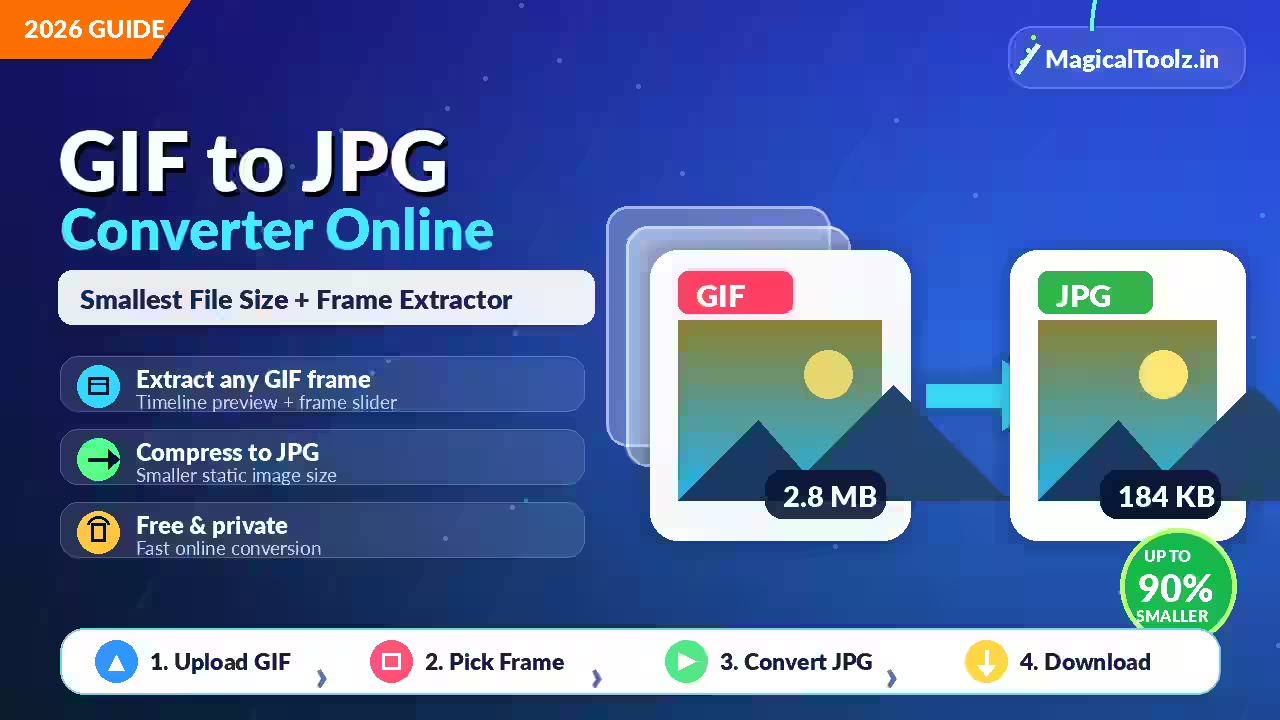
A JPG cannot preserve GIF animation. You must choose one frame, or export every frame as a separate image. A normal conversion that silently uses the first frame may miss the product, caption or action you wanted.
Start by playing the GIF once. Note whether it is animated, whether later frames depend on earlier ones, and which exact moment should become the JPG.
GIF and JPG solve different jobs
GIF can store a sequence of indexed-color frames with timing and looping. JPG stores one opaque still image and uses lossy compression. MDN's image format guide recommends GIF mainly for basic images and animation, while JPEG suits still photographs.
Conversion therefore changes more than the extension. Timing, looping and all unselected frames disappear. Transparency must become a solid color because ordinary JPG has no alpha channel.
The old frame-extractor route is inactive
Magical Toolz currently has no active GIF-to-JPG frame extractor. The Universal Image Converter may decode a GIF as a browser image, but its canvas workflow is for one still result and does not offer a frame timeline or frame picker.
Do not use it when a particular animation frame matters. Choose an editor or extractor that displays numbered frames and timing. A screenshot can work for a quick visual reference, but it may alter dimensions and color.
Choose a complete frame
Some GIFs store only the changed rectangle in each frame. A correct decoder composes that rectangle with earlier content according to the disposal rule. Raw extraction without composition can produce a partial subject on a transparent or blank background.
Preview the selected frame as a complete image before export. Check text, faces, product edges and overlays. If an animation flashes between states, move one frame forward or backward to find the cleanest moment.
Use a controlled workflow
- Keep the original GIF.
- Open it in a tool that shows all frames.
- Play the sequence and pause at the useful moment.
- Confirm the frame is fully composed.
- Choose a background for transparent areas.
- Keep original dimensions unless the destination requires another size.
- Export one JPG at a sensible quality setting.
- Open the JPG separately and compare it with the paused GIF.
If you need every frame, export a numbered sequence such as frame-001.jpg. Keep leading zeros so file managers sort the sequence correctly.
Set the transparency background first
A transparent GIF frame displayed on a white page may look opaque even though transparent pixels exist. JPG must replace them. White is common for documents and marketplaces, but it can create pale halos around graphics designed for a dark background.
Preview the selected frame against the intended fill before saving. Logos and pixel art may look cleaner as PNG because PNG keeps transparency and sharp indexed edges without JPEG halos.
Smallest file size is not the only target
Lower JPG quality usually reduces bytes but can smear text, create blocks and add ringing around edges. The smallest file may fail its real job. Set the dimensions first, then lower quality gradually while checking the output at actual display size.
For a photographic frame, JPG can be efficient. For flat colors, tiny text or diagrams, PNG or WebP may produce a cleaner result. Compare formats when the receiving system accepts more than JPG.
Do not enlarge a tiny GIF
Many GIFs are small. Enlarging them does not recover detail. Nearest-neighbor scaling can preserve hard pixel-art blocks, while ordinary smoothing may blur them. Photographic material usually needs smoother scaling, but it still cannot become sharper than the source.
Export at the original frame size when possible. If a form demands larger dimensions, test its accepted minimum rather than creating a huge, soft image.
Check color and text after export
GIF uses a limited palette per frame. JPG uses a different color model and compression method. Gradients may change, while fine colored text can lose crispness. Compare brand colors and warning labels carefully.
Metadata may also change. A frame export normally creates a new still image without GIF timing data or ordinary source comments. Remove private information deliberately and verify the finished file instead of assuming it is clean.
When you should keep the GIF
Keep it when movement explains a process, reaction or product feature. A single JPG cannot communicate the missing sequence. If a platform rejects GIF, consider an accepted video format or animated WebP rather than discarding useful motion.
Use JPG when the destination needs a still photograph and one frame tells the complete story. Save the original animation alongside the derivative.
Verify the downloaded file
Open the JPG outside the converter. Confirm its format, dimensions, background and selected moment. Upload a copy to the destination before processing a large set. This catches rejected dimensions, byte limits and unexpected color changes early.
GIF to JPG questions
Which frame does a basic converter use?
Often the first decoded frame, but behavior varies. Use a visible frame picker when the choice matters.
Can JPG remain animated?
No. A normal JPG stores one still image.
Why is part of my frame missing?
The extractor may not have composed partial frames and disposal rules correctly.
Is the Magical Toolz GIF extractor active?
No. The old dedicated route is inactive.
Should a logo frame become JPG?
PNG may be better when sharp edges or transparency matter.


 MagicalToolz AI Support
Comments (0)
Use comments for article-specific feedback. Use the contact page for bugs and support requests.
Leave a Comment
No comments yet. Be the first to share something useful.