


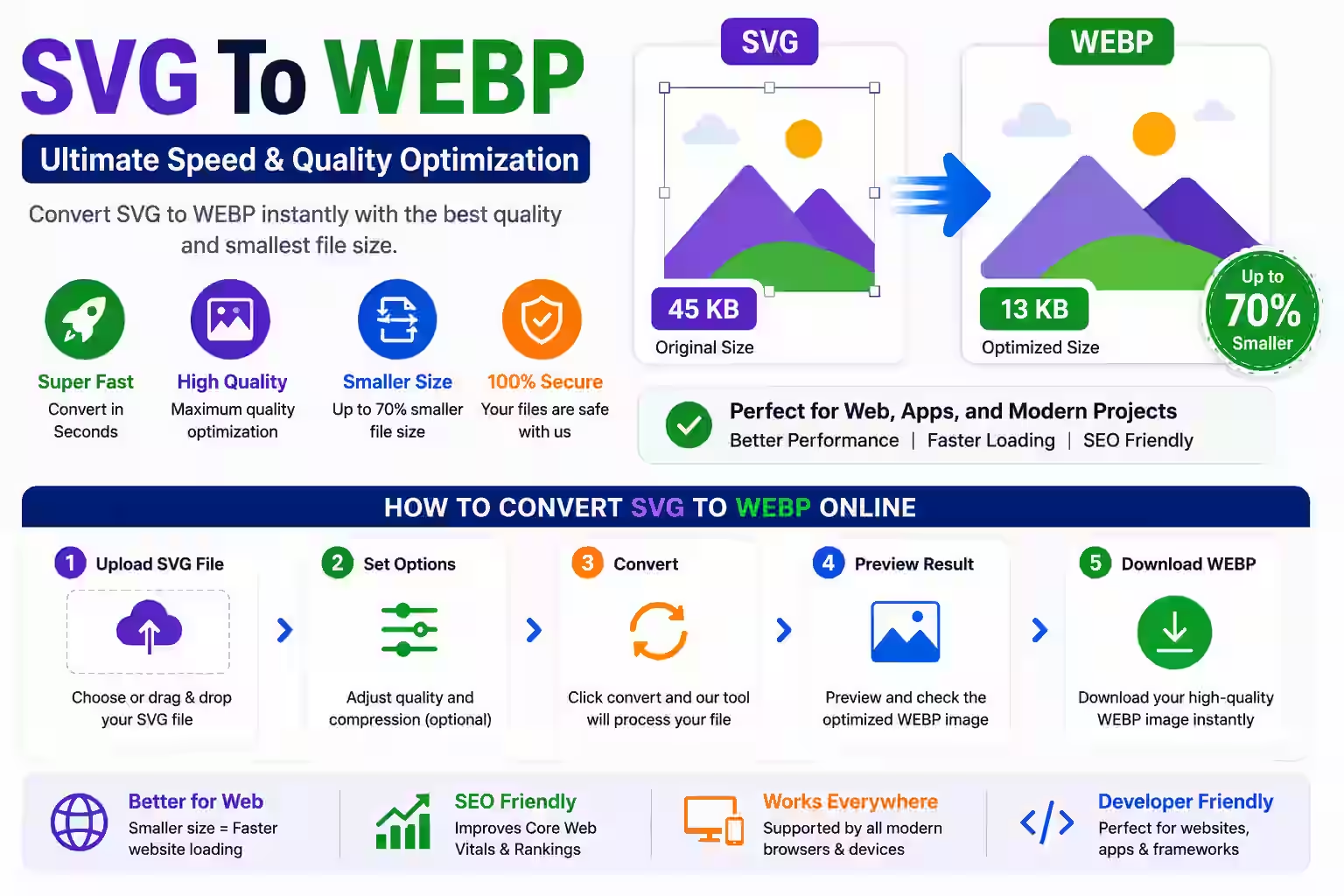
Do not replace an SVG with WebP just because the WebP file is smaller in one test. SVG and WebP solve different problems. SVG keeps shapes and text scalable. WebP stores a rendered grid of pixels at a fixed size.
Convert when the destination rejects SVG, when the artwork contains photo-like detail that compresses poorly as vector data, or when you need a raster delivery copy. Keep the SVG as the editable source.
Choose vector or raster based on the job
A logo, icon or simple diagram often belongs in SVG. It stays sharp across phone, desktop and high-density screens. A complex SVG with embedded photographs, thousands of paths or expensive filters can become heavy to parse and render. In that case, a WebP copy may suit a fixed-size card or thumbnail.
The W3C SVG specification describes SVG as an XML language for vector and mixed vector-raster graphics. WebP is a raster image format. Changing between them is a rendering decision, not a simple rename.
Set the output dimensions
Work backward from the layout. If the image appears at 800 by 400 pixels, export at that ratio. A 1,600 by 800 copy may help on dense displays, but a 4,000-pixel file is wasted if the page never uses it.
Preserve the aspect ratio from the SVG viewBox. If the source ratio is 2:1, use sizes such as 800 by 400 or 1,600 by 800. Typing 800 by 600 stretches circles into ovals and changes type proportions.
Open the SVG in a current browser before converting it. Check its crop and empty space. An incorrect viewBox can produce a WebP with missing artwork or a large blank border.
Lossless and lossy WebP are different choices
Lossless WebP aims to preserve the rendered pixels exactly. It can work well for graphics with sharp edges, flat colors and transparency. Lossy WebP discards some image data to reduce size. It often suits photographs and textured artwork.
A quality slider usually affects lossy output, but the meaning of a number varies by encoder. Compare the downloaded files. Look at thin lines, small text, color boundaries and soft shadows. If the edge damage is visible at normal size, increase quality or choose lossless output.
MDN's image format guide covers WebP, PNG, JPEG, GIF, AVIF and browser compatibility. Confirm that the app receiving the file supports the chosen WebP features.
Keep transparency only when the destination supports it
WebP can store transparency, unlike JPEG. That does not mean every upload form, document editor or marketplace handles transparent WebP correctly. Some services flatten the image, add a background or reject the file.
Inspect semi-transparent shadows and antialiased edges on both a light and dark background. If the destination requires an opaque image, choose the final background color during rendering instead of accepting an unknown default.
Fonts and linked files can disappear
An SVG may depend on a font installed on one computer. A converter without that font can substitute another face, changing line breaks and alignment. Important final text can be converted to paths when licensing permits, but keep an editable copy because path text is harder to change and search.
External stylesheets, fonts and images may also be blocked when an SVG is loaded in an image context. MDN lists these restrictions in its SVG as an image guide. Inline allowed assets or use a renderer that can resolve the full project safely.
A reliable conversion check
- Keep a copy of the original SVG.
- Open it directly and inspect fonts, colors, crop and linked assets.
- Write down the final display dimensions and aspect ratio.
- Choose lossless WebP for crisp graphics or test lossy quality for photo-like work.
- Keep transparency only when the destination accepts it.
- Render at the required pixel size.
- Download and open the WebP in a second app.
- Compare edges, text, gradients, shadows and file size with the source.
- Test the file in the actual page or upload form.
Do not judge web speed by file size alone
A smaller transfer can help, but image dimensions, caching, responsive sources and when the browser loads the file also matter. A 2 MB WebP displayed as a 200-pixel thumbnail is still poorly prepared.
Use width and height attributes to reserve layout space. Serve the dimensions each viewport needs. Keep an SVG when it is already small, easy to cache and visually correct. Measure the real page rather than assuming raster output is always faster.
Keep a fallback when the audience needs one
Current browsers commonly display WebP, but the final destination may include email software, document systems or older embedded browsers. Test that exact environment. A website can use the HTML picture element to offer more than one format while keeping a normal image fallback.
Name exports by purpose and size, such as product-card-800.webp. Clear names reduce the chance that a tiny thumbnail is reused as a full-width banner.
Problems after conversion
| Problem | Check |
| Text moved | The renderer may not have the source font. |
| Parts are blank | External assets or unsupported SVG features may have failed. |
| The image is blurry | The output dimensions are smaller than the display size. |
| Edges look dirty | Lossy quality may be too low for flat graphics. |
| Transparency looks wrong | The destination may be flattening the image. |
| The WebP is larger | The SVG may already be efficient, or the raster copy may contain too many pixels. |
SVG to WebP questions
Will WebP stay sharp at every size?
No. It has fixed pixel dimensions. Export enough pixels for the largest intended display.
Can WebP keep a transparent background?
Yes, but test whether the destination supports transparent WebP correctly.
Should a logo be converted to WebP?
Usually keep a clean SVG for scalable logo use. Make a WebP copy only for a destination that needs raster input.
Does conversion copy SVG metadata?
Do not assume it does. Raster export often creates new image data without carrying all source metadata.
Can I rename .svg to .webp?
No. The SVG must be rendered and encoded in the WebP format.


 MagicalToolz AI Support
Comments (0)
Use comments for article-specific feedback. Use the contact page for bugs and support requests.
Leave a Comment
No comments yet. Be the first to share something useful.