


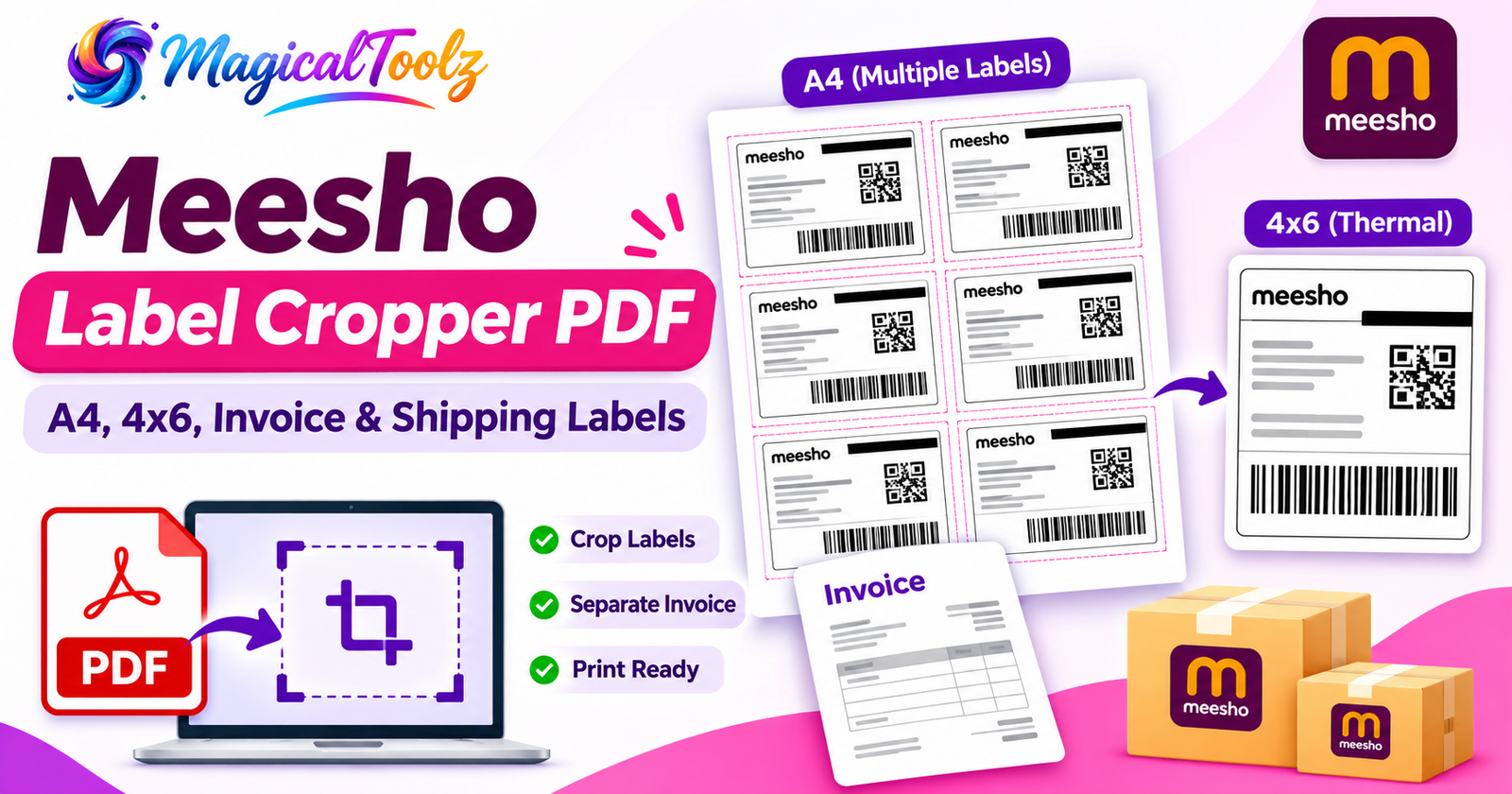
Meesho Shipping Label Crop: A Practical Guide to 4×6, A4, Invoices and Seller Dispatch PDFs
You have orders ready to pack, a printer waiting, and a Meesho PDF that combines shipping labels with tax invoices. If you print the entire PDF as-is, the label may be scaled down or sit awkwardly on the page. That is why sellers search for meesho shipping label crop, meesho label crop, meesho label cropper and meesho label crop online: they need clean shipping labels that fit the paper they actually use.
The job sounds small, but the details matter. Your label must keep the destination address, shipment identifier and barcode readable; the invoice may need to be kept separately; and the print layout needs to match a 4×6 thermal roll or A4 paper. This guide walks through the full process using MagicalToolz Meesho Label Cropper Online, then answers related questions about the seller panel, invoice output, shipping costs, cancellation and delivery estimates.
First, a useful distinction: cropping a PDF is a document-preparation task. It is not the same as logging in to Meesho, editing a marketplace order, changing a shipping fee or contacting a courier. You can use the cropper to prepare labels, while the original seller portal remains the source of order status and commercial details.
What Is a Meesho Shipping Label PDF?
A shipping label is the information attached to a parcel so the carrier can route and identify it. Depending on the marketplace's export format, it may include an address, a barcode, shipment identifiers, courier information and seller or order references. A tax invoice serves a different purpose: it records the sale and billing details that belong with the order's documents.
Meesho sellers may download a PDF in which the label and invoice appear together. That works for some kinds of paperwork, but it is inconvenient for thermal printing. The label should use the correct sticker dimensions; the invoice usually needs a separate document or paper size. The meesho label crop with invoice workflow is built around this separation.
Keep your original PDF. Cropping and reorganizing pages should not be your only copy of an order document, especially when the parcel is still awaiting pickup or invoice records are needed later.
Where to Get Your Meesho Label: Seller Login and Supplier Panel
Before using a label tool, you need the PDF. Searches such as meesho seller login, meesho seller account, meesho supplier, meesho supplier login, meesho supplier panel, meesho seller panel, meesho supplier panel login and meesho seller central usually indicate that someone is trying to access orders or manage their selling account.
Use Meesho's genuine official seller portal or seller app, not an unrelated website that asks for your credentials. The precise names of dashboard menus may change over time. Find the section showing orders ready for dispatch, select the orders you intend to process and use the available label-download action. If the PDF does not appear, check the order's current status and the official seller help options.
Autocomplete queries such as meesho seller login login to meesho supplier panel, meesho seller panel login, meesho supplier login with mobile number, meesho supplier login new account, meesho supplier panel app, meesho seller app and meesho seller id describe account access, not cropping. You do not need to connect your Meesho credentials to MagicalToolz for the PDF task. Download the authorized label file first, then process that file locally or through the site's stated tool workflow.
What About Meesho App Download or Meesho App Open?
Some people search for meesho app download, meesho app open, meesho shopping app or meesho supplier app while trying to find their orders. The consumer shopping app and seller management tools are not interchangeable. Use the official application or dashboard appropriate to your account and purpose. If you only need to crop an already-downloaded PDF, the MagicalToolz page is a separate document tool; it does not open or control the Meesho app.
How to Crop a Meesho Label PDF Without Manually Cutting Every Page
Here is the workflow for meesho label crop pdf, meesho shipping label crop online and meesho shipping label crop free searches. The goal is not just to remove the invoice from view. The goal is to create a correct printable file.
- Download the right export: choose the Meesho dispatch PDF from the orders you are packing. Save it somewhere you can find again.
- Open the cropper: go to Meesho Label Cropper Online.
- Choose the PDF: use the file picker. The tool page says it can accept multiple PDF selections in a batch.
- Inspect the preview: find the shipping-label region, the address and the text where the invoice begins.
- Keep auto-detection on initially: the documented tool finds the 'Tax Invoice' text marker to identify the dividing line on typical source pages.
- Choose your output: set thermal 4×6 or A4 as appropriate, and keep the default one-label processing mode when you also need a separate invoice.
- Choose your sorting method: use no sorting, pickup, SKU, color-first or size-first ordering according to your packing routine.
- Generate and review: process the PDF, open the result, check barcode edges and names, then run a one-page printer test.
If you are searching how to crop meesho label or how to crop meesho label pdf with invoice, the most common mistake is confusing the output paper layout with the processing mode. Read the next section before choosing two or four labels per page.
Meesho Label Crop With Invoice: Which Mode Should You Choose?
The existing MagicalToolz tool documentation describes separate shipping-label, tax-invoice and SKU-summary outputs in the normal one-label-per-page processing workflow. It also lists a tiled-mode control that can divide pages into two side-by-side labels, two vertically arranged labels or a four-label grid.
Those tiled modes are designed for label-only output and do not generate separate invoices or SKU summaries. They also ignore manual crop boxes. A user searching for meesho label crop with invoice, meesho label invoice or meesho label crop with invoice online should stay with the normal single-label processing path and enable invoice output.
Choose the processing mode based on the files you need, then choose the paper layout based on the printer you have. They solve different problems.
When in doubt, process one order first. Open both the cropped label and the invoice. Confirm that nothing essential appears in the wrong document and that page sizes match the intended printouts.
Meesho Label Size: Thermal 4×6 Versus A4 Printing
Searches for meesho label size, meesho shipping label size, meesho label crop a4, meesho label crop 4x6, meesho label print, meesho label printer and meesho label printing are closely connected. A PDF can be cropped correctly and still print incorrectly when the printer's paper-size setting does not match the output.
Thermal Label Printer: One 4×6 Sticker at a Time
A typical thermal-label workflow uses a sticker roll sized 4 inches by 6 inches. On the cropper page, Thermal 4×6 is described as the default format. After generating the PDF, select the printer and matching stock in the print dialog. Use 'Actual size' or 100% scaling where available. If your printer silently applies 'Fit to printable area', the label can become smaller than intended.
Print one sample. Inspect the four corners, every line of the address and the full barcode. If the edges are cut off, stop. Adjust the printer's media settings or the crop region, not the shipping information itself. Reprint only after you have a readable test label.
A4 Printer: Four Labels on One Sheet
If you use an inkjet or laser printer, the tool page describes a four-in-one A4 output with cut guides. That is useful for small sellers working with ordinary A4 paper or suitable sticker sheets. It is not necessary to buy a dedicated thermal printer just to prepare a cropped label PDF.
Check the A4 orientation, margins and print scaling. Some label sheets have their own grid spacing and cannot be treated as universal templates. If you are printing on plain paper, use your usual safe attachment method so the barcode stays flat and fully visible.
Does A4 Always Save Money?
Not necessarily. Four labels on one sheet may reduce the number of paper sheets, but printing costs depend on ink, paper type, label stock, time spent cutting and your order volume. Thermal printing can be faster for large batches, while A4 works well in many smaller operations. Choose based on actual usage rather than assuming one method is always cheaper.
Why a Meesho Label Cropper Is Better Than Screenshots for Large Batches
For one order, you might be tempted to open a PDF, take a screenshot, crop the image and print it. That approach quickly becomes awkward at scale. Screenshots may produce pixelated text, clipped codes or the wrong paper proportions; you also have to repeat the steps for every page.
A PDF cropper works with document pages and tries to identify the label boundary in a repeatable process. MagicalToolz additionally documents batch selection, five sorting modes, invoice separation and a preview. That makes it useful for sellers handling product variants or more than a handful of daily orders.
Even so, automation does not mean 'never check'. A barcode that looks a little blurred on screen can be a real pickup problem. Compare important data with the source file before printing.
Automatic Detection and Manual Crop: Which Is More Reliable?
The tool guide says the auto-detection system looks for the printed 'Tax Invoice' marker on each source page. Its job is to identify where the shipping label finishes and the invoice starts. It may work well for a consistent digital export, but a different source template, scanned page or unreadable text can defeat the detection.
Manual cropping gives you a backup: adjust the preview crop boxes and disable automatic per-page detection to reuse your manual boundaries across pages. This is appropriate when the entire batch follows the same non-standard layout. If page layouts vary, applying one manual rectangle to all pages can cut important information. You may be better off processing different document styles separately.
Meesho Shipping Label Crop Tool for Sellers With Multiple Products
Consider a seller with thirty orders containing six similar T-shirt styles. When labels print in random order, the packer walks between shelves repeatedly and may accidentally match the wrong size to the wrong parcel. In such cases, SKU Sorting or size/color grouping may make the paper stack easier to handle.
The available sorting modes are No sorting, Pickup Sorting, SKU Sorting, Color with Size Sorting, and Size with Color Sorting. Their usefulness depends on the identifiers present in the exported PDF. Always reconcile the printed order with the products you have actually picked. Cropping a label does not verify inventory or stock counts for you.
Printing and Packing Checklist: Before the Courier Arrives
- Verify the supplier account and export date of the source PDF.
- Confirm the dispatch batch includes only the orders you intend to pack.
- Check the output count against your expected shipment-label count.
- Inspect addresses, shipment references, QR codes and barcodes where present.
- Make sure invoices are generated separately when your workflow requires them.
- Test one 4×6 or A4 page before printing the full batch.
- Sort physical parcels and labels together; never assume a printed stack is automatically matched.
- Keep the original PDF and follow the current official shipping instructions for each order.
These steps matter more to an actual seller than the number of times a page repeats the phrase 'meesho label cropper online'. The label is only useful if the right parcel receives the right shipping information.
Meesho Shipping Charges: Can Cropping Labels Reduce Them?
This question comes up in searches for meesho shipping charges, how to reduce meesho shipping charges, how to reduce shipping charges in meesho, how to decrease meesho shipping charges, meesho shipping charges kam kaise kare, meesho shipping charges reduce, meesho shipping charges reduce tool, meesho shipping reducer and meesho shipping charge reduce.
First the clear answer: a Meesho label cropper cannot change the courier fee charged by Meesho. It only prepares PDF documents. A correctly sized label might save sticker paper, print time or avoidable reprints, but it does not negotiate a shipping rate or modify the order's charge calculation.
How to Reduce Meesho Shipping Charges in Practice
If you are concerned about fees, look at the order's charge breakdown in the official seller system and the current seller guidance. Check that declared size and weight represent the real packed product, that extra packaging is not unnecessarily bulky, and that you understand any applicable adjustment or dispute process. Package specifications and fee rules can change, so do not treat a blog example or third-party calculator as an official rate card.
You should never understate parcel dimensions or weight just to receive a lower rate. If a charge appears incorrect, use the appropriate official seller-help channel to review that specific order. The cropper's role ends at preparing readable shipping-label and invoice PDFs.
Does 'Meesho Shipping Charges Kam Kaise Kare' Mean Smaller Labels?
No. The shipping charge and the printing cost are two different expenses. A smaller paper label may reduce material waste if it remains compliant and readable, but it won't automatically reduce the courier's billed shipping price. The distinction is especially important when you find searches advertising a 'meesho shipping reducer' or 'meesho shipping charges reduce image generator'. A PDF cropper is not a fee-reduction or image-generation service.
How to Cancel an Order on Meesho After Shipping
Search terms such as how to cancel order on meesho after shipping, how to cancel the order in meesho after shipping, how to cancel order after shipping in meesho and how to cancel order on Meesho after shipping concern customer or seller order-management options. The exact process depends on whether you are the buyer or seller, how far the shipment has progressed and what the platform currently permits.
Check the relevant order in the genuine Meesho account and review the actions or support options available for that order. After dispatch, a normal cancellation button may no longer be offered. The correct route might involve official support or a return/refusal process if eligible. Do not modify the shipping-label PDF in an attempt to cancel or reroute the parcel; that won't change the marketplace's records.
How Many Days Does Meesho Take to Deliver After Shipping?
There is no single reliable number that applies to every order. Delivery time varies with the destination, carrier route, pickup timing, holidays and exceptions. The most useful estimate is the one shown on the specific order's tracking page in the current Meesho app or website.
If you searched how many days does meesho take to deliver after shipping, open the order status rather than trying to infer delivery from a printed label's date or the cropper's processing timestamp. A timestamp tells you when the PDF was processed, not when the courier picked up or delivered the parcel.
Meesho Seller Questions That a Label Tool Cannot Answer
Some search suggestions near 'meesho label crop' are broad navigational terms: meesho seller, meesho seller login, meesho seller account, meesho supplier panel app, meesho supplier login with mobile number, meesho customer care number, meesho seller customer care number, meesho seller helpline number and meesho supplier customer care number.
These are important to sellers, but they do not describe the cropper's features. For account access, OTP issues and order-specific support, use Meesho's official seller interface. Avoid trusting phone numbers copied from unfamiliar websites. A cropper cannot recover an account, sign in on your behalf or resolve a support ticket.
Meesho Supplier Sell Online at 0 Commission: Does That Affect Labels?
The query meesho supplier sell online on meesho at 0 commission concerns marketplace commercial terms. Do not assume an advertised commission claim covers every category, charge or service. Read the current official seller terms for your products. Even when a platform advertises a commission model, packaging, returns, shipping and other costs may still matter. These terms do not change the PDF cropping steps.
Meesho Label Crop Free: Is a Separate Login Necessary?
The current MagicalToolz tool page describes a free cropper without requiring a Meesho login on the tool itself. This is separate from the marketplace login needed to download your own labels. You supply an existing PDF; MagicalToolz does not fetch orders through a seller account.
The live site may change access settings over time, so check the present interface for any usage conditions. Do not assume that an unrelated website's request for a seller password is normal just because the page calls itself 'meesho label crop free' or 'meesho label cropper online'.
Security: Protect Customer Addresses and Invoice Information
Seller PDFs can contain buyers' names, addresses and order identifiers. Keep them within your authorized work process. MagicalToolz's Privacy Policy states that tools may be browser-based or server-assisted and that processing varies. Review the present tool's disclosure before using sensitive documents rather than assuming all online PDF tools behave identically.
Avoid sharing uncensored screenshots of real buyer labels in public groups, bug reports or comments. If you need to demonstrate a printing problem, use fictional example data or redact personal details. Retain original invoice copies according to the requirements of your business and applicable rules.
Meesho Label Printing Troubleshooting: Ten Questions Sellers Ask
1. Why is my Meesho shipping label too small?
Check whether you printed the whole original PDF on a 4×6 roll. Crop the shipping-label section first, select the correct output size and set the printer to actual-size scaling. A page-size mismatch can shrink an otherwise correct label.
2. Can I use an A4 printer instead of a thermal printer?
Yes, the tool page documents a four-in-one A4 output. Confirm the layout and paper settings, and make a trial print before using adhesive sheets.
3. Why is the invoice missing after cropping?
You may have chosen a two-label or four-label tiled processing mode, which the live tool guide says does not produce separate invoices or SKU summaries. Use the normal one-label-per-page workflow when those files are needed.
4. Why is the barcode cut off?
The crop boundary or printer margin may be wrong. Compare output with the original PDF, adjust the crop box where needed and reprint one sample. Do not dispatch an unreadable label.
5. Does the cropper support a Meesho shipping label demo download?
The tool is meant to process PDFs you provide. Do not assume it supplies genuine marketplace demo labels. For testing, use a safe sample file without real customer details that resembles your normal export.
6. Can I crop several Meesho PDF files together?
The existing guide says the file picker supports multiple PDF selections for a batch. Check the output count and confirm that the source layouts are compatible.
7. Why doesn't a manual crop work in four-tile mode?
The documented tiled processing modes ignore manual crop boxes. Use the ordinary single-label mode if you need to set a custom boundary.
8. Can this tool change Meesho shipping charges?
No. It can prepare PDFs, not change official order fees. For shipping-cost issues, use the current seller charge breakdown and support options.
9. Will the label show the correct time of courier pickup?
Not necessarily. A printed date/time overlay records processing time, not an official courier event. Refer to the order's shipment tracking for pickup status.
10. Can I use this same cropper for Flipkart labels?
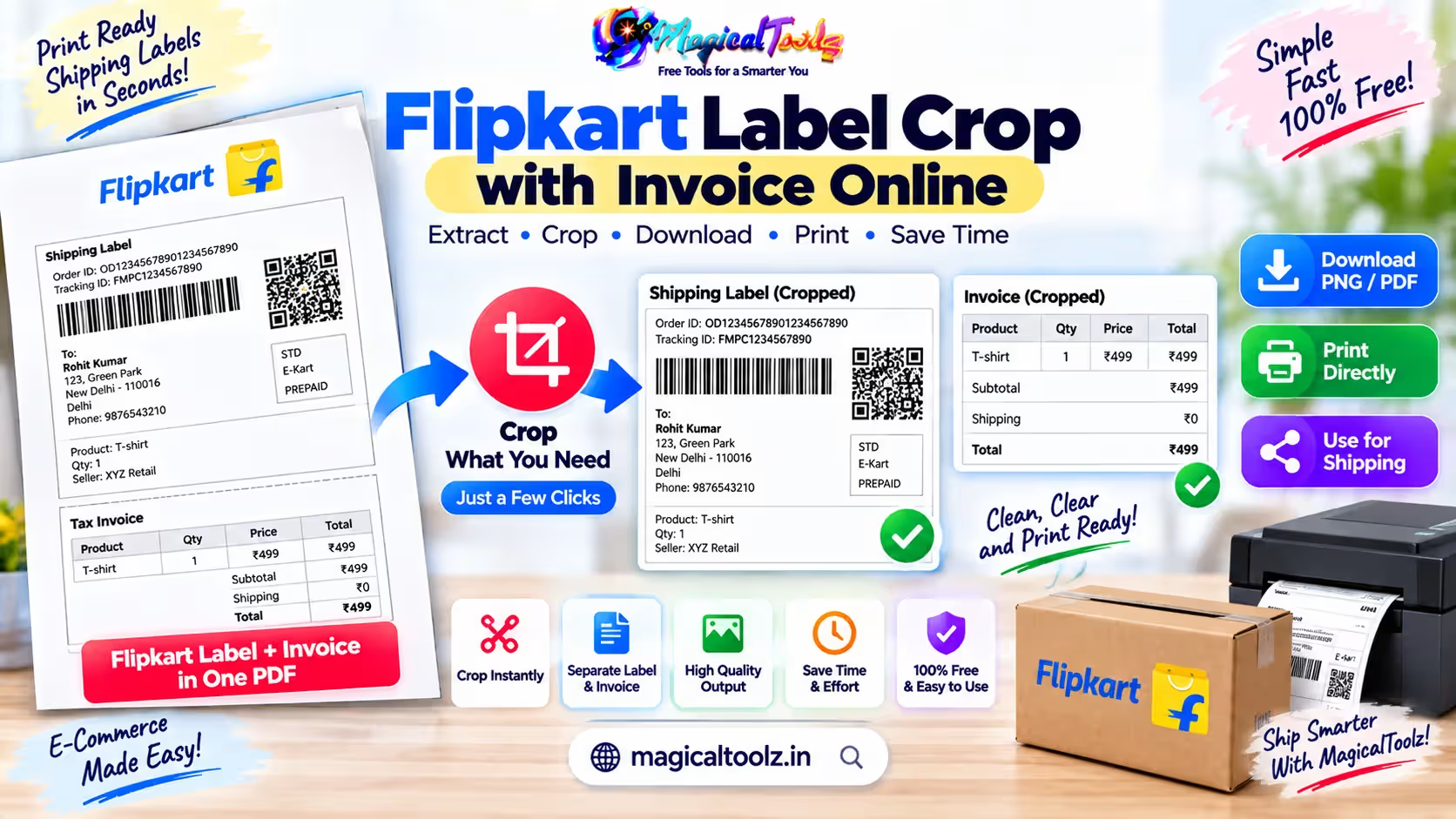
Use the platform-specific Flipkart Label Cropper for Flipkart exports. The supplier PDF format can differ from Meesho's, and a wrong template can clip important information. There is also an Amazon Label Cropper for Amazon-specific documents.
Example Workflows: Home Seller, Apparel Seller and Multi-Marketplace Shop
A Home Seller Printing 12 Parcels on A4
A home business has twelve orders ready. The seller downloads the Meesho PDF, selects the normal processing mode so invoice files remain available, chooses the four-in-one A4 output and inspects the PDF. Three sheets can hold twelve labels in a four-on-one layout, assuming each label fits correctly. The seller prints one test sheet before completing the batch.
An Apparel Seller Grouping Sizes
A fashion seller handles several colors and sizes of the same product. After checking the PDF preview, the seller uses a size-then-color sorting mode to group picking tasks. The printed labels are checked against the physical items before packaging. The tool helps arrange the paperwork, but the seller remains responsible for choosing the correct stock.
A Shop Handling Meesho, Flipkart and Amazon
A multi-marketplace seller may be tempted to drop every label into one converter. That creates unnecessary risk when platforms use different document templates. Keep source exports in separate folders. Use Meesho Label Cropper for Meesho, Flipkart Label Cropper for Flipkart and Amazon Label Cropper for Amazon. Reconcile output against each marketplace's dispatch batch.
What to Remember Before Your Next Meesho Pickup
The useful searches behind 'meesho label cropper free', 'meesho shipping label crop tool', 'meesho label crop pdf with invoice', 'meesho label size' and 'meesho label printing' all come down to a few decisions. Download the right source PDF. Keep the invoice-capable processing mode when you need invoices. Choose the correct paper layout. Preview the result. Print a sample. Check each barcode and destination.
For order status, seller login, shipping fees, tracking and cancellations, return to the genuine Meesho seller or buyer account. For PDF preparation, open MagicalToolz Meesho Label Cropper Online. Separating those tasks makes the shipping workflow much easier to manage and much less likely to produce avoidable document errors.
 Magical Toolz AI Support
Comments (0)
Use comments for article-specific feedback. Use the contact page for bugs and support requests.
Leave a Comment
No comments yet. Be the first to share something useful.