


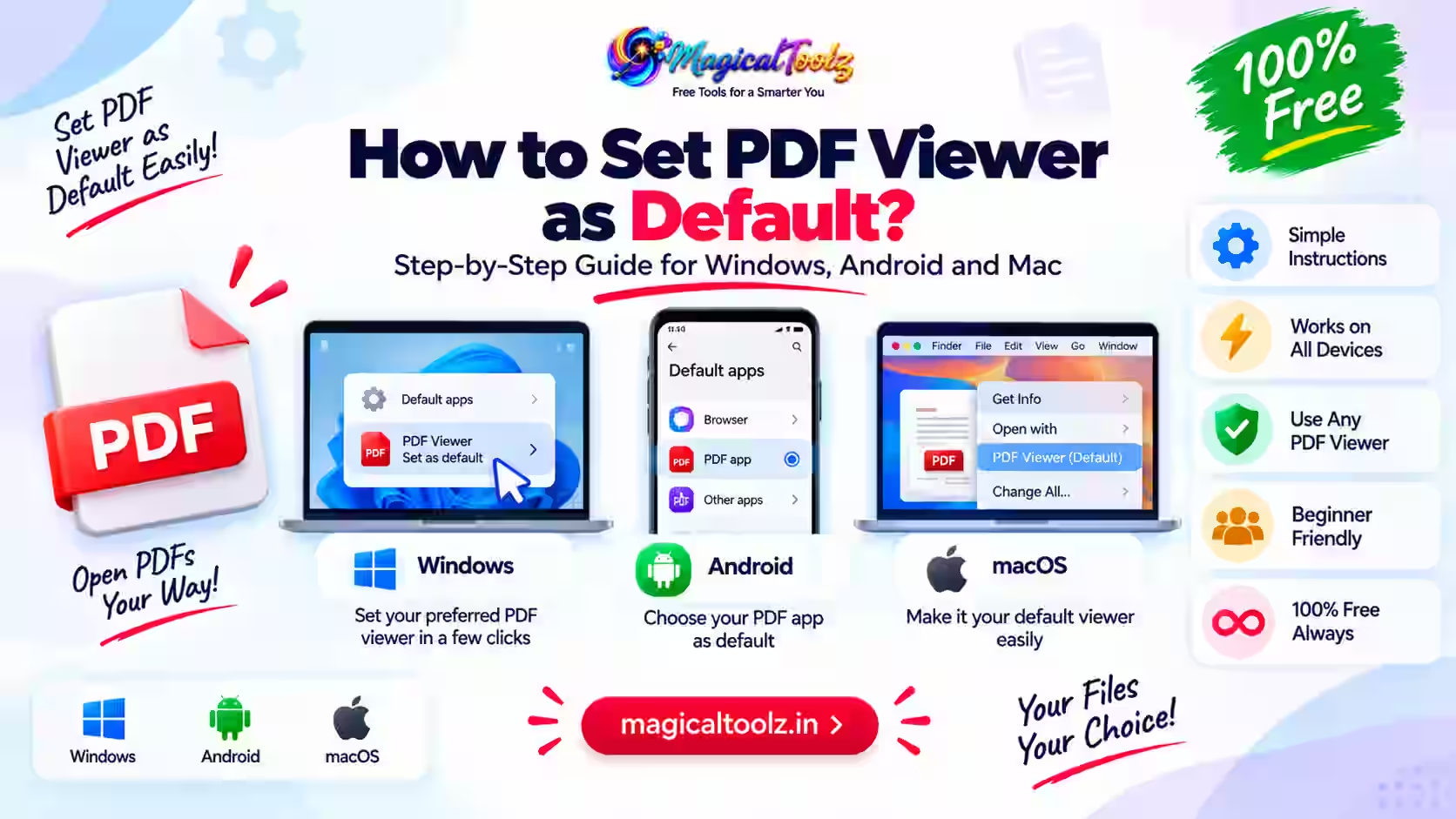
A default PDF viewer is the application Windows opens when you double-click a downloaded .pdf file. Changing it does not necessarily control what happens when a website opens a PDF inside Chrome, Edge, or Firefox. Browsers have their own PDF behaviour.
The safest method is through Windows Default apps because it shows the file type and the selected application directly. Menu wording can differ between Windows 10, Windows 11, managed devices, and application versions.
Quick answer: Open Settings, choose Apps, then Default apps. Search for .pdf, select the current application, and choose the installed PDF viewer you trust. Double-click a local test PDF afterward. If web PDFs still open in a browser tab, change that browser setting separately.Which setting controls each action
| Choice | What it means |
| Double-click a local PDF | The Windows .pdf file association. |
| Open a downloaded attachment | Usually the Windows association after the file is saved. |
| Click a PDF web link | The browser PDF setting may display it inside a tab. |
| Open with command | A one-time choice unless you also make the app the default. |
| Company-managed computer | Administrator policy may restore or lock the association. |
| PDF editor preferences | An application may offer a request to become default, but Windows remains the authoritative place to verify it. |
Change the PDF default in Windows
- Install and update the PDF viewer you intend to use.
- Open Windows Settings.
- Select Apps, then Default apps.
- Search for the file type
.pdf. - Select the application currently assigned to PDF files.
- Choose your preferred installed viewer and confirm if prompted.
- Close Settings.
- Double-click a harmless local PDF to verify the association.
- Restart the viewer or Windows only if the change does not appear immediately.
Use the supported Windows route
Microsoft says defaults can be changed by file type or link type in Settings, Apps, Default apps. Searching for .pdf is more precise than changing every default associated with a large application.
Follow Microsoft Support: Change default apps in Windows for current Windows guidance. On a managed computer, contact the administrator if policy prevents your selection.
A quick Open with method
Right-click a local PDF, choose Open with, and then Choose another app. Depending on the Windows version, you may see an option to use that application always. If the choice is temporary, use Settings to confirm the permanent association.
Do not test with a shortcut, browser tab, email preview, or cloud preview because those can use their host application. Download a normal PDF and double-click it in File Explorer.
Browser PDF behaviour is separate
Edge, Chrome, and Firefox can display PDF documents in a built-in tab even when another desktop viewer owns the Windows file association. Look for the browser setting that controls opening or downloading PDF documents.
A website can also embed a PDF in its own viewer. In that case, download the file first if you want Windows to pass it to your default desktop application. Be cautious with automatic downloads from untrusted websites.
Choose a safe and suitable viewer
Select maintained software from its official publisher or trusted app store. Check update support, protected-view features, accessibility, forms, signatures, printing, and whether editing or cloud uploads are enabled by default.
A reader that opens ordinary files may not support portfolios, uncommon forms, certificate validation, embedded media, or specialist print workflows. Match the software to the document rather than assuming every PDF feature is universal.
Security and privacy considerations
PDF files can contain links, scripts, attachments, forms, and complex content. Keep the viewer and operating system updated, use protected mode where available, and do not bypass warnings for an unknown file.
Cloud-connected viewers may offer sync, conversion, or AI features that upload document content. Review settings and organisational policy before opening contracts, IDs, financial statements, medical records, or customer files.
Changing one file does not convert it
Setting a default changes which application opens the file. It does not modify, compress, repair, unlock, or convert the PDF. The file bytes remain the same.
If one document fails while other PDFs open normally, that file may be damaged, encrypted, incomplete, or use an unsupported feature. Test with a known-safe PDF before reinstalling software.
Check the result instead of trusting the first screen
A completed command or clean preview confirms only that the software performed an action. It does not prove that the result is correct for your document, audience, printer, device, or security requirement. Reopen the saved work, repeat the important action, and compare it with the source.
Test a small, representative example before applying the same method to many files or slides. Include unusual characters, a long value, a different layout, or the most complex item in your test. This exposes assumptions that an ideal sample can hide.
Keep the original until the final result has been reviewed and used successfully. Give edited files clear names rather than overwriting the only copy. If the work contains personal, business, or customer information, store temporary copies only where authorised people can access them.
Accessibility and dependable sharing
Visual output should not be the only way to communicate important information. Add meaningful alternative text where the application supports it, retain a readable text equivalent, and avoid relying on colour alone. Strong contrast and sensible sizing help people using projectors, printed sheets, zoom, and assistive technology.
Recipients may use another operating system, application version, browser, screen size, or printer. Share in a format that matches the job, then test that exact format. An editable source, exported image, printed page, and PDF can behave differently even when they started from the same content.
Do not install unknown extensions, add-ins, or viewers merely because a tutorial names them. Check the publisher, permissions, update history, privacy terms, and removal path. Work devices may require administrator approval, and managed settings can override personal preferences.
Record settings so the result can be repeated
Write down the application version, operating system, input type, selected options, and final output format. Screenshots can help with unusual menus, but a short text record is easier to search and update. If a colleague cannot reproduce the result from those notes, an important assumption is probably missing.
Separate facts from preferences. A required syntax rule, supported file type, documented limit, or security warning is a fact. Colour, layout, shortcut, and naming choices may be preferences. Keeping that distinction clear prevents a convenient personal setup from being presented as the only correct method.
Software interfaces and online services change. Prefer the official support page for current menus and capabilities, and note when a step depends on a third-party package or provider. If a command is missing, verify the installed version before following an older workaround.
For recurring work, keep a small non-sensitive sample with the expected result. Run it after a software update or settings change. This simple regression check can reveal changed defaults, missing packages, altered timing, blocked network content, or output differences before they affect important work.
Common problems and practical fixes
The old viewer still opens
Return to Default apps, search .pdf, confirm the selected app, and check whether device policy resets it.
PDF links still open in the browser
Change the browser PDF download or viewing preference; the Windows association controls local files.
The preferred app is missing
Install it from the official source, launch it once, then check Default apps again.
Only one PDF fails
Try another known-good file. The first document may be corrupt, blocked, encrypted, or incomplete.
The default changes back after an update
Verify whether the application, Windows update, or organisation policy requested or enforced a reset.
Final checklist
- The viewer came from a trusted publisher.
- Windows and the viewer are updated.
- The
.pdfassociation names the intended app. - A local PDF was used for testing.
- Browser PDF behaviour was checked separately.
- Printing and forms work when required.
- Security warnings remain enabled.
- Sensitive documents do not enter an unapproved cloud workflow.
Frequently asked questions
Does changing the default edit my PDFs?
No. It changes the application Windows launches.
Why do PDFs still open in Chrome or Edge?
The browser can display web PDFs in its own viewer before Windows handles a downloaded file.
Can I use Open with only once?
Yes. Choose an app without making it the permanent default.
Why is my app not listed?
It may not be installed correctly or registered for PDF files. Install and launch the current official version.
Can my employer block the change?
Yes. Managed-device policy can control or restore file associations.
Should I use the browser as my PDF viewer?
It can suit basic reading, but verify forms, signatures, accessibility, editing, and print features you need.
Do I need to restart Windows?
Usually not, though restarting the app or Windows can help after installation or policy changes.
Verify both local files and browser links
Set .pdf in Windows Default apps, then test a downloaded local document. That confirms the file association itself.
If web links behave differently, review the browser setting separately and keep the chosen viewer updated.
 Magical Toolz AI Support
Comments (0)
Use comments for article-specific feedback. Use the contact page for bugs and support requests.
Leave a Comment
No comments yet. Be the first to share something useful.