


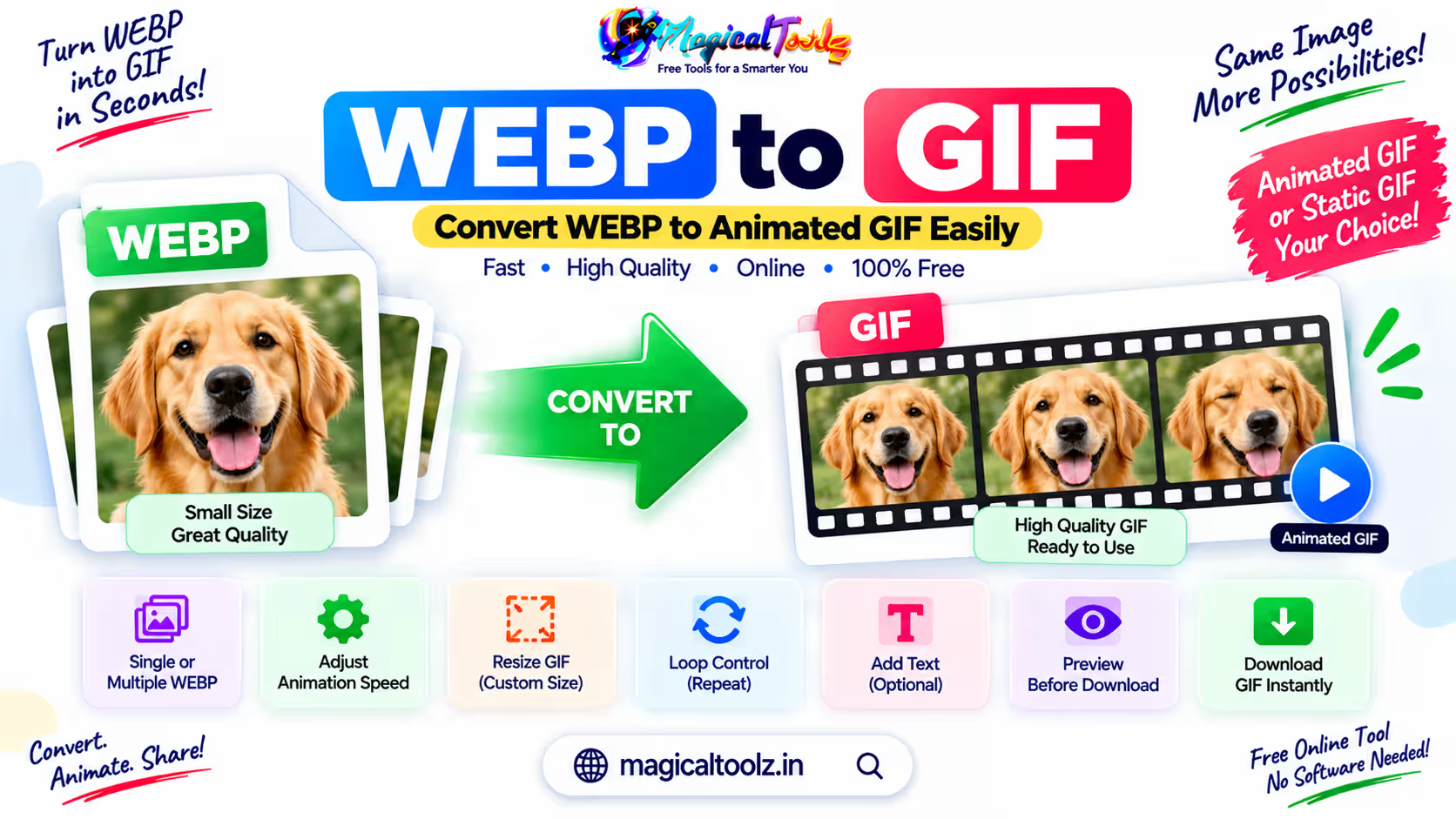
Check whether the WebP moves before converting it. An animated WebP needs every frame, delay and loop setting handled. A still WebP needs new frames or effects before the GIF can show motion.
A converter that only decodes one frame may produce a valid GIF that never moves. That is a still-image conversion, not animation preservation.
WebP and GIF store animation differently
WebP can store lossy or lossless frames with alpha transparency. GIF uses indexed color and each frame palette is limited to 256 colors. Detailed gradients and photographs can show banding or dithering after conversion.
GIF supports simple frame animation and broad playback support. MDN's image format guide explains GIF's indexed palette, simple transparency and animation, and also describes animated WebP.
Inspect the source animation
Play the WebP through at least three loops. Note:
- Frame count and total duration.
- Whether the loop repeats forever or stops.
- Long pauses on the first or final frame.
- Transparent areas and soft edges.
- Text that must remain readable.
- Rapid flashes or very short frame delays.
Keep the original file. If the GIF result fails, you need the source timing and pixels for another attempt.
Use a frame-aware converter
The converter should explicitly say that it supports animated WebP input. Look for a frame timeline or an output report showing more than one frame. A normal image canvas workflow may expose only the current or first frame.
- Add the WebP and wait for all frames to decode.
- Confirm the detected width, height and frame count.
- Preview the sequence in order.
- Keep source delays or set new delays deliberately.
- Choose the loop count.
- Set dimensions before color reduction.
- Choose palette and dithering options when available.
- Export the GIF and open the downloaded file in a browser.
Frame delay can change during conversion
Animation timing is stored per frame. Some tools round very short delays or apply one delay to every frame. That can make motion rush, pause or lose its rhythm.
Compare the total duration, not only the frame count. Give text enough time to read. Hold the final frame longer when the viewer needs to understand a result before the loop restarts.
GIF color reduction needs a visual check
A GIF palette cannot represent every color in a full photograph directly. The encoder chooses a smaller set and may use dithering to simulate missing shades.
Dithering can smooth a gradient but add a grain pattern and increase file size. Flat illustrations may need little or no dithering. Photo-like animations may look better as WebP or video instead of GIF.
Transparency can develop rough edges
GIF uses simple palette transparency, not smooth alpha in the same way as WebP. Semi-transparent shadows and curved edges can become hard or show a halo.
Preview on the final background. If the destination has a fixed color, flattening the animation against that color before GIF export may look cleaner.
Reduce size in the right order
- Crop unused space.
- Resize to the actual display dimensions.
- Remove duplicate frames.
- Lower frame rate only while motion stays clear.
- Reduce palette colors carefully.
- Adjust dithering after checking gradients and text.
- Compare the result with animated WebP or a short video.
A large photographic GIF can be far bigger than the WebP source. Conversion may improve compatibility while making delivery slower. Test the actual page or messaging service.
Still WebP to animated GIF
A still WebP has one frame. To create motion, make changed frames with a zoom, pan, reveal, text change or several source images. Duplicating the same frame does not create visible movement.
Keep the action short. GIF has no sound or built-in playback controls. Use video when the content needs narration, captions, pause or a long timeline.
Watch how partial frames are rebuilt
Animation formats can store only the region that changes from one frame to the next. The decoder combines those regions using disposal and blending instructions. A weak converter can leave trails, old pixels or blank patches when it interprets the sequence incorrectly.
Look at moving edges and transparent areas after export. If a previous frame remains visible, try a converter with explicit frame disposal support or rebuild the sequence as full frames. Full frames may increase size, but they make the intended picture clear.
Provide an accessible alternative
Do not put essential instructions only inside an endlessly moving GIF. Add nearby text that explains the same action. Avoid rapid flashing and motion that makes reading difficult.
For a tutorial, a video player with pause, replay and captions gives the viewer more control. For decorative animation, make sure the page still makes sense when the image does not load or the animation is ignored.
Final checks
- The downloaded GIF contains the expected frames.
- The order and total duration match the source.
- The loop setting works.
- Text stays readable.
- No harmful rapid flashing was introduced.
- Colors and transparent edges remain acceptable.
- The dimensions and file size fit the destination.
- The source WebP remains saved.
WebP to GIF questions
Why is the GIF not moving?
The tool may have exported only one frame, or the source WebP may be still.
Why did the colors change?
GIF uses a limited indexed palette and may apply dithering.
Can GIF preserve WebP transparency exactly?
No. GIF transparency is more limited, so soft edges can change.
Will GIF be smaller than WebP?
Often not, especially for large or photo-like animation.
Can a GIF contain sound?
No. Choose video when sound matters.
 Magical Toolz AI Support
Comments (0)
Use comments for article-specific feedback. Use the contact page for bugs and support requests.
Leave a Comment
No comments yet. Be the first to share something useful.