


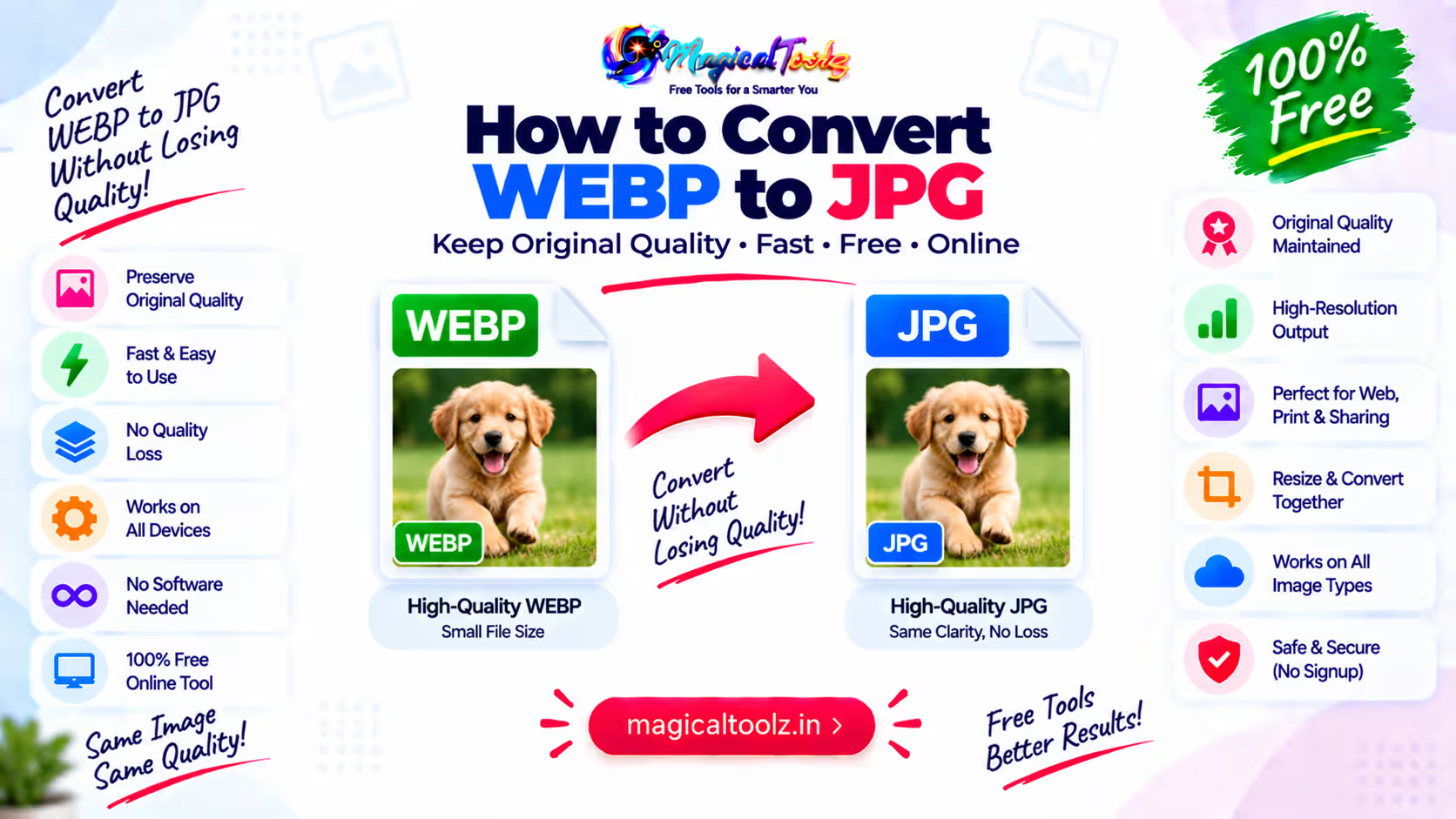
You cannot promise a WebP to JPG conversion with zero quality loss. JPG is lossy, and a transparent WebP must also be placed on a solid background before it can become JPEG.
A high-quality setting can make the change hard to notice, but the safe wording is simple: convert, compare and keep the WebP source.
Check whether conversion is needed
Use JPG when the receiving form, app or older system rejects WebP. If the destination already supports WebP, conversion may add compression and a larger file without solving anything.
Do not change the extension alone. A file named photo.jpg can still contain WebP data and fail an upload check. Real conversion decodes the WebP and encodes new JPEG data.
Choose the background before converting
WebP can contain alpha transparency. JPG cannot. Transparent and partly transparent pixels must be blended with a color.
White works for many forms and documents. A logo made for a dark page may need a dark fill. Check shadows, hair, curved edges and pale lettering. Once exported, those blended pixels cannot adapt to another background.
Quality numbers are not universal
A quality value of 90 is not a measurable promise that 90 percent of the source remains. Encoders use their own settings and trade-offs. Start high, inspect normal viewing size, then lower quality only when file size requires it.
Look for blocks in smooth areas, ringing around high-contrast edges and softness in small text. Detailed illustrations and screenshots may suit PNG better than JPEG if the destination allows it.
MDN's format guide describes WebP support for lossy, lossless and animated images, plus JPEG's role as a widely supported lossy format.
Convert one image with the live tool
The Universal Image Converter accepts one browser-decodable WebP and can export JPEG. The selected image is processed locally in the browser. It supports quality from 10 to 100, a chosen JPEG fill color and optional downscaling by maximum width.
The current limits are 50 MB and 40 megapixels. It does not provide batch conversion, animated frame export or a promise that every WebP variant can be decoded by every browser.
- Choose the WebP and confirm its preview and dimensions.
- Select JPEG output.
- Choose the color that should replace transparency.
- Set a quality suitable for the destination.
- Leave dimensions unchanged or enter a smaller maximum width.
- Convert and compare output size and appearance.
- Download the JPG and test it in the receiving service.
Animated WebP needs another workflow
A WebP can contain animation. A JPG stores one still image. A basic browser image conversion may use only one decoded frame. It will not turn the animation into a set of JPG files.
If you need frames, use a frame-aware animation tool and state which frame should be extracted. Keep timing, loop and color decisions separate from ordinary still-image conversion.
Resize before chasing a tiny quality setting
A 4,000-pixel image displayed at 800 pixels carries unnecessary data. Reduce dimensions to the real delivery size before applying harsh compression. This often saves more space while keeping the result easier to read.
Preserve the aspect ratio. A maximum-width resize should scale height proportionally and should not enlarge a smaller source.
Metadata and color may change
Browser export creates new image data and usually does not copy ordinary metadata. Color profiles may be normalized by the browser. Keep the source when dates, rights information, profiles or archival history matter.
For product color, print or client approval, compare the JPG in a managed workflow. A preview inside one browser is not enough.
Avoid double compression
Some websites recompress every uploaded JPG. If you create a very small, heavily compressed file first, the website may compress those damaged pixels again. Start with a clean output at sensible quality and the required dimensions.
Run one sample through the destination before converting a folder. Download or view the processed result if the service allows it. Check whether its own pipeline changes dimensions, strips color information or adds visible artifacts.
Examples that need different settings
Transparent logo for a white form: choose white fill, keep the intended dimensions and use high quality. Inspect letters and curved edges.
Product photo for a marketplace: match the required background and pixel size first. Keep enough quality for texture, labels and product color.
WebP screenshot for an older document system: expect small text to show JPEG artifacts. Use high quality, avoid unnecessary resizing and keep WebP or PNG when the system accepts either.
These settings solve different jobs. A single “best quality” value cannot choose the correct background, dimensions and content type for you.
Common problems
| Problem | What to check |
| A white box appeared | The WebP was transparent and white was used as the fill. |
| The JPG looks soft | Quality may be too low or the source contains sharp text. |
| The file is larger | The source WebP may already be more efficient. |
| The animation stopped | JPG stores a single still image. |
| Colors shifted | The conversion may have changed profile handling. |
| The upload still fails | Check size, dimensions and the service's other rules. |
WebP to JPG questions
Can WebP become JPG without any loss?
JPG uses lossy compression. A high setting may look close, but zero loss should not be promised.
Can JPG keep transparency?
No. Choose a solid background during conversion.
Will JPG always be smaller?
No. WebP may already compress that image more efficiently.
Can I convert an animated WebP to one JPG?
You can extract a still frame with suitable software. The JPG itself will not animate.
Should I delete the WebP?
No. Keep it as the source for future sizes, backgrounds and formats.
 Magical Toolz AI Support
Comments (0)
Use comments for article-specific feedback. Use the contact page for bugs and support requests.
Leave a Comment
No comments yet. Be the first to share something useful.