


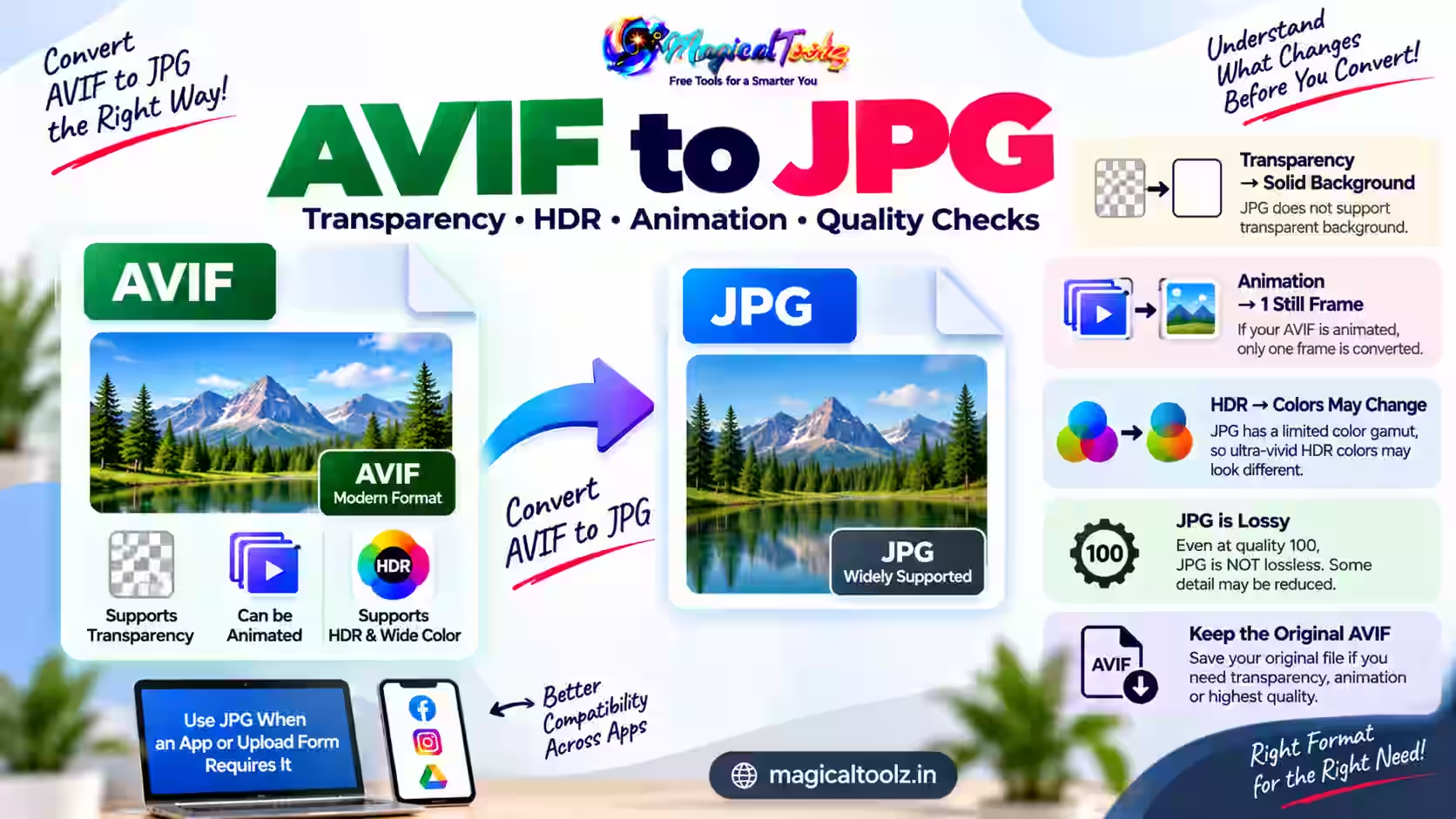
Before converting AVIF to JPG, check whether the AVIF contains transparency, animation or high dynamic range color. JPG stores one opaque still image, so those features cannot pass through unchanged.
Conversion makes sense when an older app or upload form accepts JPG but rejects AVIF. Keep the AVIF source because the JPG is a compatibility copy, not a richer master.
What AVIF may contain
AVIF supports lossy and lossless compression, alpha transparency, animation, higher bit depths and modern color information. JPEG is broadly compatible but normally uses lossy compression for an opaque still image.
MDN's image format guide lists AVIF capabilities and browser support. A converter must decode the source features, choose one rendered frame when necessary, flatten transparency and encode the rendered pixels as JPG.
Use the browser converter for supported still files
The Universal Image Converter accepts AVIF only when the current browser can decode that file. It handles one source at a time, with a 50 MB file limit and a 40-megapixel decoded-image limit.
Select JPEG output, choose quality from 10 to 100 and set a maximum width only when you need to scale down. The white transparency fill can be changed before conversion. The tool does not provide animation frame selection or HDR delivery controls.
- Open the AVIF in a current browser and inspect it first.
- Choose the file in the converter.
- Confirm that the preview and dimensions are correct.
- Select JPEG and choose the transparency fill.
- Leave width empty to keep source dimensions.
- Start near quality 88, then convert.
- Compare color, edges and byte size.
- Test the JPG in the app that rejected AVIF.
Transparency must become a color
JPG has no alpha channel. Transparent pixels need a solid fill. White suits many forms and product listings, while a dark site may require its actual background color to avoid a visible box.
Soft translucent edges can blend differently after flattening. Inspect hair, shadows, rounded logos and pale objects. If transparency must remain, use PNG or WebP instead of JPG.
Animation becomes one still image
An animated AVIF contains several frames and timing. The current converter is not a frame extractor. Browser decoding may expose only a rendered frame to Canvas, and the output JPG remains still.
Use animation-aware software when you need a specific moment or every frame. Play the source and confirm which frame the exported JPG represents. Never describe a still JPG as an animated conversion.
HDR and wide color need visual testing
An AVIF may contain brightness and color beyond an ordinary JPG workflow. Browser rendering and Canvas export can map that appearance into a more common range. Highlights may look flatter, shadows may shift and saturated colors may change.
Compare the output on the target device and in the receiving application. For professional color or HDR work, use color-managed software with explicit profile and tone-mapping controls.
Quality cannot be preserved exactly
JPEG encoding is lossy. Even quality 100 is not a promise of identical pixels, and it can produce a large file. Start with a high practical setting, then inspect detailed areas at normal size and 100 percent zoom.
If the AVIF itself used lossy compression, conversion adds another encoding stage. Find the original camera or design source when you need the best editable master.
Dimensions and orientation
Leave maximum width empty to retain decoded dimensions. A smaller width reduces pixels and often bytes. The current converter never upscales, which avoids pretending that enlargement creates detail.
Orientation can come from image transforms or metadata. Confirm that portrait images remain upright. Check width and height after download, not only the preview.
Metadata may not survive
The browser Canvas workflow creates a new image and does not copy ordinary metadata. Capture time, location, creator fields and source color information may be absent or normalized.
Keep the original AVIF and inspect the JPG with a metadata viewer when these fields matter. Do not use format conversion as the only privacy check.
Match the upload portal's real limits
A portal can require JPG and still reject the result because of byte size, dimensions, aspect ratio or filename characters. Read every rule before conversion. Format is only one condition.
If the JPG is too large, reduce dimensions before pushing quality very low. Documents with small text need enough pixels to remain readable. Test one file in the destination before converting the rest.
Confirm that the download is really JPEG
Open the downloaded file in another application and inspect its type. The filename should end in .jpg, but the encoded data also needs to be JPEG. Renaming an AVIF extension cannot produce that data.
Check width, height, byte size and orientation. Compare the four edges against the source so an unexpected crop does not go unnoticed. Keep filenames distinct to avoid overwriting the AVIF.
Diagnose a failed conversion
Try opening the source directly in the same browser. If it does not display, the browser may lack support for that AVIF variant. A damaged file, very large decoded dimensions or an animation can also exceed the simple workflow.
Try a current browser, then use a desktop application with explicit AVIF support if the problem remains. Do not upload a private image to random converters merely because one browser decoder failed.
AVIF to JPG questions
Why will my AVIF not open?
The browser may not decode that file, or it may be damaged or outside the tool limits.
Can JPG keep transparency?
No. Choose a solid fill or use a format with alpha support.
Does animation survive?
No. The result is one still JPG.
Is quality 100 lossless?
No. Normal JPEG encoding remains lossy.
Can I batch-convert AVIF files?
Not with the current Universal Image Converter, which handles one file at a time.
 Magical Toolz AI Support
Comments (0)
Use comments for article-specific feedback. Use the contact page for bugs and support requests.
Leave a Comment
No comments yet. Be the first to share something useful.