

Calorie Calculator Online
How Calorie Calculator Online Works — Example
How was your experience?
Rate Calorie Calculator Online — one tap is enough.
About Calorie Calculator Online
What does Calorie Calculator Online do?
Estimates your BMR and TDEE using the Mifflin-St Jeor equation, then applies a goal-based calorie target and macro split with a built-in safety floor.
How a Calorie Calculator Estimates Daily Energy Needs
A calorie calculator gives you a practical starting point for daily energy planning. It does not measure your metabolism in a lab. Instead, it combines your body details with a tested equation and an activity factor. The result can help you plan for maintenance, a calorie deficit, or a calorie surplus.
The Magical Toolz calorie calculator is designed for adults from age 18 through 120. You can enter measurements in metric or imperial units. You then choose an activity assumption and type your own daily calorie adjustment. As a result, this calorie calculator does not limit you to a preset list of weight goals.
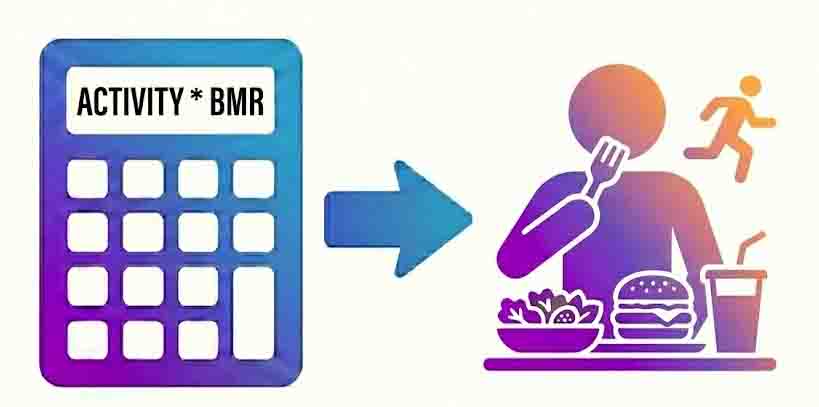
First, this calorie calculator estimates Basal Metabolic Rate, or BMR. This is the energy your body uses at rest over 24 hours. For example, your heart, lungs, brain, and other organs still need energy when you are not exercising. Therefore, BMR forms the base of the estimate.
Next, the calorie calculator estimates Total Daily Energy Expenditure, or TDEE. It multiplies BMR by the activity factor you select. Finally, it adds your chosen daily adjustment to maintenance calories. Thus, this produces the daily target shown in the results.
The Mifflin-St Jeor Formula Used by the Tool
The calorie calculator uses the Mifflin-St Jeor equation. The formula was published in 1990 and is widely used to predict resting energy needs. A 2005 systematic review found that it predicted resting metabolic rate within 10% of measured values for 82% of non-obese adults and 70% of obese adults. Even so, an equation remains an estimate rather than a direct measurement.
Mifflin-St Jeor uses formula sex, body weight, height, and age. The equations are:
- Male constant: BMR = (10 x weight in kg) + (6.25 x height in cm) - (5 x age in years) + 5.
- Woman's version: same weight, height, and age terms as above, but the fixed constant at the end changes to −161 instead of +5.
If you choose imperial units, the calorie calculator converts pounds to kilograms and inches to centimetres before applying the formula. The displayed units change for easier entry, but the underlying equation stays the same. This keeps results consistent across both unit modes.
The age field accepts adult ages from 18 to 120. Also, height and weight must both be positive. If one of these checks fails, the calorie calculator shows an error instead of presenting a misleading result. Children have different growth and energy needs, so this adult model is not intended for them.
How Activity Factors Turn BMR Into TDEE
BMR covers resting needs, but most people move throughout the day. For that reason, the calorie calculator applies one of five activity factors. The chosen factor represents both routine movement and planned exercise. It is an assumption, not a reading from a wearable device.
- Sedentary: BMR x 1.2.
- Lightly active: BMR x 1.375.
- Moderately active: BMR x 1.55.
- Very active: BMR x 1.725.
- Extra active: BMR x 1.9.
Moderately active, with a factor of 1.55, is the initial selection. However, the best choice is the one that reflects your normal week. Do not select a high level only because one workout felt hard. A desk-based day with a few weekly sessions may fit a lower factor than expected.
NEAT, Exercise, and Food Digestion
Total daily expenditure includes several types of energy use. Non-Exercise Activity Thermogenesis, often called NEAT, covers movement outside planned workouts. For instance, walking around the house, standing, shopping, and doing chores all count. In fact, this movement can differ greatly between people with similar body sizes.
Exercise Activity Thermogenesis is energy used during planned training. Meanwhile, the Thermic Effect of Food is the energy used to digest and process meals. For example, protein has the highest thermic effect of the three main macros. Roughly 20% to 30% of its energy may be used during digestion.
A single activity multiplier cannot map every part of your day. Still, it gives the calorie calculator a useful way to move from resting needs to an everyday estimate. If results consistently miss your observed trend, review the activity choice before making a large food change.
Set a Custom Daily Calorie Adjustment
This calorie calculator does not use a preset goal dropdown. Instead, you enter an adjustment relative to maintenance. The allowed range is -2,000 to +2,000 kcal per day, and the input control moves in 50-kcal steps. In particular, a negative value creates a deficit, zero keeps the target at estimated maintenance, and a positive value creates a surplus.
For example, enter -300 to place the daily target 300 kcal below estimated TDEE. Enter 250 to place it 250 kcal above TDEE. Because the value is editable, you can compare conservative and larger changes without being forced into named goal categories.
The calorie calculator uses a direct relationship:
Daily target = estimated TDEE + daily adjustment.
The final target must be positive. If your deficit would make the result zero or negative, the calorie calculator asks you to reduce the deficit or review your inputs. This validation prevents a non-positive number from being shown as a usable food target.
Deficits, Maintenance, and Surpluses
A moderate adjustment may be easier to follow than a severe one, but this tool does not prescribe a medically suitable deficit. You can test values such as 250 or 500 kcal as planning scenarios. However, real weight change is not perfectly linear. Water balance, digestion, training, and logging errors can all move the scale.
You can also test a positive adjustment, such as 250 or 500 kcal, as a muscle-gain scenario. Those figures are examples rather than personal recommendations. A larger surplus does not mean that all extra weight will be muscle, and training experience, recovery, protein intake, and genetics matter.
Maintenance can be useful for weight stability or body recomposition. Beginners and people returning to training may sometimes gain muscle while losing fat near maintenance. In each case, treat the calorie calculator as a starting estimate. Your measured trend over several weeks provides better feedback than one day's scale reading.
Very-Low Results and the 1,200 Kcal Warning
The calorie calculator does not force a 1,200-kcal or 1,500-kcal floor. It calculates the result from your inputs and selected adjustment. If the target falls below 1,200 kcal, the status changes to a very-low estimate warning. The number is not automatically raised.
Medical disclaimerThis calorie calculator provides population-based estimates for education and planning. It is not medical advice, a diagnosis, or a certain outcome. A very-low target may not provide enough energy or nutrients for you. Speak with a doctor or registered dietitian before restricting calories, especially during pregnancy, while breastfeeding, with an eating disorder history, or when a medical condition or medicine affects appetite, weight, or metabolism.
Do not treat the warning threshold as proof that every value at or above 1,200 is suitable. For instance, needs differ by body size, health, and life stage. Likewise, a result below that point is a prompt to seek qualified guidance, not a personalized prescription.
Food quality still matters at any energy target. The World Health Organization healthy diet guidance describes adequacy, balance, moderation, and diversity as core principles. Therefore, a calorie number should sit within a varied eating pattern that can cover macro and micronutrient needs.
Build an Editable Macronutrient Split
The calorie calculator lets you edit the percentages for protein, carbohydrate, and fat. It does not assign fixed ratios based on a selected weight goal. The starting fields show 30% protein, 40% carbohydrate, and 30% fat, but you may change all three.
Each percentage must be nonnegative. Also, the three values must total exactly 100%. If they do not, the calorie calculator displays an error and pauses the result update. This check keeps every calorie in the target assigned to one of the three macros.
Protein and carbohydrate each provide 4 kcal per gram. Fat provides 9 kcal per gram. Therefore, the calorie calculator converts percentages into grams with these calculations:
- Protein grams: target calories x protein percentage / 100 / 4.
- Carbohydrate grams: target calories x carbohydrate percentage / 100 / 4.
- Fat grams: target calories x fat percentage / 100 / 9.
Protein supports tissue repair and helps preserve lean mass during a deficit. Meanwhile, carbohydrate supplies energy for the brain, nervous system, and higher-intensity exercise. Fat supports cell membranes, hormone production, and the absorption of vitamins A, D, E, and K.
Still, the displayed grams are arithmetic outputs from your chosen split. They are not a clinical judgment about the best ratio for you. If you have kidney disease, diabetes, digestive disease, or another condition that affects diet, ask a qualified professional to review your plan.
A Worked Calorie Calculator Example
ExampleConsider a 32-year-old man who weighs 80 kg and is 178 cm tall. Choose the moderate factor of 1.55. Mifflin-St Jeor gives a BMR of about 1,758 kcal. Multiplying by 1.55 gives maintenance of about 2,724 kcal. With a -500 kcal adjustment, the daily target is about 2,224 kcal. At a chosen 30% protein, 40% carbohydrate, and 30% fat split, the result is about 167 g protein, 222 g carbohydrate, and 74 g fat.
This example shows why inputs must be read together. The adjustment changes the calorie target, while the percentages divide that target into macro grams. By contrast, changing only the macro split does not alter total calories. Changing body data, activity, or the adjustment changes the energy result.
Rounding also matters. The calorie calculator shows whole kcal and whole macro grams in its main result cards. Small differences from hand calculations are normal because intermediate formula values can contain decimals.
Use the Sensitivity Chart to Check Activity Assumptions
The activity-factor sensitivity chart compares all five factors with the same body inputs and daily adjustment. This makes the effect of activity easy to see. The currently selected factor has a distinct bar colour, while the other bars provide nearby comparisons.
Suppose you are unsure between lightly active and moderately active. Instead of rebuilding the calculation, review both bars in the calorie calculator chart. The gap shows how much that single assumption changes the target. As a result, you can see why overestimating activity may lead to a target that is too high for your real routine.
The chart is not a forecast of scale change. Instead, it is a sensitivity view of the formula. Wearable estimates and gym-machine readings also contain uncertainty, so use several weeks of consistent observations to refine your assumptions.
Compare Deficit, Selected, and Surplus Scenarios
Below the chart, the calorie calculator displays three planning scenarios. The deficit example uses -500 kcal, the selected plan uses your entered adjustment, and the surplus example uses +500 kcal. In addition, each row shows its daily target and weekly energy difference.
More specifically, the weekly figure is the daily adjustment multiplied by seven. For example, -500 per day appears as -3,500 kcal per week. That value describes an energy-plan difference, not a promised change in body weight. Metabolic adaptation, fluid shifts, adherence, and measurement error affect real outcomes.
Good to knowUse the scenario table to compare planning choices, not to predict an exact date or scale result. A smaller adjustment that you can follow consistently may be more useful than an aggressive target that disrupts energy, training, or eating habits.
How to Use the Calorie Calculator
- Choose units: Select Metric for kilograms and centimetres, or Imperial for pounds and inches.
- Enter body details: Choose the formula sex, then enter an adult age from 18 to 120, a positive weight, and a positive height.
- Select activity: Pick the factor that best matches your usual routine rather than your busiest day.
- Set the adjustment: Enter a value from -2,000 to +2,000 kcal relative to maintenance, using 50-kcal steps.
- Edit macros: Use nonnegative protein, carbohydrate, and fat percentages that total exactly 100%.
- Read the results: Review BMR, maintenance, daily target, and macro grams.
- Compare views: Check the sensitivity chart and the three planning scenarios before saving or sharing a plan.
The calorie calculator updates as you change valid inputs. If an error appears, read it before using an older displayed number. For example, invalid body values, macro totals, adjustments, or non-positive targets must be corrected first.
Save, Export, Share, and Print a Plan
You can save a valid plan to the history section of the calorie calculator. As a result, saved plans remain in the current browser through local browser storage. Select a history item to restore its units, body inputs, activity factor, adjustment, and macro percentages. You can also clear the saved history.
The Download JSON button exports the current result and its assumptions as a structured file. For example, it includes inputs, BMR, maintenance calories, target calories, macro grams, a notice, and the calculation time. Therefore, the file is useful for your own records or for discussing assumptions with a professional.
The Share Summary action uses the browser's available sharing method. It shares a short estimated daily target and an estimate notice. Meanwhile, Print Report opens the normal print flow. Thus, you can print the visible report or save it as a PDF if your system offers that option.
However, these actions do not make the estimate more precise. They simply help you keep or communicate the selected plan. Before sharing health information, check who will receive it and which app or printer you have chosen.
Browser Privacy and Saved History
Your entered values are used on the device to produce the result. However, saved plans are not the same as temporary calculation data. When you choose Save Plan, the calorie calculator stores that plan in this browser so it can appear in history later.
A downloaded JSON file is stored wherever your browser saves downloads. In contrast, sharing can pass the summary to another app or service that you select. Printing may also create a paper copy or local PDF. For that reason, manage those copies according to your own privacy needs.
Choosing an Activity Factor That Is Too High
For example, people often count planned exercise but overlook a mostly seated day. Choose a level that reflects the whole week. Then use the sensitivity chart to see how another factor would affect the result.
Changing Too Many Inputs at Once
If you change activity, adjustment, and macros together, you may not know which choice caused the difference. Instead, adjust one field and review the result. This makes the calorie calculator easier to use as a comparison model.
Treating Macro Grams as Fixed Rules
The macro results come from percentages that you control. They are not fixed meal-plan rules. Check that your chosen split suits your food preferences, training, and any advice from your healthcare team.
Reacting to One Scale Reading
Body weight can change from water, sodium, carbohydrate intake, and digestion. Therefore, one morning does not prove that a target works or fails. Review a consistent trend over time and seek qualified guidance if you need a personal assessment period.
Ignoring Changes in Body Weight
Energy needs tend to change as body weight changes. Re-enter your current weight whenever you want the formula to use a newer measurement. The updated calorie calculator result can then provide a fresh planning baseline without implying one required recalculation interval.
Sleep, Stress, Hydration, and Plateaus
Calorie planning is only one part of weight management. Poor sleep may increase hunger and make a deficit harder to follow. Stress can also affect appetite, food choices, recovery, and temporary water retention. Consequently, the scale can pause even when food logging is fairly consistent.
Hydration supports normal digestion and physical performance. It may also help you separate thirst from hunger. Yet drinking more water does not cancel a persistent calorie surplus, and dehydration is not a sound weight-loss method.
If your trend stalls for two to three weeks, check the basics before making a severe cut. Review portions, drinks, weekend meals, activity, sleep, and recent body-weight changes. Then rerun the calorie calculator with updated inputs. A modest adjustment is usually easier to assess than a sudden, large reduction.
What This Estimate Cannot Capture
No population formula can account for every personal factor. Pregnancy, growth, medication, medical conditions, and individual metabolism may shift real needs away from the estimate. Hypothyroidism, PCOS, illness, and a history of repeated dieting can also affect weight management in ways that one equation cannot diagnose.
By comparison, indirect calorimetry in a clinical setting can measure resting energy use more directly. Even then, daily movement and food intake still vary. For everyday planning, the calorie calculator offers a clear model with visible assumptions. Use your real trend and qualified medical advice to place that model in context.
Related Health and Math Tools on Magical Toolz
| Tracking progress | Percentage Calculator - measure percentage changes in weight or other logged values. |
| Quick math | Basic Calculator - check arithmetic with an on-screen history tape and memory keys. |
Frequently Asked Questions
Why does this calculator enforce a 1,200/1,500 kcal daily safety floor?
Dropping below 1,200 kcal/day for women or 1,500 kcal/day for men makes it very difficult to meet essential micronutrient needs and can trigger metabolic adaptation, fatigue, and muscle loss. The calculator enforces these minimums regardless of how aggressive your selected deficit is.
How accurate is the Mifflin-St Jeor equation for estimating BMR?
A 2005 systematic review in the Journal of the American Dietetic Association (Frankenfield et al.) found Mifflin-St Jeor predicts resting metabolic rate within 10% of measured indirect calorimetry for about 82% of non-obese and 70% of obese adults — the most accurate of the equations tested, though still a population-average estimate, not a personal measurement.
How do I choose the correct activity level for my TDEE calculation?
Pick the level that reflects your whole week, not just workouts. A desk job with light exercise 3 days a week is closer to "Lightly Active" than "Moderately Active." If you're unsure, choosing the lower option gives a safer baseline for a fat-loss goal.
What is the difference between BMR and TDEE?
BMR is the calories your body burns at complete rest just to keep vital organs functioning. TDEE is that BMR multiplied by an activity factor to account for daily movement, workouts, and digestion.
How many calories should I cut to lose about 0.5 kg (1 lb) a week?
A daily deficit of 500 calories below your maintenance TDEE creates a cumulative 3,500-calorie deficit over seven days, roughly equal to 0.5 kg (1.1 lbs) of fat.
Does the macro split stay the same no matter which goal I pick?
No. Maintain Weight uses a 30% protein / 35% carbs / 35% fat split. Any weight-loss goal shifts to 40% protein / 30% carbs / 30% fat to help protect muscle. Any weight-gain goal shifts to 25% protein / 50% carbs / 25% fat to fuel training.


Try other tools
Find more PDF, image, calculator and utility tools. Check each tool's access label for free or premium availability.
 Magical Toolz AI Support
Discussion
No comments yet. Be the first to comment!